.svg)
The ability to mount an existing Azure Blob Storage container as a Network Folder is available in FileCloud Server version 19.2 and later.
Administrators can integrate Azure Blob Storage container with FileCloud Server to allow users access to this data inside FileCloud Server portals and clients.
-
No versioning support (Version key will be ignored and file will be overwritten)
-
No real time network sync or indexed search is allowed (Regular file search will work)
To create a network share from the Azure Blob Storage Container:
-
Open a browser and log in to the Admin Portal.
-
In the left navigation panel, select Network Folders.
-
On the Manage Network Folders window, click Add (

).
-
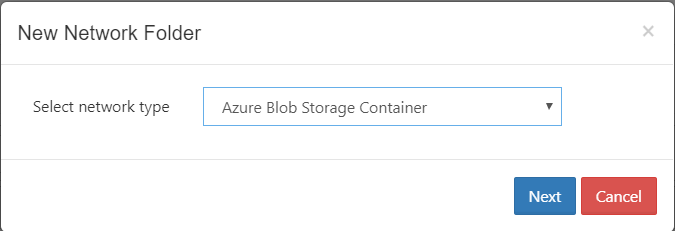
On the New Network Folder dialog box, in Select network type, select Azure Blob Storage Container, and then click Next.
-
In the Enter User Visible Network Folder name step, type in a unique name for the Network Folder and then click Next.
-
In the Azure Blob Storage access information step, type in the authentication credentials in Azure - Account Name and Account Key, and then click Next.
-
In the Information to connect to your container step, type in the Container Name and (optional) the Endpoint Suffix, and then click Next
-
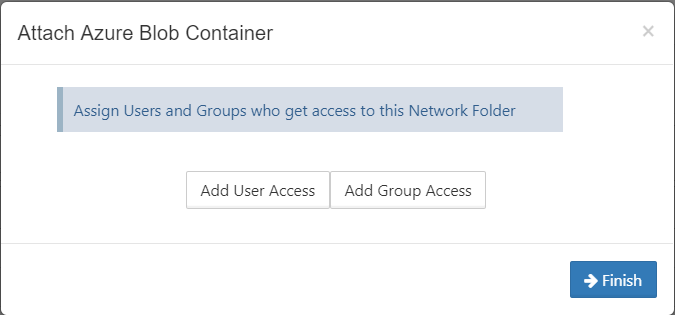
When the Azure Blob Storage container is mounted as a network share, permissions need to be assigned to users or group to allow access. The network share access can be granted to: