.svg)
The Secure Web Viewer (Beta version) is available in FileCloud versions 23.232 and later.
Note: The Secure Web Viewer is not included with some licenses, such as the FileCloud Community Edition license and the FileCloud Essentials license.
Users have the ability to publicly or privately share certain file types (jpg, png, pdf, docx, and pptx) with the protection of digital rights management (DRM) by requiring them to be viewed through FileCloud's Secure Web Viewer. The Secure Web Viewer requires public share recipients to enter a password to view the share. It can also limit access in other ways for both private and public shares, such as only permitting small portions of the file to be viewed at a time.
FileCloud's Secure Web Viewer for viewing securely shared files is not the same as FileCloud's Secure Document Viewer for viewing securely exported files. The Secure Document Viewer is a stand-alone app, while the Secure Web Viewer is web-based, and open to further refinement based on user input.
Only files of 20MB or less can be viewed through the Secure Web Viewer.
For more information about how a Secure Web Viewer share is created, see Public File Sharing with Secure Web Viewer Protection and Private File Sharing with Secure Web Viewer Protection.
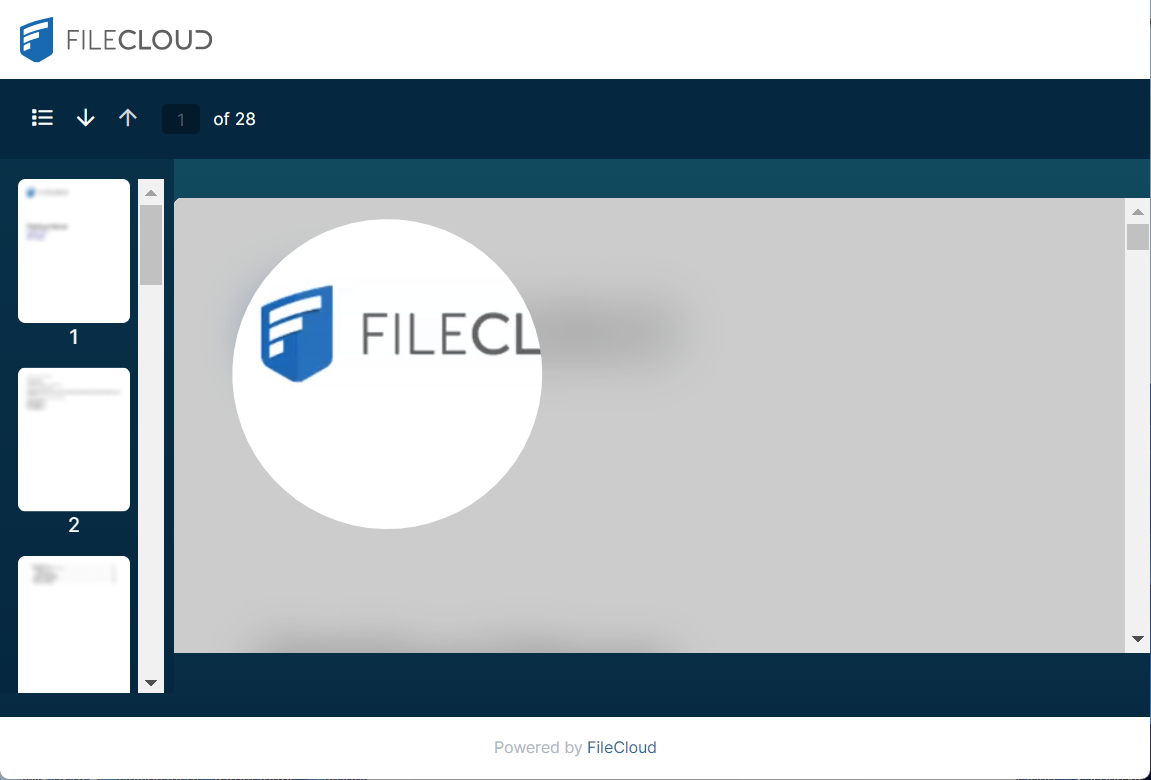
File viewed through the Secure Web Viewer with limited view (partial file viewing) enabled.
The Secure Web Viewer option
When Enable WebDRM is enabled, an option for creating public or private shares that must be viewed through the Secure Web Viewer is available in the Share link dialog box for jpg, png, pdf, docx, and pptx files of 20 MB or less. For other file types and files greater than 20 MB, the option appears disabled.
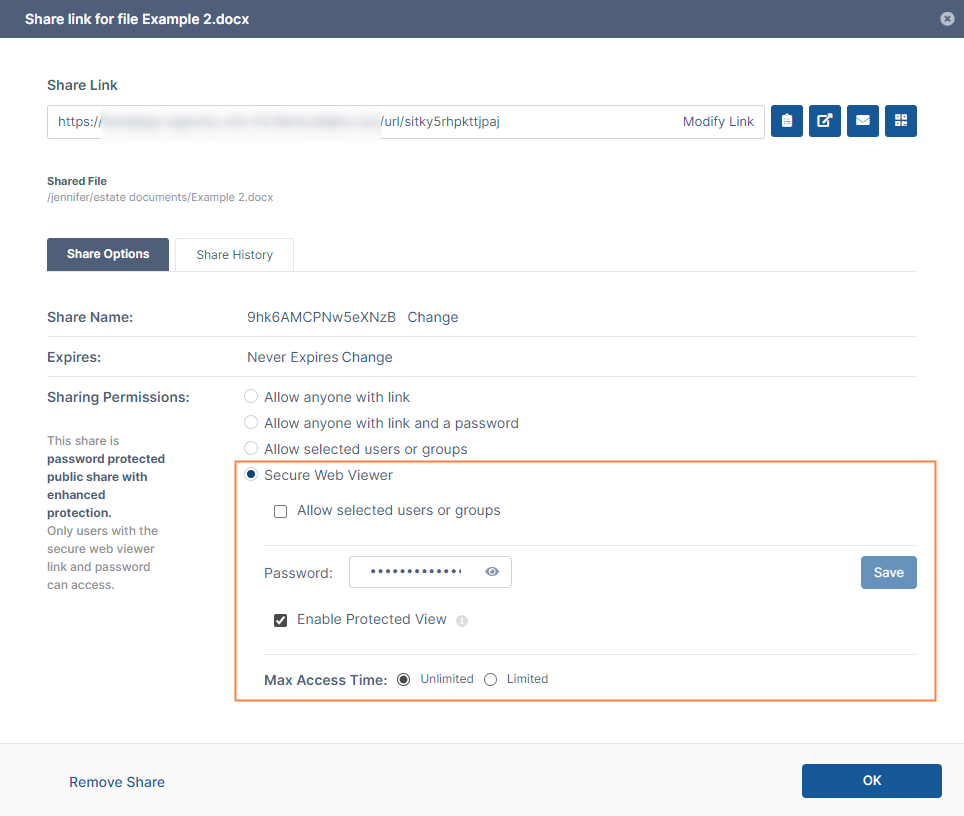
Prerequisites for use of the Secure Web Viewer:
-
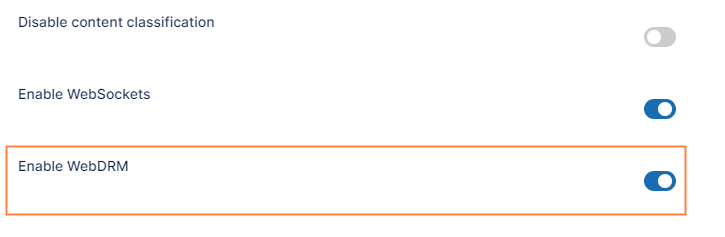
The Enable WebDRM option in the Misc settings page is enabled. Note that it is enabled by default; if it has been disabled, see the steps to re-enable it below.
-
A valid SSL connection is configured.
-
Document Preview is installed.
For Windows installation, see Installing and Running Document Converter for Windows.
For Linux installation, see LibreOffice Ubuntu/RHEL Instructions.
To disable/re-enable use of the Secure Web Viewer option:
-
In the FileCloud admin portal's left navigation bar, scroll down and click Settings. Then, on the Settings navigation page, click Misc

By default, General settings are opened. -
Scroll down to the setting Enable WebDRM and disable or re-enable it.
-
Click Save.