.svg)
The FileCloud Secure Web Viewer requires users to enter a secure web link and password to view file shares. Optionally, the number of times users are allowed to view the file is limited or viewing is controlled by requiring users to view a small portion of the file at a time through a draggable lens. Only files of types jpg, png, pdf, docx, and pptx that are less than 20 MB are available for viewing through the Secure Web Viewer. For more information, see Using the Secure Web Viewer.
To create a public share that must be viewed through the Secure Web Viewer:
-
In the user portal, hover over the file and click the Share icon.

The Share link dialog box opens.
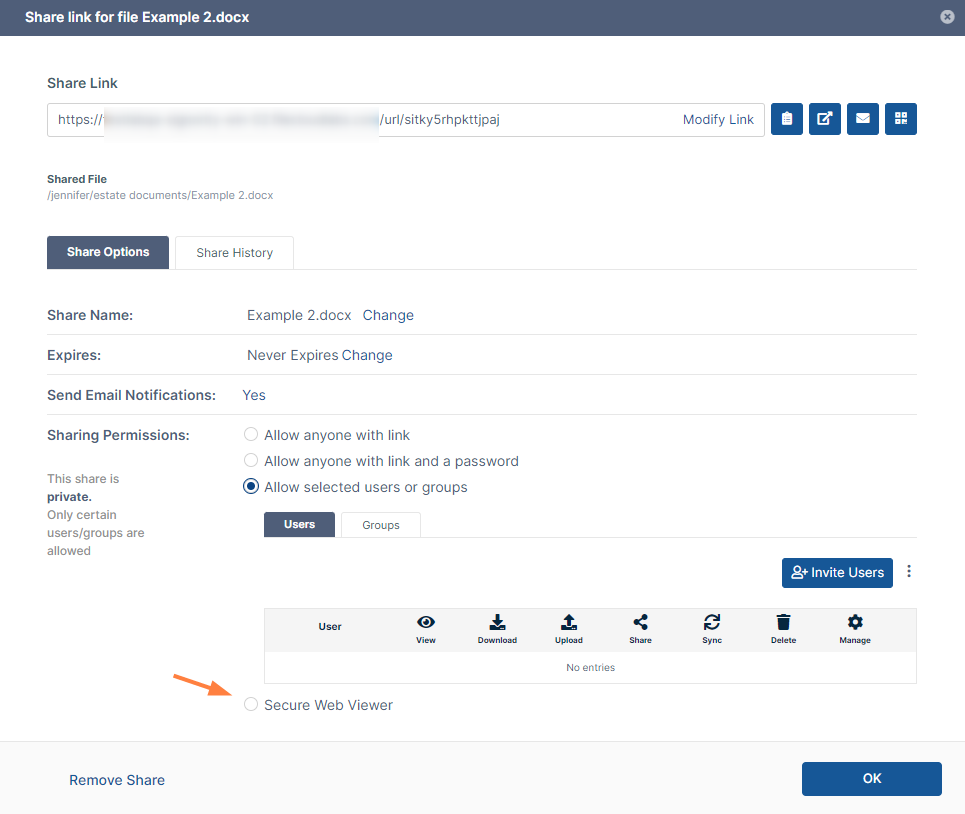
By default, the share is a private share. -
Check Secure Web Viewer.
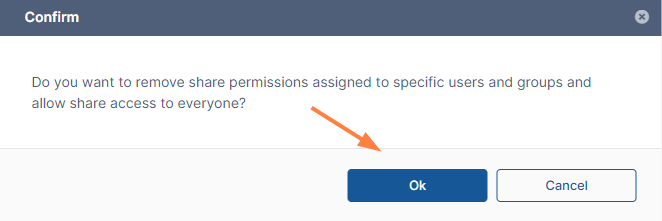
By default, Secure Web Viewer shares are public shares, so the following confirmation dialog box appears. -
Click Ok.
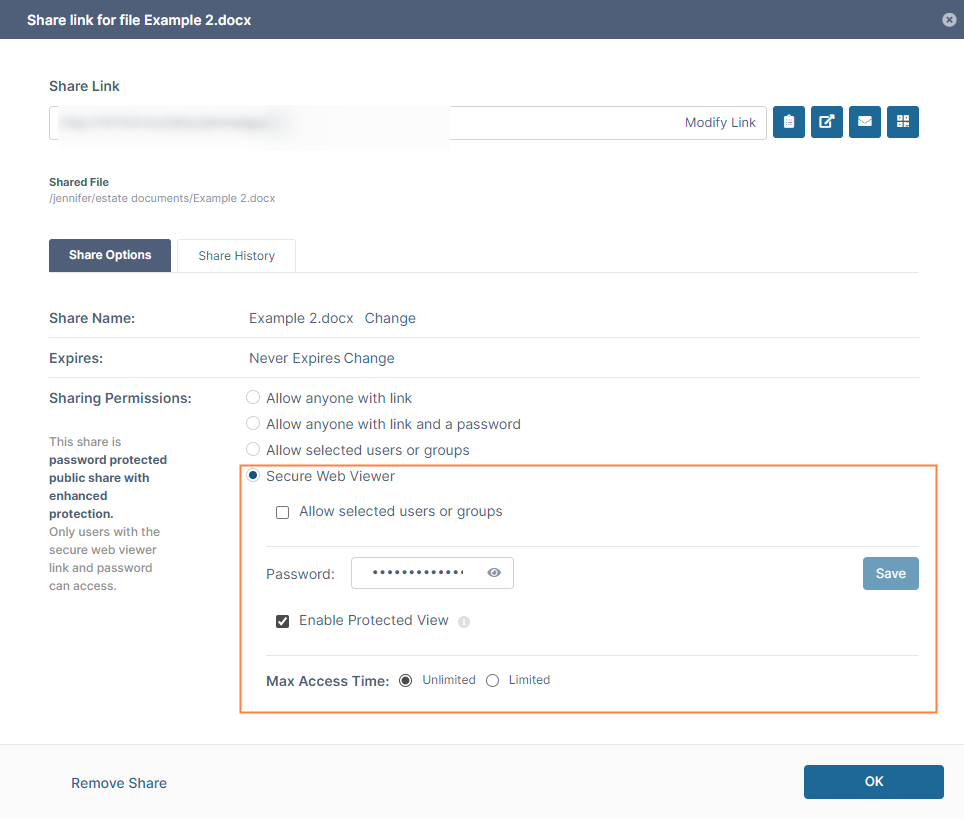
The Secure Web Viewer settings open.
-
If you want to use a custom password, write over the value in Password and click Save.
-
By default, Enable Protected View is checked, which requires share recipients to view small portions of the share at a time through a draggable lens, as shown in the image below.
To enable users to view the entire file at the same time, uncheck Enable Protected View. -
To limit the number of times that a user can view the share, for Max Access Time select Limited, and enter the number of times.