.svg)
Administrators must keep FileCloud Server up-to-date with the latest version to take advantage of the new features, enhancements, and fixes for issues found in previous versions.
How do I know if an upgrade is available?
-
FileCloud will always inform customers when a new upgrade is available.
-
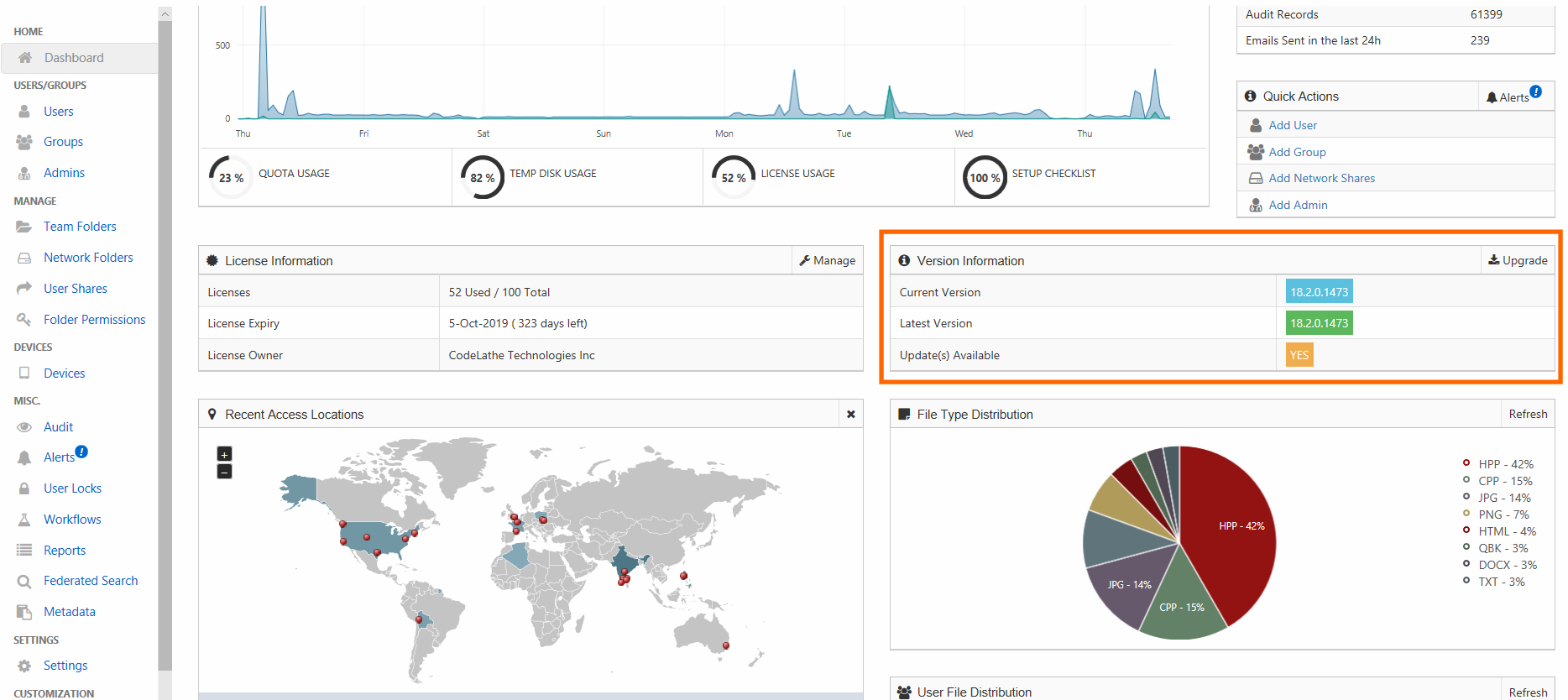
When you log on to the Admin Portal, the Admin Dashboard will also alert you to the fact that you can install an update.
Where is the notification on the Admin Dashboard?
The Version section is right next to the License section on the Dashboard.
How do I enable the weekly email?
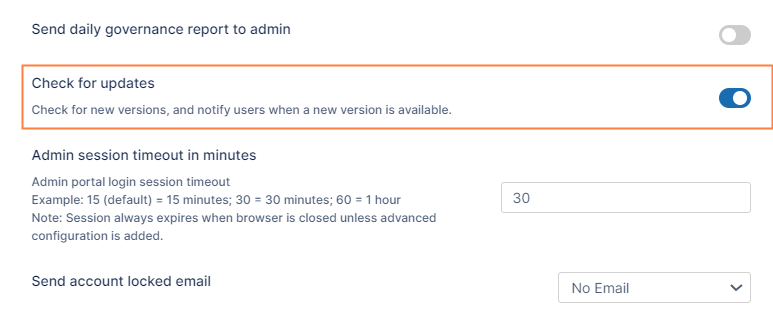
To check for updates on a weekly basis:
-
In the FileCloud admin portal's left navigation bar, scroll down and click Settings. Then, on the Settings navigation page, click Admin

The Admin settings page opens. -
Scroll down to Check for updates, and enable it.
-
Click Save.
To stop receiving the weekly email, disable this setting.
Remember to back up FileCloud before upgrading.
For instructions on upgrading from your current version of FileCloud, see Upgrade Notes .
To upgrade, see:
Custom settings in configuration files that are replaced during upgrade are not reset in the new configuration files.
Check If the following files are replaced with newer versions during upgrade, and in the case that they are replaced, reconfigure any custom settings after upgrade:
C:\xampp\apache\conf\httpd.conf
C:\xampp\apache\conf\extra\httpd-filecloud.conf