.svg)
Our team of experts have more than 10 years of experience providing hands-on help for Global 1000 enterprises, educational institutions, government organizations, managed service providers and anything in between.
Where can I get my license key, and how do I enter a ticket?
To open a new ticket, you need your license key.
To get your license key:
-
In the admin portal, go to Settings > License.
-
Click Copy License Key.
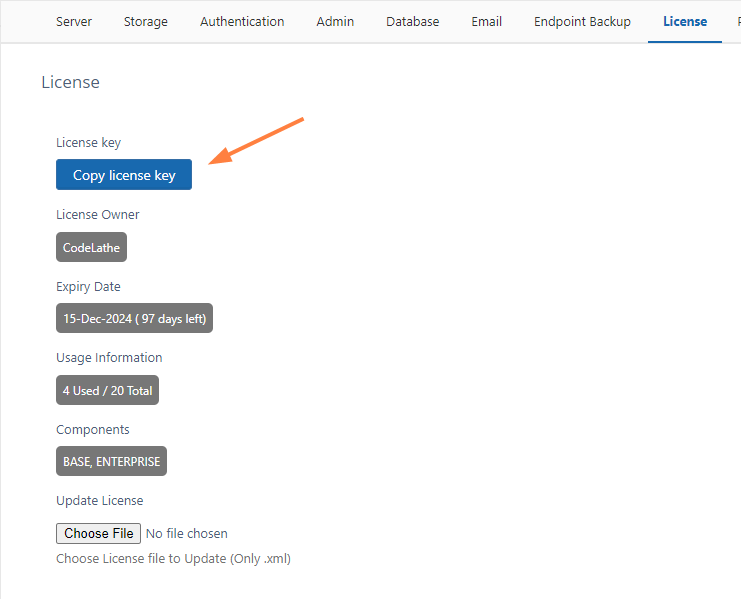
Note: The Copy license key button does not appear for systems with SPLA licenses. If your system uses an SPLA license, get your license key from the customer portal as shown in the following info box.
Alternatively, get your license key from the customer portal:
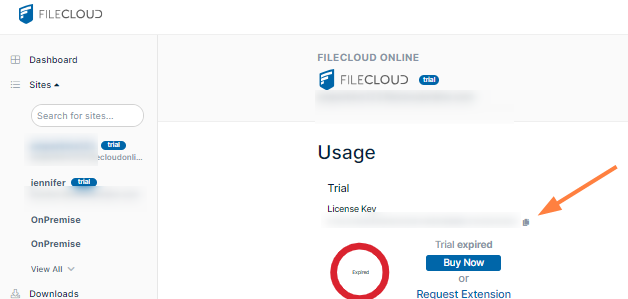
Log in to portal.filecloud.com with your account credentials. In the navigation panel, click Sites, and then in the main window, click the site to open its details.
In the Usage section, copy the text for the license key by clicking the copy button to the right.
-
Your license key is now copied to your clipboard. Save it in a safe place. You can use it every time you need to open a new ticket.
-
Go to the knowledge base to open a new ticket.
-
Register for an account if you do not have one.
-
Log in to the knowledge base.
-
Click My Tickets.
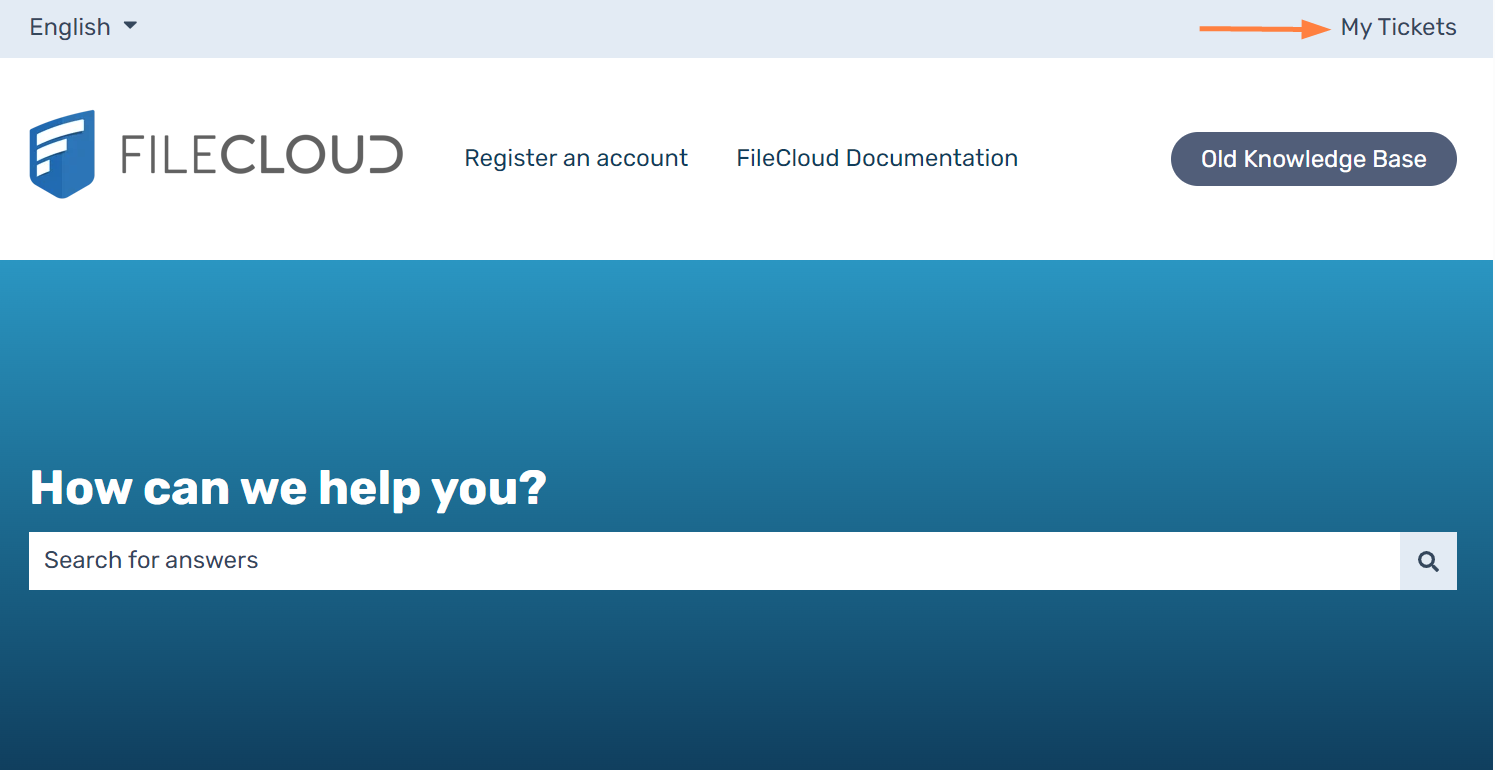
The Tickets screen opens. -
Click Create a ticket.
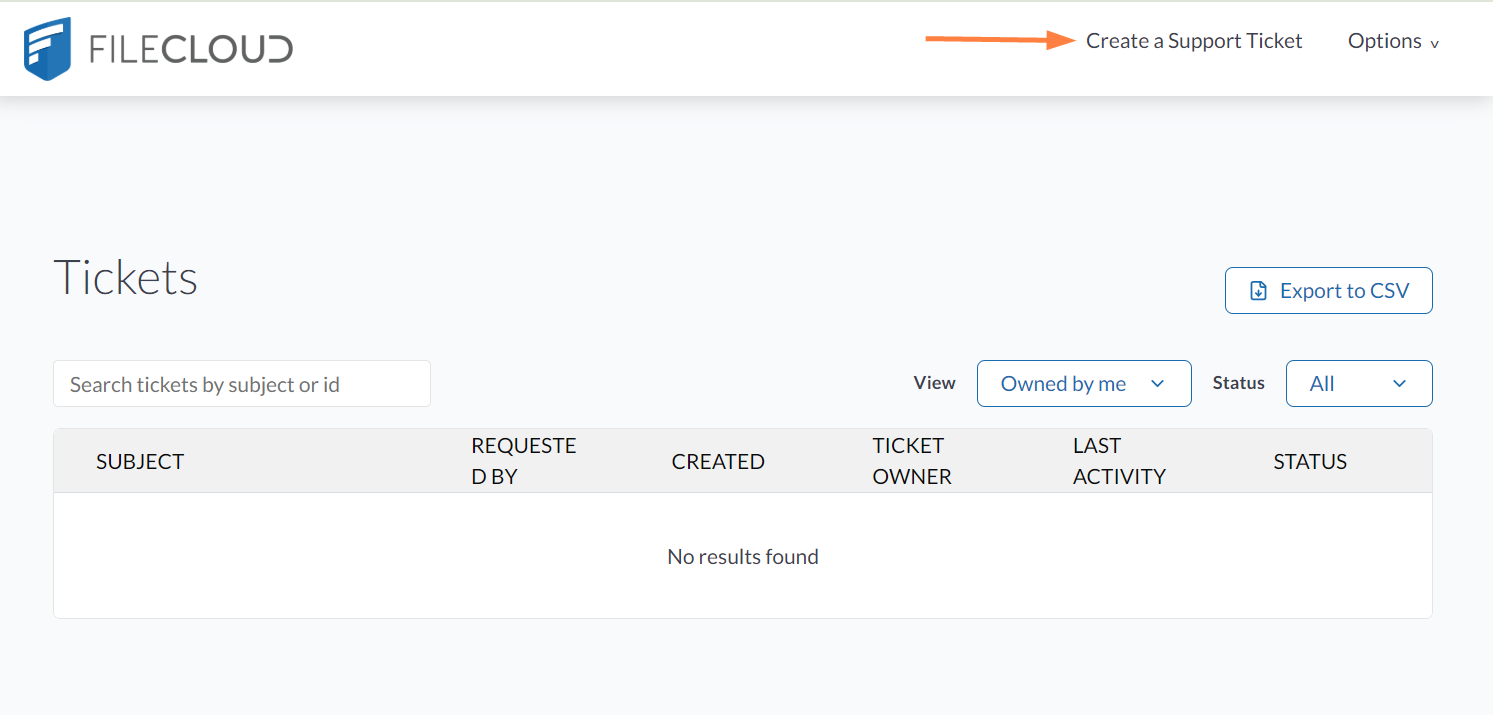
A ticket form opens. -
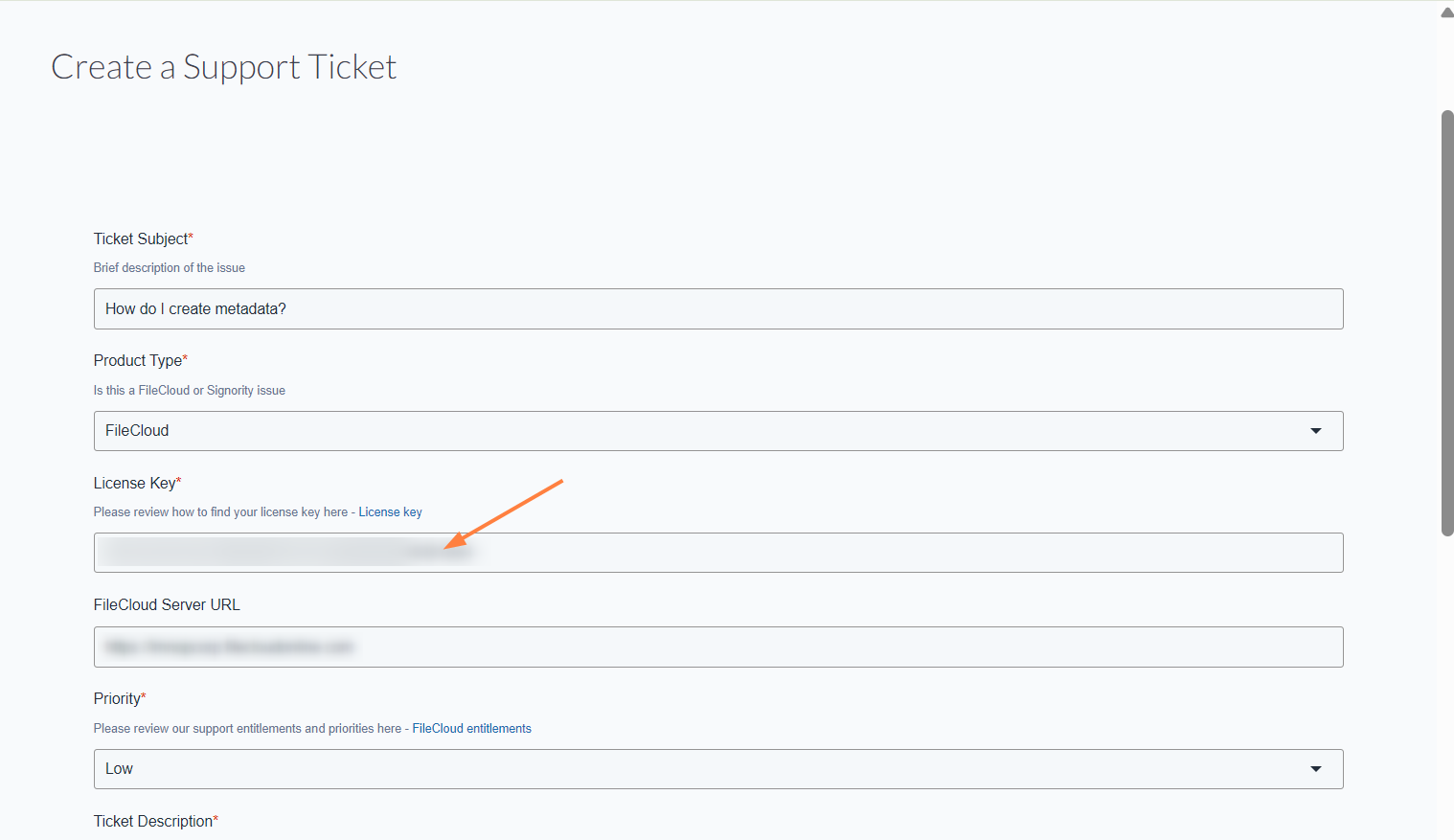
Enter the ticket details.
Make sure you paste the license key of your product into the License Key text box.
-
When you have finished filling out the form, click Submit.
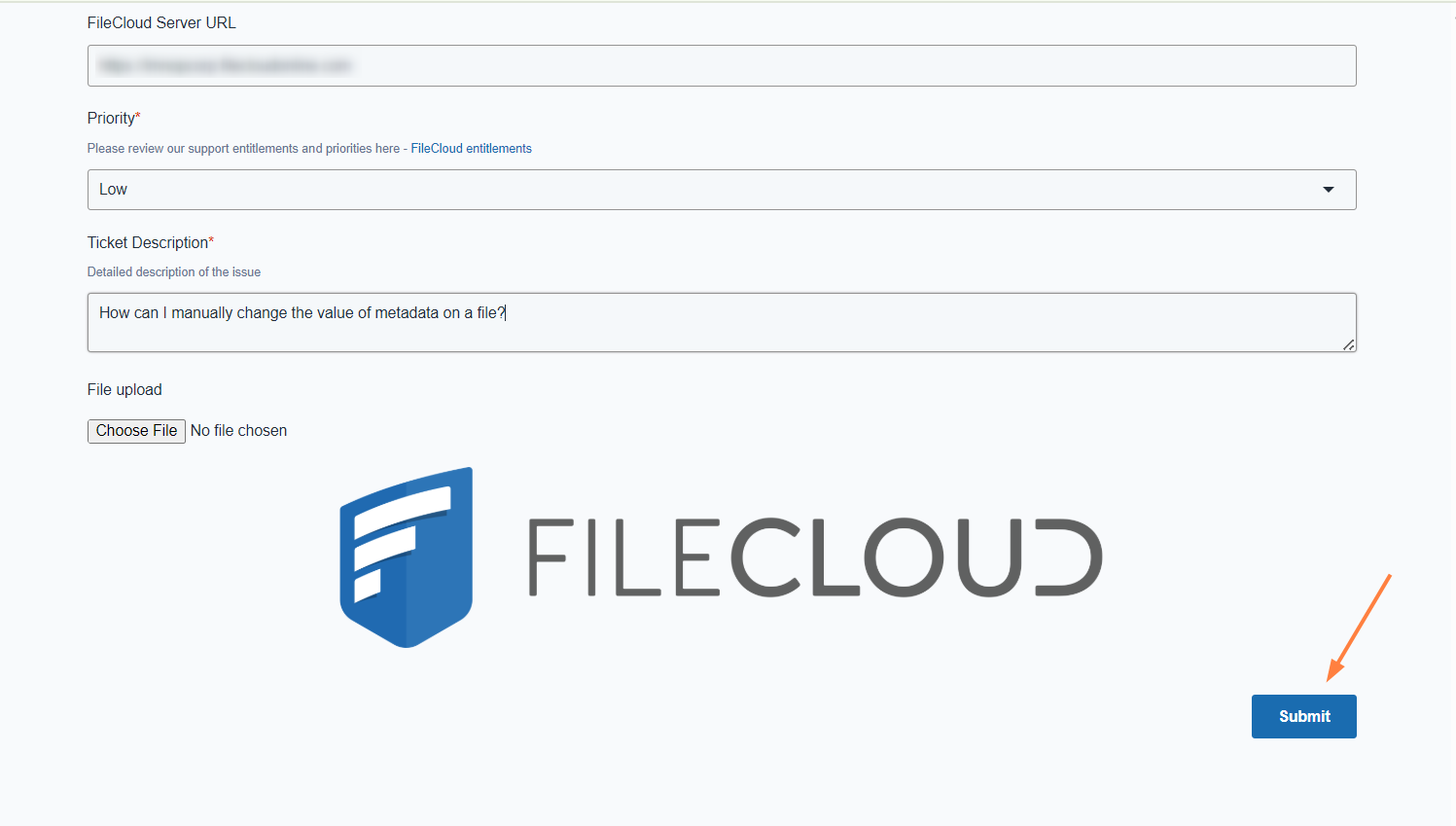
The following screen notifies you that Support will be in touch soon. In addition an email is sent to you to confirm that the ticket has been opened with Support.
Submit a support ticket at https://knowledgebase.filecloud.com/.