.svg)
In some FileCloud systems, when a file or folder is shared with other users, the share is not made available to them until a specified number of approvers approve the share. If a specified number of users reject the share, it is deleted.
For information about how share approvals are configured, see Share Approval Workflows.
If approvals are required on shares in your system, when you share a file, a ribbon appears at the top of the Share Link box indicating that the share will become available after approval.
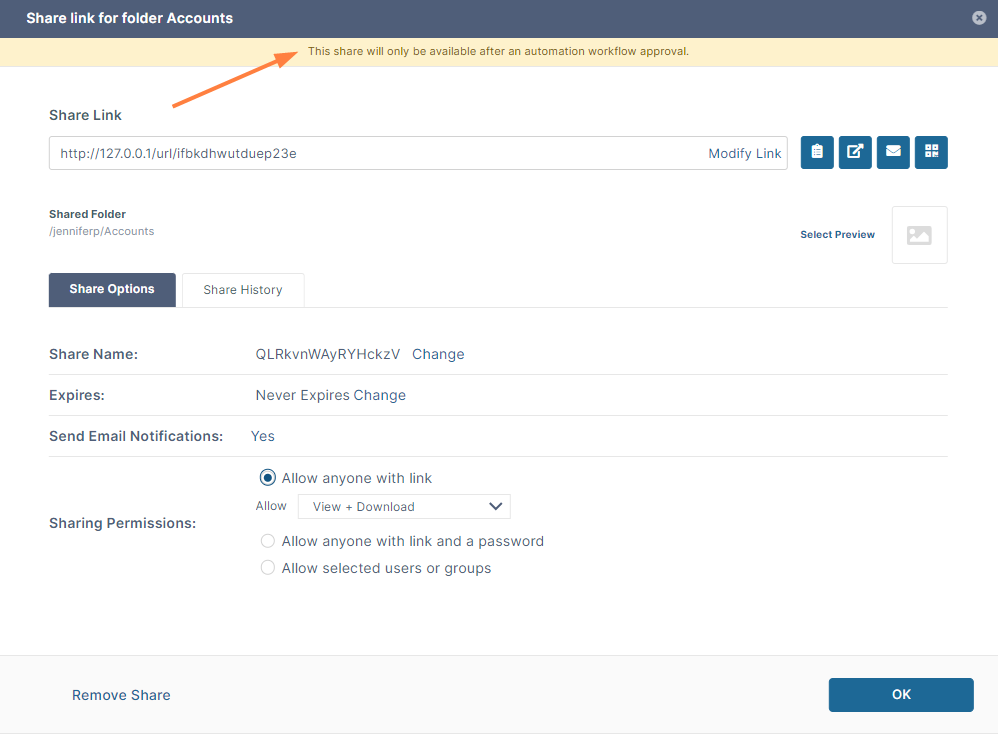
How to know the approval status of a share
Checking your notifications
When you create a share that requires approval, you are sent a notification that confirms that it is awaiting approval.
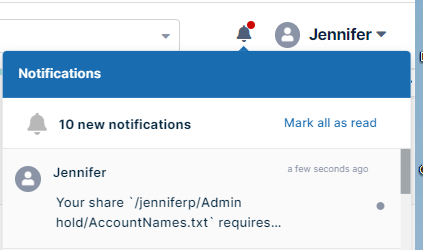
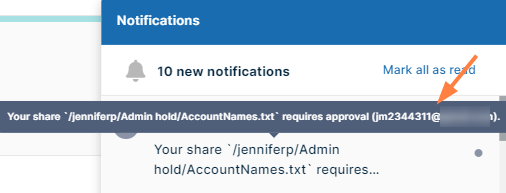
Hover over the text of the notification to see the email of the approver:
Checking the Actions screen
Another way to check the status of an approval is to go to the Sent tab on the Actions screen.
To view the Sent tab:
-
Click your username in the upper-right corner of the screen and choose Open all actions.
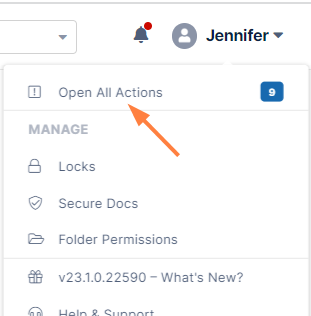
The Actions screen opens with the Inbox tab selected. -
Click the Sent tab.
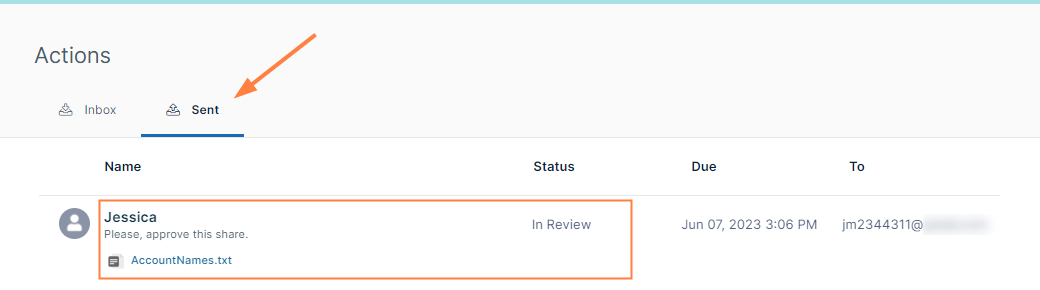
Your share that was sent for approval is listed by the name of the approver. Its status and the filename are also listed. -
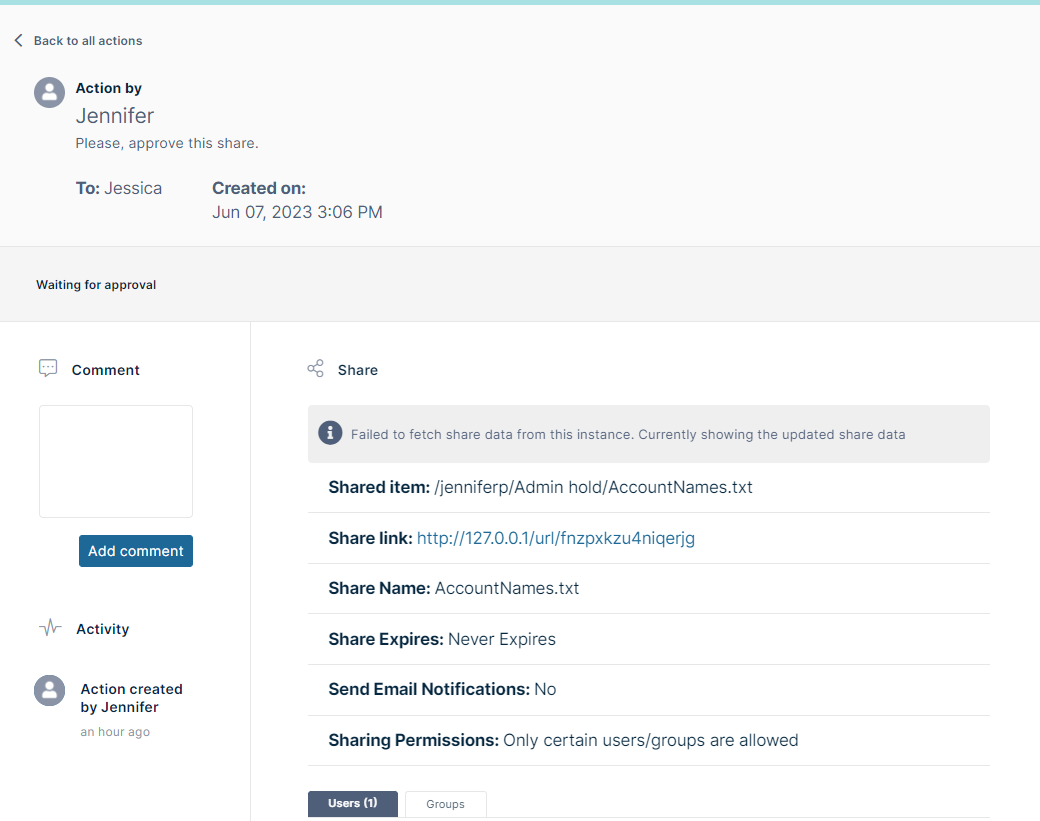
To see more details about the file and add any comments for the approver click the username above the file.
Once the share has been approved or rejected, the listing appears grayed out and the Status appears as Approved or Rejected. However, you can still click the username to view the share details.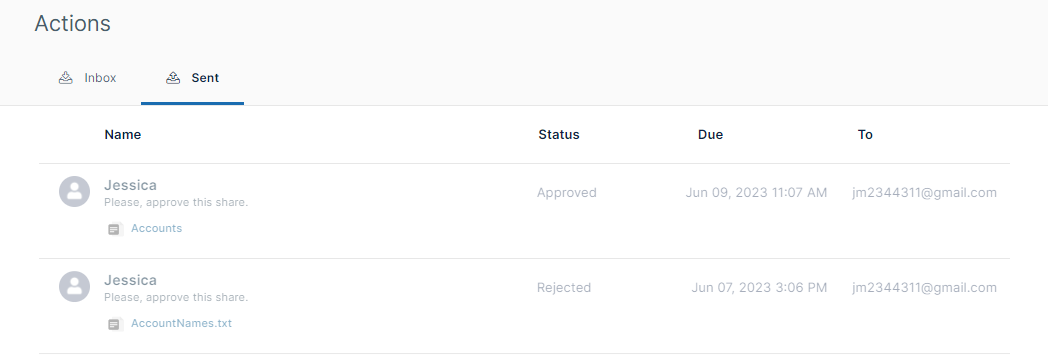
How to know if a share is awaiting your action
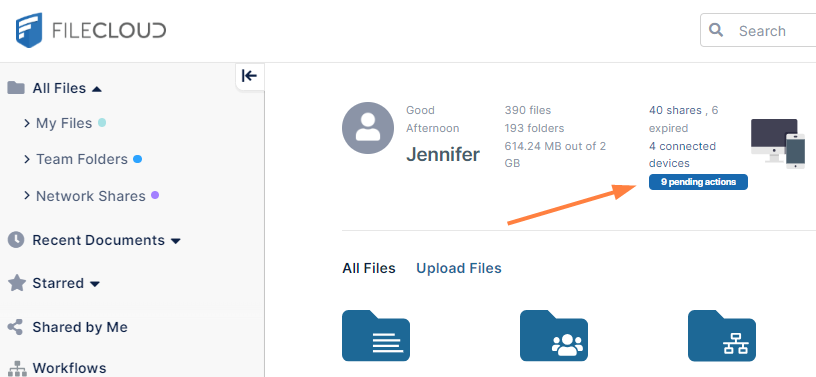
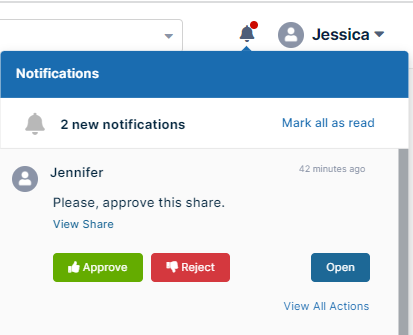
When you first log in to the user portal, if you see the pending actions button, there may be a share awaiting your approval.
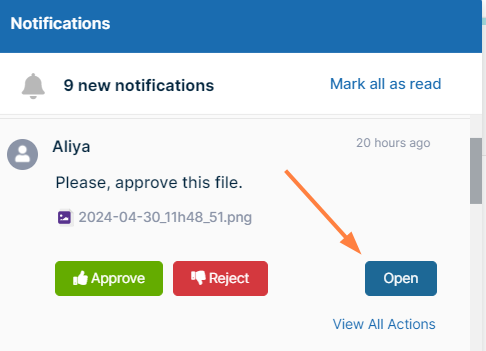
In addition, if you click the Notifications icon at the top of the screen, you will see any notifications about shares awaiting your review:
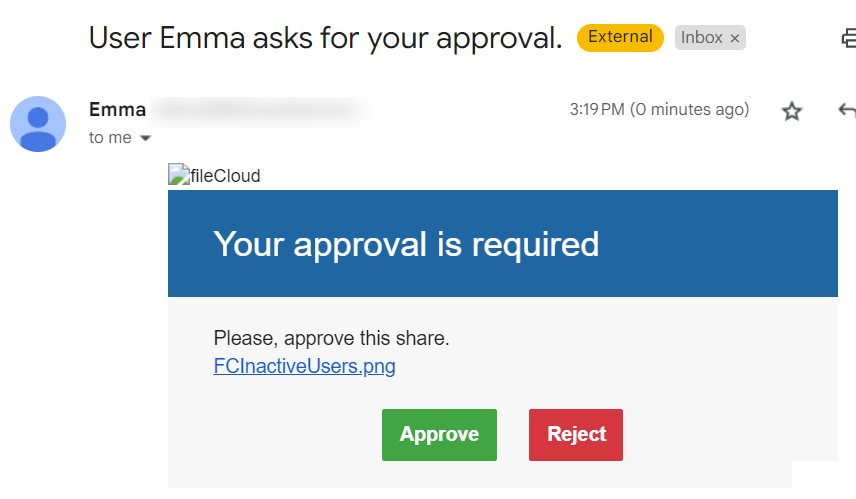
In some FileCloud systems, when a share is automatically sent for approval an email notification is sent to the approvers with buttons for approving or rejecting the share:
How to approve or reject a share
Quickly approving or rejecting a share
You can approve or reject a share without reviewing it.
-
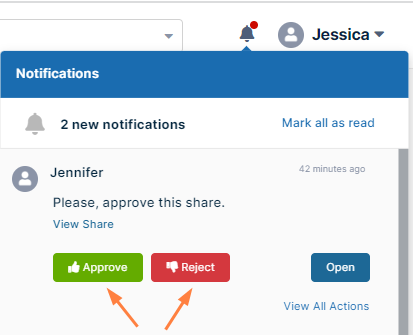
You can do this by clicking the Notifications icon at the top of the screen, and in the notification listing about the share, clicking the Approve or Reject button.
-
Or, if you receive an email about the approval, you can also click the the Approve or Reject button.
-
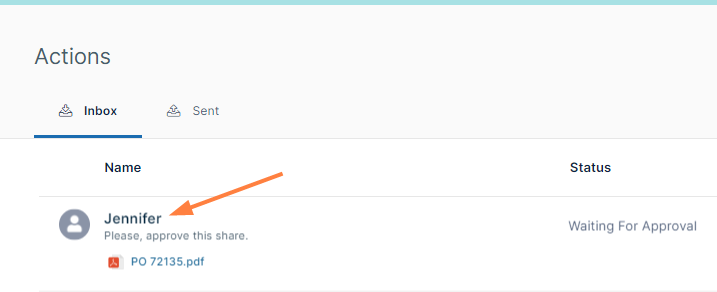
Or you can click your username in the upper-right corner of the screen and choose Open all actions:
The Actions page opens to the Inbox, where you can hover over the listing for the share and click the thumbs up or thumbs down icon to instantly approve or reject it: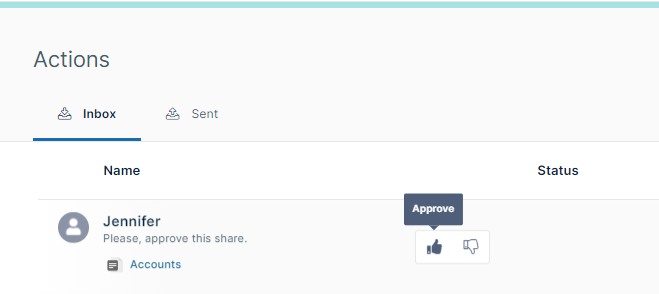
Reviewing a share before approving or rejecting it
-
Access the detailed Action screen for a share either by clicking the Open button in the user portal notification or going to the Inbox listing in the Actions screen and clicking the listing for a share.
The detailed Action screen for the share opens.
-
If the screen includes a preview file, as an approver, you may want to check the preview.
-
If you want to enter a note to the user who sent the file for review, enter a note in Comment, and click Add Comment.
-
Once you have reviewed the file, click the Approve button or the Reject button.
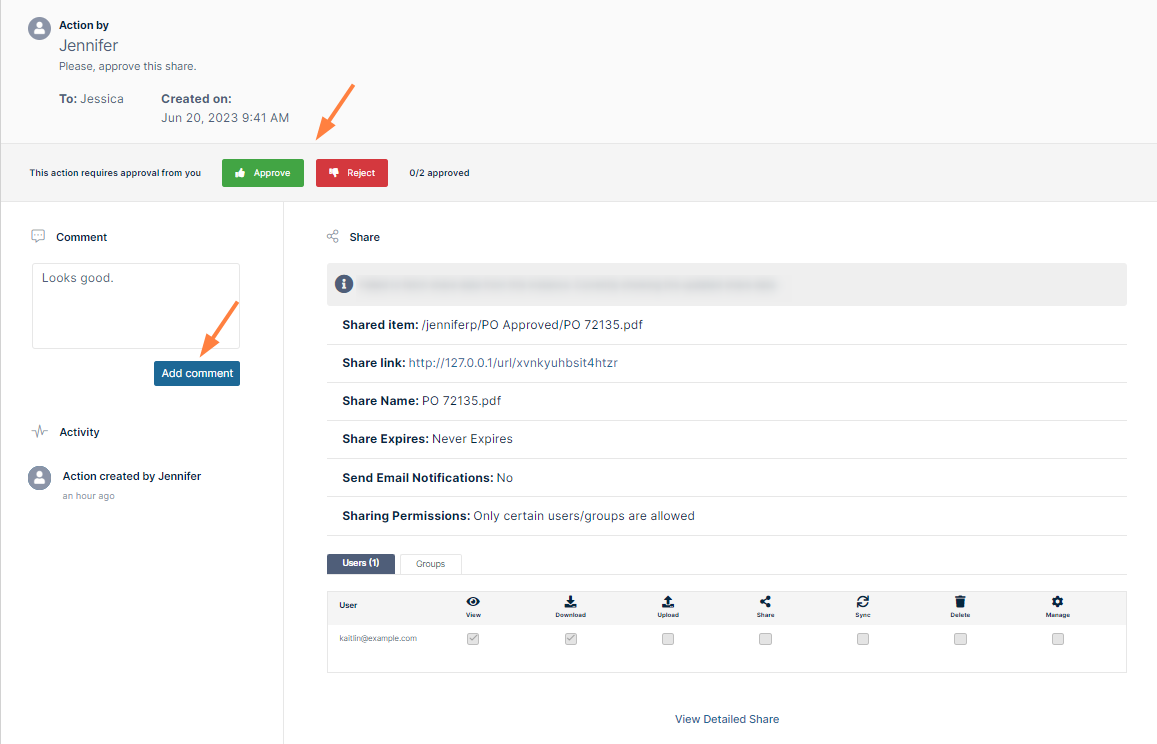
If the share is approved, the users or groups shared with can now access it. If the share is rejected, it is deleted.