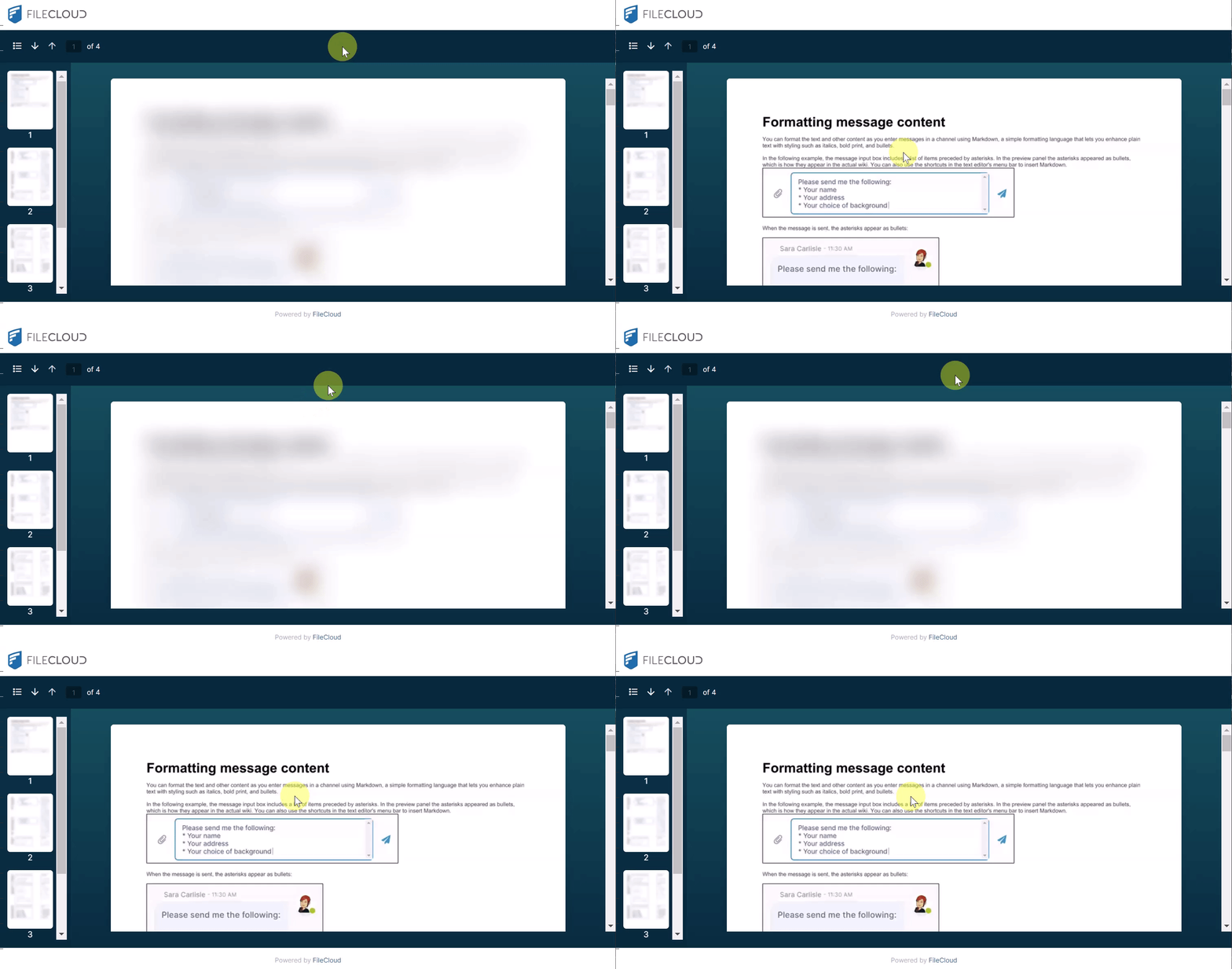
.svg)
FileCloud's Secure Web Viewer (Beta version) is available beginning in FileCloud version 23.232.
Private sharing with the Secure Web Viewer is available beginning in FileCloud version 23.252.
The FileCloud Secure Web Viewer is a Digital Rights Management (DRM) viewer that requires users to enter a secure web link and password to view file shares. Optionally, the number of times users are allowed to view the file is limited or viewing is controlled by requiring users to view a small portion of the file at a time through a draggable lens. Only files of types jpg, png, pdf, docx, and pptx that are less than 20 MB are available for viewing through the Secure Web Viewer.
Sharing a file with a Secure Web Viewer link
A file share you create has DRM security when you select the sharing permission Secure Web Viewer. This is a public or private share option that requires the share recipient to view the file through the Secure Web Viewer. For public shares, users must enter the share link and a password generated when you created the share. When creating the share, you can further restrict viewing by only permitting small portions of the file to be viewed at a time and limiting the number of times it can be viewed.
The Secure Web Viewer option only appears if your admin has enabled WebDRM. The option appears disabled for files of types other than jpg, png, pdf, docx, and pptx, and for files greater than 20 MB.
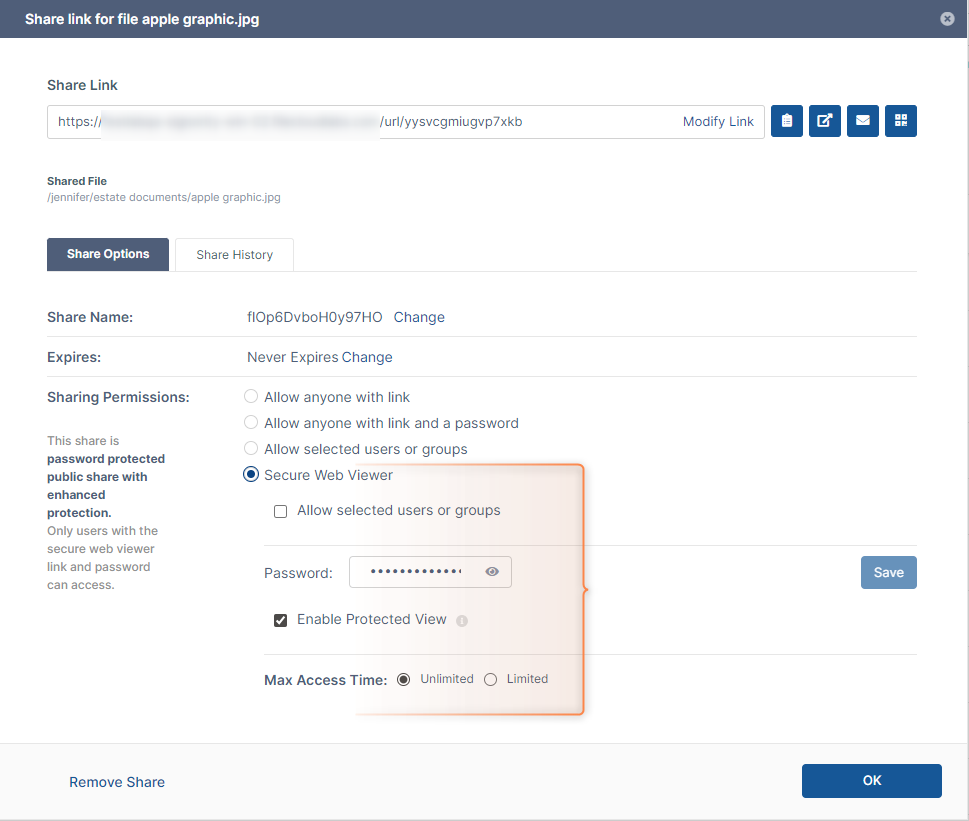
The Secure Web Viewer option for public sharing
To give users access to a public WebDRM share, you must supply them with the share link and password.
After you select Secure Web Viewer, you may check Allow selected users or groups to open a section for adding users or groups to the share to make it private.
If you make the share private, share recipients do not need a password, and can access it through the share link in their Shared with Me folder or in the email sent to them when the share is created. When you make the Secure Web Viewer share private, the Share Name becomes the original file name with the extension .webdrm added.
Notice in the following screenshot that View is the only permission available to private viewers of a Secure Web Viewer share.
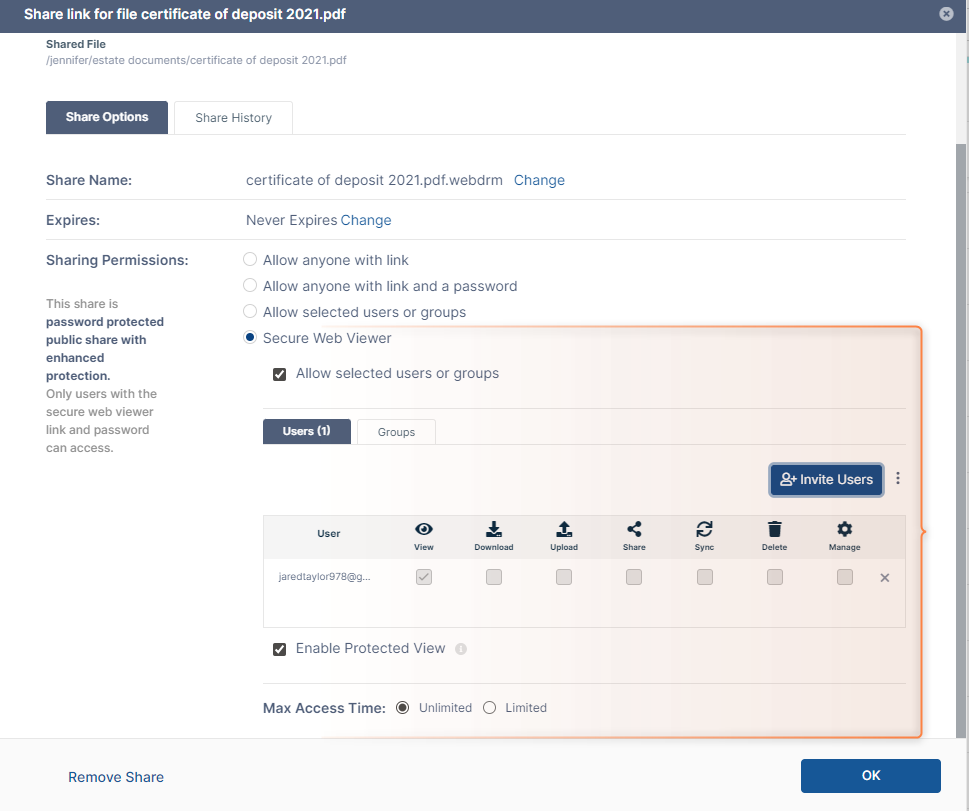
The Secure Web View option for private sharing (Allow selected users or groups is checked). The only share permission is View
When users click the share link (and then enter the password if it is a public share), the Secure Web Viewer opens and displays the file.
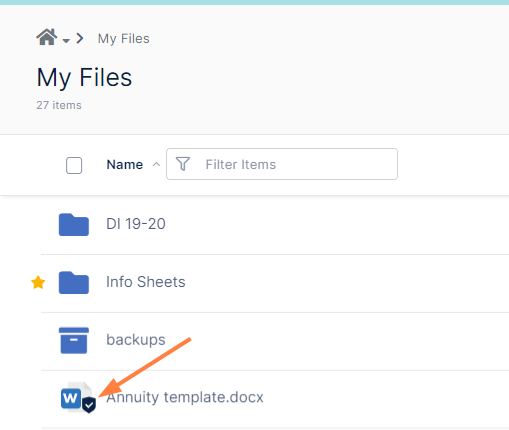
Files that you have shared with a Secure Web Viewer link appear with a shield icon beside them in your FileCloud folders.
The option to share a file with a Secure Web Viewer link is available in the user portal and all of the FileCloud client apps, such as FileCloud Desktop, Sync, Drive, and mobile. However, the link can only be accessed through your web browser and FileCloud Desktop.
-
For step by step instructions for publicly sharing a file with the Secure Web Viewer option, follow the steps in Public File Sharing with Secure Web Viewer Protection.
-
For step by step instructions for privately sharing a file with the Secure Web Viewer option, follow the steps in Private File Sharing with Secure Web Viewer Protection.
Accessing a public share with a Secure Web Viewer link
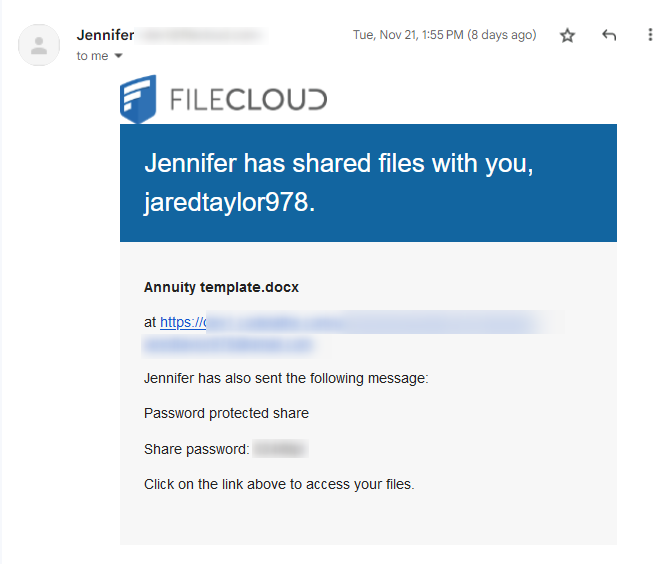
When a public file is shared with you using a Secure Web Viewer link, you receive a message with the link and a password for opening the viewer:
-
Click the link in the email, or copy and paste it into a web browser.
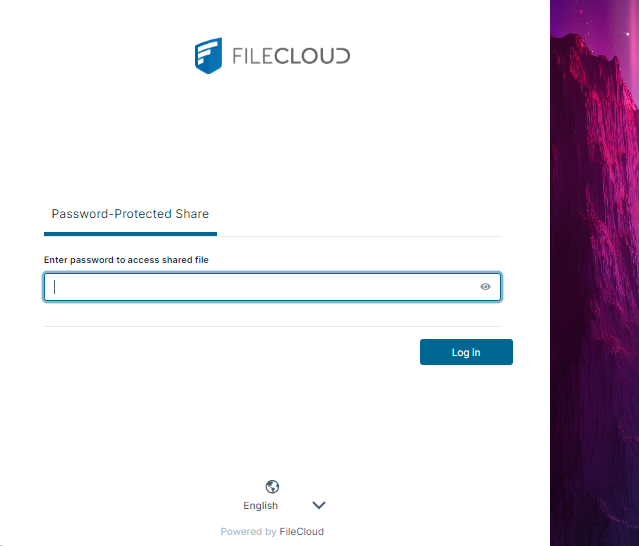
A FileCloud login screen that prompts you for the password opens. -
Enter the password, and click Log In.
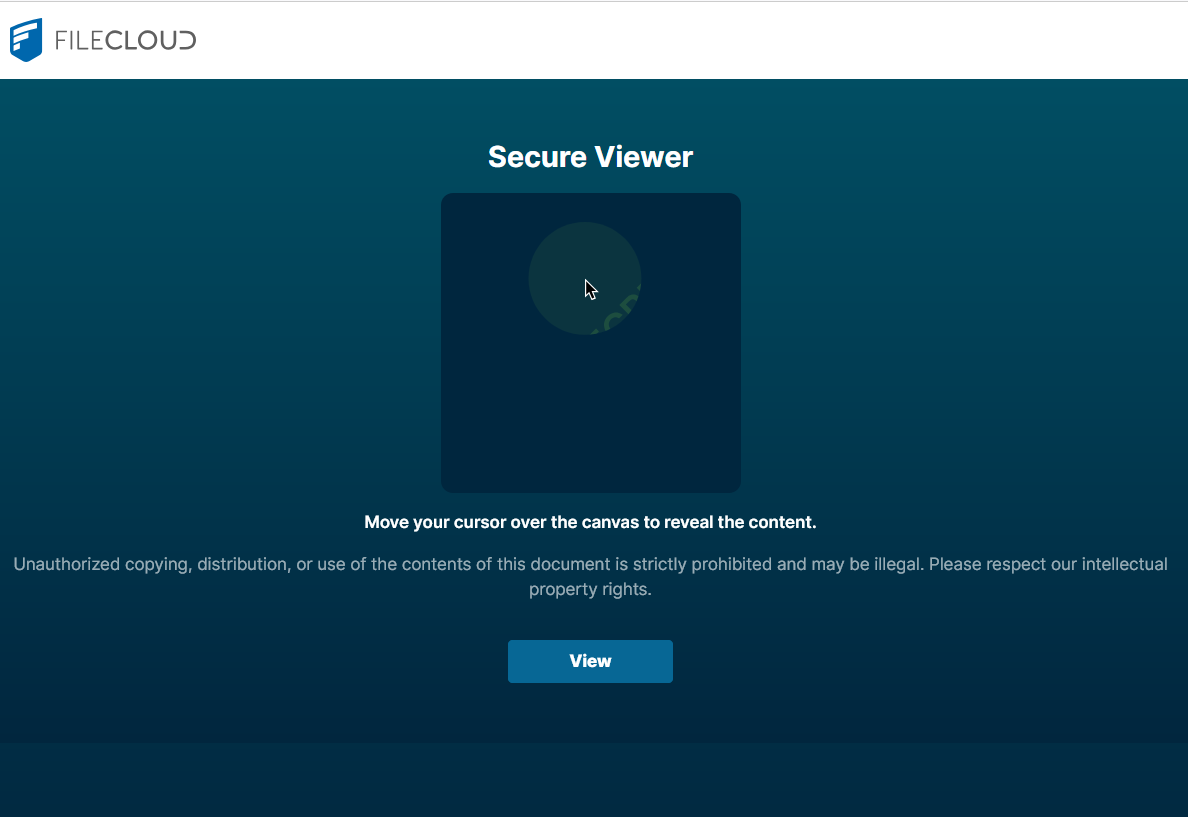
The Secure Web Viewer opens.
-
Click View to preview the file.
Accessing a private share with a Secure Web Viewer link
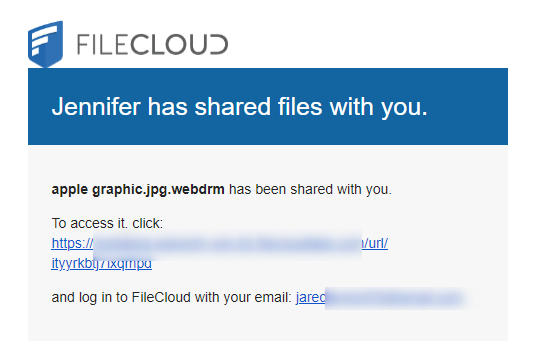
When a private file is shared with you using a Secure Web Viewer link, you receive a message with the link and instructions to log in to FileCloud with your email. (You can also access the preview through your Shared with Me folder).
-
Click the link in the email.
-
Log in to FileCloud.
You are redirected to the Secure Web Viewer.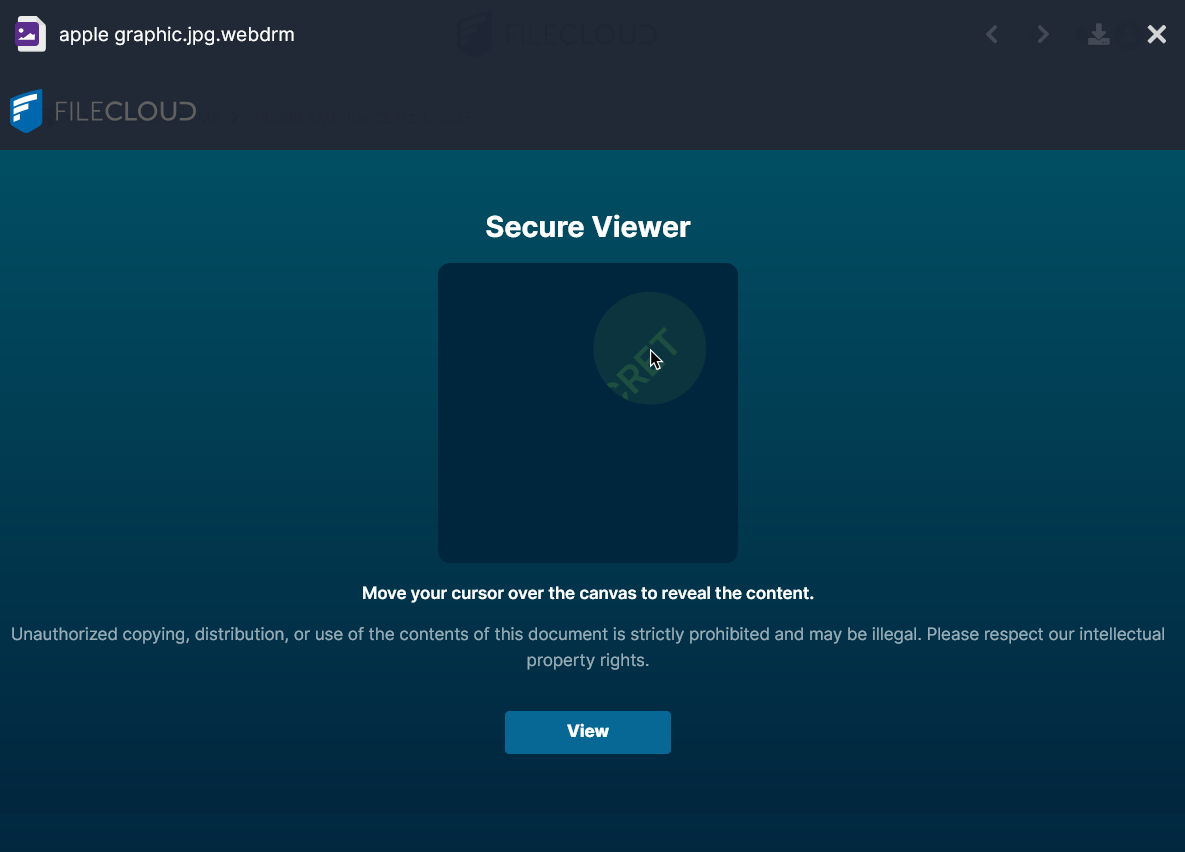
-
Click View to preview the file.
Using the Secure Web Viewer
-
Once you have accessed the Secure Web Viewer, click View.
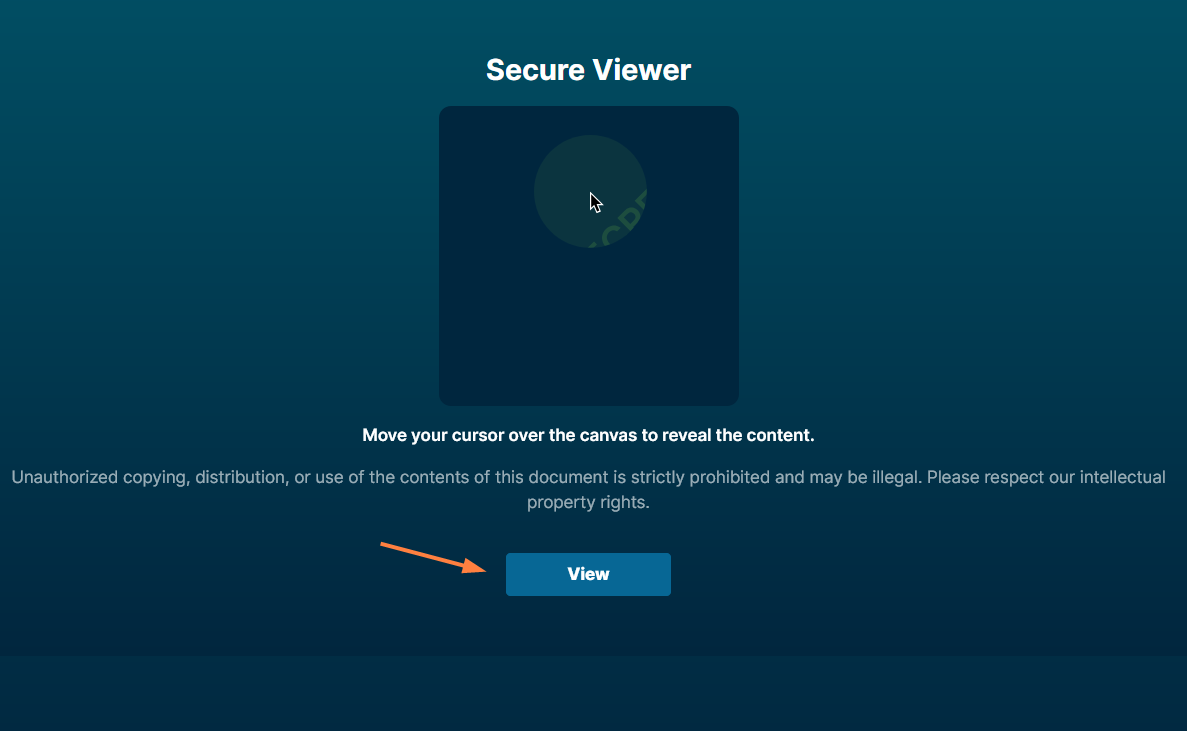
The file opens in the Secure Web Viewer.
If the share has protected view enabled, you can only view a small portion of the file at a time through a circular lens, but you can drag the lens around the view window with your cursor to see all the content.
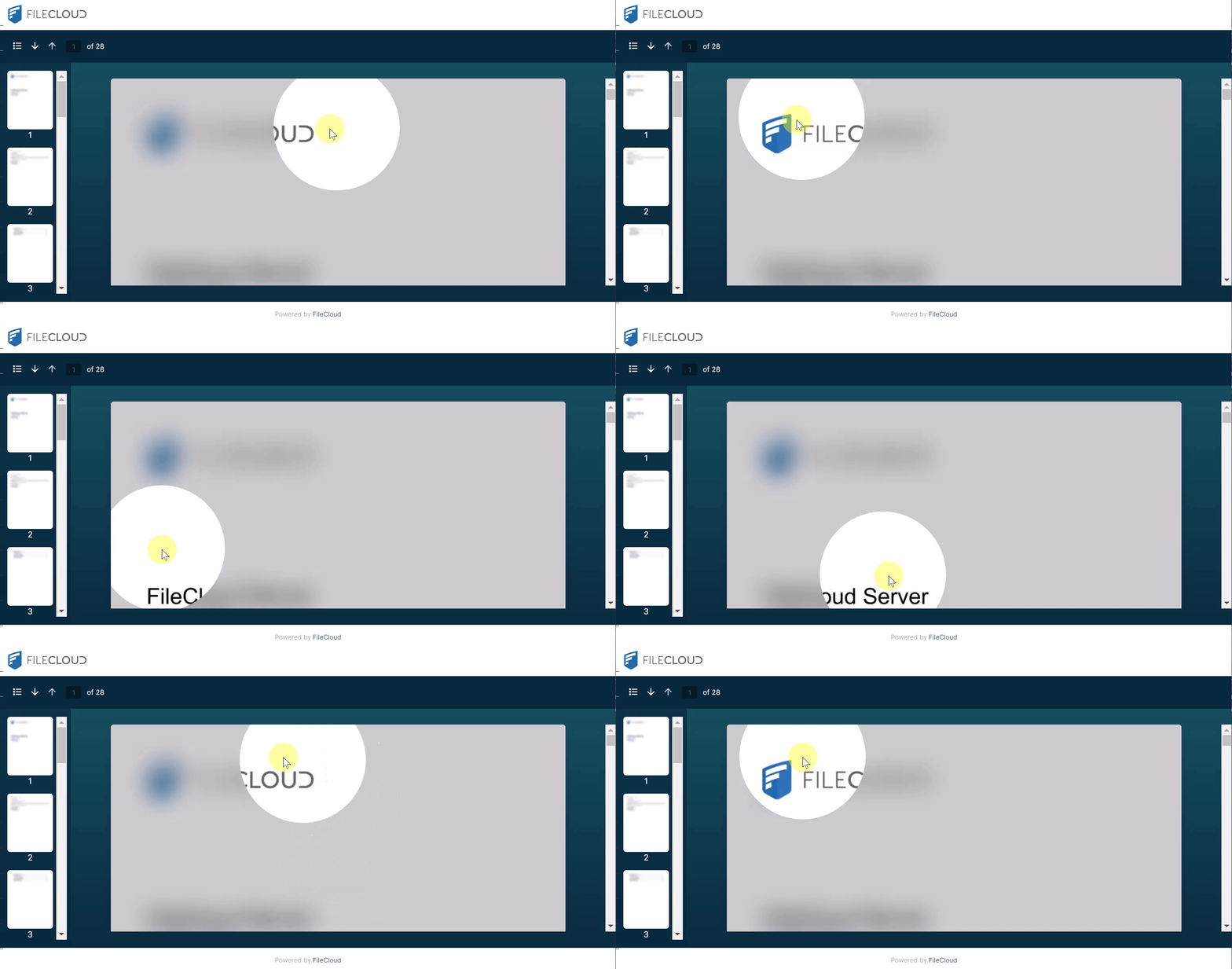
If the share does not have protected view enabled, you can view the full file at once, but you must place your cursor on the view window to see it clearly.