.svg)
Private sharing with the Secure Web Viewer is available beginning in FileCloud 23.252.
When you require users to view a share through the Secure Web Viewer, you may limit the number of times they are allowed to view the file or require users to view a small portion of the file at a time through a draggable lens. Only files of types jpg, png, pdf, docx, and pptx that are less than 20 MB are available for viewing through the Secure Web Viewer. For more information, see Using the Secure Web Viewer.
If a file in the folder is only shared directly as a Secure Web Viewer share, it is able to be viewed through the Secure Web Viewer. If then, the folder containing the file is shared with the user, the file will no longer be visible through the Secure Web Viewer, and will only be visible in its regular share format.
For this reason, this feature is best suited for external user sharing, where files need to be shared securely and viewed strictly through the Secure Web Viewer.
To create a private file share that must be viewed through the Secure Web Viewer:
-
In the user portal, hover over the file and click the Share icon.

The Share link dialog box opens.
At this point, the share is a regular (not Secure Web Viewer) private share. -
Check Secure Web Viewer.
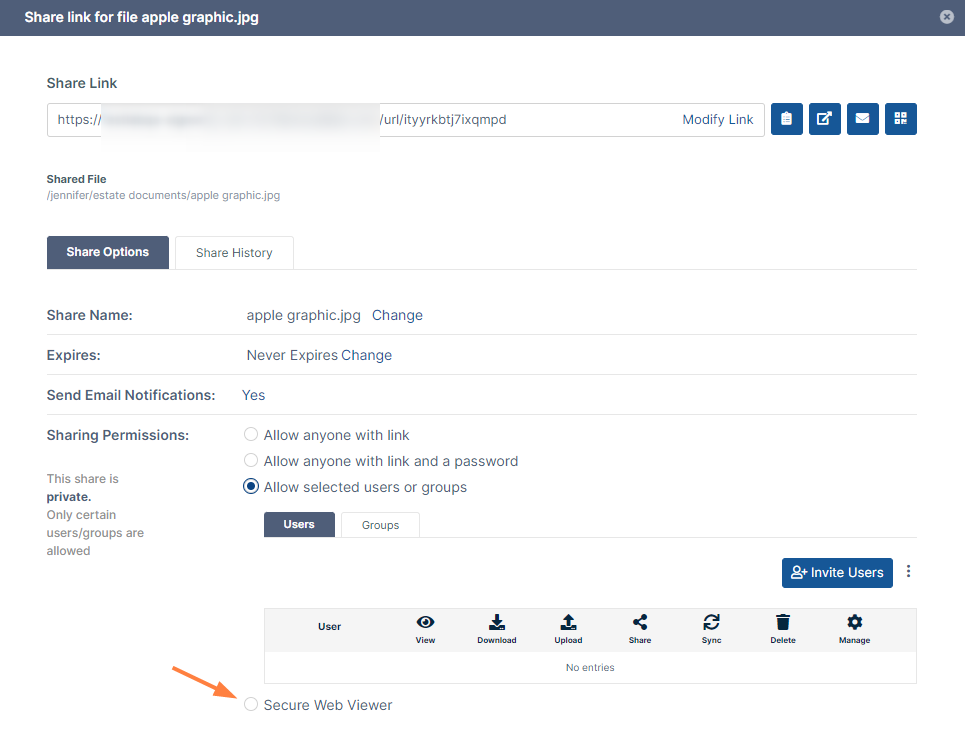
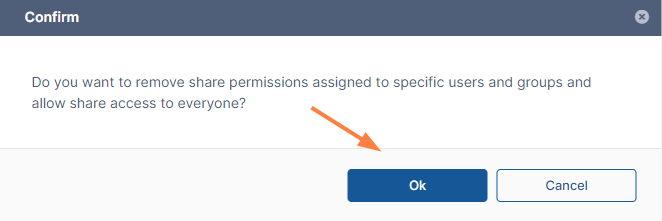
By default, Secure Web Viewer shares are public shares, so you are prompted to confirm that you want to share the file with everyone. -
Click Ok.
You can reconfigure this as a private share once the Secure Web Viewer settings open.
The Secure Web Viewer settings open. -
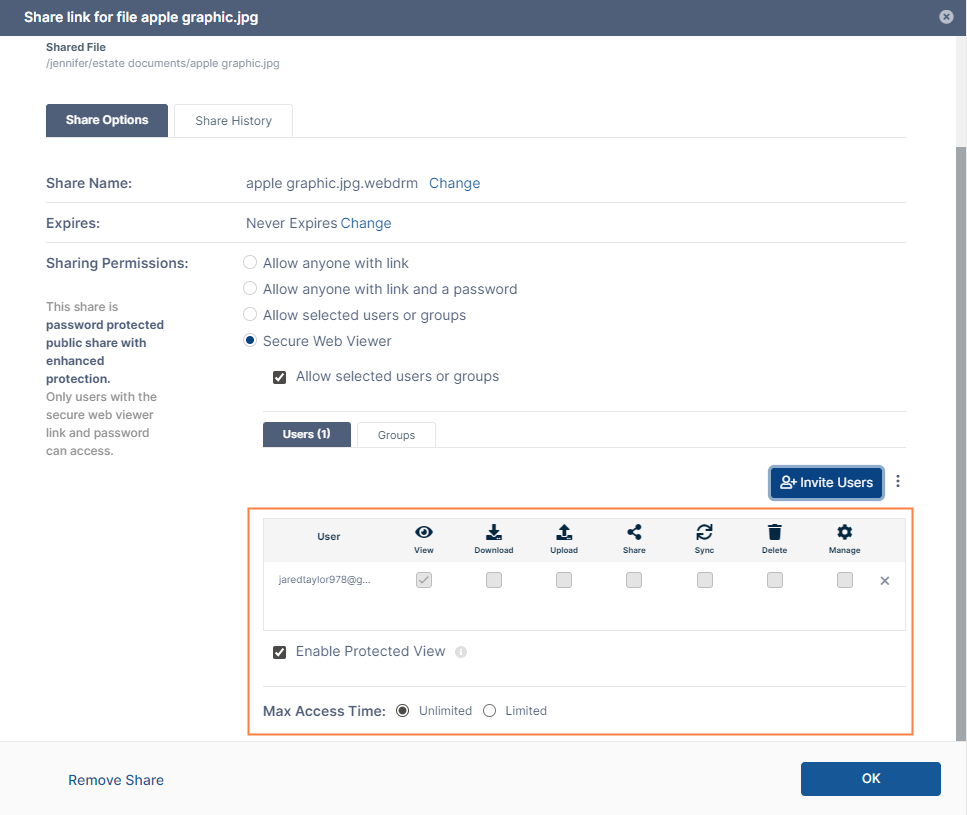
Check Allow selected users or groups.
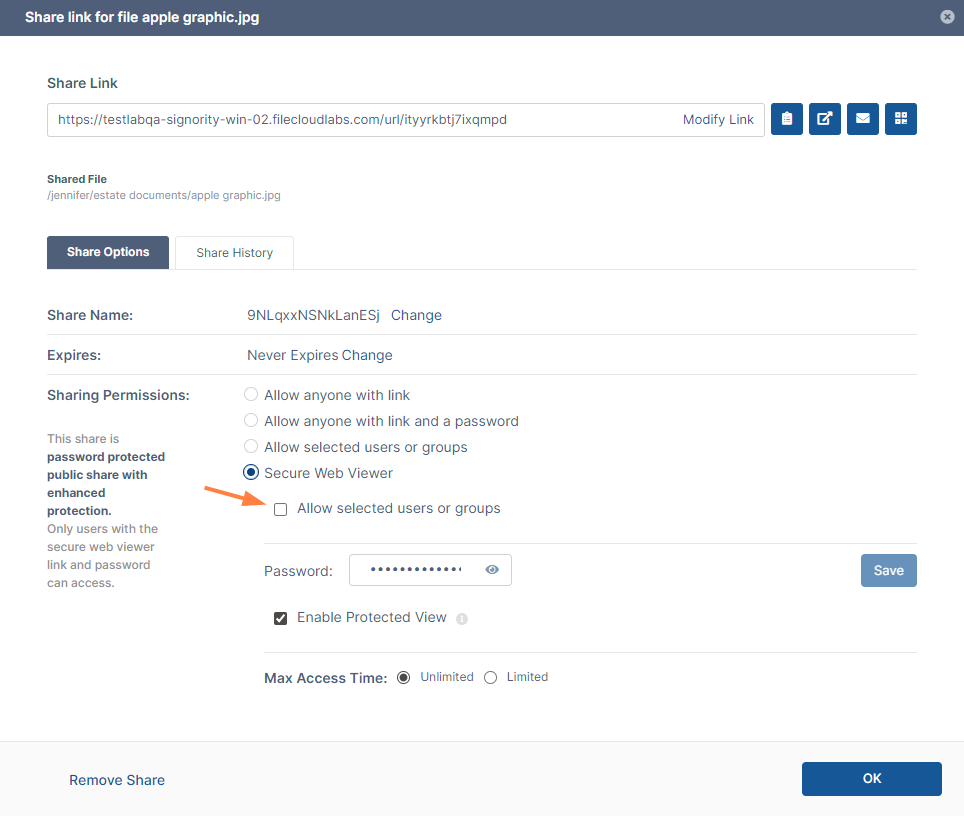
The Password field disappears and a section for adding users and groups opens.
The Share Name changes back to the original file name, but has the extension .webdrm added. -
To modify Share name or Expires date, see Private Share Options for Files.
-
On the Users tab, click Invite Users, or on the Groups tab, click Add Group.
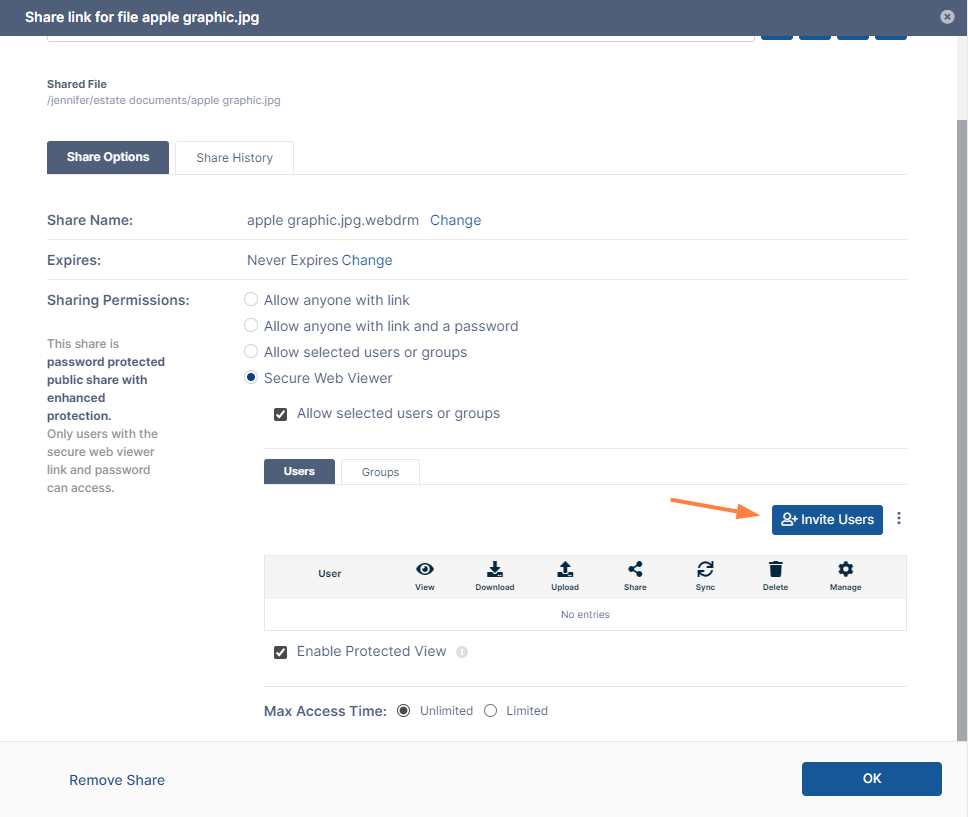
For help adding users or groups to the share, see Sharing Files Privately.
Note that sharing permissions differ for regular private shares and Secure Web Viewer private shares: the only option for Secure Web Viewer private shares is View, which is automatically enabled:. -
By default, Enable Protected View is checked, which requires share recipients to view small portions of the share at a time through a draggable lens, as shown in the image below.
To enable users to view the entire file at the same time, uncheck Enable Protected View. -
To limit the number of times that a user can view the share, for Max Access Time select Limited, and enter the number of times.
-
Click OK.