.svg)
Beginning with FileCloud 23.232, the sharing permission Allow anyone with Secure Web Viewer link and a password is available for users whose system has Secure Web Viewer capability.
Beginning with FileCloud 23.1, when users create a public file share, they can choose View + Download or View Only sharing permissions.
Beginning with FileCloud 23.252, the permission Allow anyone with Secure Web Viewer link and a password has been re-labelled as Secure Web Viewer and includes a private share option.
In the Share Link dialog box, you can configure how you share a public file by changing the settings on the Share Options tab.
Share options include:
-
Entering a custom share link or share name
-
Setting a share expiration date
-
Setting a maximum number of times the share can be downloaded
-
Disabling email notifications when a change is made to the share
-
Requiring a password to access the share
-
Viewing permissions
To configure the share link and share options
-
Hover over the file and click the Share icon.
The Share Link dialog box opens. -
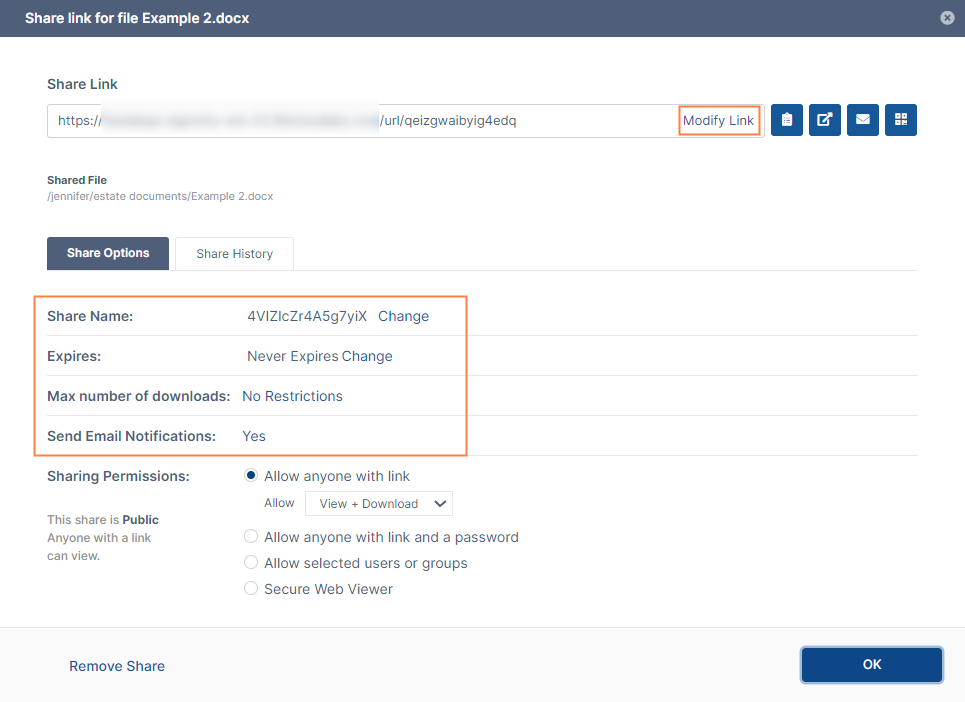
In Sharing Permissions, choose Allow anyone with link, Allow anyone with link and a password, or Secure Web Viewer.
-
If you want to change the link name to something more memorable or descriptive, click Modify Link.
The link becomes highlighted, and you can change it.

-
You are prompted to confirm whether or not you want to send an email to share recipients with the updated link:
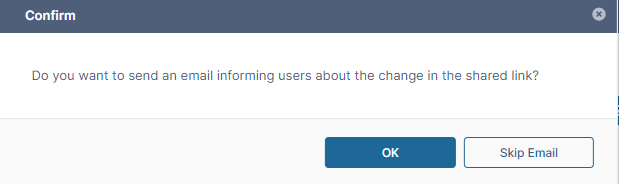
Note: If this is the first time you are adding a user to the share, they will receive an email with the link regardless of whether you choose OK or Skip Email.
-
-
The Share Options tab shows share settings that you can change.
The table below describes the first four options:Option
Settings
Description
Share name
-
randomly-generated name (default)
-
custom name
Customize the share name if you want it to be descriptive or memorable.
Expires
-
Never (default)
-
Expires
By default, this is set to Never.
If you set this to Expires, enter a date in the future when this file is no longer shared. When the share expires, the link becomes unusable to users but the file is not removed or changed.
Max number of downloads
-
No Restrictions (default)
-
number
Use this to prevent excessive distribution of the file.
-
No Restrictions - allows any user to download a file an unlimited number of times. Appears as the number 0. This is the default setting.
-
number - specifies the number of times the file may be downloaded.
Send Email Notifications
-
Yes (default)
-
No
By default, this is set to Yes.
-
If set to Yes, then an email notification is sent when a file is opened or downloaded for a public share.
-
-
Each Sharing Permission has additional options to choose when it is selected.
Sharing Permission and Options
Description
Allow anyone with link

Choose View + Download or View Only to specify users' permissions on the share.
Then send the share link to specific users or groups to give them access to the share.Allow anyone with link and a password

Choose View + Download or View Only to specify users' permissions on the share.
Click in the password field to change it and then click Save. (optional)
Click the share icon to copy the share link and password. (optional)
Send the share link to specific users or groups to give them access to the share.Allow selected users or groups
(switches from public to private share)
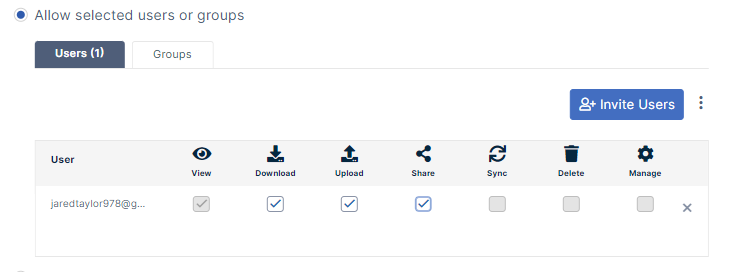
Invite users or groups to the share and check any of the available permissions. For more details see Private Share Options for Files.
Secure Web Viewer
(Beta version)
Notes:
-
This option only appears if your admin has enabled it.
-
This option appears disabled for files of types other than jpg, png, pdf, docx, and pptx, and for files greater than 20 MB.
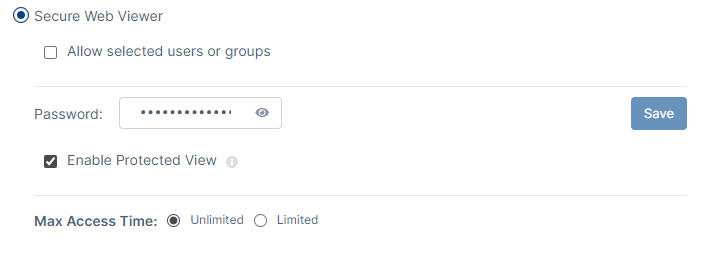
This option requires share recipients to view the share through the Secure Web Viewer.
Check Allow selected users or groups to change this to a private share. For more details see Private File Sharing with Secure Web Viewer Protection.
Click in the Password field to change the password, and click Save. (optional)
Check Enable Protected View to require share recipients to view small portions of the share at a time through a draggable lens, as shown in the image below. (optional).
Max Access Time specifies how many times the share recipient may view the file. By default it is set to Unlimited. Select Limited and enter a number to specify the number of times a share recipient may view the file in the Secure Web Viewer.
-
-
To save your changes, click OK.