.svg)
To integrate with the Okta browser plugin, please see Integrate with Okta using browser plugin.
Before completing the following procedures, configure Apache Web Server. See SSO Configuration Step 1 on the page SAML Single Sign-On Support for configuration instructions.
When FileCloud is integrated with Okta, Okta is configured as an Identity Provider (IdP) and FileCloud acts as the Service Provider (SP).
FileCloud can be integrated with Okta.
-
Okta must be configured as an Identity Provider (IdP)
-
FileCloud acts as the Service Provider (SP)
-
By default, this integration does not synchronize a user’s SSO groups and FileCloud groups each time a user logs in with SSO. This can result in unauthorized access to content as well as missing access where it's needed. To prevent this:
-
Complete the optional steps 11 and 14 when you follow the To configure FileCloud with Okta procedure below.
-
Complete the step in see Syncing Group Changes on Every Login, below.
-
To configure FileCloud with Okta:
-
Log in to your Okta-issued URL, which has the format: https://yourdomain-admin.okta.com/admin/dashboard
-
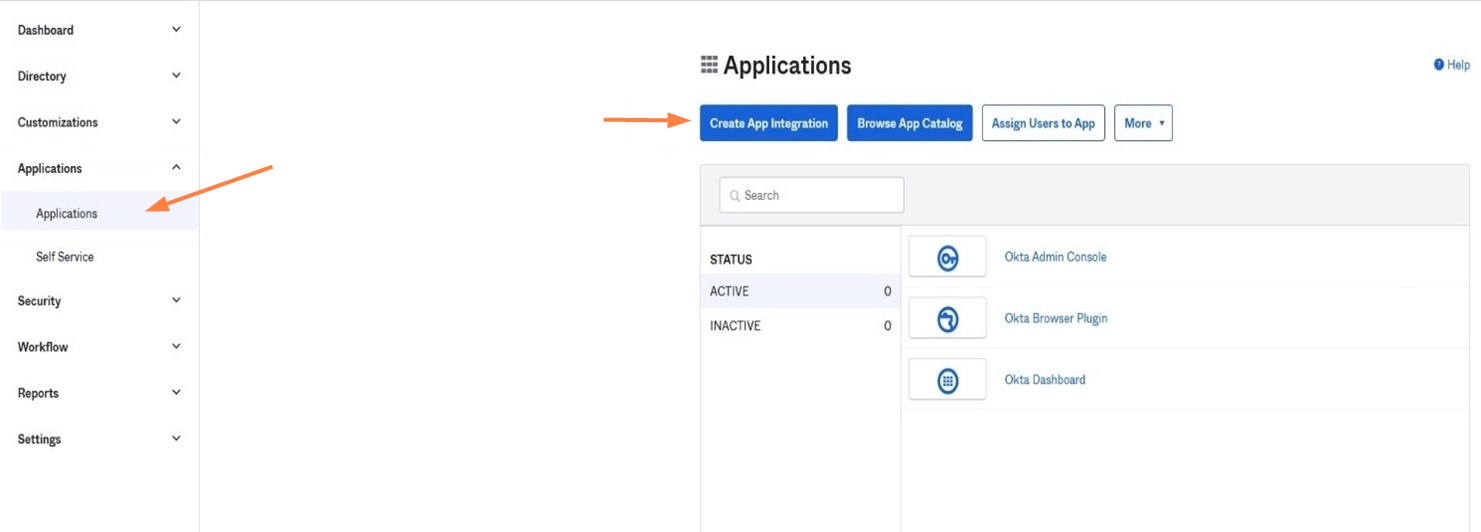
After successful login to Okta, go Applications and Resources > Applications, and click Create App Integration.
-
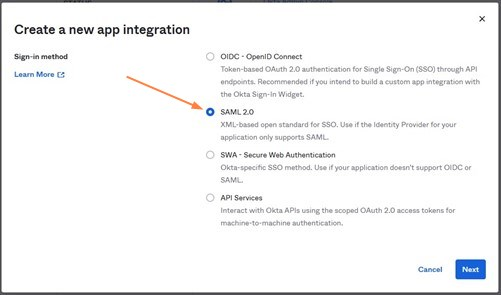
In the Create a new app integration screen, select SAML 2.0, and click Next.
-
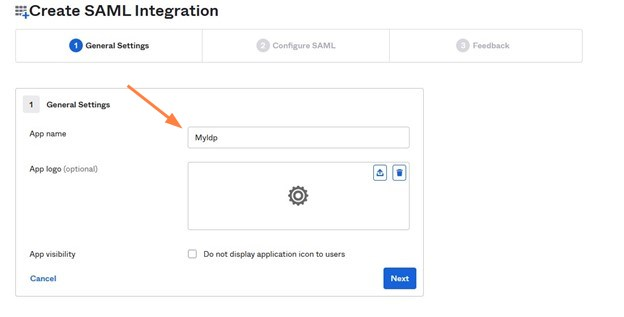
In the General Settings tab of the Create SAML Integration screen, enter a name for App name, and click Next.
-
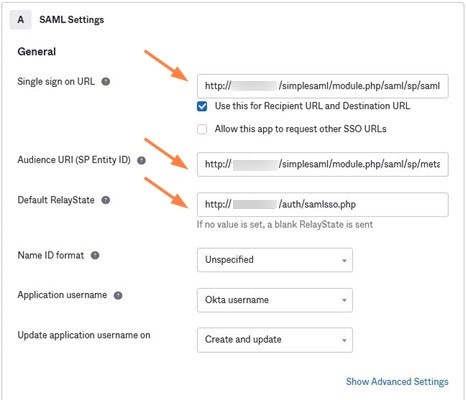
In the SAML Settings screen, set the values as follows:
-
Set Single sign on URL to the FileCloud assertion URL http://<your domain>/simplesaml/module.php/saml/sp/saml2-acs.php/default-sp
-
Set Audience URI (SP Entity ID) to http://<your domain>/simplesaml/module.php/saml/sp/metadata.php/default-sp
-
Set Default Relay State to http://<your domain>/auth/samlsso.php
-
-
Click Next.
-
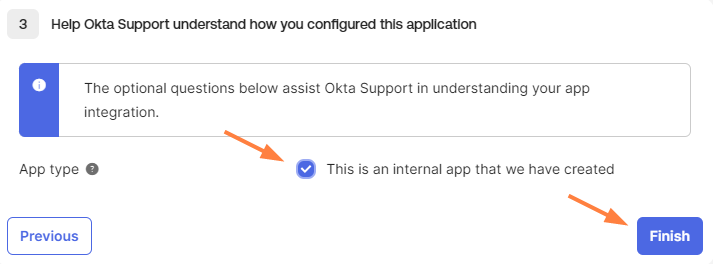
In the Feedback tab select This is an internal app that we have created, and click Finish.
-
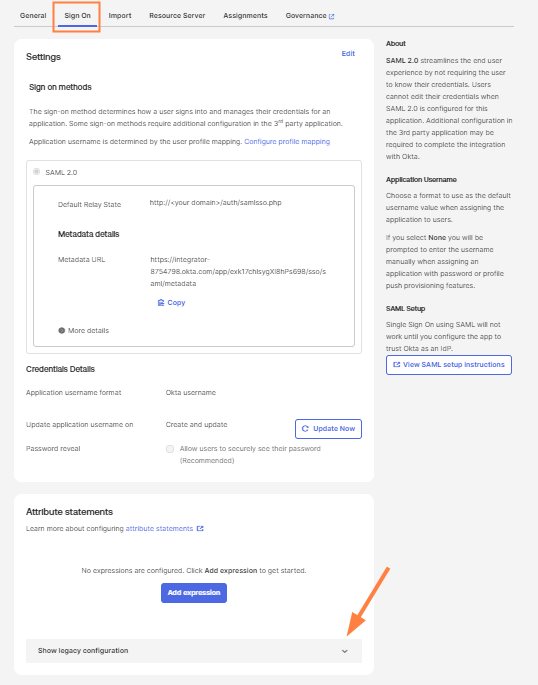
Go to the Sign On tab.
-
Scroll down to Attribute statements and expand Show legacy configuration.
-
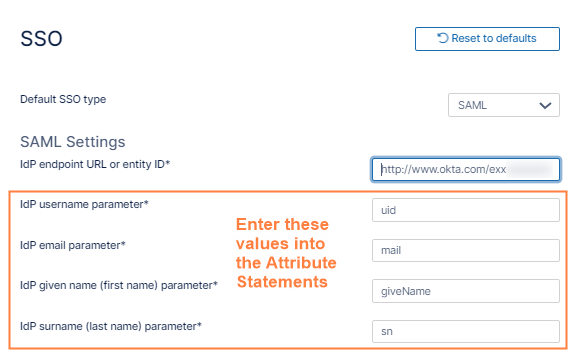
Under Profile attribute statements, add attribute names. that match the names set in the FileCloud admin portal in Settings > SSO for Idp Username Parameter, Idp Email Parameter, Idp Given Name Parameter, and IDP Surname Parameter:
-
Copy the the values entered in the FileCloud screen Settings > SSO for Idp Username Parameter, Idp Email Parameter, Idp Given Name Parameter, and IDP Surname Parameter. These will become the Names of the Profile attribute statements in Okta.
-
In Okta, set the Names and Values to the following:
givenName: user.firstName
sn: user.lastName
email: user.email
uid: substring Before(user.email,”@”)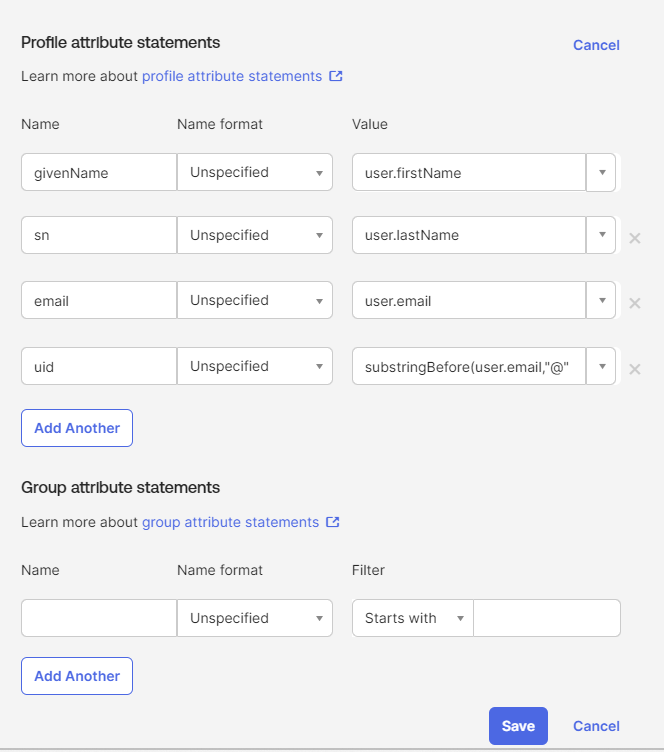
-
-
Optional - If you have chosen to sync FileCloud and Okta groups on every login, add the following Group Attribute Statement:
In Name, enter memberof.
In Filter, choose Matches regex, and then enter .*: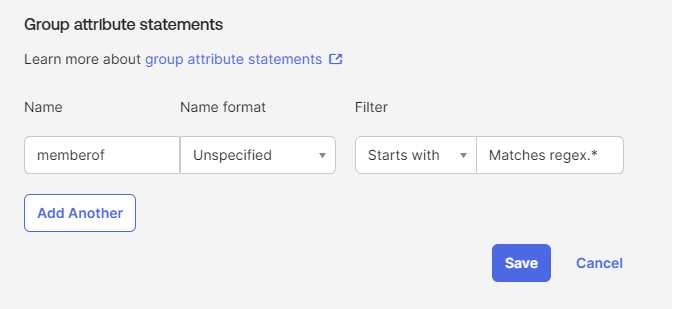
Note: To sync groups on every login, you must also complete step 14, and the steps in Syncing group changes on every login, below.
-
Scroll back up and click View SAML Setup Instructions to view FileCloud SSO configuration details .
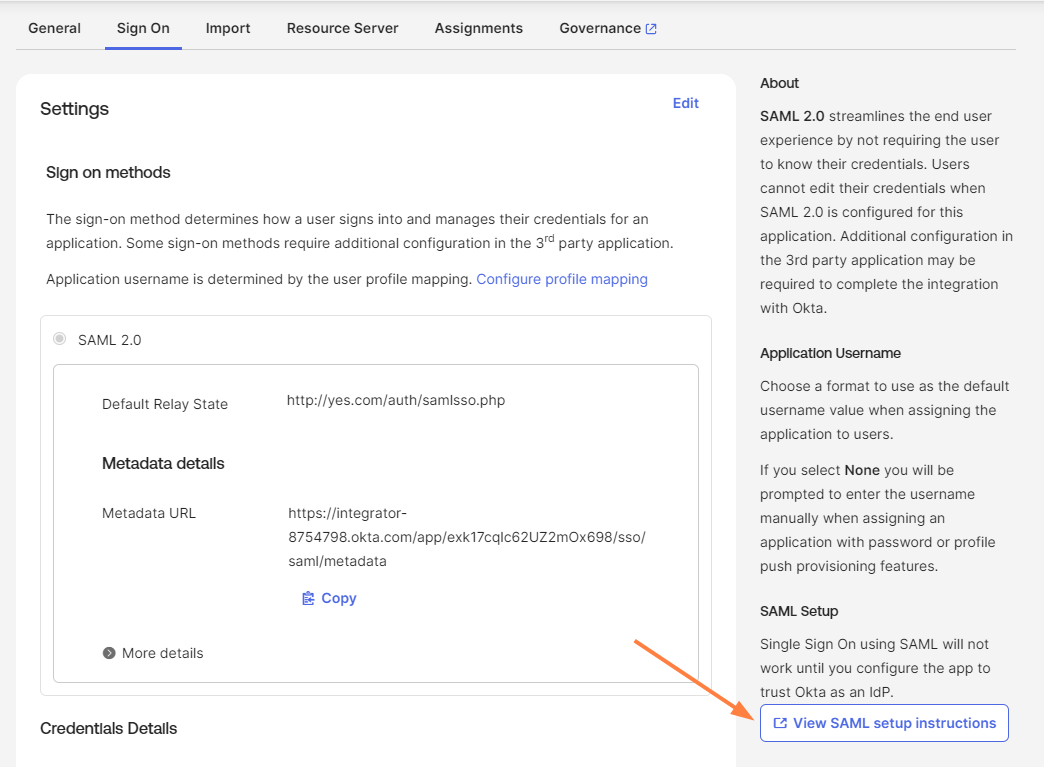
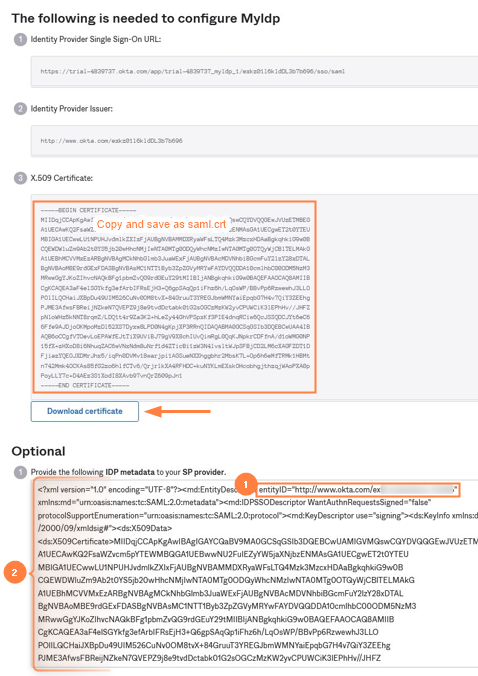
A screen with information similar to the following image opens.
-
Use the details in this screen to configure additionalsettings in the FileCloud admin portal's Settings > SSO screen and to create a saml.crt file.
-
Using the IDP Metadata text under Optional:
(1) Copy the entityID field from the text box into Idp Endpoint URL or EntityID in FileCloud admin UI interface under Settings > SSO.
(2) Copy the text in the IDP metadata box into Idp Metadata in FileCloud admin UI interface under Settings > SSO.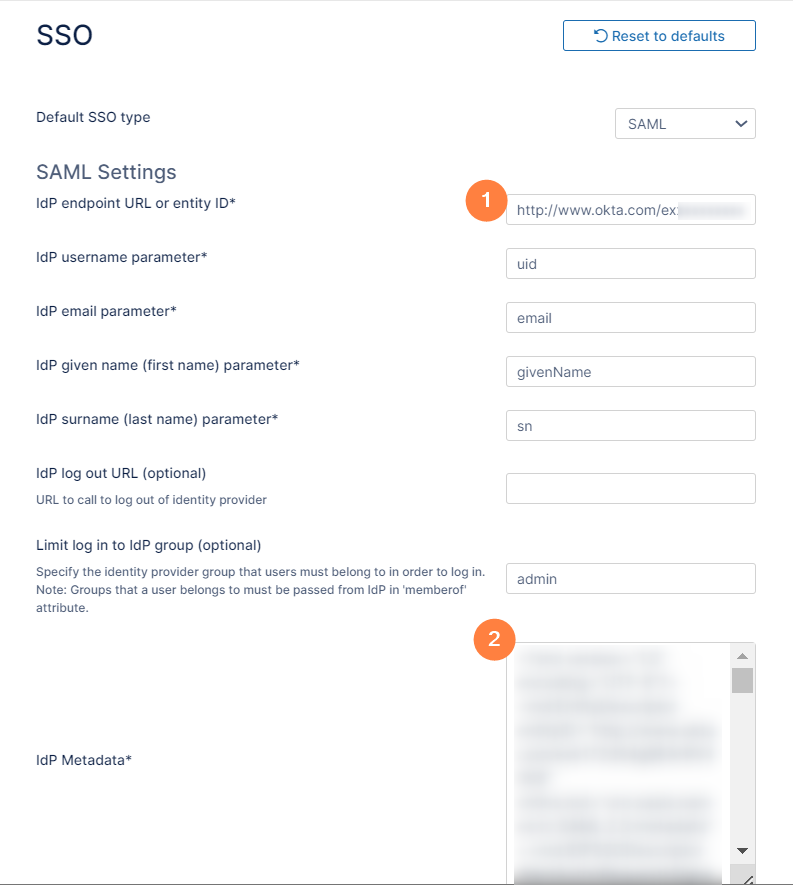
-
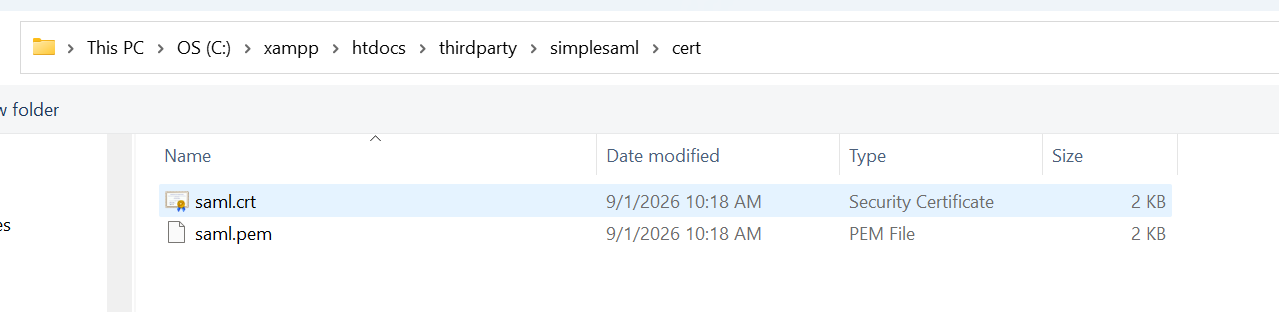
Click Download certificate, then copy the certificate file and rename it to saml.crt.
Copy the saml.crt file in the FileCloud server in the following place /thirdparty/simplesaml/cert.
-
-
Optional - If you have chosen to sync FileCloud and Okta groups on every login:
-
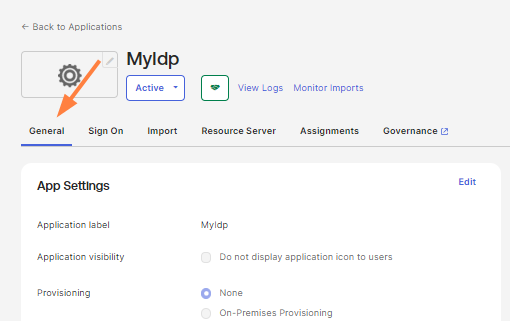
Click the General tab.
-
Scroll down to SAML Settings and click Edit.
-
Click Next to go to the Configure SAML screen.
-
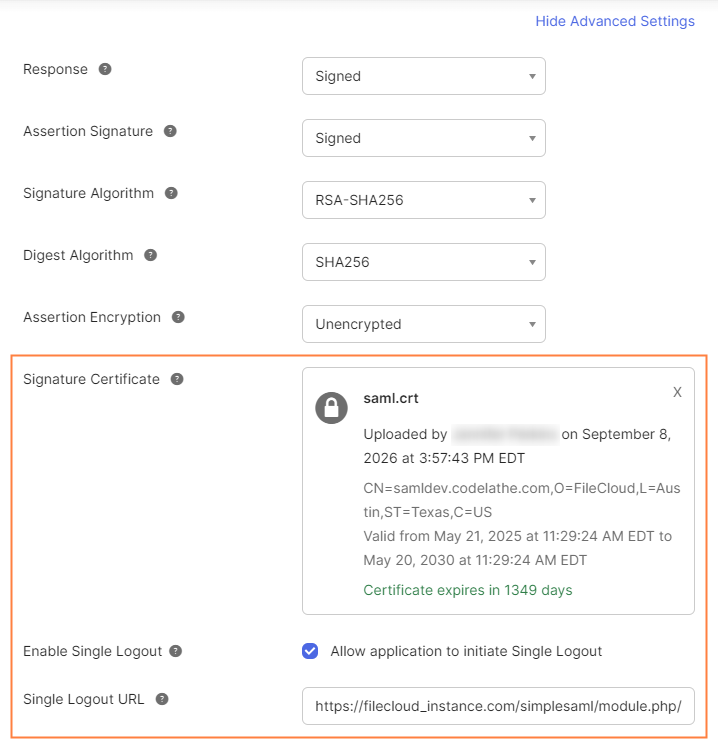
Click Show Advanced Settings.
-
In Signature Certificate, upload the signature certificate file you saved in:
-
Check Enable Single Logout.
-
In Single Logout URL, enter
-
Click Next, and then click Finish.
-
-
To assign the Okta FileCloud integration to users so they can log in to FileCloud with Okta, click the Assignments tab in Okta.
-
In the Assign drop-down list, choose Assign to People.
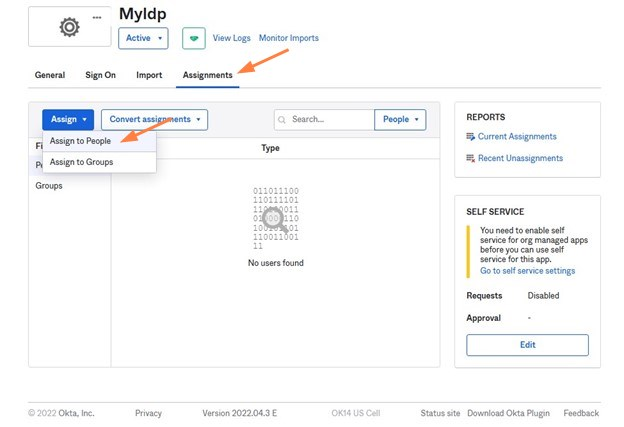
A list of users who have both Okta and FileCloud accounts opens.
-
Select users from the list to allow them to sign in to FileCloud using Okta.
Once the application is created and FileCloud is configured you can start using single sign-on with Okta from FileCloud.
Log in to FileCloud using Single Sign-on with Okta
Users can sign in to the user portal or admin portal with SSO using Okta.
-
In the FileCloud login screen, the user chooses Log in with SSO.
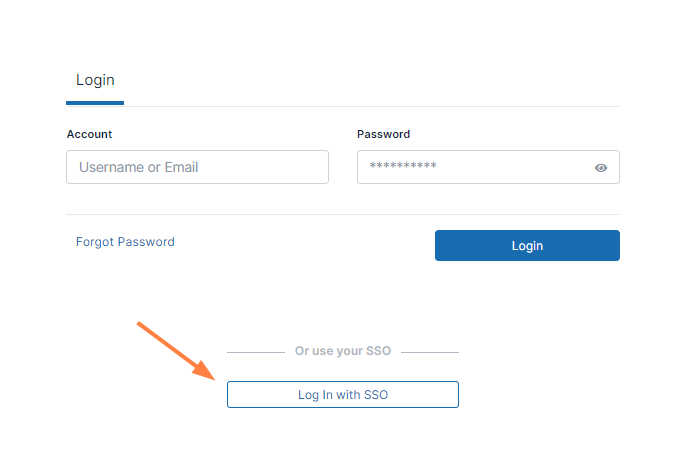
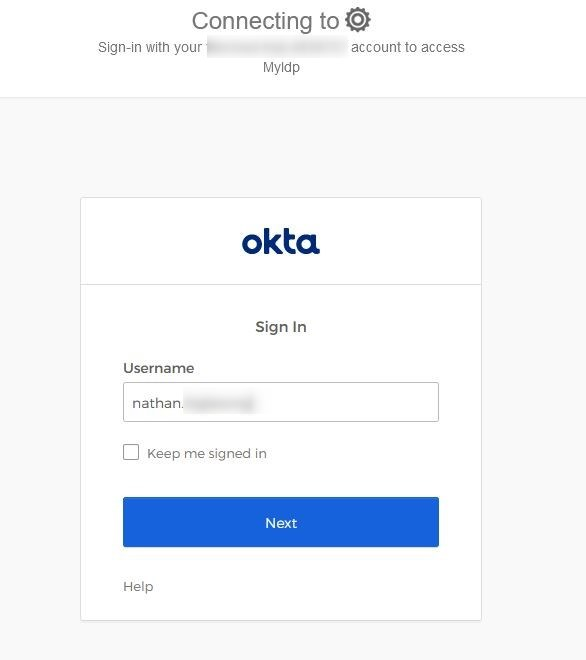
If the user is already logged in to Okta, they are automatically logged in to FileCloud.
If the user not logged in to Okta, they are first redirected to the Okta sign in page, and after signing in to Okta, they are immediately redirected to FileCloud and logged in.
Syncing group changes on every login
If changes to your users' group membership may affect the content they have access to, you may sync a user’s group changes each time they log into FileCloud with their SSO login.
To configure SSO login to sync groups on each login:
-
In the FileCloud admin portal, go to Settings > SSO.
-
Enable the setting Sync groups on every login.

-
In IDP log out URL (optional) enter https://[your okta domain].okta.com/login/signout

Note: This is required, not optional for syncing groups on each login.
-
-
In the integration configuration procedure on this page, To configure FileCloud with Okta, make sure you complete optional steps 11 and 14.
(If you have already configured your integration, edit your configuration and perform steps 11 and 14).