.svg)
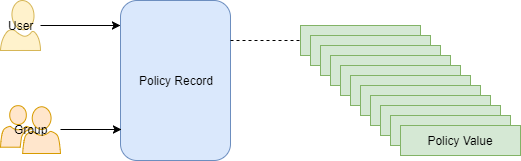
You can manage users and groups easily using policies.
-
Policies enable you to manage settings at the user or group level
-
One policy record manages multiple policy settings
-
The policy record can be associated with a user or group
To manage FileCloud policies, click Settings in the navigation pane, and then, on the Settings navigation page, click Policies 
.png?cb=f11a08db8bd48fc3b7c4186cbd5a4c98)
The policy values in Table 1 are managed in a policy record.
Working with Policy Records
Accessing Policy Records
To access a policy record:
-
In the FileCloud admin portal's left navigation bar, scroll down and click Settings. Then, on the Settings navigation page, click Policies
The Policies page opens.
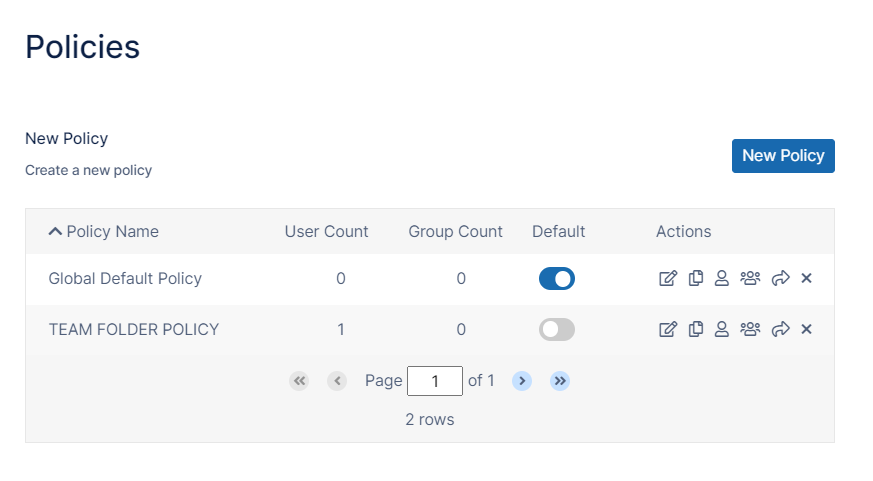
Creating a New policy Record
To create a policy:
-
In the FileCloud admin portal's left navigation bar, scroll down and click Settings. Then, on the Settings navigation page, click Policies
The Policies page opens. -
Click New Policy.
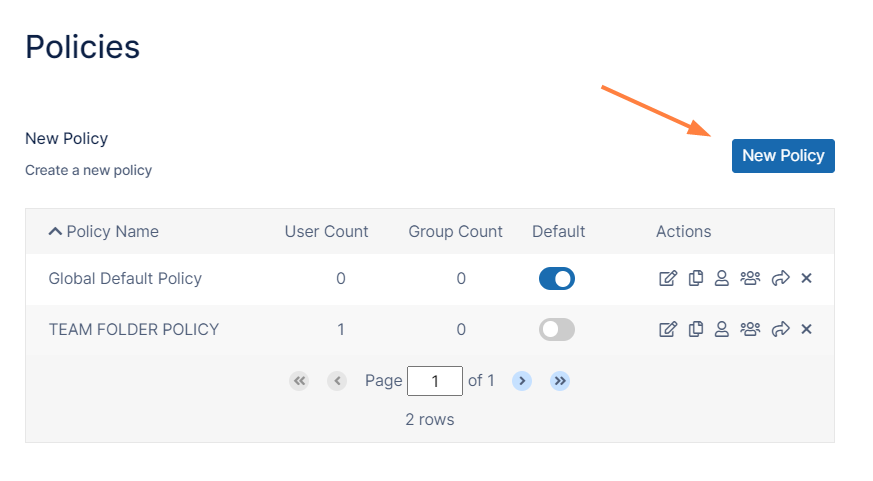
-
In the New policy window, in Policy Name, type in a unique name for this policy, and then click Create.
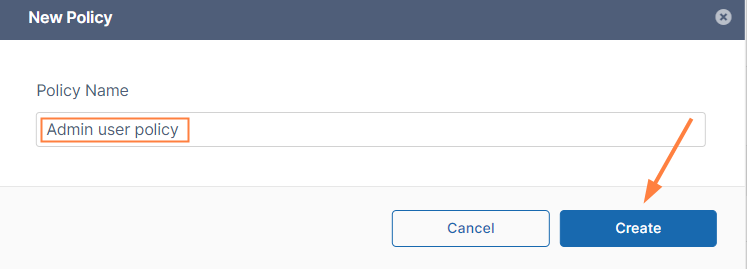
The policy is created and appears in the Policies list. -
Edit the new policy to configure settings.
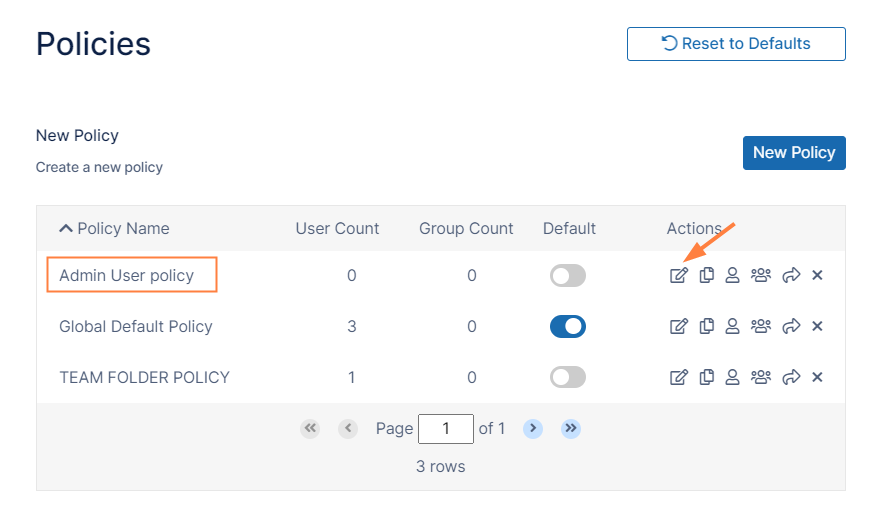
Instead of creating a new policy, you have the option to copy an existing policy including changes you have made to its settings..
To copy a policy:
-
In the FileCloud admin portal's left navigation bar, scroll down and click Settings. Then, on the Settings navigation page, click Policies
The Policies page opens. -
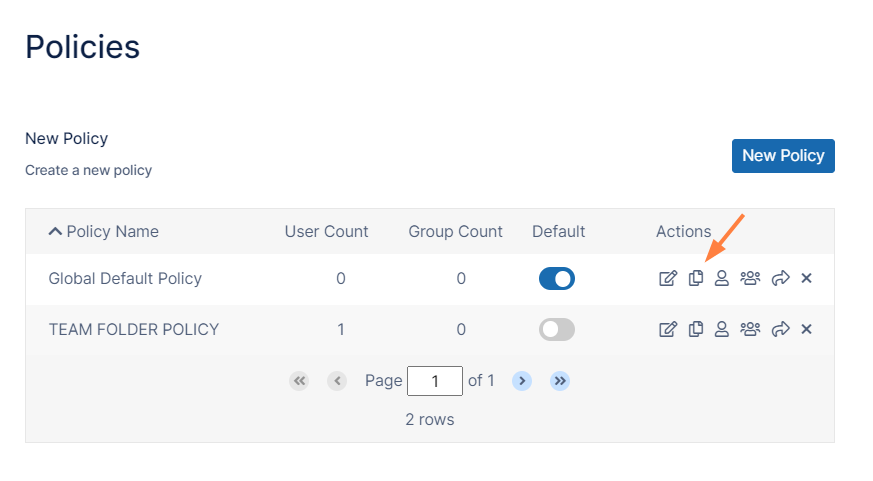
Click the copy icon next to the policy that you want to copy
In the Copy from dialog box, enter a name for the policy, and click Copy.
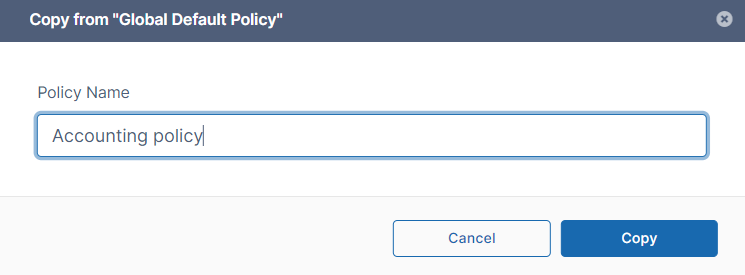
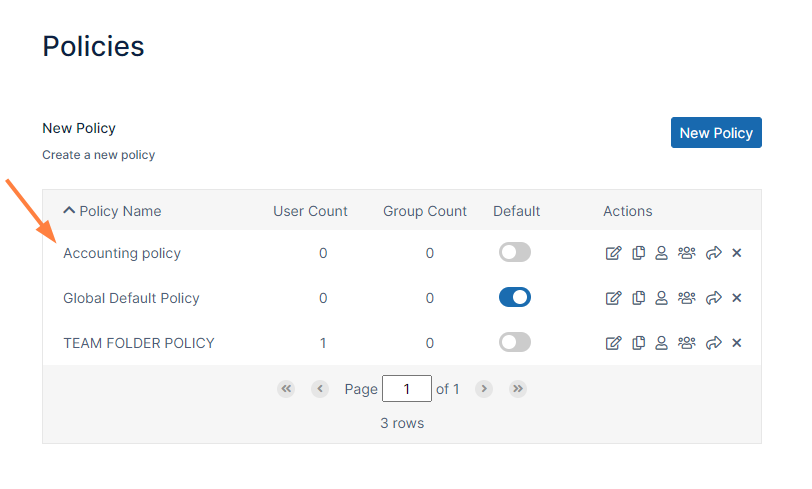
The new policy appears in the list of policies:
Managing Policy Users and Groups
A policy can be assigned to one ore more user or group.
To assign a user to a policy:
-
In the FileCloud admin portal's left navigation bar, scroll down and click Settings. Then, on the Settings navigation page, click Policies
The Policies page opens. -
Click the user icon next to the policy that you want to assign a user to.
-
Use the arrow to move the user to the Policy Users list box.
-
To save your changes, click Close.
To assign a group to a policy:
-
Log into the Admin Portal.
-
Click Settings.
-
On the Policies tab, to open the Manage Policy Groups window, click the groups icon.
-
In the Manage Policy Groups window, in Available Groups, select a group.
-
Use the arrows to move the group to the Policy Groups list box.
-
To save your changes, click Close.
Exporting a list of policy members
Beginning with FileCloud Version 21.3, you can see which users and groups are members of a policy by exporting them.
To export policy members:
-
In the FileCloud admin portal's left navigation bar, scroll down and click Settings. Then, on the Settings navigation page, click Policies
The Policies page opens. -
To export a policy's users and groups to a csv file, click the export (right arrow) icon next to the policy.
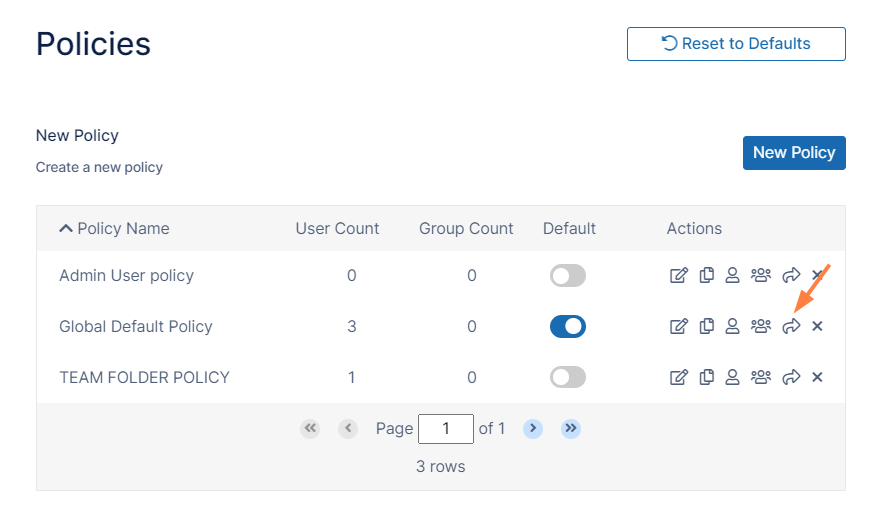
A csv file listing the individual users in the policy and users in groups in the policy is exported. The file includes the following fields:

Manage the Recycle Bin Using Policies
Policy Calcuations Best Practices
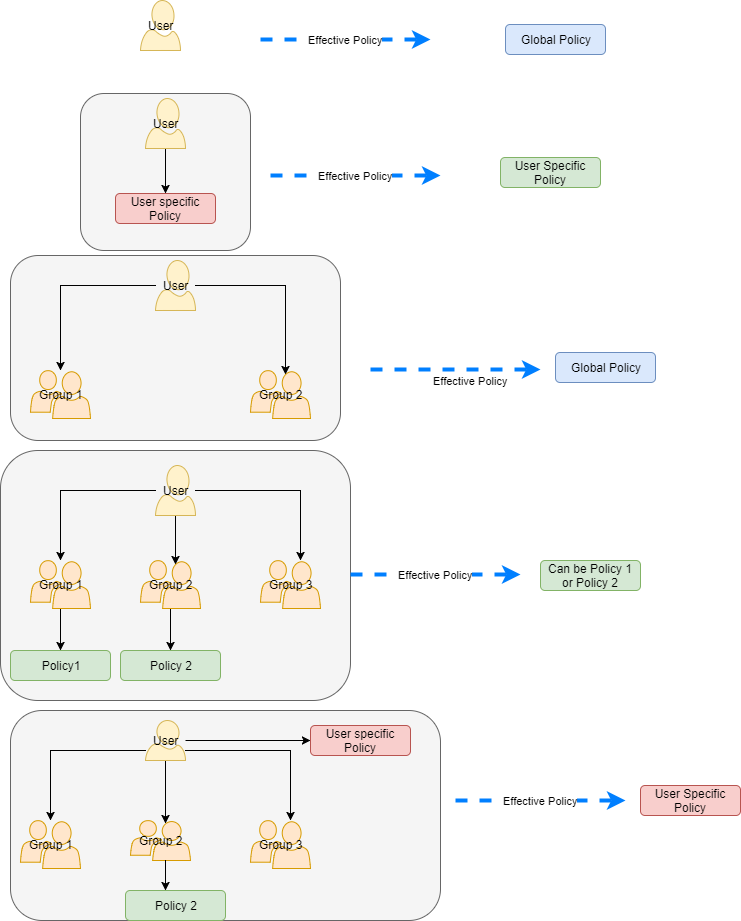
An effective policy for a user is calculated on multiple factors
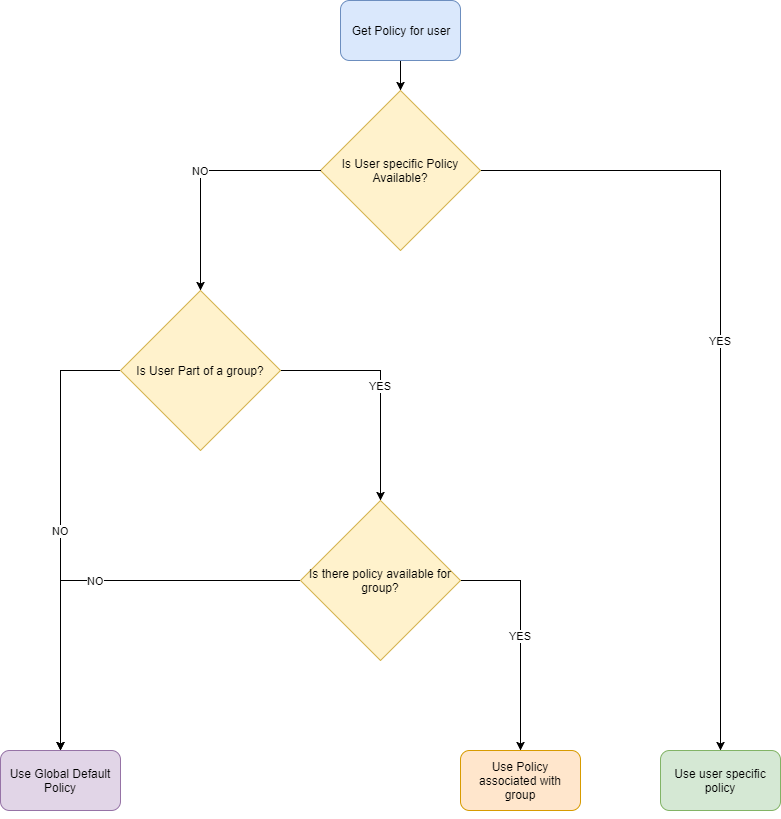
Policy Selection Scenarios
Case 1: User with no policy assigned : Global Default Policy will be used
Case 2: User with specific policy assigned: Assigned policy will be used
Case 3: User is a member of multiple groups, No Policy is assigned to user or group: Global Default Policy will be used
Case 4: User is member of multiple groups and multiple groups have policies: One of the group policies will be used (Randomly selected).
Case 5: User is a member of multiple groups and has specific policy assigned and groups have their own policies: User assigned policy will be used
Selecting a Policy Scenario Flow Chart