.svg)
Administrators can add watermarks to all previews generated in FileCloud.
The options of applying multiline watermarks and choosing a font size are available in FileCloud 23.251 and later.
Password protected PDF previews are not showing watermarks. This is an issue with the third-party application used for previewing PDFs, and will be resolved when an update of the application becomes available.
-
This feature requires Document Converter
|
Example of a single line (default) watermark on a document preview in the admin and user portals. 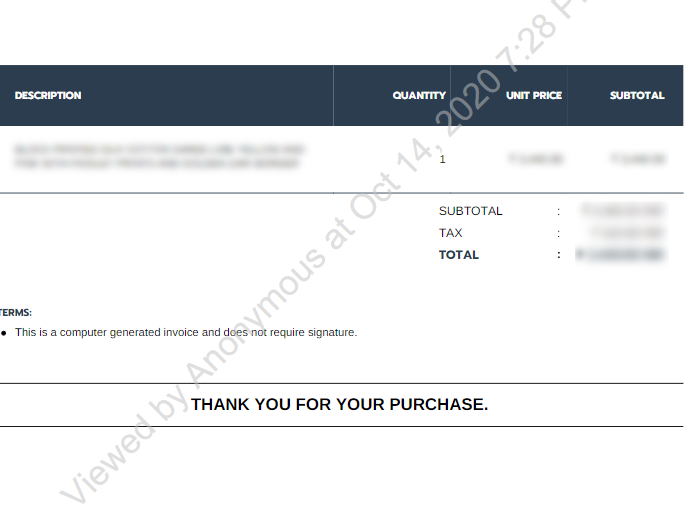
|
|---|
NOTES:
-
If you are not running the latest version of Document Converter, a watermark will not be added
-
To avoid using watermarks, leave both the Anonymous access watermark and the Authorized access watermark fields empty
-
Watermark settings are global
-
Watermarks can't be enabled for a specific set of files or file types, they are applied globally
-
Once watermarks are set, they appear on all document previews generated in FileCloud
-
Watermarks are generated only by Document Converter. To display watermarks for all file types (Office documents), Quick JS Preview and WOPI Preview must be deactivated.
To add watermarks to previews:
-
Install Document Converter
Administrators can use a Java-based service called FileCloud Document Converter to:-
Enable thumbs for all Microsoft Office documents (DOC, DOCX, PPT, PPTX, XSL, XSLX)
-
Enable thumbs for Adobe documents (AI, PDF, PSD)
-
Enable thumbs for TIFF images
-
Interface with LibreOffice for document preview generation
-
Add watermarks to previews generated in FileCloud for Office docs and PDFs.
For this FileCloud uses a java program based on Apache's PDFBox. Document converter also uses LibreOffice libraries to convert documents to PDF.

-
-
Enable watermarks
To display watermarks for previews:-
Open the Preview settings page.
-
In the FileCloud admin portal's left navigation bar, scroll down and click Settings. Then, on the Settings navigation page, click Misc

-
In the inner navigation bar on the left of the Settings page, expand the Misc menu, and click Preview, as shown below.
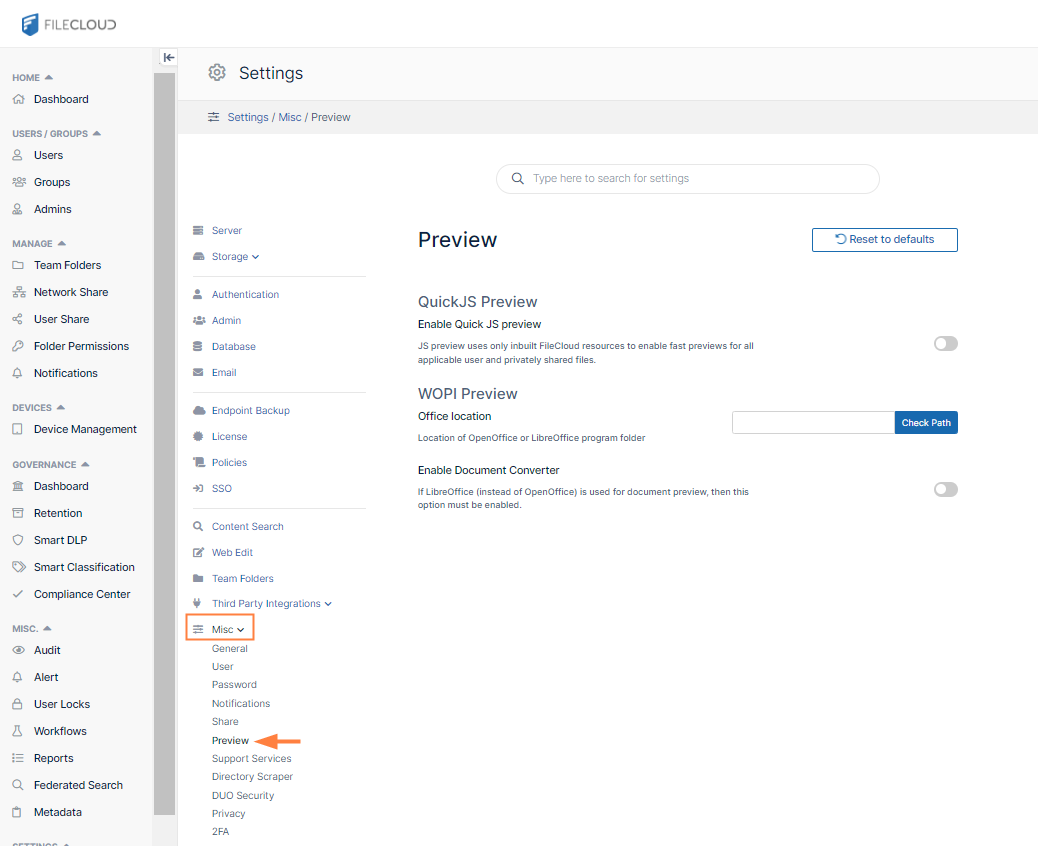
The Preview settings page opens.
-
-
Enable the field Enable Document Converter.
Additional fields appear. -
In Anonymous access watermark, type in the text, including any of the parameters listed below, that you want embedded on previews by anonymous users. Anonymous access watermarks appear to unauthorized users (users viewing public shares).
-
In Authorized access watermark, type in the text, including any of the parameters listed below, that you want embedded on previews by authorized users.
-
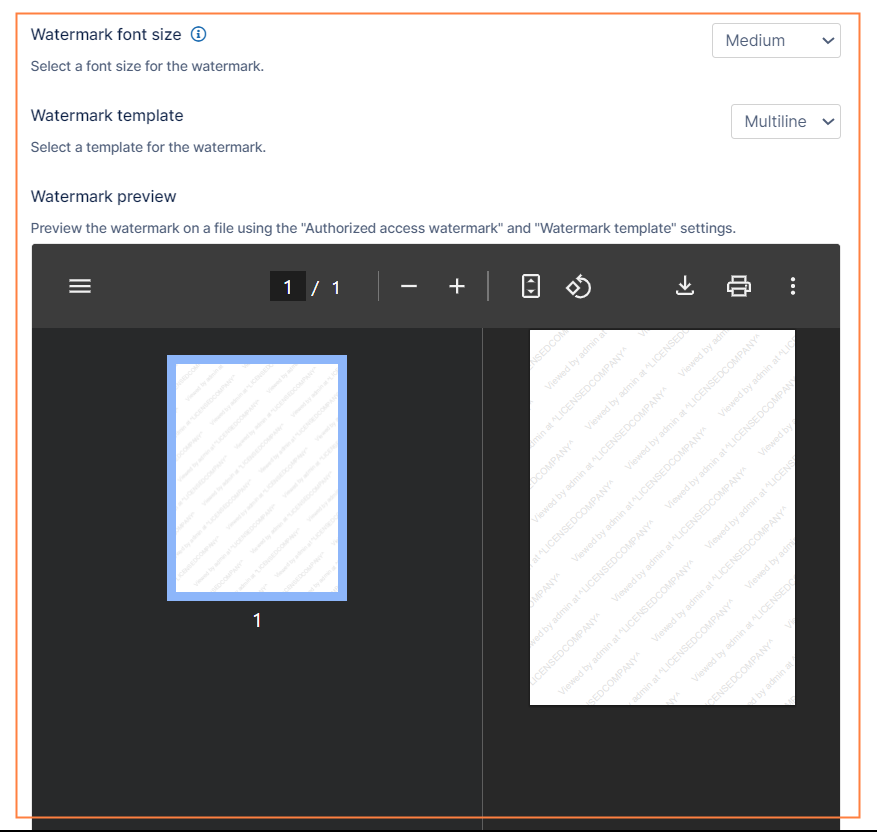
In Watermark font size, choose a font size.
-
In Watermark template:
- Leave Default if you want the watermark to appear in one line across each page of the document.
- Choose Multiline if you want the watermark to appear repeatedly in multiple line across each page of the document.
Watermark preview displays a sample of how your watermark would appear on previewed pages. You may change the settings before saving, and the preview will reflect your unsaved changes.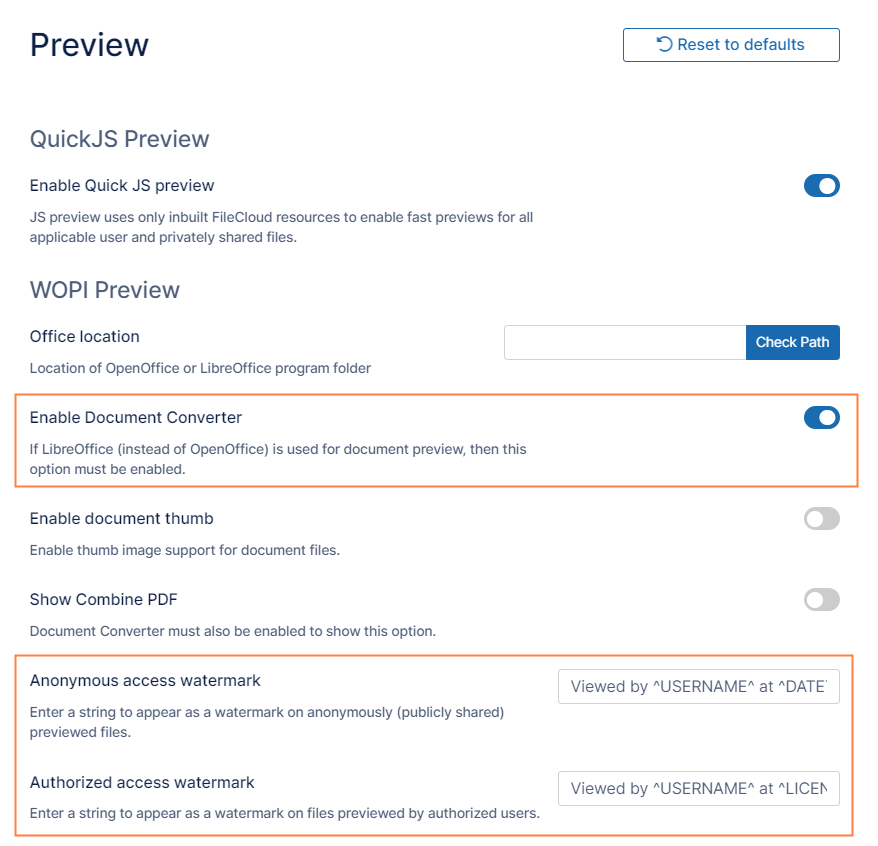
Available parameters:
^USERNAME^ - The user who is viewing this file.
^SHARE_OWNER^ - The user who shared this file.
^FILE_OWNER^ - The file owner.
^OWNER^ - If this is a shared file, the user who shared this file. If this is not a shared file, the file owner.
^DATETIME^ - Date and time of preview.
^GEOIP_LOCATION^ - Geographic location of IP performing preview.
^LICENSED_COMPANY^ - The company listed on the current license.
^PREVIEW_ID^ - An encrypted ID that can be used in place of ^USERNAME^. The encrypted ID appears on the file preview. Admins can identify the user (and the device's IP address) by viewing the audit log for the preview action. Note that if the user previews the file additional times, it will have different preview IDs each time.Now whenever a user previews a document, they see the watermark for anonymous or authorized access embedded in the preview.
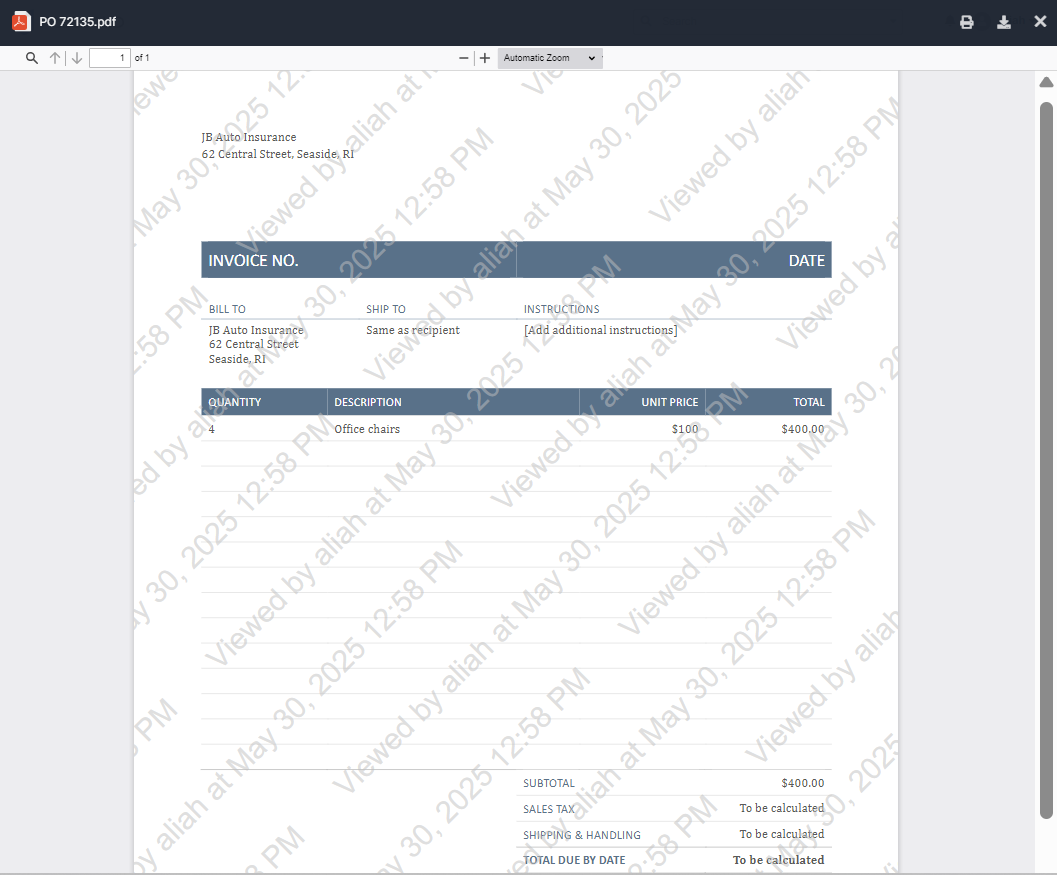
-
Displaying an encrypted User ID in the a watermark
To display an encrypted User ID instead of the actual User ID in a watermark:
-
In the Preview settings page, use the parameter ^PREVIEW_ID^ instead of ^USERNAME^ in the field Anonymous access watermark or Authorized access watermark:
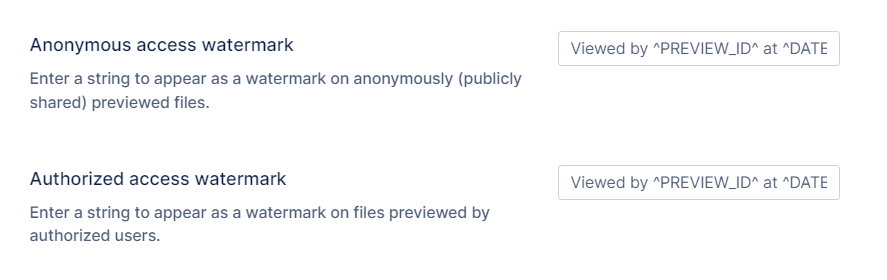
This produces a preview with a watermark like the following one:
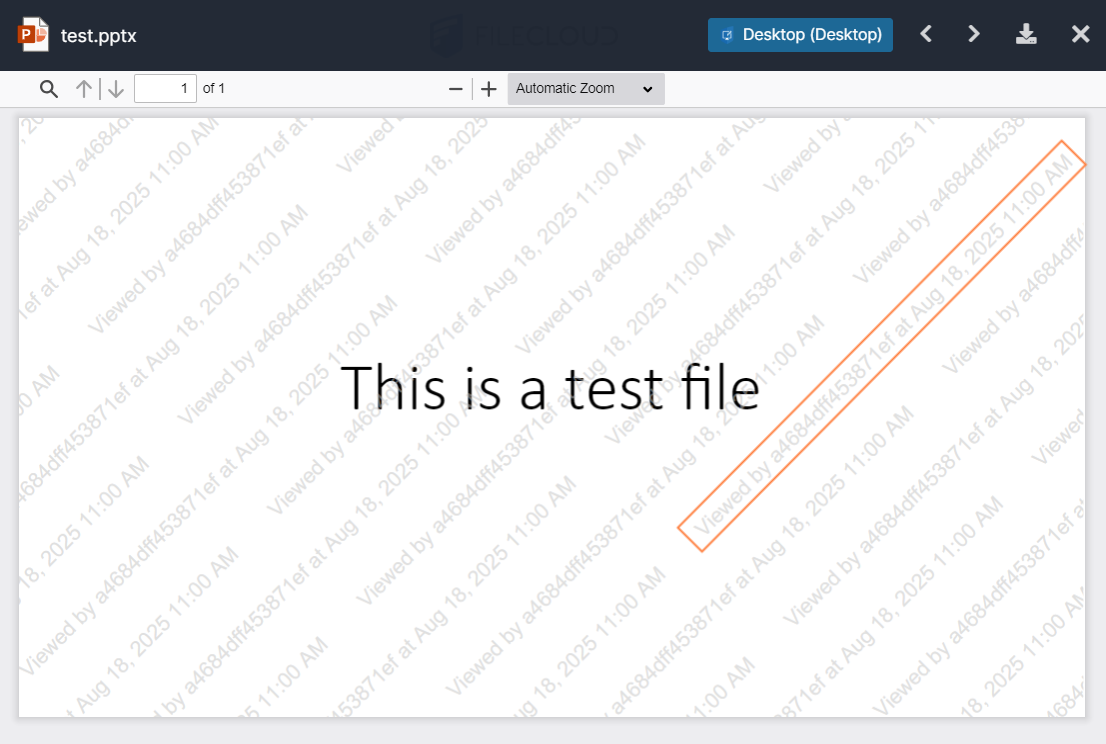
Note that if the user previews the file additional times, it will have different preview IDs each time. -
To identify the user who previewed the file, go to the Audit Logs, and locate the log with the encrypted ID in the message. The message will identify the actual user who previewed the file, and, as with any audit log record, the IP address of the device where the action was performed.

Customizing the preview ID
Use the following two parameters to customize the preview ID size and length:
|
Parameter |
Description |
|---|---|
|
define("TONIDOCLOUD_PREVIEW_ID_SIZE", "small"); |
The length of the preview ID.
|
|
define("TONIDOCLOUD_PREVIEW_ID_CUSTOM_DICTIONARY", "abcdefghijklmnopqrstuvwxyzABCDEFGHIJKLMNOPQRSTUVWXYZ0123456789-_");
|
The characters that may be used in the preview id. The characters in the example to the left are the default value. |
To customize ^PREVIEW_ID^ size and length:
-
Open cloudconfig.php:
Windows Location: XAMPP DIRECTORY/htdocs/config/cloudconfig.php
Linux Location: /var/www/config/cloudconfig.php -
Add the above parameters with custom values:
define("TONIDOCLOUD_PREVIEW_ID_SIZE", "medium");
define("TONIDOCLOUD_PREVIEW_ID_CUSTOM_DICTIONARY", "0123456789ABCDEF");