.svg)
Initially, the login page for FileCloud Desktop opens after you install it. After that, by default, it opens automatically when you start up your computer. If you do not want it open automatically on startup, you can change the setting in FileCloud Desktop.
To open FileCloud Desktop's login screen:
-
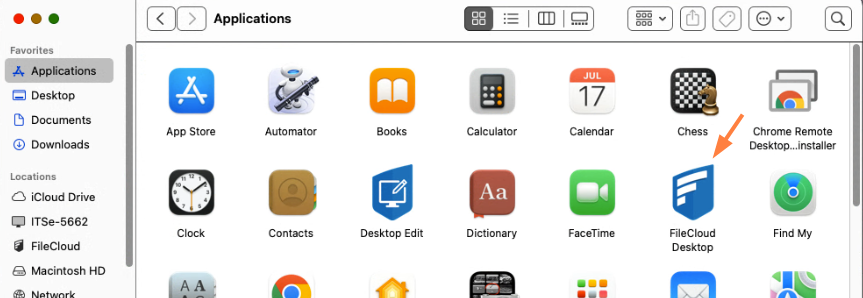
From macOS Finder, double-click the icon in your Applications folder.
-
In the first screen of the login wizard, enter your server address.
If you want to view the user interface in a different language than the default shown, choose a different option.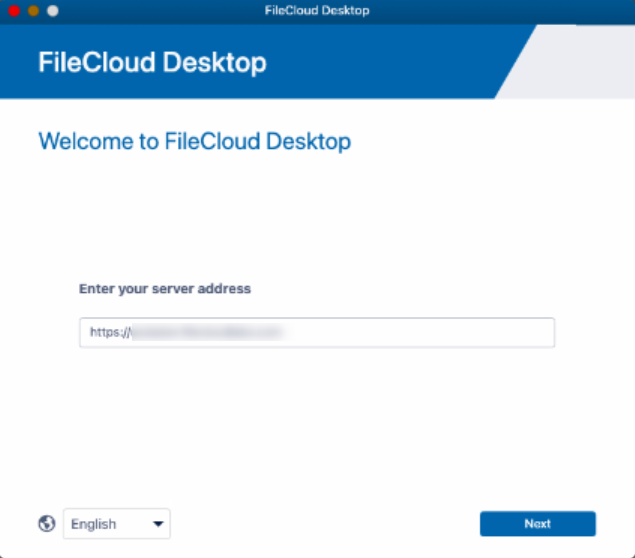
-
The next screen asks you to choose a login method.
Choose one of the following login methods:
Log in with password
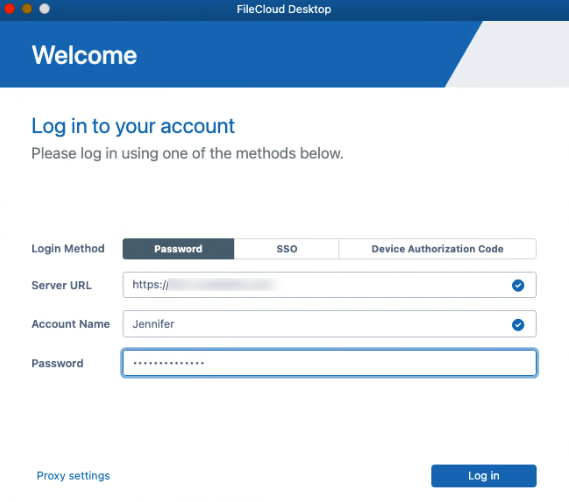
Leave Password selected for Login Method, and enter your Server URL, Account Name (username), and Password into the Log in screen, and click Log in:
Log in with SSO
-
Select SSO for Login Method.
The screen changes to: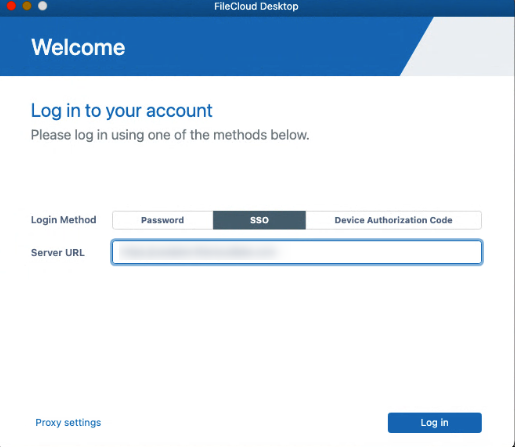
-
Type the address to the FileCloud server that was sent to you when your FileCloud account was created.
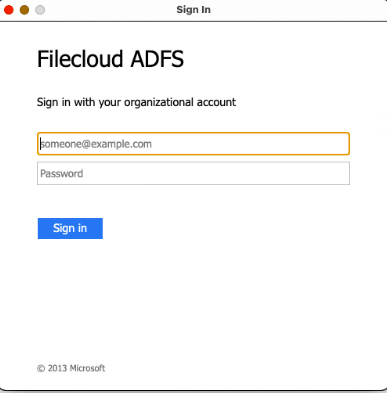
You are redirected to the SSO Login page, where you can enter your username and SSO password to log in.
Log in with Device Authorization Code
-
Select Device Authorization Code for Login Method.
The screen changes to: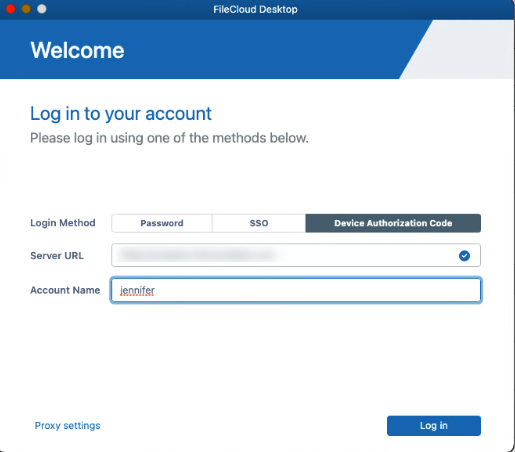
-
Enter your Server URL and Account Name (username).
An Enter Device Code dialog box opens.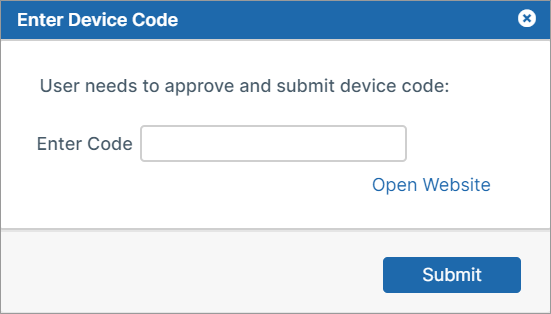
-
Click Open Website.
The log-in screen of the user portal opens. -
Log-in to the user portal.
-
In the upper-right corner of the screen, click your username and choose Settings.
-
In the Settings screen, click Devices.
-
Next to the listing for FileCloud Desktop, click the check.
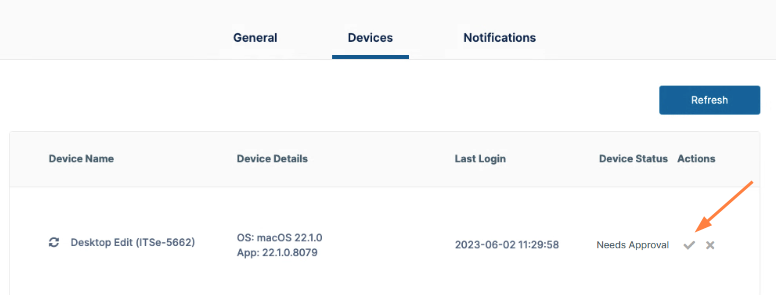
A dialog box with the device authentication code opens. -
Enter the authentication code into the Enter Device Code dialog box, and click Submit.
Log in using Proxy Settings
-
Click Proxy Settings.
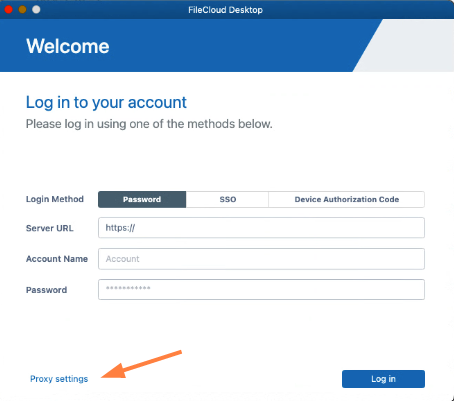
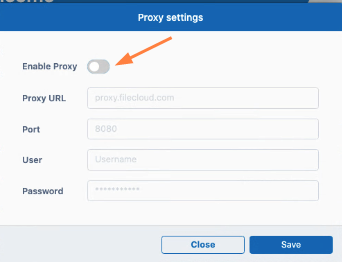
A dialog box with proxy settings opens:
-
Click the Enable Proxy slider to enable use of proxy settings.
-
Fill in the proxy settings.
-
Save your changes.
The first time you log in, you may be prompted to give FileCloud Desktop full disk access.
Follow the prompts to go to Settings > Privacy and Security > Full Disk Access and enable Full Disk Access for FileCloud Desktop.
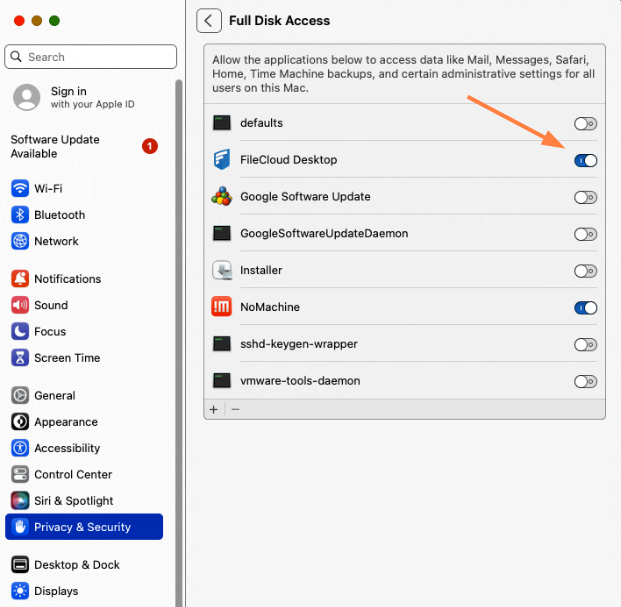
Once that is configured, login moves through a few screens introducing you to FileCloud Desktop, and then opens the FileCloud Desktop dashboard.
The dashboard opens to the Live screen. FileCloud Desktop cannot begin tracking and synchronizing online and offline FileCloud file activity until you download FileCloud folders and files to your local drive. So initially, the Live tab appears empty.
Click the folder icon at the bottom of the FileCloud Desktop dashboard to view the FileCloud folder, which now appears under Locations in your finder.
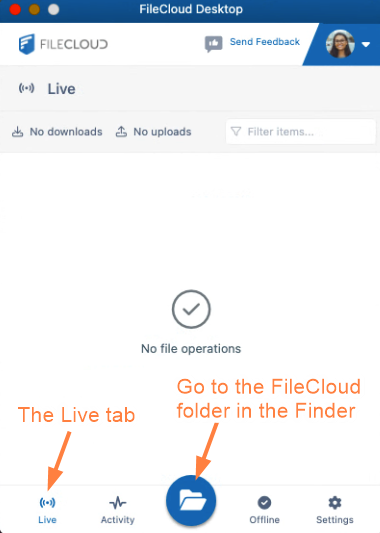
If this is the first time you have logged in to FileCloud Desktop, each file and folder should appear with a cloud icon next to it, which indicates that it hasn't been downloaded locally (made available offline) yet.
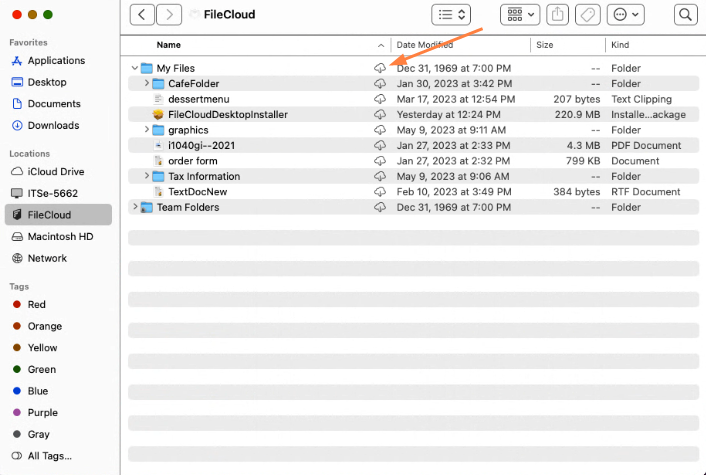
Begin setting up FileCloud Desktop by making FileCloud files and folders available offline.
For more information about the dashboard, see Using the Dashboard in FileCloud Desktop for macOS.