.svg)
-
MFA validation codes remain valid for 10 minutes by default. After 10 minutes, you must click Resend code to get a new code.
-
If you are a promoted admin, the login method set up for your user portal login is also used for your admin portal login. However, if MFA is set up for your admin portal login, your admin may require you to use that method for logging in to the admin portal.
If your administrator has enabled multi-factor authentication (MFA), you are required to enter an additional code in order to proceed.
MFA is set up in FileCloud in one of the following ways:
-
Single method - You are prompted to obtain your MFA code using a specific mechanism, such as SMS.
-
User choice - On initial login, you choose one of a number of mechanisms for receiving your MFA code. Depending on your system’s configuration, on following logins, you are prompted with your chosen mechanism or given the option of choosing from any of the available options.
-
Primary and secondary method - On initial login, you choose one among a number of mechanisms as your primary (default) MFA mechanism, and you choose another as your secondary MFA mechanism, which you can fall back on when necessary.
Currently the MFA mechanisms available are:
-
SMS - the MFA code is sent to the phone number associated with your FileCloud account.
-
Email - the MFA code is sent to the email address associated with your FileCloud account.
-
TOTP - You are prompted to check your authenticator app for the MFA code.
-
DUO - You are prompted to check your DUO mobile app for the code.
You may have one or more of these mechanisms available to you.
Choosing multi-factor authentication mechanisms
If your system is set up with one of the multi-factor authentication methods that requires you to choose your method(s) of authentication, you are prompted to choose on your initial login.
User choice method
If your system is set up with the User choice method, you are presented with all of the available MFA mechanisms when you log in and are prompted to choose one:
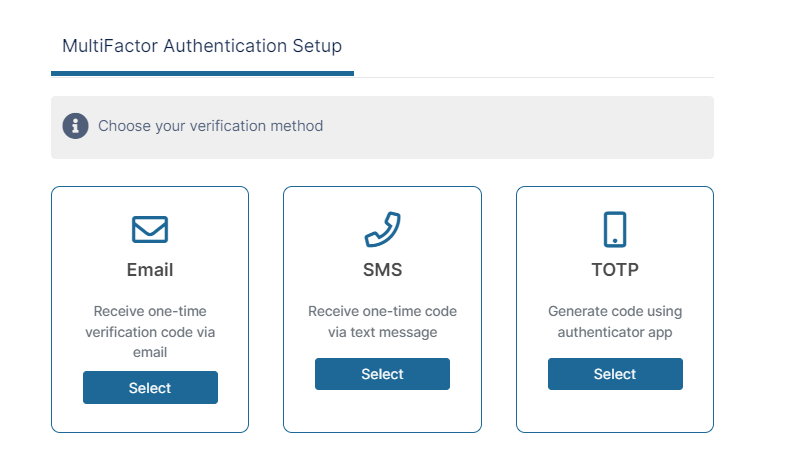
After you select a mechanism, you complete any other setup necessary and log in. Depending on how your system is configured, on subsequent logins you are either:
-
prompted to log in with your selected method without any additional setup required.
-
given the option of choosing from any of the available methods again. If you choose a method you have not yet configured, you are prompted to complete its setup.
Primary and secondary method
If your system is set up with the Primary and secondary method, you are presented with all of the available MFA mechanisms when you log in and are prompted to choose a primary one:
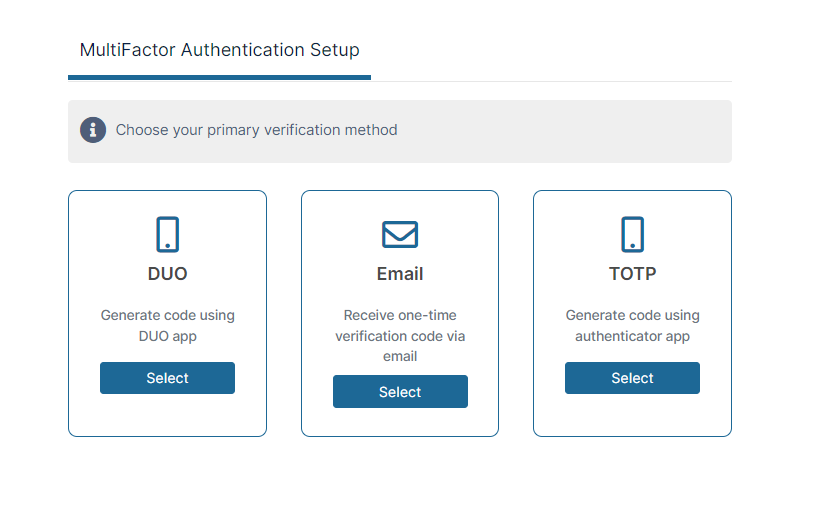
After you choose a primary method, you complete any setup for that method, and log in with it. Then you are prompted to choose a secondary method:
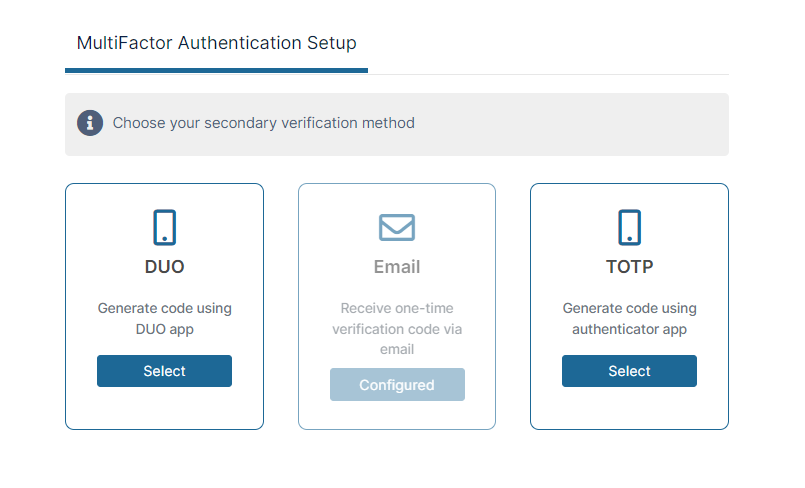
After you choose a secondary method, you complete any setup for that method and log in with it.
On subsequent logins you are prompted to login with your primary method but a link enables you to switch to your secondary method:
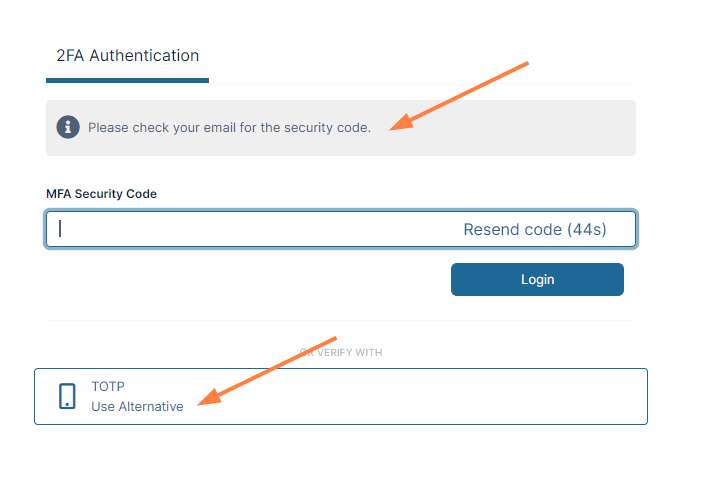
Using multi-factor authentication mechanisms
Email code
If multi-factor authentication is set up to use your email id, then the MFA security code is sent to the email address associated with your FileCloud account.
SMS code
If multi-factor authentication is set up to use SMS, then you will receive a code via the phone number associated with the account.
Logging in using SMS
-
Log in to FileCloud using your username and password.
If this is the first time you are logging in using SMS, you are prompted to enter your phone number.-
Enter your phone number and click Send code.
This step is not required on subsequent logins.
-
-
Check your phone for the code, and enter it into Verification code.
-
Click Login.
You are logged in to FileCloud.
TOTP
If you are logging in with TOTP, the dialog box prompting you for your security code will direct you to check your authenticator app for the code.
The initial time you log in using TOTP
-
Log in to FileCloud using your FileCloud username and password.
The following screen appears: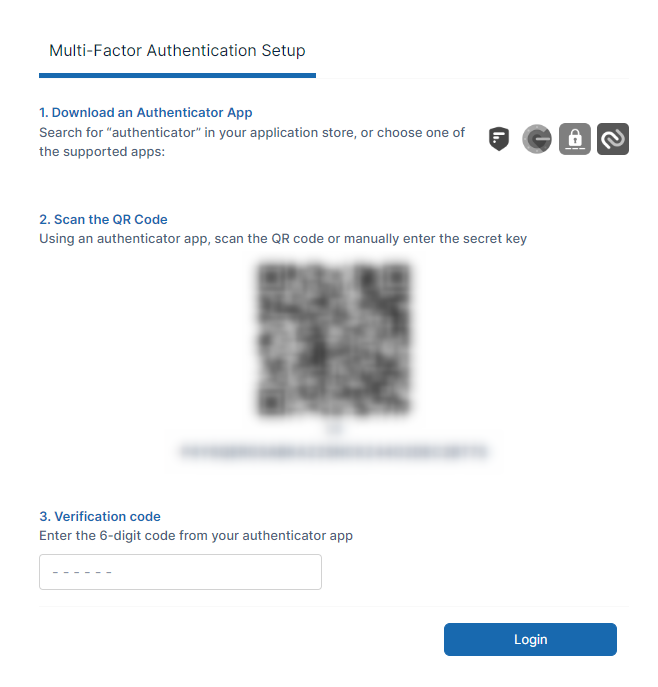
-
If an authenticator app is not yet set up, install it in your smart device; you may click one of the download icons to install it.
-
Either scan the QR code or type the text code into the authenticator app.
The authenticator app creates the account and lists it with a code. -
Enter the code listed on the authenticator app for your account into Verification code, and click Login.
You are logged in to FileCloud.
After your initial login with TOTP
The authenticator app has saved your account the first time you logged in using TOTP, so you do not have to enter it again.
-
Log in to FileCloud using your FileCloud username and password.
The following screen appears: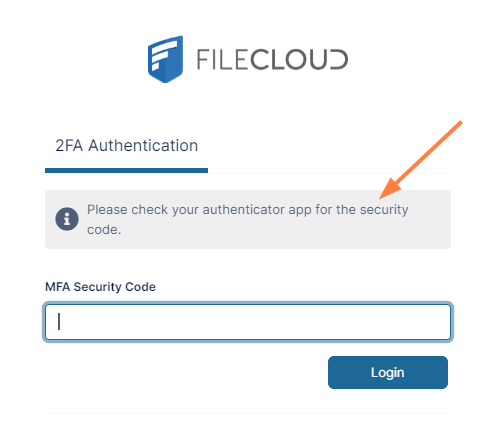
-
Enter the code listed on the authenticator app for your account into MFA Security Code, and click Login.
You are logged in to FileCloud.
DUO
If you are logging in with DUO authentication, the dialog box prompting you for your verification code will direct you to check your DUO mobile app for the code.
The initial time you log in using DUO
-
Log in to FileCloud using your FileCloud username and password.
The following screen appears: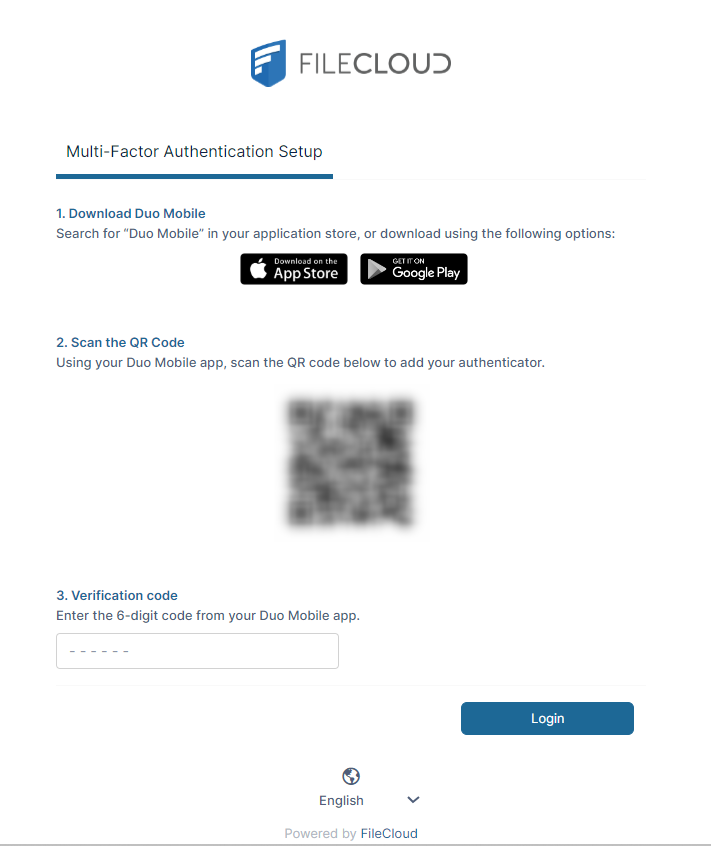
-
If the Duo mobile app is not yet set up, install it on your smart device; you may click one of the download icons to install it.
-
Scan the QR code using the Duo mobile app.
The Duo mobile app creates the account and lists it with a verification code. -
Enter the code listed on the Duo mobile app for your account into Verification code, and click Login.
You are logged in to FileCloud.
After your initial login using Duo
The Duo mobile app has saved your account the first time you logged in using Duo, so you do not have to enter it again.
-
Log in to FileCloud using your FileCloud username and password.
The following screen appears: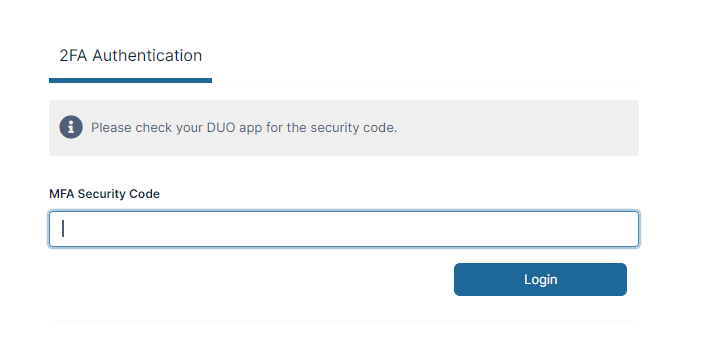
-
Enter the code listed on the Duo mobile app for your account into MFA Security Code, and click Login.
You are logged in to FileCloud.