.svg)
FileCloud allows you to create your own user account.
However, this option is configured by your administrator and may not be available depending on your company's policies.
If your account requires admin approval:
You are notified by email when:
-
You initially try to connect (admin approval pending)
-
When the administrator has approved the device you are trying to connect with
If you click the New Account button and get an error, please contact your administrator. Your company policies may not allow to create your own account.
To create a new user account:
-
Open a Web browser.
-
Type in the URL provided by your Administrator. For example, https://<yourteamname>.filecloudonline.com
-
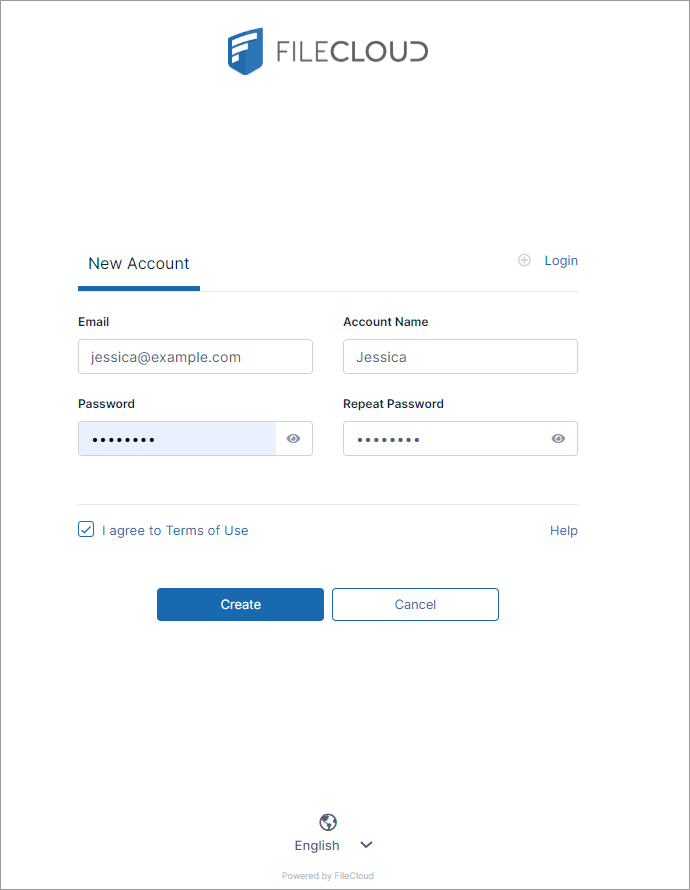
Click the New Account button.
A New Account window opens. -
In Email, type in the address where you want to receive notifications about FileCloud issues.
-
In Account Name, type in a string of characters.
-
In Password and Repeat Password, type in the same string of characters.
Check with your administrator for password requirements. -
Click I agree to Terms of Use, and read the terms of use, then click the checkbox.
-
If you want your user interface to display a language other than English, click English at the bottom of the page, and choose a language option.
-
Click Create.
The screen displays Success and the message Check your email account for instructions to activate your account.