.svg)
The ability for admins to configure FileCloud to sync users and groups across multiple trusted AD domains through the FileCloud admin portal is available in FileCloud 23.252.
Organizations may maintain multiple AD domains (and sub-domains) in a structure referred to as an AD forest, which authenticates user access to all of the included domains, enabling actions such as searching to be performed across all of the domains. A Global Catalog (GC) helps manage an AD forest by indexing all of its domains so they can be cross referenced easily.
The instructions on this page show you how to configure authentication of all of the AD servers in your domain forest using the Global Catalog (GC). To authenticate to multiple AD servers by separately configuring each of the AD servers in your adconfig file, see Authenticating to Multiple AD servers.
You can sync FileCloud users and groups with all domains in an AD forest by enabling Enable multiple AD domains in the Authentication settings for Active Directory. When this setting is enabled, the users in that AD forest are required to log in with their full email addresses to enable cross-domain resolution.
For more information on using a multidomain AD infrastructure, see AD Directory Services Getting Started.
To enable multiple AD server authentication:
-
In the FileCloud admin portal's left navigation bar, scroll down and click Settings. Then, on the Settings navigation page, click Authentication

The Authentication settings page opens. -
Under Authentication, change Authentication type to Active Directory, and click Save.
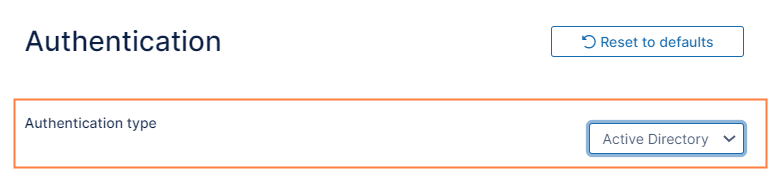
Additional fields appear. -
Toggle on Enable multiple AD domains.
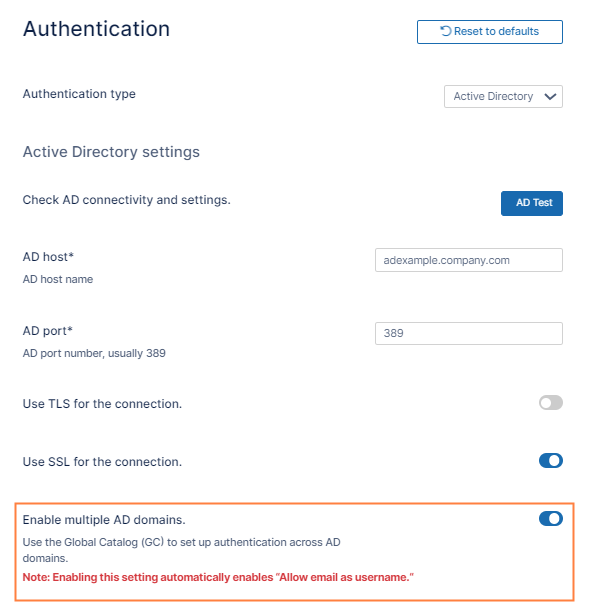
When Enable multiple AD domains is toggled on:-
the following account suffix and prefix fields are hidden, since multiple domains are defined by different account suffixes:
-
Users have same UPN account suffixes
-
AD account suffix
-
AD logon name prefix
-
-
The Allow email as username setting available in Admin settings is automatically enabled because users stored in this AD domain forest are required to log in to FileCloud with their full email addresses, which are taken from the User Principal Name (UPN) in Active Directory. You are not permitted to disable Allow email as username as long as Enable multiple AD domains is enabled.
-
-
Fill in the other fields as instructed on the page Active Directory Authentication.
Handling of groups and users with the same names in different domains
In AD forests, it is not uncommon for different AD domains or sub-domains to have users or groups with the same names. For example, two divisions of a company may each have their own domain, but both divisions may have a Marketing group or a user named Michael in their domain. For this reason, when Enable multiple AD domain is enabled:
-
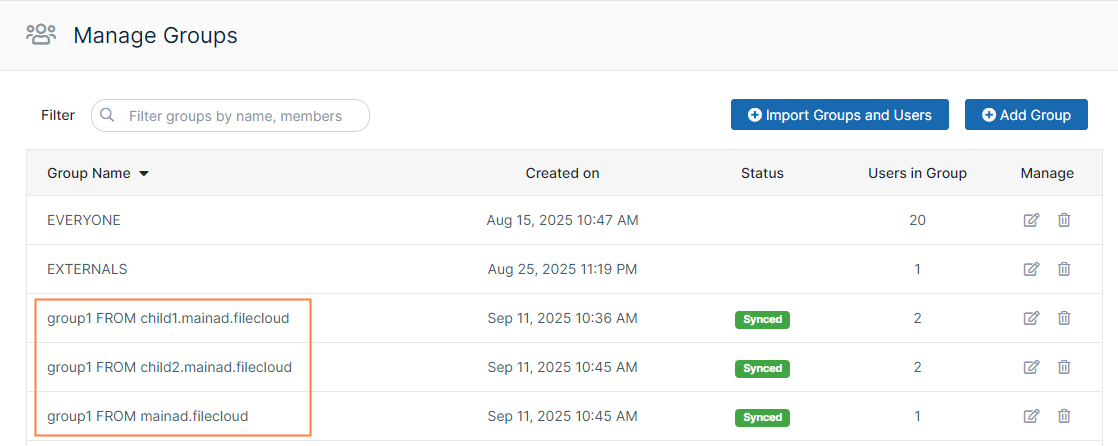
When a group is imported from an AD domain, its name in FileCloud includes both the group name and the domain/subdomain name:
-
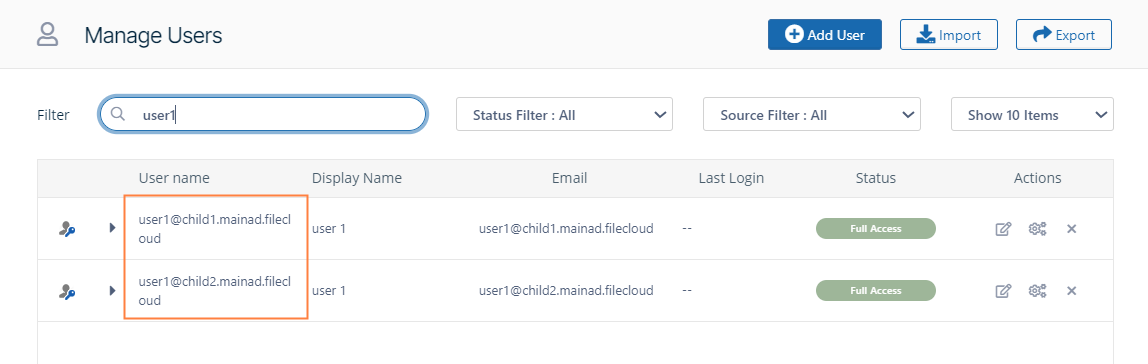
When a user is imported through an AD group, its user name in FileCloud is its email address, including the full domain and sub-domains: