.svg)
To customize CSS, you may enter the path of a custom CSS file and/or directly enter custom CSS entries. If you enter both, both will take effect.
Using a Custom CSS File
Step 1: Confirm that rewrite rules are enabled
Click to expand...
Step 1: Confirm that rewrite rules are enabled
When FileCloud is installed or upgraded, this step should be already done for you. But admins should ensure that the following rules are enabled in their htaccess file.
On Windows: C:\xampp\htdocs\.htaccess
On Linux: /var/www/.htaccess
Depending on the Apache version that you are running,ensure the appropriate lines are present in your htaccess file.
The order of rules is important
RewriteEngine On
RewriteRule ^upload/?$ core/index.php?op=upload&%{QUERY_STRING} [L]
RewriteRule ^getaudio/?$ core/index.php?op=geta1dio&%{QUERY_STRING} [L]
RewriteRule ^getvideo/?$ core/index.php?op=getv1dio&%{QUERY_STRING} [L]
RewriteRule ^download/?$ core/index.php?op=downloadfile&%{QUERY_STRING} [L]
RewriteRule ^storage/index.php?$ storage/index.php?%{QUERY_STRING} [L]
# componant inside filecloud server
RewriteRule ^serverbackup/index.php?$ app/serverbackup/index.php?%{QUERY_STRING} [L]
# standalone backup server
RewriteRule ^backupclient$ resources/backupserver/index.php [L]
#Use this rule for customization for Apache 2.2
RewriteRule ^custom/css/(.*)$ resources/customization/css/$1 [L]
RewriteCond %{REQUEST_FILENAME} !-f
RewriteCond %{REQUEST_FILENAME} !-f
RewriteRule ^(.*)/?$ core/index.php?op=$1&%{QUERY_STRING} [L]
RewriteEngine On
RewriteRule ^upload/?$ core/index.php?op=upload&%{QUERY_STRING} [L]
RewriteRule ^getaudio/?$ core/index.php?op=geta1dio&%{QUERY_STRING} [L]
RewriteRule ^getvideo/?$ core/index.php?op=getv1dio&%{QUERY_STRING} [L]
RewriteRule ^download/?$ core/index.php?op=downloadfile&%{QUERY_STRING} [L]
RewriteRule ^storage/index.php?$ storage/index.php?%{QUERY_STRING} [L]
# componant inside filecloud server
RewriteRule ^serverbackup/index.php?$ app/serverbackup/index.php?%{QUERY_STRING} [L]
# standalone backup server
RewriteRule ^backupclient$ resources/backupserver/index.php [L]
#Use this rule for customization for Apache 2.3+
RewriteRule ^custom/css/(.*)$ resources/customization/css/$1 [END]
RewriteCond %{REQUEST_FILENAME} !-f
RewriteRule ^(.*)/?$ core/index.php?op=$1&%{QUERY_STRING} [L]
Step 2: Configure the Custom CSS Path
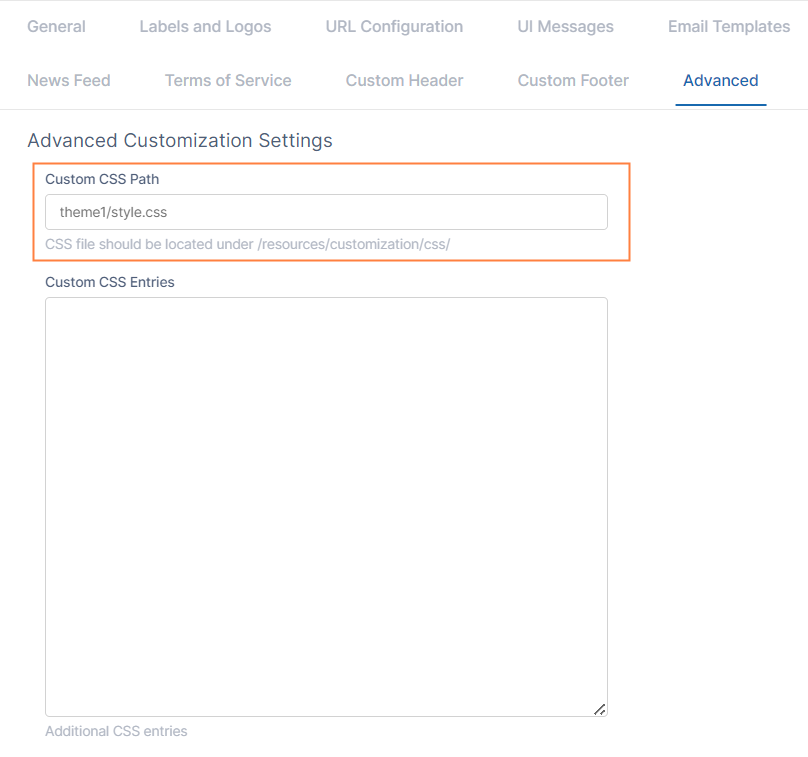
In the Admin Dashboard, navigate to Customization tab and select Advanced tab. Set the relative path to custom CSS file.
For example, set the Custom CSS Path entry to be theme1/style.css, if the CSS file is created under <WEB_ROOT>/resources/customization/css/theme1/style.css.
Important Notes
-
Supporting images referred in the CSS file should also be placed under <WEB_ROOT>/resources/customization/css folder, along with the CSS file.
-
The directory CSS isn’t there by default. So the user has to create it.
-
Some Linux systems might need the Apache user set as the owner and the group of the CSS directory (for example RHEL, set apache:apache)
-
Some Linux systems might also need permission for the owner of the CSS directory to be set as read/write/execute.
Entering Custom CSS Entries
Enter your custom CSS file into the field Custom CSS Path.
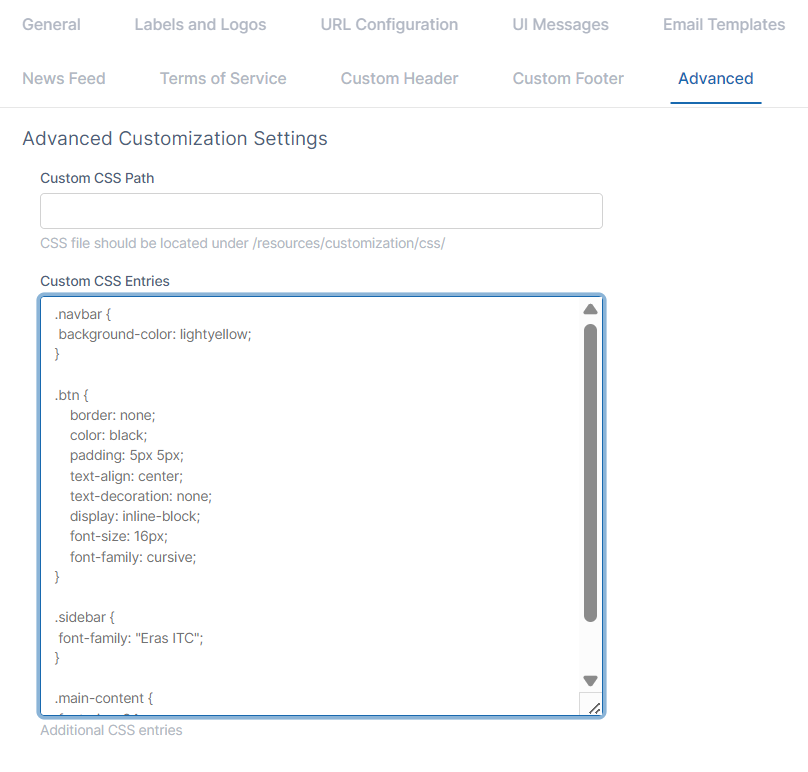
Note: Additional CSS entries are enforced in addition to those specified in the custom CSS file or manual entries.
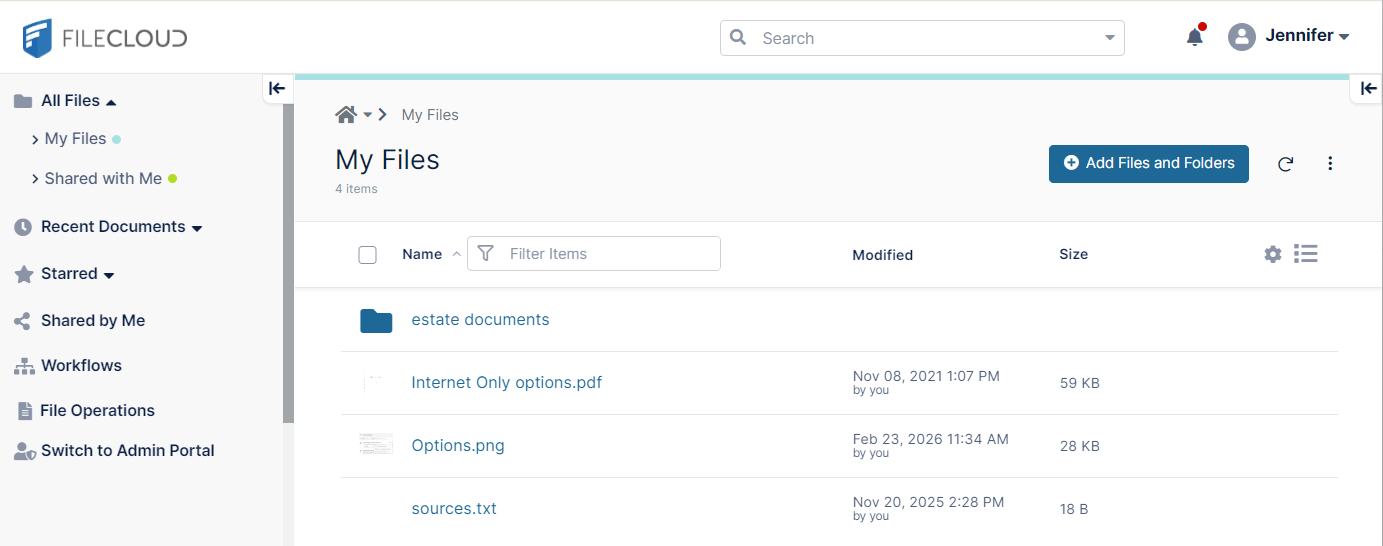
Before Custom CSS
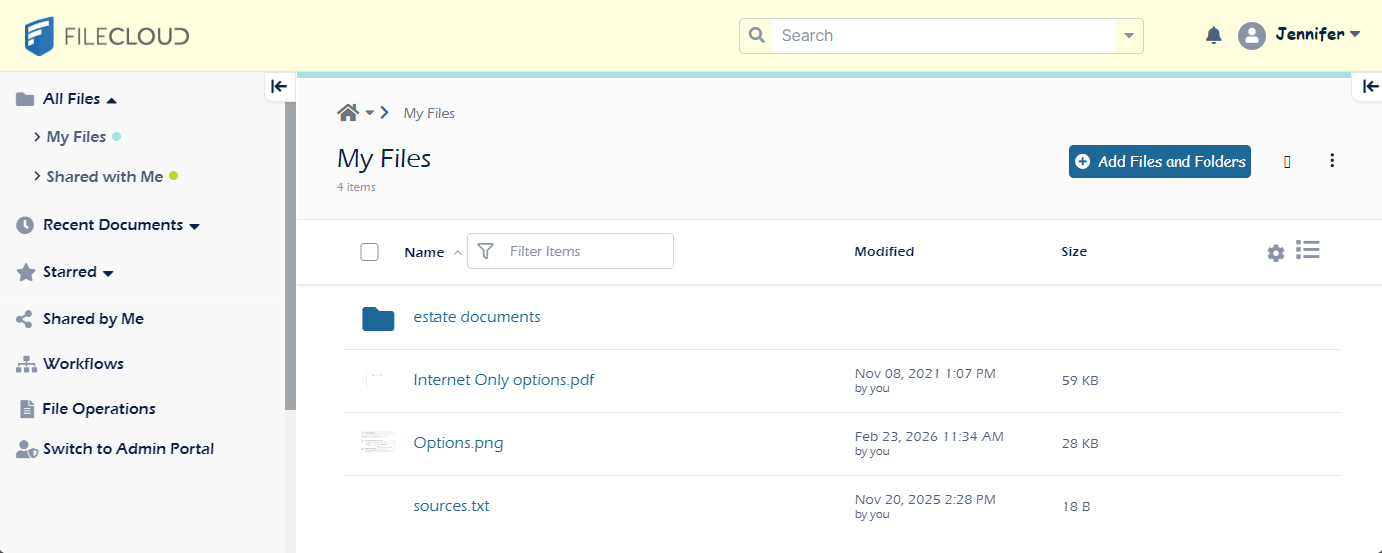
After Custom CSS
In the admin portal navigation panel, click Customization, and click the Advanced tab.
EITHER:
Your custom attributes take precedence over the attributes set in the theme assigned by you or the theme users select.
Sample
Sample CSS
.navbar {
 background-color: lightyellow;
}

.btn {
    border: none;
    color: black;
    padding: 5px 5px;
    text-align: center;
    text-decoration: none;
    display: inline-block;
    font-size: 16px;
    font-family: cursive;
}

.sidebar {
 font-family: "Eras ITC";
}

.main-content {
 font-size: 24 px;
 font-family: "Eras ITC";
}