.svg)
Customization is available on FileCloud Standard and Enterprise. Learn more.
FileCloud allows some customization of the options on the User Portal and responses to user requests.
For any UI feature customizations to be effective, you must enable the first one, Enable UI Customizations.
To authorize Admin users to perform customizations, enable Customization settings for their roles. See Managing Admin Users for more information.
To customize the log-in experience, see Customize the User Login Screen.
Enable or disable the following options to customize how users interact with the portal.
UI Features
To change the options a user will see:
-
Login to Administration portal.
-
On the left navigation menu panel, click Customization.
-
Click the General tab, and then below it click the UI Features tab.
-
Use the checkboxes to enable or disable any of the options described in the following table.
-
To apply the change, click Save.
|
UI Feature Option |
Description |
|---|---|
|
Show Document Preview |
This enables FileCloud to display the preview option for text-based document files in the user portal. Requires setting up document preview. Enabled by default. |
|
Enable additional email templates |
This enables users to view email templates for specific user types as well as default email templates on the Email Templates tab. |
|
Show Single File Share Full Preview |
This enables or disables single file shares to open in a full preview mode (if applicable).
|
|
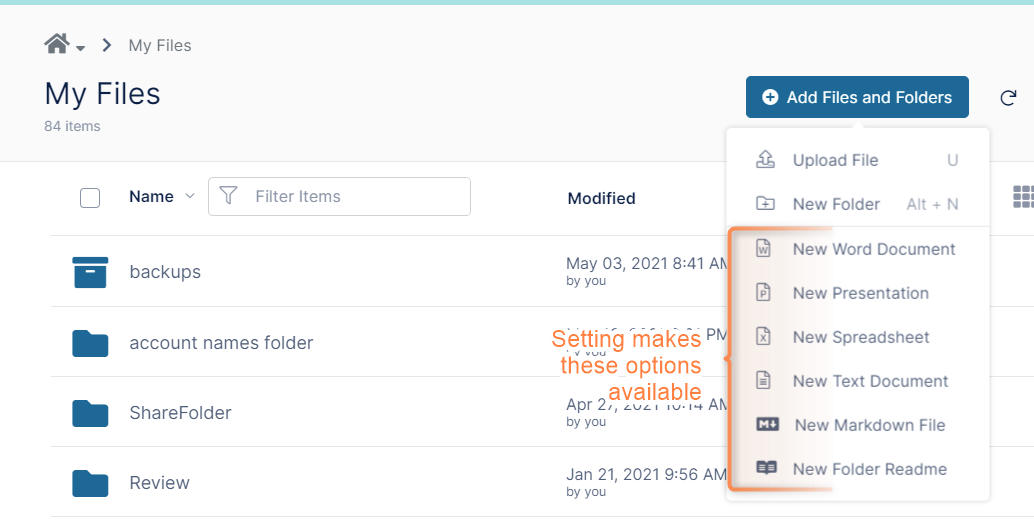
Show New Document Creation Option |
Enabling this will allow the users to create new Office, text, and markdown documents. Enabled by default. Also see New Document Creation via Web Browser.
|
|
Show Edit in Desktop Option |
Enabling this option will allow documents to be edited using the local system's Office program and automatically save back to FileCloud. |
|
Show Online Edit Option |
Enabling this option will allow documents to be edited online. (Requires "Web Edit" configured) |
|
Disable Music Playback |
Show or disable Music Player in User Portal |
|
Disable News Feed |
Show or disable news feed in User Portal (Shown below the left side navigation panel) |
|
Disable Folder Download |
Disable "Downloading" of full folders or multiple items as zip files |
|
Show Email Preview Dialog
|
Options: Send email and show email preview dialog (default) Send email and hide preview dialog: Share Email Notification Dialog will not pop up, but automatically the email will be sent to the user. Do not send email when sharing: Share Email Notification Dialog will not pop up, and no email will be sent to the user. |
|
Disable Getting Started Admin Dialog |
(Added in FileCloud 20.1) This only disables the features overview for new administrators. In versions prior to 20.1, it disabled the features overview for new administrators and the tutorial and welcome message for new users. |
|
Disable New User Tutorial |
Disables Get started with FileCloud tutorial from opening when a new user logs in. |
Add links to the Account menu
You can enable or disable the following options to add links to the user's Account menu.
To change the user's Account menu options:
-
Login to Administration portal.
-
On the left navigation menu panel, click Customization.
-
Click the General tab, and then below it click the Account Menu tab.
-
Use the checkboxes to enable or disable any of the options described in the following table.
-
To apply the change, click Save Changes.
|
Account Menu Option |
Description |
|---|---|
|
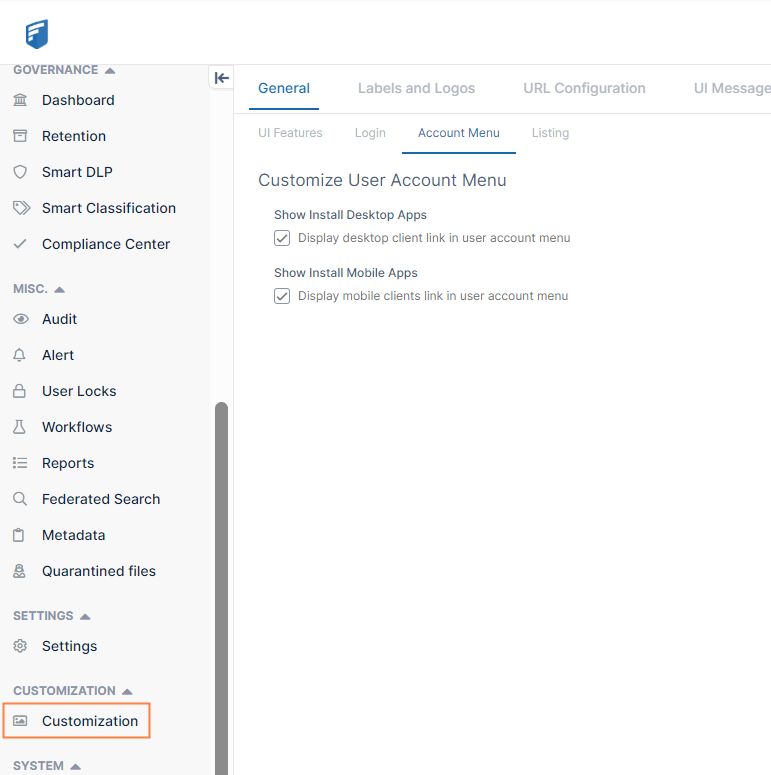
Show Install Desktop Apps |
This will show or hide the "Install Desktop Apps" menu item in the "Account" drop-down menu in User portal |
|
Show Install Mobile Apps |
This will show or hide the "Install Mobile Apps" menu item in the "Account" drop-down menu in User portal |
Customize how files are listed
You can enable or disable the following options to change how files are listed on the User Portal.
To change the way a user's files are listed:
-
Login to Administration portal.
-
On the left navigation menu panel, click Customization.
-
Click the General tab, and then below it click the Listing tab.
-
Use the checkboxes to enable or disable any of the options described in the following table.
-
To apply the change, click Save Changes.
|
File Listing Option |
Description |
|---|---|
|
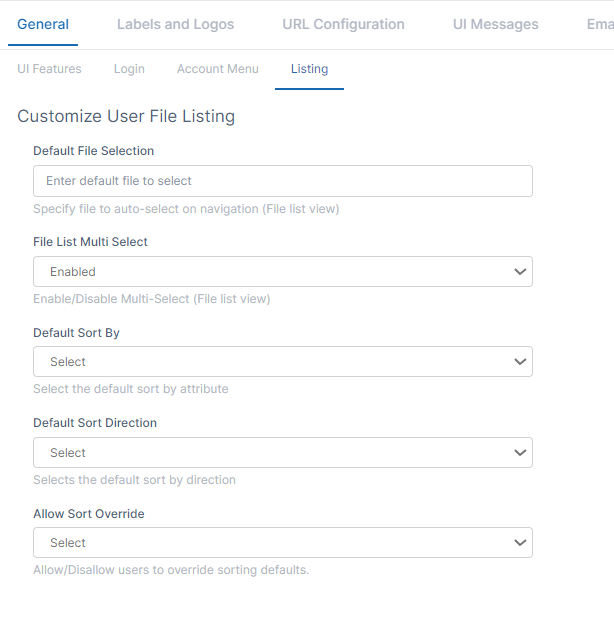
Default file selection |
Auto Select of a file when a user logs in |
|
File List Multi Select |
This option will allow you to enable or disable multi-select feature in file list view |
|
Default sort by |
The sorting of file listing shown in the web browser can be selected to be based on either Name or Data or Size. |
|
Default sort direction |
The sorting of file listing shown in the web browser can be set to ascending or descending order. |
|
Allow Sort Override |
Default is Allowed. Allow or disallow users to override sorting defaults. |
Custom Header and Footer
You can add custom header and footer content to the user portal by entering it on the Custom Header and Custom Footer tabs.
To add a custom header or footer:
-
Click Custom Header or Custom Footer.
-
In the Custom Header or Custom Footer field, enter your text.
You can include HTML tags to format your content.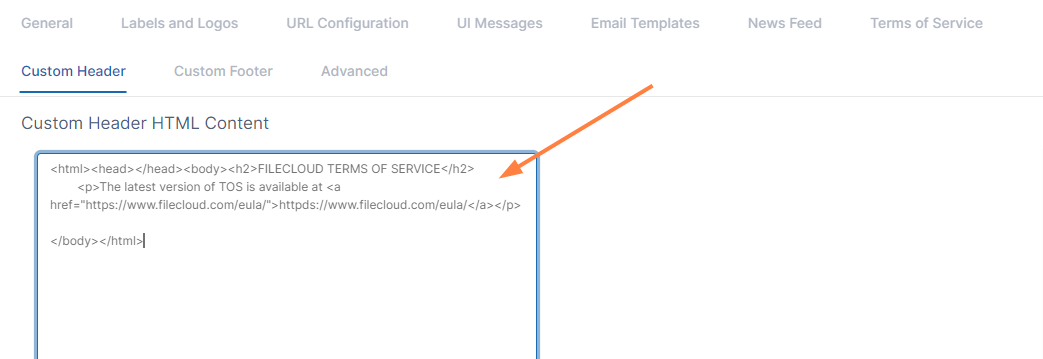
-
Click Save Changes.
If you include a custom header, it appears at the top of the user portal screen: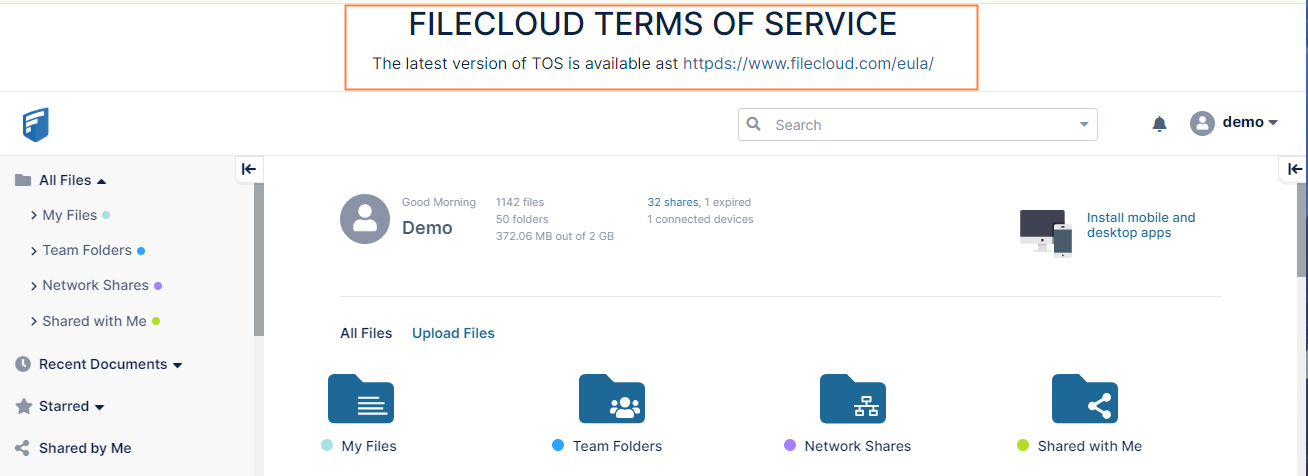
If you include a custom footer, it appears at the bottom of the user portal screen: