.svg)
FileCloud provides you with various messages to send to a user when an action occurs. These messages can be customized.
Beginning in FileCloud 23.263, to change an email template’s subject, promoted admin’s must be in roles with Customization/update permission. Prior to this, promoted admins required roles with System/update permission to change an email template’s subject.
Read Descriptions of the Default Messages
|
Message Template |
Description |
|---|---|
|
Add Group To Share Email Template |
When a share is created for a Group, this is the message that will be sent to all users of that group. |
|
Update User Email Template |
When a user account is changed this is the message that is sent to the user. |
|
Add New User To Share Email Template |
When a new share is created this is the message to be sent to a user who is currently NOT a FileCloud user. This will contain instructions for the non-FileCloud user to first create an account before attempting to access the shared resource |
|
Auto Create New User to Share Email Template |
This is the email that is sent to users whose accounts are automatically created on a share action (if this option is applicable). |
|
Add User To Share Email Template |
When a new share is created this is the message to be sent to a user who is already a FileCloud user. |
|
Share Email Template |
When a public share is created by a user, the user can send that shared link using email. This message will be used for reporting that share link. |
|
Account Approval Email Template |
This is the email message to the user that will be sent when Admin approves a user account. |
|
Reset Forgot Password Email Template |
This is the email message sent when user does password reset. |
|
Email Password Template |
This is the email sent when the temporary password is generated. |
|
Waiting For Approval Email Template |
This is the email message that will be sent when a user registers for a new Account in FileCloud (and if automatic account approval is not turned on). |
|
Welcome/Verification Email Template |
This is the email message that will be sent when a new user account is approved into FileCloud system. |
|
Notification Email Template |
This is the email message that will be sent if a share is modified. |
|
Notification Item Template |
Notification item template used to define each file / folder action. Those items are then embedded into the notification email. |
|
Account Locked Alert Email Template |
Email sent out when a user account is locked because of too many attempts |
|
Generic Email Template |
This is a boilerplate template used for miscellaneous messages |
|
Two Factor Authentication Email Template |
Email sent out with security code |
|
Device Waiting for User Approval Email Template |
This is the email message that will be sent when a Device is waiting for User Approval. |
|
Expiring Share Notification Email Template |
Email notification sent when the share is about to expire. |
|
Failed Upload Notification Email Template |
Email notification sent when the upload failed due to the limited Storage Quota. |
|
Limited Disk Space Notification Email Template |
Email notification sent when account is running out of the allocated disk space. |
|
Password Expiration Notification Email Template |
Email notification sent when user password is about to expire. |
|
Workflow Notification Email Template |
Email template used to notify users whose accounts are inactive and will be disabled. |
|
Workflow Generic Email Template |
Email template for general notifications for active accounts. |
|
ServerLink Critical Alert Template |
Template for email that indicates that there is an error with ServerLink synchronization. |
|
Decline User Email Template |
Template for email that indicates that a request for a FileCloud account has been declined. |
|
Errors During Sanitation On Forcepoint CDR Email Template |
Email notification sent to user when Forcepoint CDR sanitation resulted in an error, and the file is in quarantine. |
|
Workflow Auto Disable Account Email Template |
Email notification sent to user when an account is disabled through a workflow. |
How to Change Default Email Messages
To change a default email message:
-
Log into Administration Portal
-
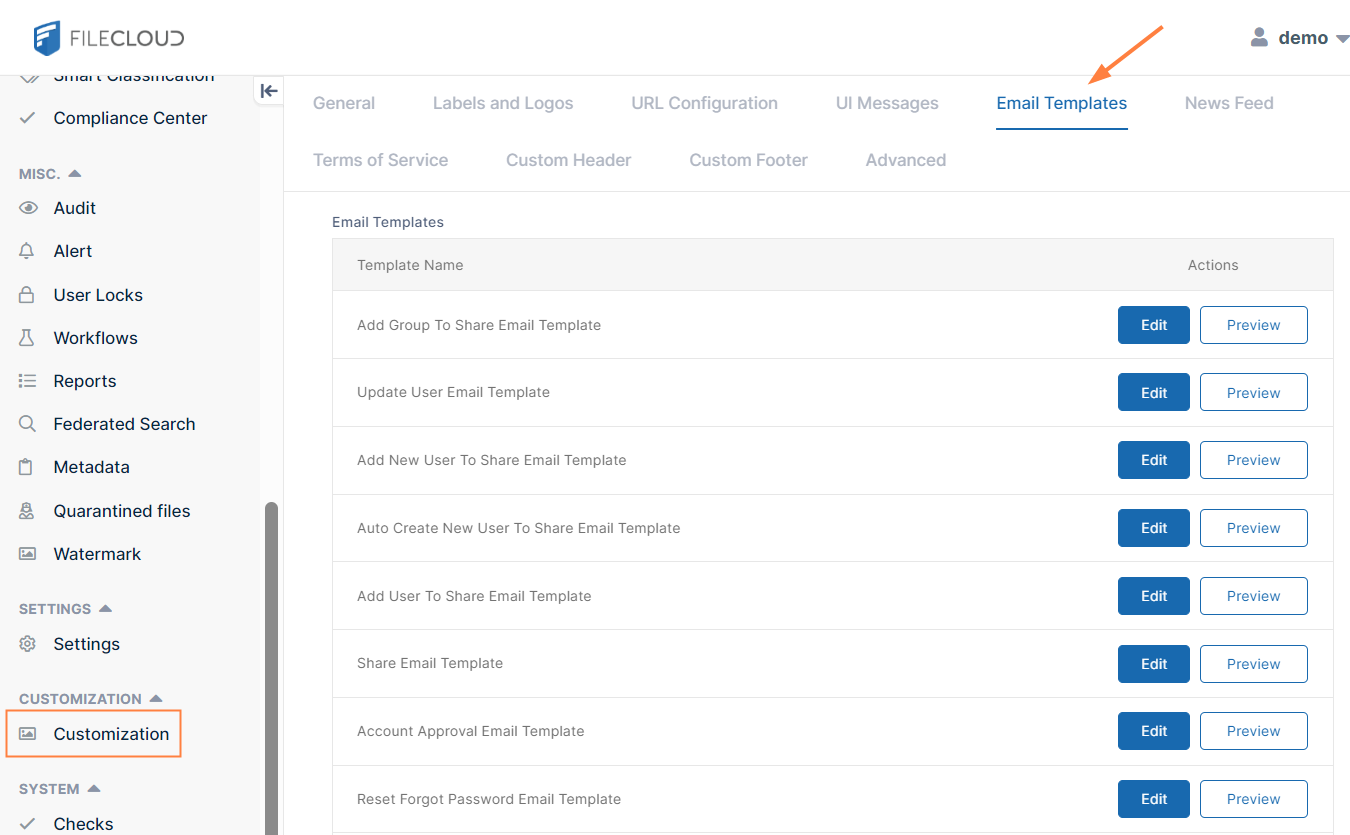
On the left navigation panel, click Customization.
-
Click the Email Templates tab.
-
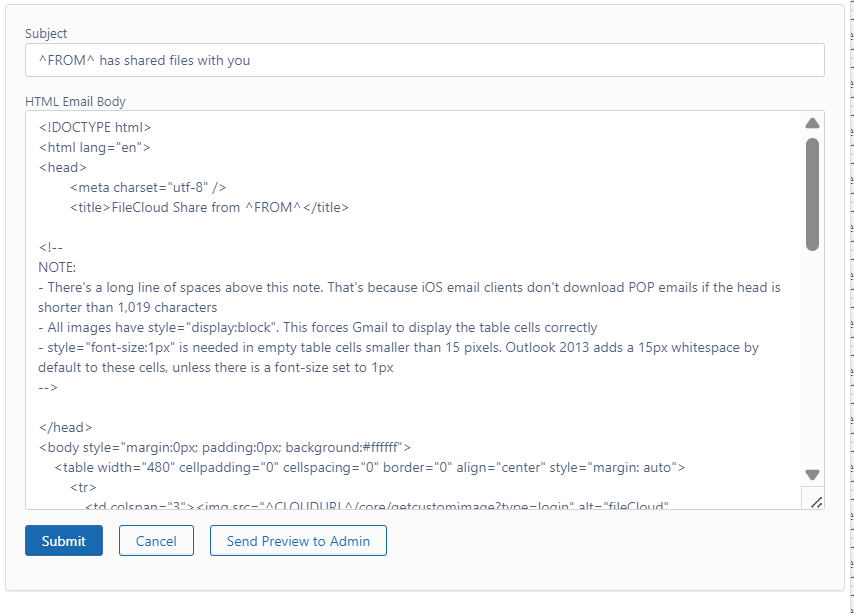
To change the mail subject and body, click the Edit button.
-
Make your changes, then click Submit.
-
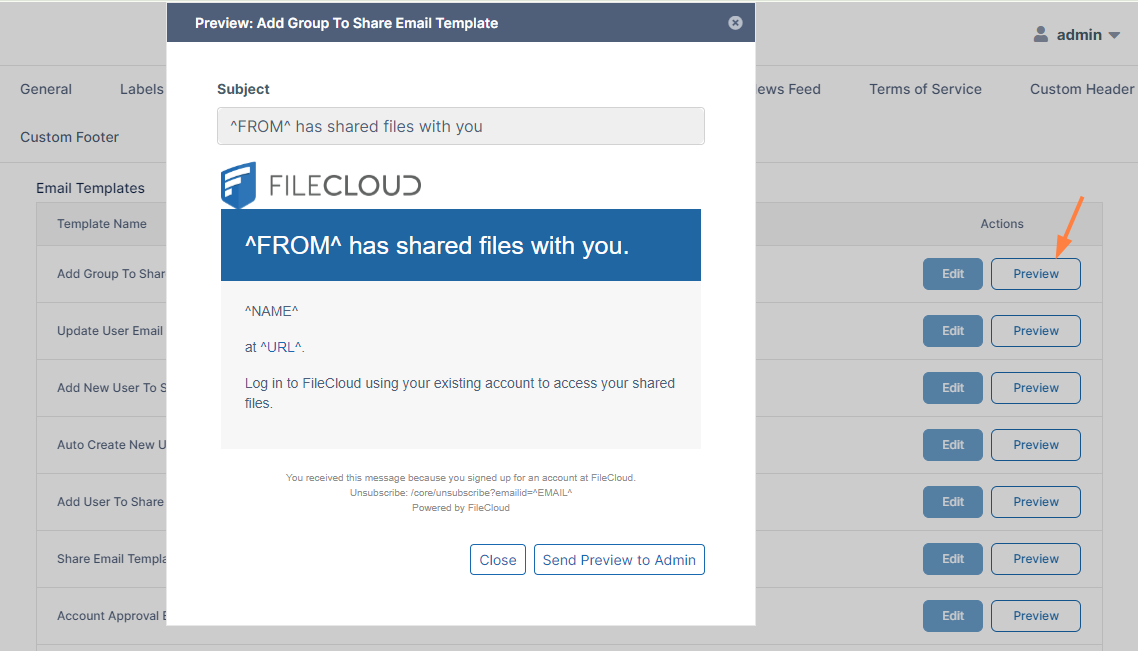
To confirm the changes, click Send Preview to Admin to receive an email showing the changes, or after you close out of the dialog box, click Preview to open a preview of the modified email:
To change an email template’s subject, promoted admin’s must be in roles with Customization/update permission. See Admin User and Role Settings for help assigning roles.
How to Automatically Embed QR Codes in Share Emails
-
Go to Customization > Email Templates.
-
Edit the share email template.
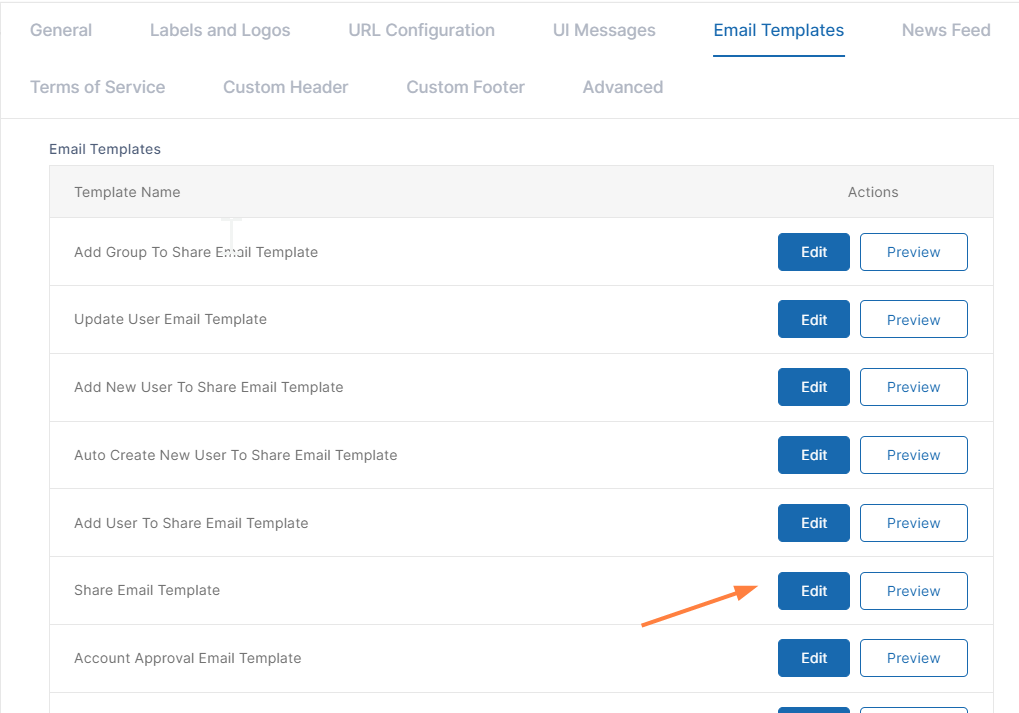
The feature is supported in all of the Share email templates.
-
Add the placeholder ^QRCODESHARE^ where you want it to appear in the email. In the following HTML the QR code is centered on the page:
-
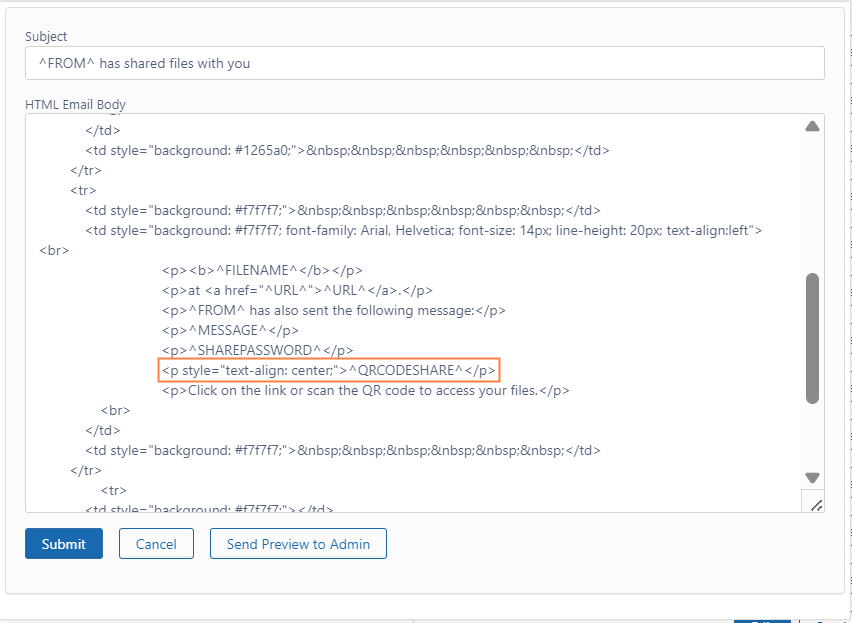
Click Submit.
The email should appear to users as:.png?cb=82719b112a244264893f90f9f493082a)
Supported HTML Tags
The following HTML tags are supported in customized email messages:
<html>
<head>
<meta>
<title>
<body>
<style>
<table>
<thead>
<tbody>
<tfoot>
<tr>
<td>
<br>
<p>
<span>
<div>
<a>
<b>
<i>
<u>
<ul>
<ol>
<li>
<h1>
<h2>
<h3>
<h4>
<h5>
<h6>
<strong>
<dt>
<dd>
<hr>
<pre>
Supported Placeholders
The following tables list the placeholders that are supported in each email template.
Table 1. Account Approval Email Template
|
Placeholder |
Description |
|---|---|
|
^CLOUDURL^ |
Server URL |
|
^DISPLAYNAME^ |
Display name of the user |
|
^VERIFYURLTEXT^ |
Text to be displayed |
|
^VERIFYURL^ |
Server URL |
|
^EMAIL^ |
Email ID of the user |
|
^PASSWORD^ |
Password for the user |
|
^USERNAME^ |
Username of the user |
|
^TO^ |
First name of the user |
Table 2. Account Locked Email Template
|
Placeholder |
Description |
|---|---|
|
^CLOUDURL^ |
Server URL |
|
^FILECLOUD^ |
Service Name |
|
^USERNAME^ |
Username of the user |
|
^CLIENT^ |
User Agent |
|
^TIMEOUT^ |
Lockout time in minutes |
|
^EMAIL^ |
Email ID of the user |
|
^TO^ |
First name of the user |
Table 3. Add Group to Share Email Template
|
Placeholder |
Description |
|---|---|
|
^CLOUDURL^ |
Server URL |
|
^FROM^ |
Display Name of the user |
|
^NAME^ |
Share Name |
|
^URL^ |
Share URL |
|
^EMAIL^ |
Email ID of the user |
|
^TO^ |
First name of the user |
|
^QRCODESHARE^ |
QR code for accessing share (added in version 23.253) |
Table 4. Add New User to Email Template
|
Placeholder |
Description |
|---|---|
|
^CLOUDURL^ |
Server URL |
|
^FROM^ |
Display name of the user |
|
^NAME^ |
Share Name |
|
^URL^ |
Share URL |
|
^NEWACCOUNTURL^ |
User portal URL that can be used by the user to log in |
|
^EMAIL^ |
Email ID of the User |
|
^TO^ |
First name of the user |
|
^DAYS^ |
Number of days till share expiration (added in Version 20.1) |
|
^QRCODESHARE^ |
QR code for accessing share (added in version 23.253) |
Table 5. Add User to Share Email Template
|
Placeholder |
Description |
|---|---|
|
^CLOUDURL^ |
Server URL |
|
^FROM^ |
Display name of the user |
|
^NAME^ |
Share Name |
|
^EMAIL^ |
Email ID of the User |
|
^DAYS^ |
Number of days till share expiration (added in Version 20.1) |
|
^QRCODESHARE^ |
QR code for accessing share (added in version 23.253) |
Table 6. Auto Create New User To Share Email Template
|
Placeholder |
Description |
|---|---|
|
^CLOUDURL^ |
Server URL |
|
^FROM^ |
Display name of the user |
|
^CLOUDURLLINK^ |
User portal URL that can be used by the user to login |
|
^EMAIL^ |
Email ID of the user |
|
^PASSWORD^ |
Password to use for the initial login |
|
^TO^ |
First name of the user |
|
^QRCODESHARE^ |
QR code for accessing share (added in version 23.253) |
Table 7. Device Waiting for User Approval Email Template
|
Placeholder |
Description |
|---|---|
|
^CLOUDURL^ |
Server URL |
|
^URL^ |
FileCloud login page URL |
Table 8. Expiring Share Notification Email Template
|
Placeholder |
Description |
|---|---|
|
^CLOUDURL^ |
Server URL |
|
^SHARENAME^ |
Name of the share |
|
^SHAREPATH^ |
Share location |
|
^DAYS^ |
Number of days till share expiration |
|
^URL^ |
Link to the share |
|
^EMAIL^ |
Email ID of the user |
|
^EXPIRY_DATE^ |
Date that share will expire |
|
^QRCODESHARE^ |
QR code for accessing share (added in version 23.253) |
Table 9. Failed Upload Notification Email Template
|
Placeholder |
Description |
|---|---|
|
^CLOUDURL^ |
Server URL |
|
^SERVICENAME^ |
Name of the service |
|
^TOTALSIZE^ |
Total allocated disk space for the user |
|
^EMAIL^ |
Email ID of the User |
Table 10. Generic Email Template
|
Placeholder |
Description |
|---|---|
|
^CLOUDURL^ |
Server URL |
|
^HEADING^ |
Title of the Template |
|
^BODY^ |
Email content |
|
^EMAIL^ |
Email ID of the user |
Table 11. Limited Disk Space Notification Email Template
|
Placeholder |
Description |
|---|---|
|
^CLOUDURL^ |
Server URL |
|
^SERVICENAME^ |
Name of the service |
|
^TOTALSIZE^ |
Total allocated disk space for the user |
|
^EMAIL^ |
Email ID of the User |
Table 12. Notification Email Template
|
Placeholder |
Description |
|---|---|
|
^CLOUDURL^ |
Server URL |
|
^PATHLIST^ |
List of files added/modified |
|
^EMAIL^ |
Email ID of the User |
13. Notification Item Template
|
Placeholder |
Description |
|---|---|
|
^ACTIONIMAGEURL^ |
URL of the icon that is associated with the action |
|
^ACTIONNAME^ |
The name of the action |
|
^FILENAME^ |
File Name |
|
^FILEPATH^ |
File Path |
|
^DATE^ |
Date of the action |
|
^HOW^ |
User agent that performed the action |
|
^IP^ |
IP Address associated with the action |
|
^LOCATION^ |
User agent Location |
|
^CLOUDURL^ |
Server URL |
|
^EMAIL^ |
Email ID of the User |
|
^CHECKSUM^ |
Checksum of the file |
Table 14. Password Expiration Notification Email Template
|
Placeholder |
Description |
|---|---|
|
^CLOUDURL^ |
Server URL |
|
^SERVICENAME^ |
Name of the service |
|
^DAYS^ |
Number of days till password expiration |
|
^EMAIL^ |
Email ID of the User |
Table 15. Share Email Template
|
Placeholder |
Description |
|---|---|
|
^CLOUDURL^ |
Server URL |
|
^FROM^ |
Displayname of the user |
|
^FILENAME^ |
Filename of the shared file |
|
^URL^ |
Share URL |
|
^MESSAGE^ |
Email content specified by the user |
|
^EMAIL^ |
Email ID of the User |
|
^THUMBURL^ |
Image thumbnail (only for a single share) |
|
^DAYS^ |
Number of days till share expiration (added in Version 20.1) |
|
^EXPIRY_DATE^ |
Date that share will expire (added in Version 21.3) |
|
^SHAREPASSWORD^ |
Password required to access share. |
|
^QRCODESHARE^ |
QR code for accessing share (added in version 23.253) |
Table 16. Two Factor Authentication Email Template
|
Placeholder |
Description |
|---|---|
|
^CLOUDURL^ |
Server URL |
|
^HEADING^ |
Title of the Template |
|
^CODE^ |
2FA code |
|
^VALIDITY^ |
2FA code expiry time in minutes |
|
^EMAIL^ |
Email ID of the User |
Table 17. Waiting for Approval Email Template
|
Placeholder |
Description |
|---|---|
|
^CLOUDURL^ |
Server URL |
|
^USERNAME^ |
Username of the User |
|
^EMAIL^ |
Email ID of the User |
Table 18. Welcome/Verification Email Template
|
Placeholder |
Description |
|---|---|
|
^CLOUDURL^ |
Server URL |
|
^DISPLAYNAME^ |
Display name of the user |
|
^VERIFYURL^ |
Server URL |
|
^EMAIL^ |
Email ID of the user |
|
^TO^ |
First name of the user |
Table 19. Workflow Notification Email Template (Disable inactive account)
|
Placeholder |
Description |
|---|---|
|
^CLOUDURL^ |
Server URL |
|
^HEADING^ |
Emails heading message |
|
^SERVICENAME^ |
Name of the service |
|
^USERNAME^ |
User name |
|
^EMAIL^ |
Email ID of the user |
|
^TO^ |
First name of the user |
Table 20. Reset Forgot Password Email Template
|
Placeholder |
Description |
|---|---|
|
^EMAIL^ |
Email ID of the user requesting password reset |
|
^USERNAME^ |
The username of the user requesting the password reset |
|
^PASSWORD_RESET_URL^ |
Complete URL for resetting the password |
|
^CLOUDURL^ |
Server URL |
Note
The following predefined templates are not visible in the FileCloud admin portal and cannot be customized:
Admin Version
-
Change Account Status Workflow Email Template
-
Delete Account Workflow Email Template
-
Disable Account Workflow Email Template
-
Generate Report Workflow Email Template
User Version
-
Change Account Status Workflow Email Template
-
Delete Account Workflow Email Template
-
Disable Account Workflow Email Template