Breadcrumbs

Managing Admin Users

FileCloud enables you to create admin roles with a set of administrator permissions. Users assigned to any of the admin roles that you have created become admin users and have the permissions assigned to the role.

For information on about admin roles and admin users and instructions for setting them up, see Admin User and Role Settings.

Check an admin user's permissions

If an admin user has one role, the user has the permissions assigned to that role, but if an admin user has multiple roles, the user has the combined permissions of all of its roles. 

To check all of a user's permissions:

  1. Click Admins in the navigation panel.

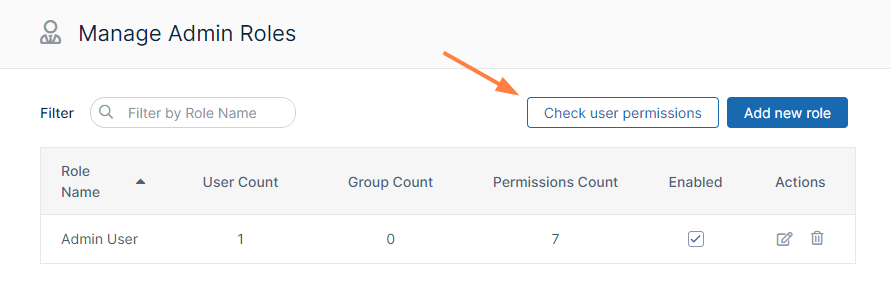
  2. In the Manage Admin Roles screen, click Check user permissions.
    Unknown Attachment
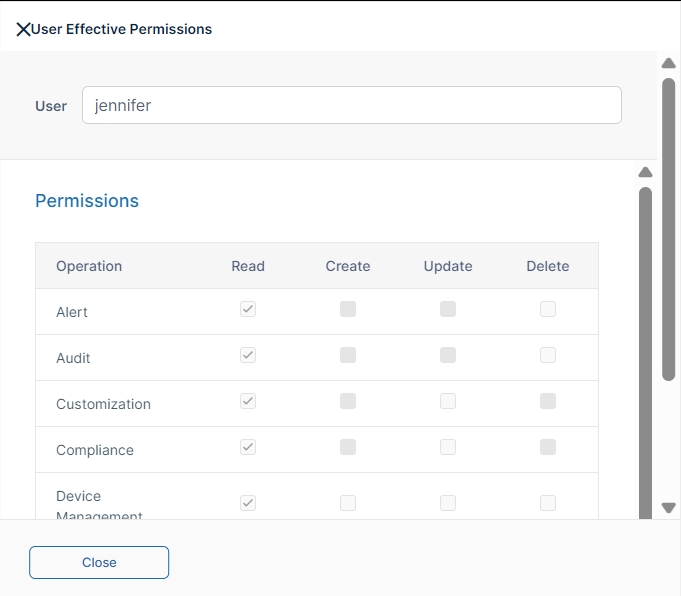
    The User Effective Permissions dialog box opens.

    Unknown Attachment

  3. In User, enter the name of the user.
    The dialog box displays the user's combined permissions with checks next to them.
    Unknown Attachment

Definitions of Permissions

The following permissions represent functions that admin users may be permitted to perform.

Operation

Description

Alert

Alert item on the admin interface is visible. Authorization to view and clear alerts in admin interface.

Audit

Audit item on the admin interface is visible. Authorization to view, delete and export Audit Records.

Compliance

Compliance Dashboard on the admin interface is visible. Authorization to view and update compliance settings.

Customization

Customization item on the admin interface is visible. Authorization to customize the FileCloud interface.
Note: Admin users must have Customization > Update enabled to be able to change the user login background.

Device Management

Devices item on the admin interface is visible. Authorization to view, create, delete and update Devices.

Encryption

Authorization to manage all Encryption at Rest settings.

Federated Search

Support to perform federated search through the admin interface.

Files

Manage Files. Authorization to view, dreate, modify, download, and delete user files.

Folder Permissions

Manage Folder Level Permissions. Authorization to view and manage Folder Permissions.

Groups

Groups menu item on the admin interface is visible. Authorization to view, create, modify and delete Groups. Manage group members. Import group members from Active Directory.

Locks

View , create, and delete Locks on Files and Folders in FileCloud.

Manage Administrators

Allows promoted admin users to manage the permissions of other promoted admin users.

Metadata

View, create, update and delete metadata set definitions, attributes and permissions.

Network Share

Network Folders item on the admin interface is visible. Authorization to view, create, modify and delete Network Folders. Manage User and Group Access to Network Folders.

Notifications

Notifications menu item on the admin interface is available. Add, edit, update, and delete notification rules.

Reports

Reports menu item on the admin interface is available. Add, execute, edit and delete reports.

Retention

Retention menu item on the admin interface is available. Add, edit, and delete retention policies.

Rich Dashboard

View rich dashboard view including tables and graphs on the admin UI dashboard.

Settings

Settings item on the admin interface is visible. Authorization to view and modify FileCloud Settings.

Smart Classification

Smart Classification menu item on the admin interface is available. Add, update, run, and delete content classification rules.

Smart DLP

Smart DLP menu item on the admin interface is available. Add, edit, and delete DLP rules.

System

System item on the admin interface is visible. Authorization to run system checks, install check, generate logs and UPGRADE FileCloud to new version.

Team Folders

Set up Team Folders, add, edit, delete and manage team folder and corresponding permissions. Note: The corresponding Folder Permission must be enabled to be able to perform a Team Folder operation.

User Share

User Shares item on the admin interface is visible. Authorization to view, create, modify and delete User Shares.

Users

Users menu item on the admin interface is visible.  Authorization to view, create, modify and delete Users. Import New Users. Reset Password for Users.

Workflow

Workflow menu item on the admin interface is visible. Add, edit and delete workflows on FileCloud.

Admin users can log in to the admin portal using either their username or email id. 

Remove an admin role

When you remove an admin role, you permanently delete it. To recreate it, you must create it, assign all permissions, and add users and groups again.

To remove an admin role:

  1. Click Admins in the navigation panel.

  2. Either

    • In the Manage Admin Roles screen, click the Delete button for the role.

      Unknown Attachment

    • Click Remove when you are prompted to confirm removal.

      Or:

    • In the Manage Admin Roles screen, click the Edit button for the role.

      Unknown Attachment


      The Manage Admin Role dialog box opens.

    • Click Remove Role at the bottom of the dialog box.

      Unknown Attachment

  3. Click Remove when you are prompted to confirm removal.