-
In your system tray, right-click on the Sync icon and choose Open.
-
At the bottom of the the mini-dashboard, click the folder icon.
Your Sync folder in file explorer opens. -
In your Sync folders, navigate to the file or folder.
-
Right-click the file or folder and choose Show More Options. In the next menu choose FileCloud Sync > View properties.
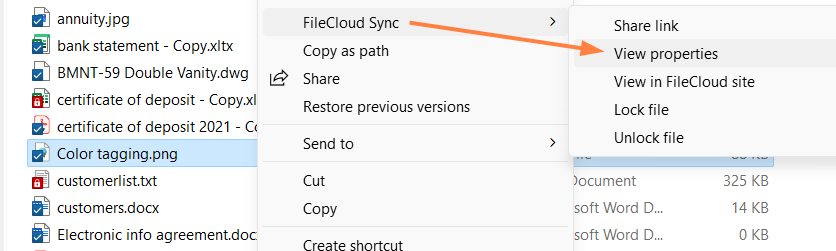
A Properties dialog box opens to the Details, Metadata, and Versions tabs. -
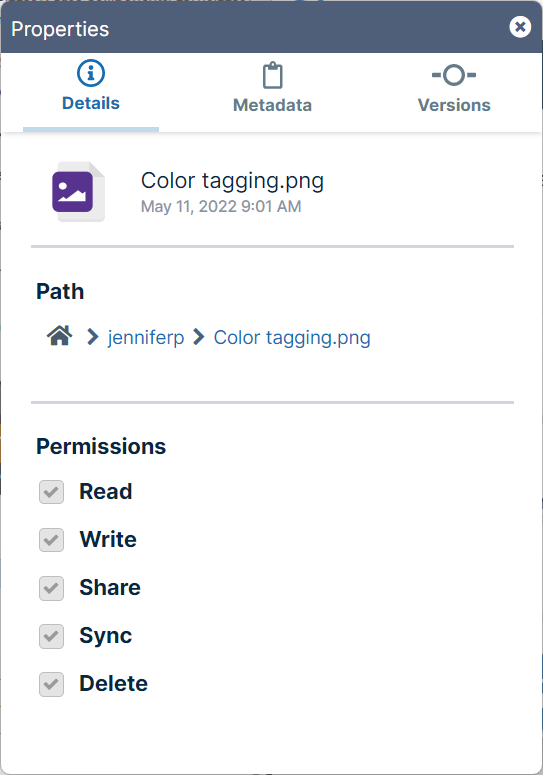
To view file or folder details, remain on the Details tab.
-
If you are viewing details of a file, as in the image above, the filename and last modified date are shown at the top of the Details tab.
-
Under Path the path of the file or folder is listed.
-
Under Permissions, your permissions for the file or folder are listed.
-
-
To see information about a file's versions, click the Versions tab.
The tab lists details of each version of the file and includes a download arrow beside each version for downloading it.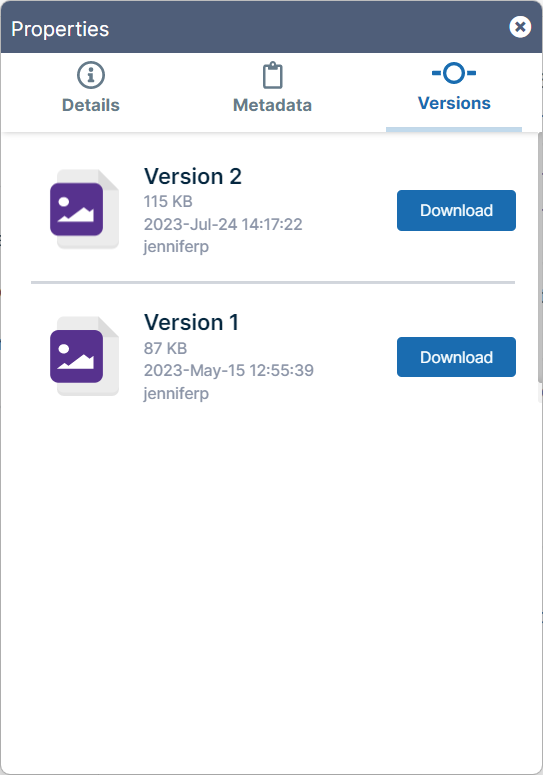
-
To see information about the files metadata, click the Metadata tab.
For information about working in the Metadata tab, see Work with Metadata in Sync.
.svg)