.svg)
Resolve a conflict from the Sync directory in file explorer:
-
In your system tray, right-click on the Sync icon and choose Open.
-
In the mini-dashboard, click the Open Sync Folder icon.
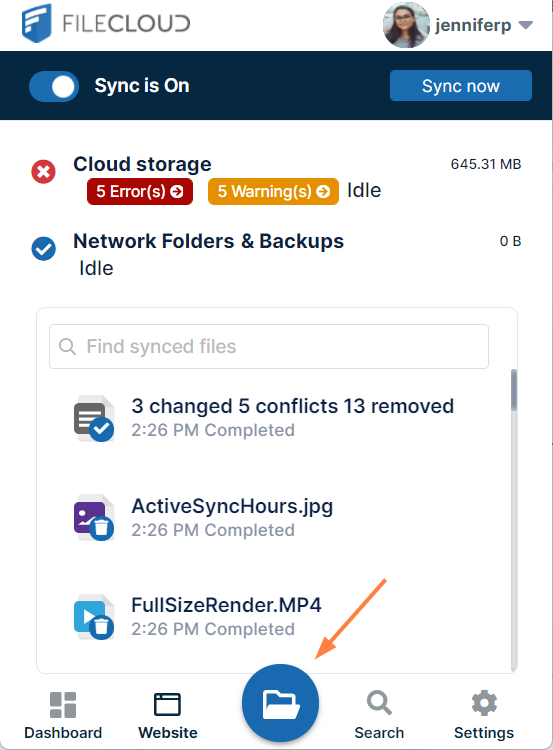
File explorer opens and displays your Sync directory. -
Open the folder in your Sync directory that contains the conflict file or folder.
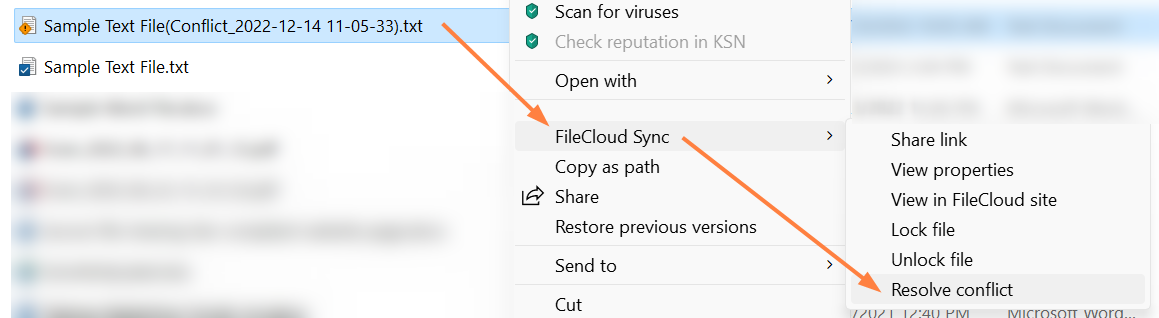
A conflict file has a yellow warning icon over it and a name in conflict format in parentheses. It appears above or below the local version of the file.

-
Right-click on the conflict file, and choose FileCloud Sync > Resolve conflict.
A Resolve Conflict dialog box opens.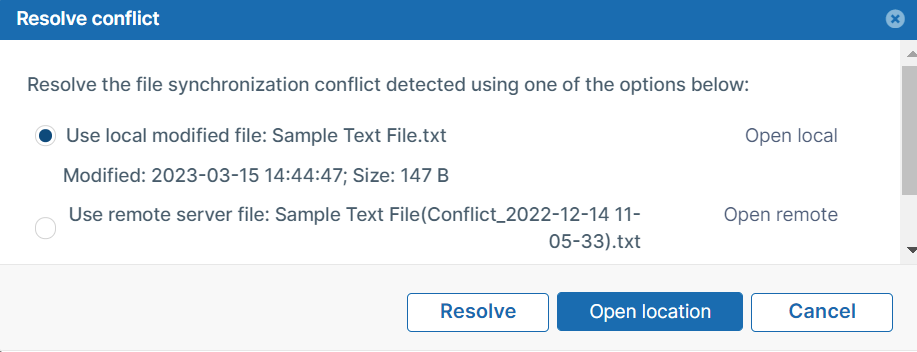
-
If you want to check the content of either file before choosing which copy to save, click Open local or Open remote.
-
Select Use local modified file: (filename) to discard the server file and keep your modified local file.
or
select Use remote server file: (filename) to discard your modified local file and save the server file. -
Click Resolve, and confirm your change.
The conflict file no longer appears.