.svg)
Automatic Syncing
By default, when FileCloud Sync is on, files and folders in Managed Storage and Network Folders that you have selected to sync are automatically synced, and folders that you have selected for backup are automatically backed up.
Automatic Sync schedules
By default, automatic syncing takes place 24 hours/day, every day. However, you may change this schedule.
Files and folders in Managed Storage are automatically synced every 2 minutes by default, but you can change this in the setting Sync Frequency.
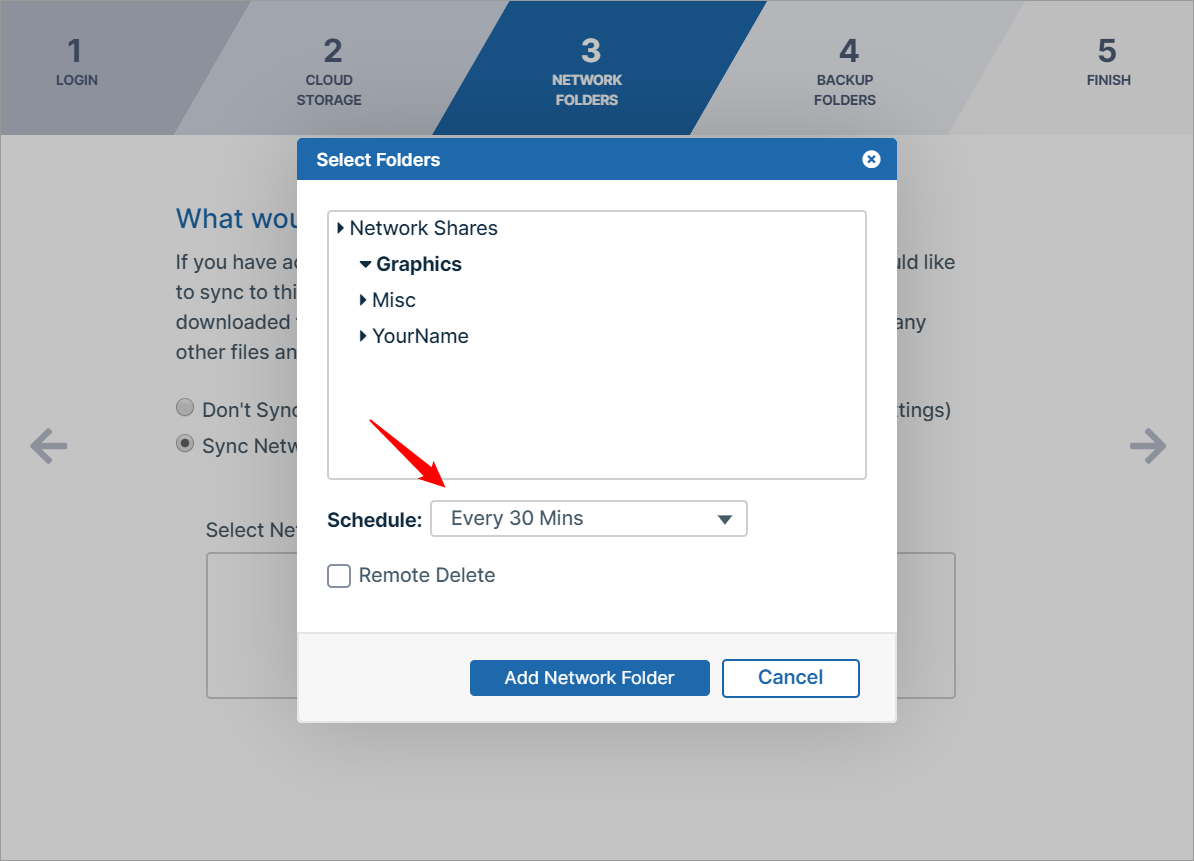
When you select Network Folders to sync, by default the automatic sync frequency is set to 30 minutes, but you can change that setting during Network Folder selection.
When you select folders to back up, by default the automatic back up frequency is set to 30 minutes, but you can change that setting during backup folder selection.
Manual Syncing
You can also sync files manually from the mini-dashboard or main dashboard at any time.
Manually sync from the mini-dashboard
To manually sync from the mini-dashboard:
-
In your system tray, right-click on the Sync icon and choose Open.
The mini-dashboard opens. -
If you see Sync is OFF at the top of the mini-dashboard, click the toggle to change the setting to Sync is ON.
-
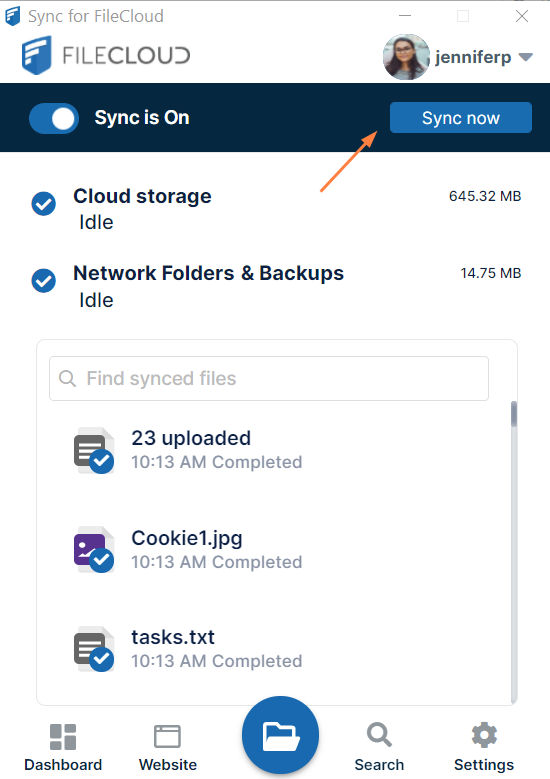
Across from Sync is ON, click Sync Now.
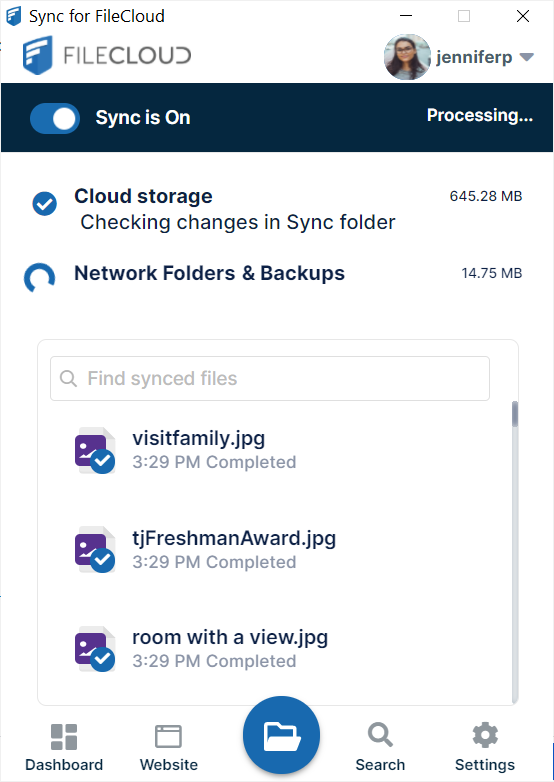
The mini-dashboard indicates if cloud storage or Network Folders and backups are being processed, lists the files being processed, and indicates any errors or conflicts.
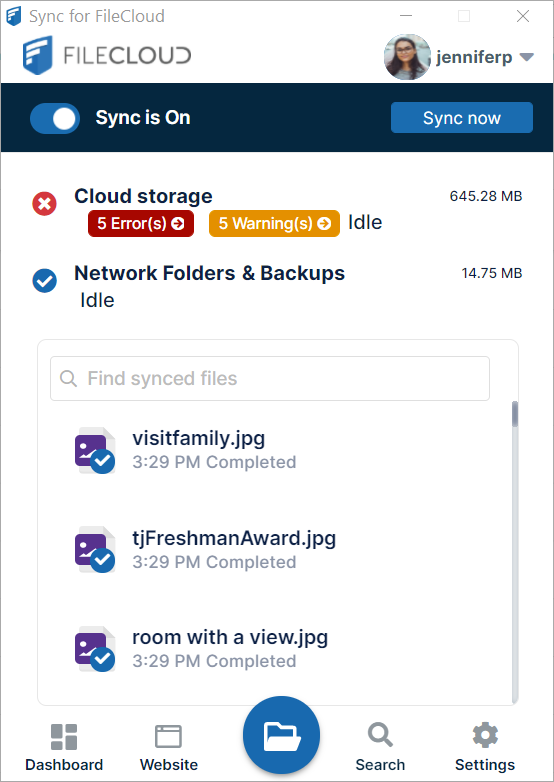
When processing is complete, Cloud Storage and Network Folders & Backups display Idle next to them as well as the number of files with errors. To handle error files after syncing see Managing Sync Conflicts and Sync Troubleshooting Guide.
To manually sync from the main dashboard:
-
In your system tray, right-click on the Sync icon and choose Open.
The mini-dashboard opens. -
Click the Dashboard icon.
The main dashboard opens to the Dashboard screen.-
Cloud Storage and Network Folders are listed with a Sync Now button next to them if syncing is enabled and files are available for syncing. Backup Folders is listed with the Backup Now button next to it if backing up is enabled and files are selected for backing up.
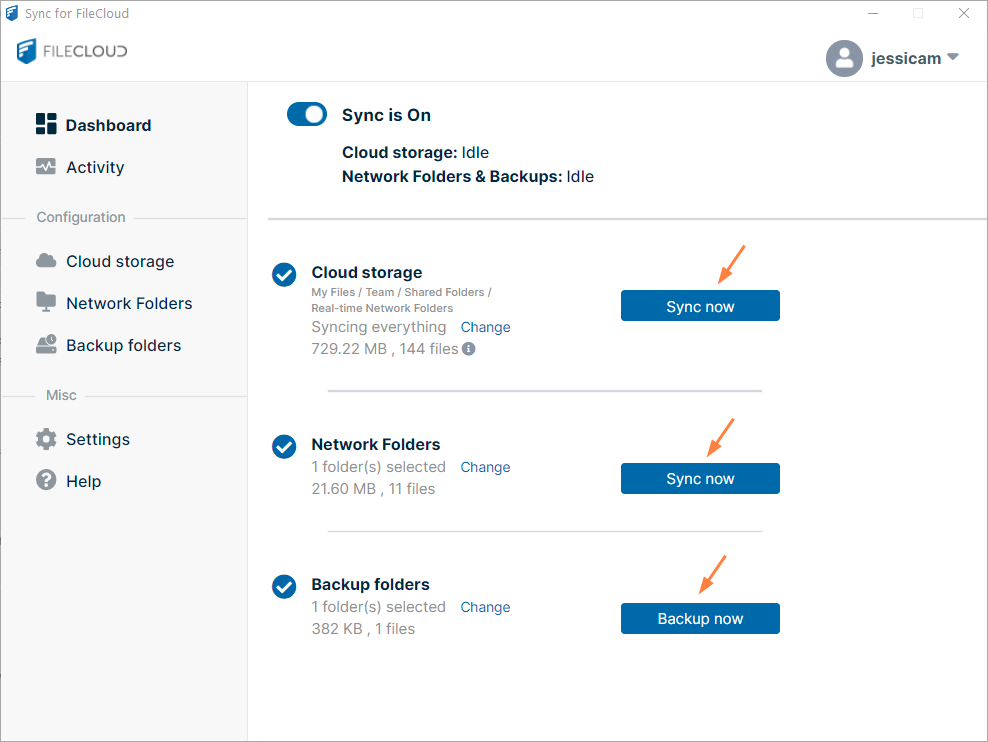
-
Click either of the Sync Now buttons or the Backup Now button to begin syncing or backing up files and folders. (Network Folders and Backup folders both run regardless of which one you trigger.)
The screen indicates that syncing is occurring by displaying Processing on the sync button and alerts about the current sync action.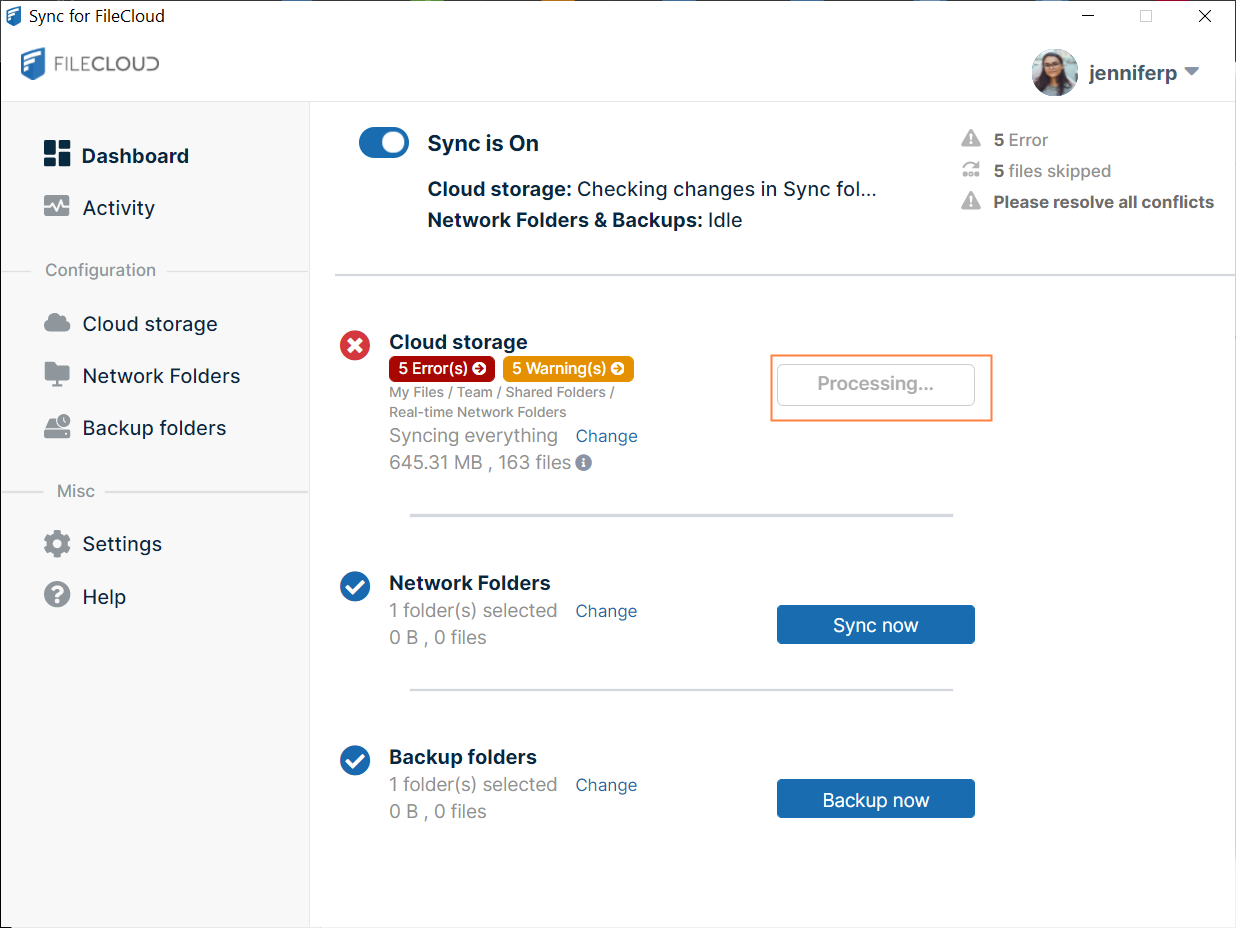
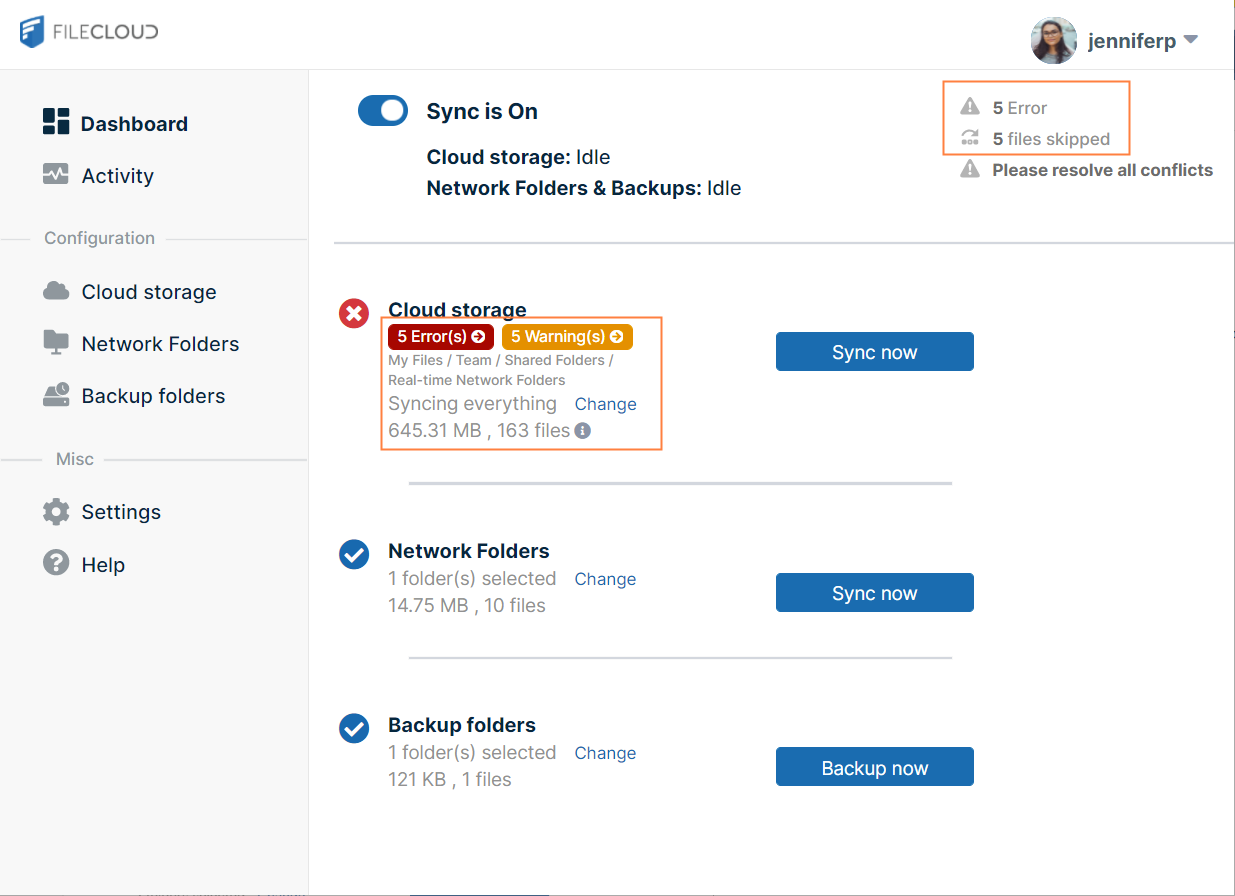
When syncing is complete, the screen displays the size and number of files synced and the number of skipped files and errors. Files are skipped if there is a problem that prevents syncing, such as bad characters in the filename. A warning triangle and errors indicate that there was a conflict due to two recently saved versions of the file or another error that causes syncing to fail.
-
To see why files were skipped, resolve conflicts, or review other errors click the skipped message or error message.
-
After syncing: