.svg)
You can set a schedule for the times when you want the Sync application to run; otherwise, when it is on, it runs 24 hours, every day.
Scheduling Sync is useful if:
-
you are running the FileCloud Sync app on a busy network and want Sync to run at the least busy times
-
you want to save your changes to FileCloud only at the end of each day
If you enter settings, the only time syncing occurs is the time specified in the settings.
For example:
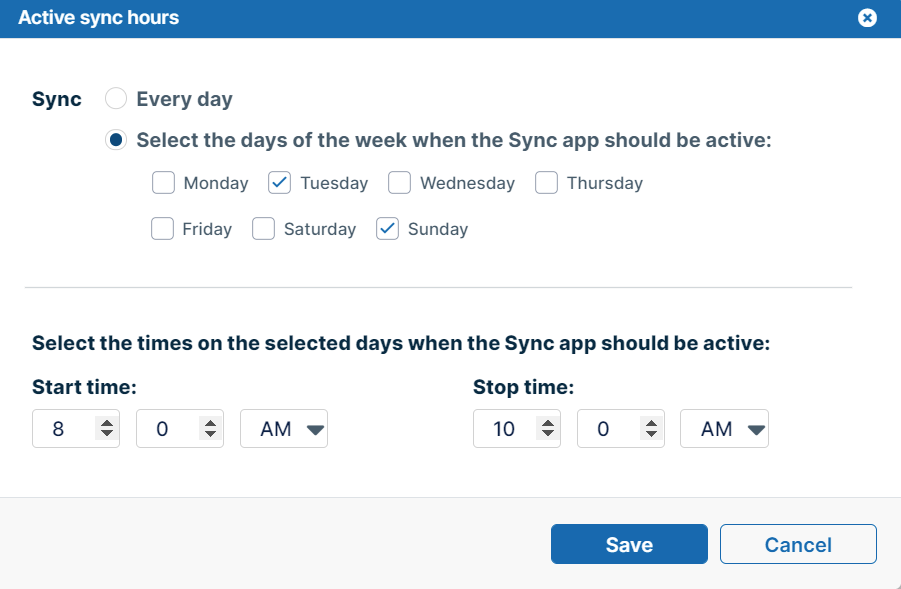
If you choose:
-
Sunday and Tuesday for days of the week
-
the hours from 8:00 AM To 10:00 AM
Then Sync is active only on Sundays and Tuesdays and only during the hours between 8 AM and 10 AM. It is disabled on other days and times.
The settings you use impact the Sync application in the following ways:
|
Setting |
Value |
Impact |
Notes |
|---|---|---|---|
|
Active Sync Hours |
enabled |
Sync is active only during the scheduled times.
|
|
|
Active Sync Hours |
disabled |
Sync is always active.
|
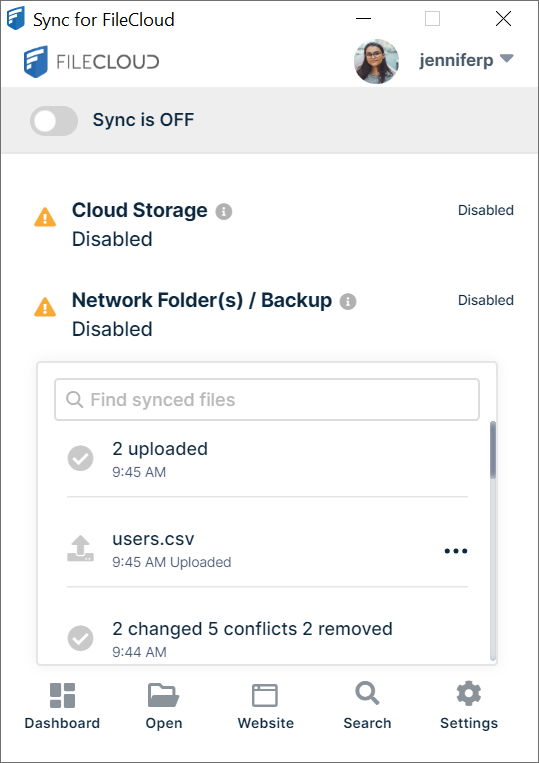
If the Active Sync Hours settings are disabled because you are in Document Editing mode, you can enable them by clicking Sync is Off in the main dashboard or mini-dashboard. The dashboard setting now appears as Sync is On and Active Sync Hours settings are enabled. |
|
Doc editing only |
enabled |
This mode always takes precedence over Active Sync Hours If you are in Document editing only mode, the Active Sync Hours settings are disabled. |
To use Active Sync Hours settings again:
|
|
Doc editing only |
disabled |
Active Sync Hours settings are enabled and a schedule can be set. |
|
To set a schedule for Sync times:
-
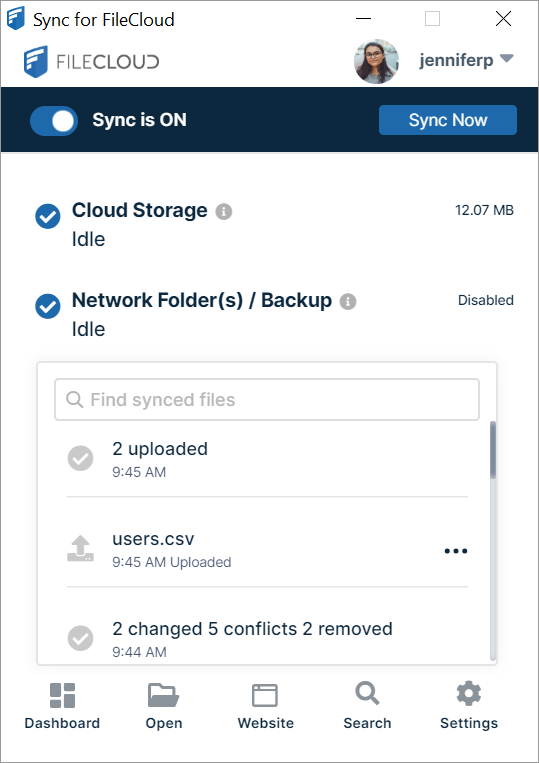
In your system tray, right-click on the Sync icon and choose Open.
-
In the mini-dashboard, click Settings.
The Settings window in the main dashboard opens. -
In the Settings window, in the Active Sync Hours section, click the toggle to change it to Enabled.
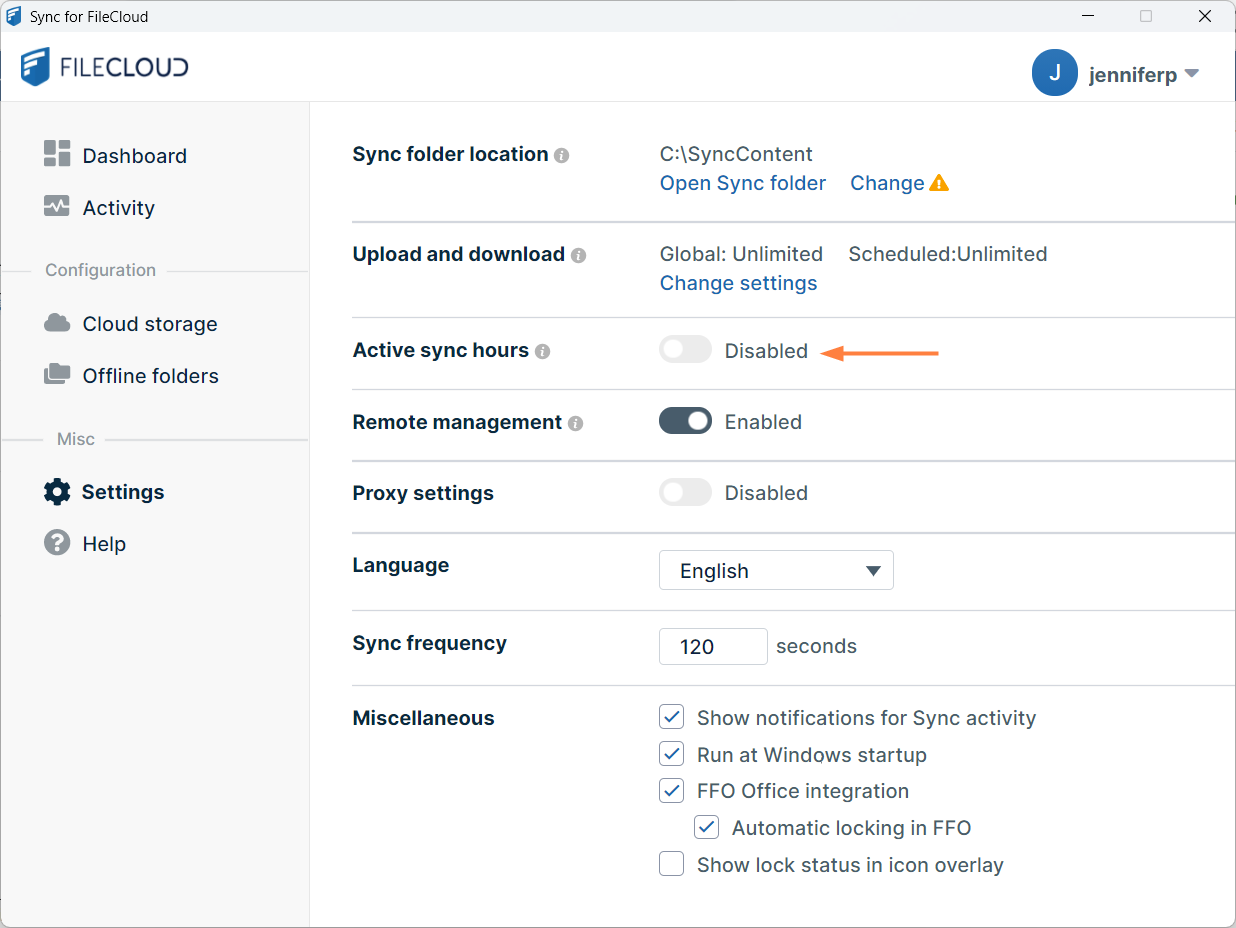
The Active Sync Hours dialog box opens.
-
Select Every Day or On a Specific Day.
-
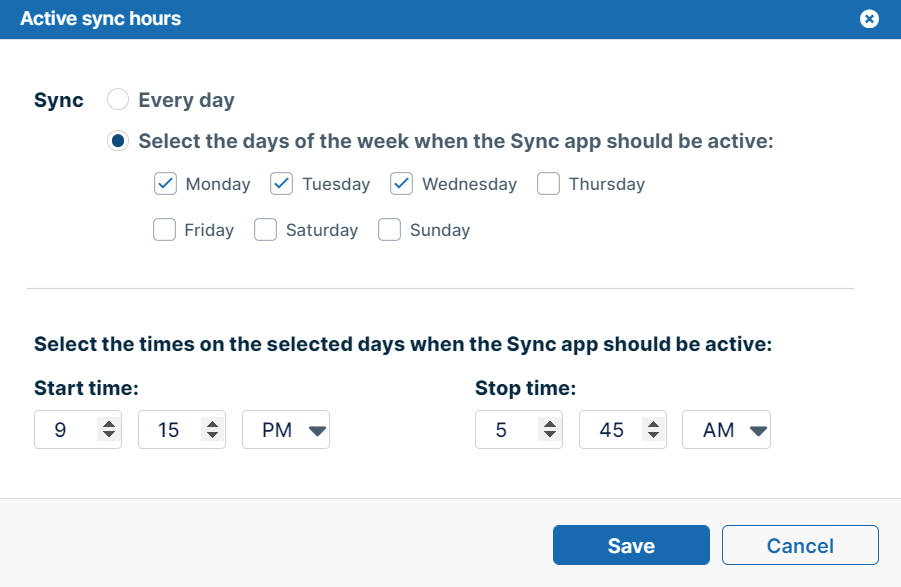
If you choose On a Specific Day, check all of the days that you want Sync active
-
You can only set one time interval. Use the Start Time and Stop Time fields.
If you want an overnight time interval, the End Time must precede the Start Time. Otherwise, Sync assumes the time interval occurs on each checked day separately. See Special cases for active sync hours, below. -
Click Save.
-
Restart Sync to apply your changes.
Special cases for Active Sync Hours
|
Case |
How to configure |
Notes: |
|---|---|---|
|
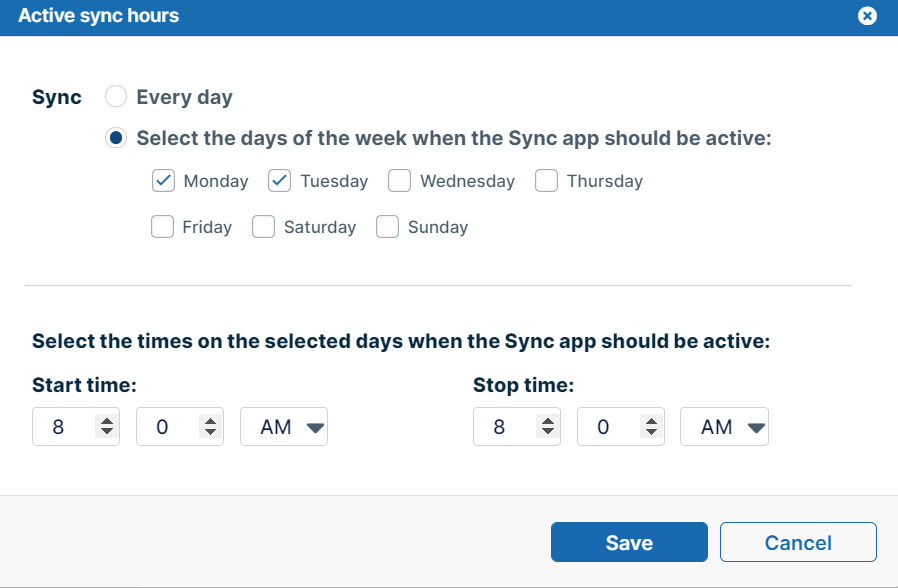
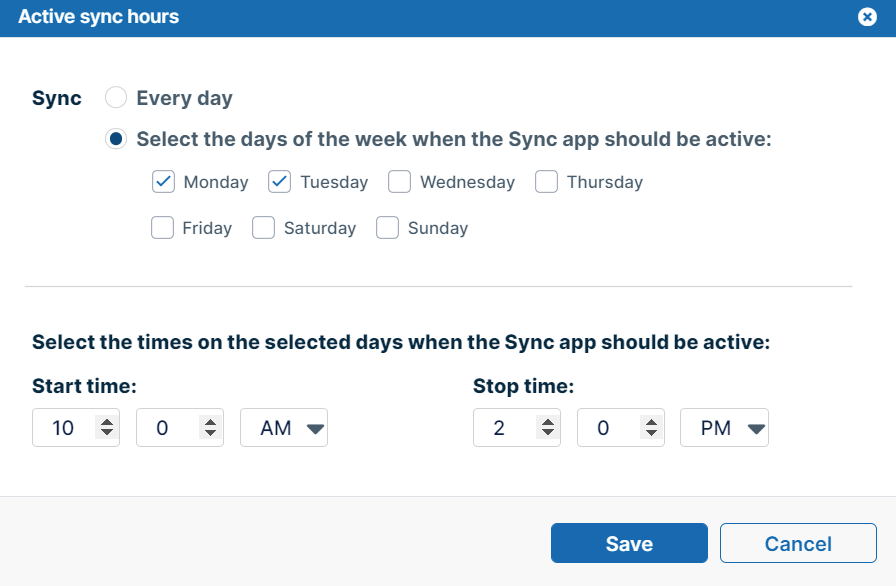
Active times start and stop at the same times multiple days, that is:
|
|
The Sync app does not treat this as Monday 10:00 am to Tuesday at 2:00 pm. |
|
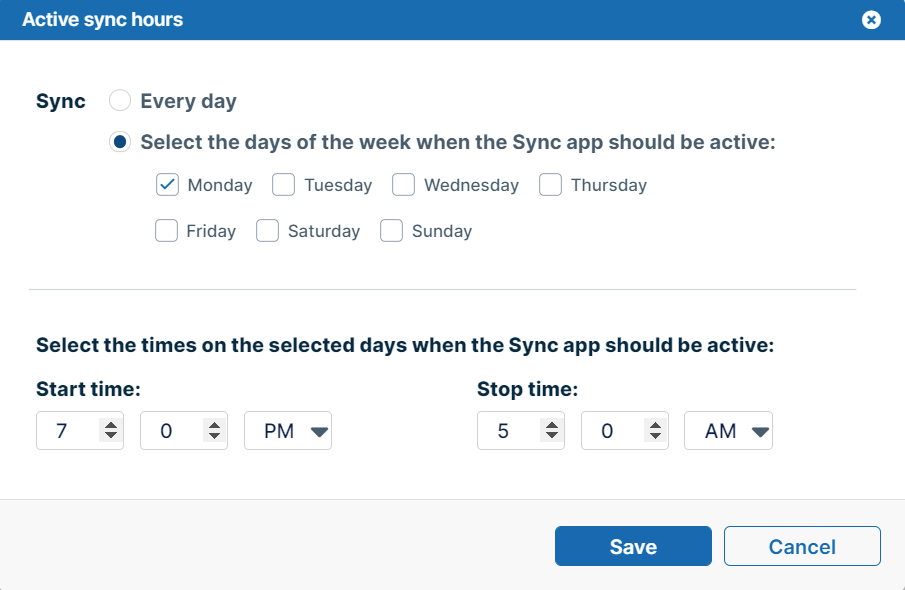
If Stop time is later than Start time, do not check the next day; it is assumed that the time continues into the next day.
|
|
The Sync app treats this as Monday 7:00 pm to Tuesday 5:00 am.
|
|
Active times are overnight on consecutive days, that is:
|
|
The Sync app does not treat this as Monday 9:15 pm through Thursday 5:45 am. |
|
From a certain time one day to the same time the next day, for example:
|
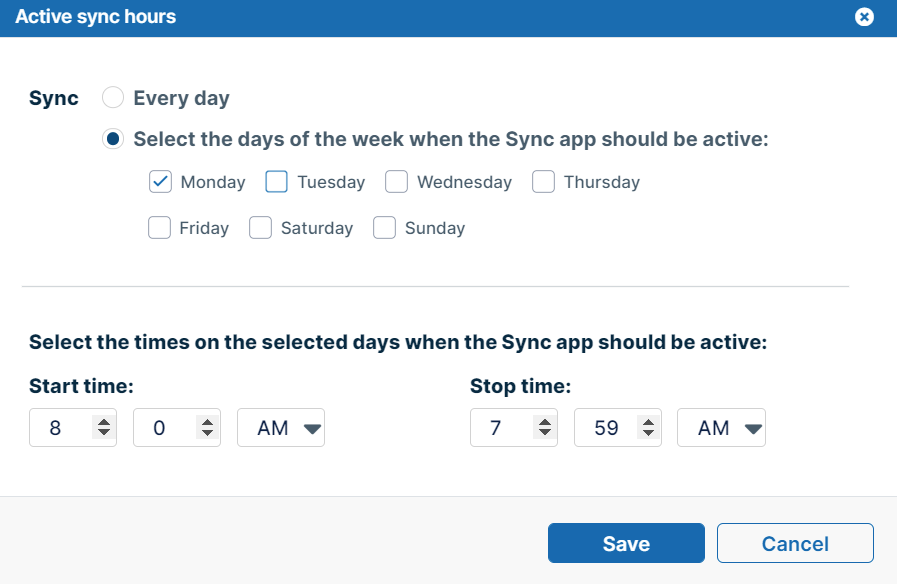
Not possible, instead schedule from Monday 8am to 7:59 am. The Sync app assumes that the time period flows into Tuesday.
|
|