.svg)
FileCloud for Outlook enables you to save Outlook email attachments to FileCloud and attach FileCloud files to Outlook emails as attachments or share links.
FileCloud for Outlook is available in:
-
Windows and macOS
-
the classic and the new Outlook interfaces
-
Outlook desktop and Outlook Web
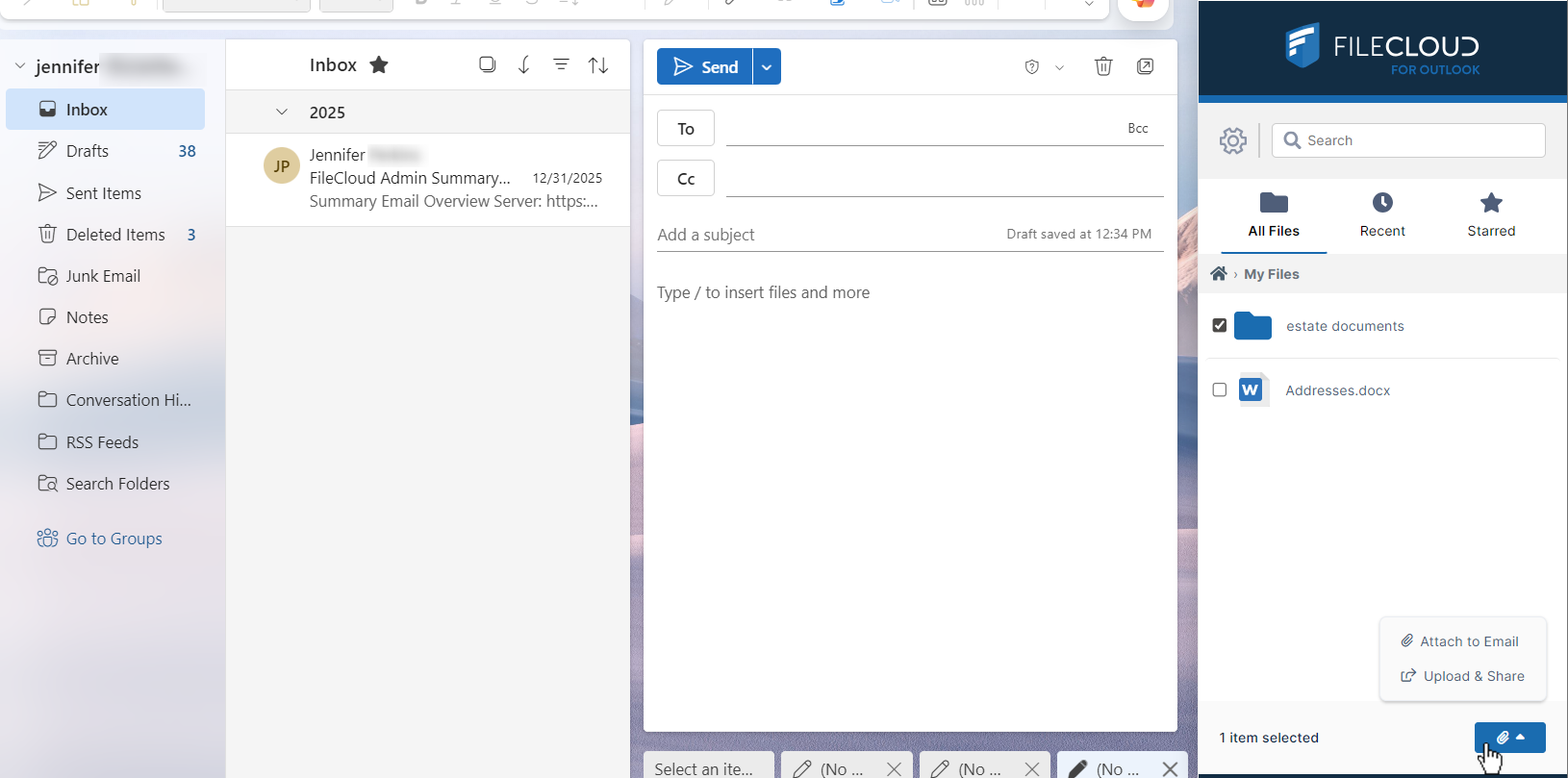
FileCloud for Outlook can only be opened from within an email, either one you are composing or one you have received. The add-in appears as a side panel to the right of the email.
To install FileCloud for Outlook, see Installing the Outlook Add-In .
Logging in to FileCloud for Outlook
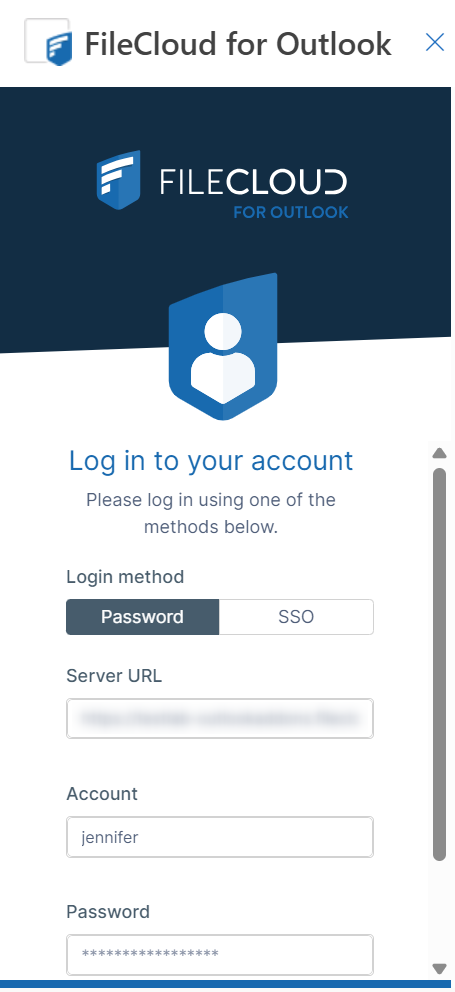
When you open FileCloud for Outlook, if you are not already logged in to FileCloud, you can log in through the add-in.
You can log in by entering your FileCloud server address, username, and password, or if it is enabled, you can click the SSO tab and log in using SSO. If MFA is enabled, you are prompted to log in using MFA.
If you are accessing Outlook through Google Chrome and signing in with SSO, you must disable Local Network Access Checks.
To disable Local Network Access Checks in Chrome:
-
Enter the web address:
chrome://flags/#local-network-access-check -
Change the setting for Local Network Access Checks to Disabled.
-
Restart Google Chrome.
Opening FileCloud for Outlook from an email
-
Open Outlook.
-
Click Home in the menu bar, and then click New mail.
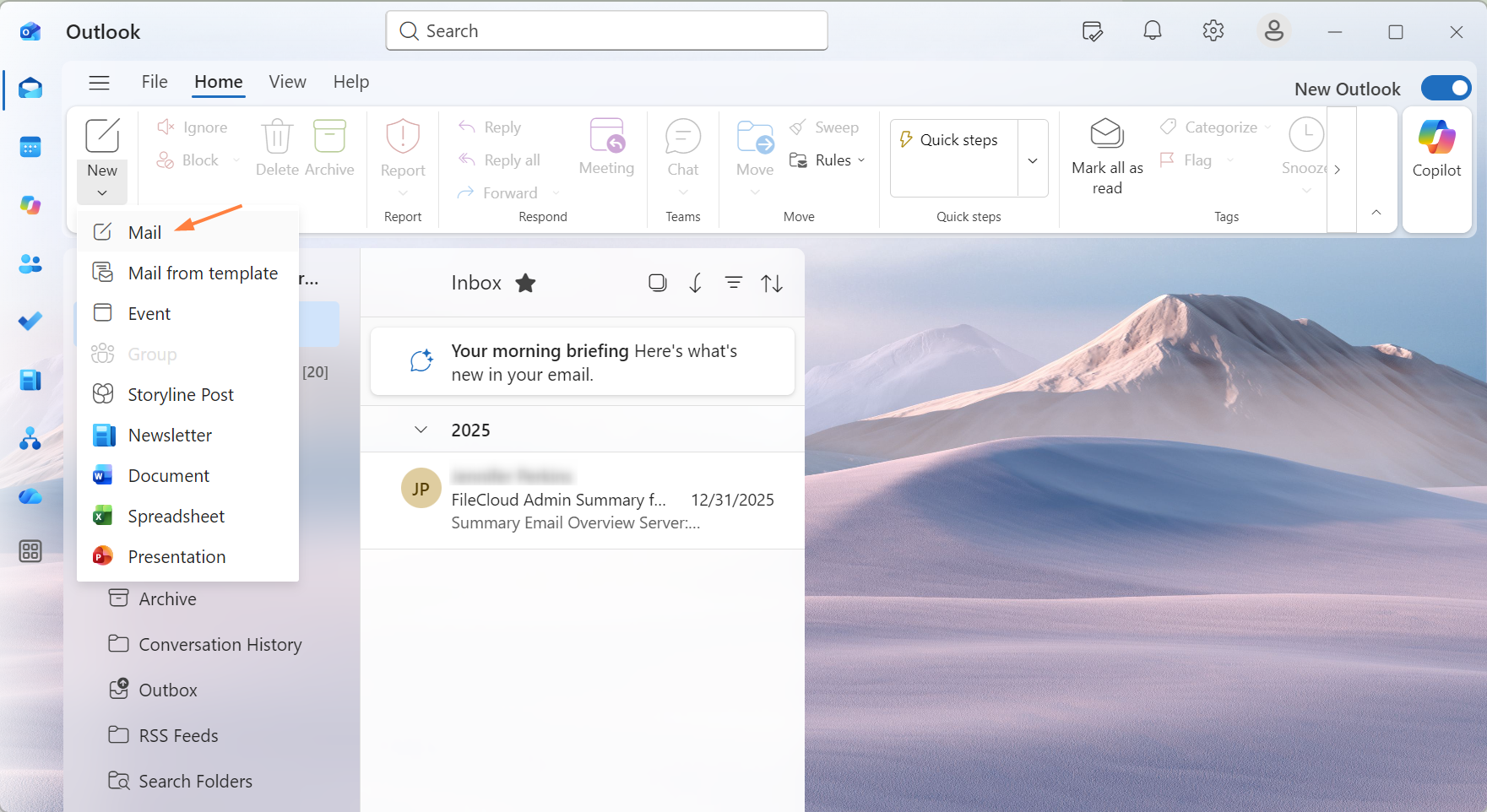
An empty email opens. -
Click the Apps icon

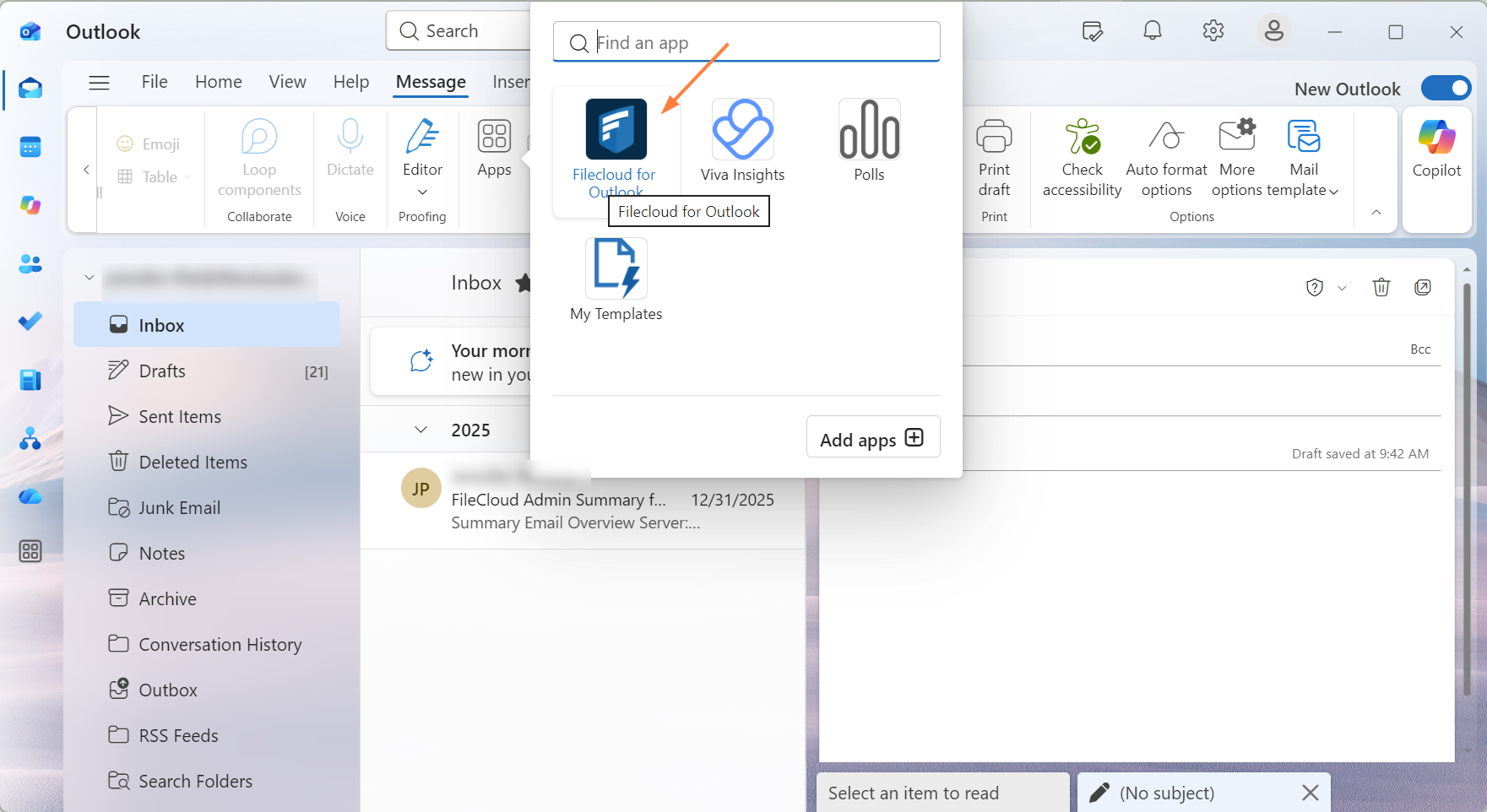
FileCloud for Outlook opens on the right of the screen.
-
If you are not already logged in to FileCloud, log in.
All of your FileCloud folders appear in FileCloud for Outlook.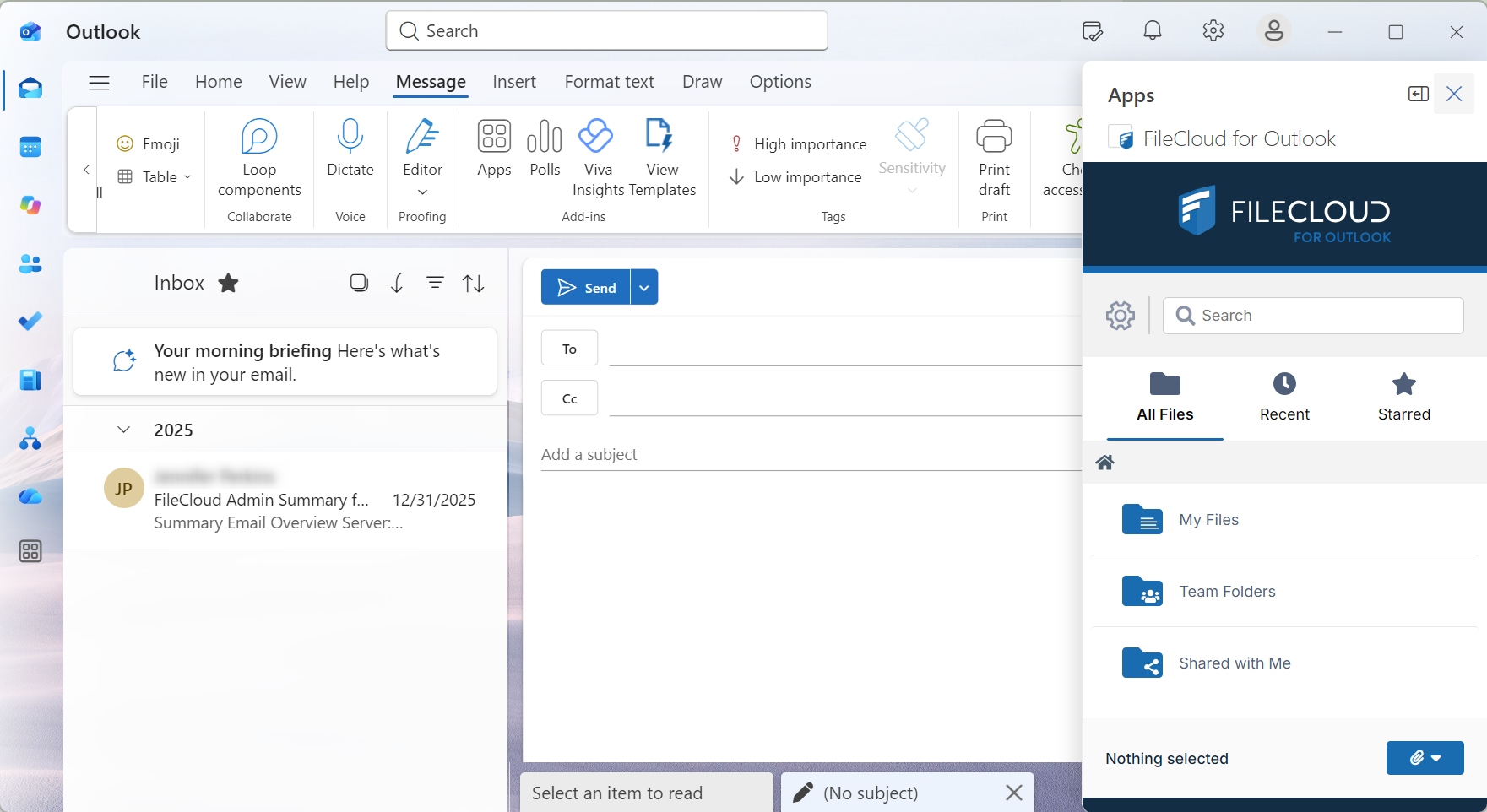
Attaching files and folders from FileCloud to an Outlook email
-
Begin composing a new email.
-
Open and log in to FileCloud for Outlook, then navigate to the file or files that you want to add to the email, and select them.
-
Click the attachment icon at the bottom of FileCloud Outlook and choose Attach to Email.
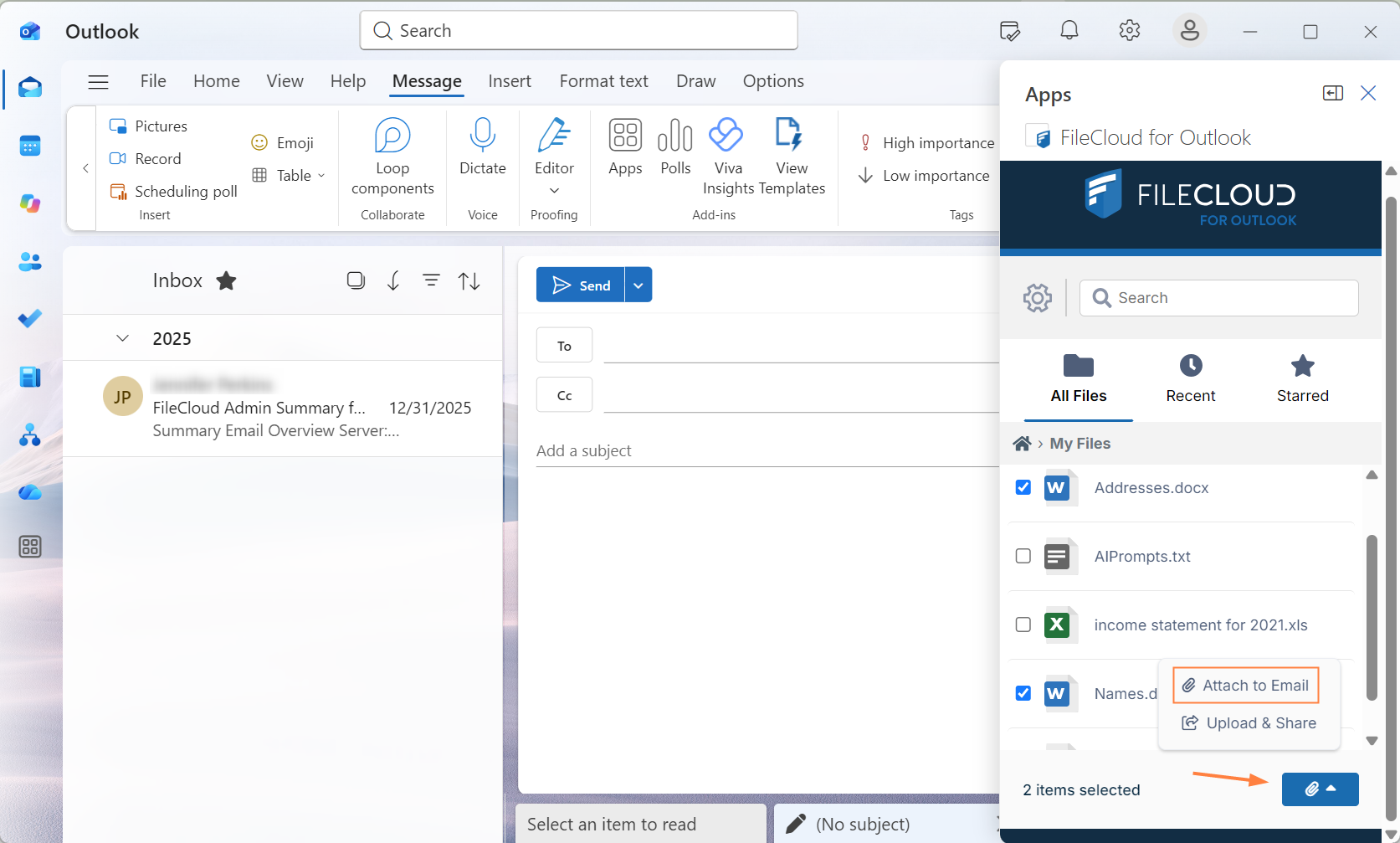
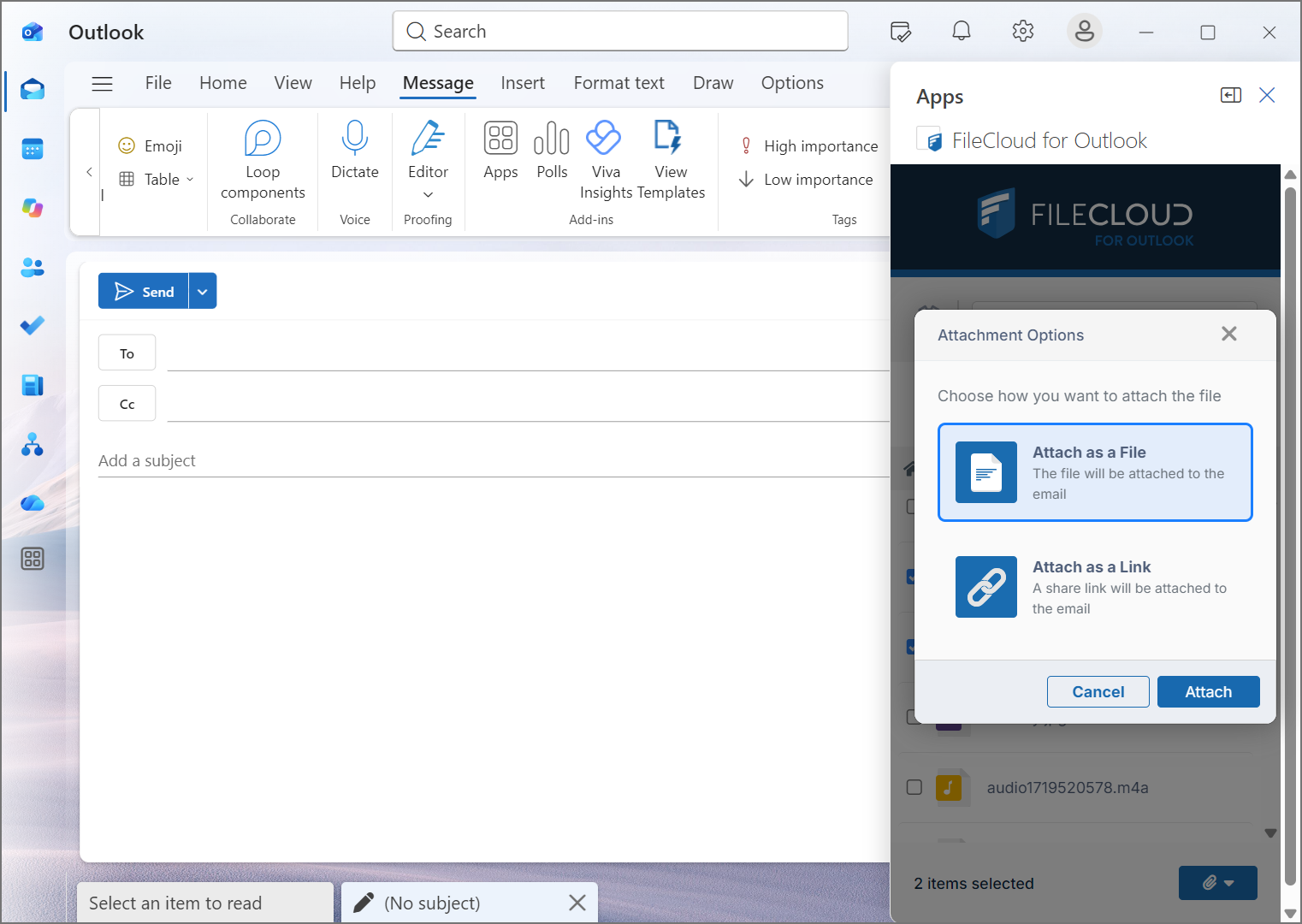
An Attachment Options dialog box opens.
-
Choose Attach as a File or Attach as a Link, and click Attach.
If you choose Attach as a File, the files appear as attachments in the email: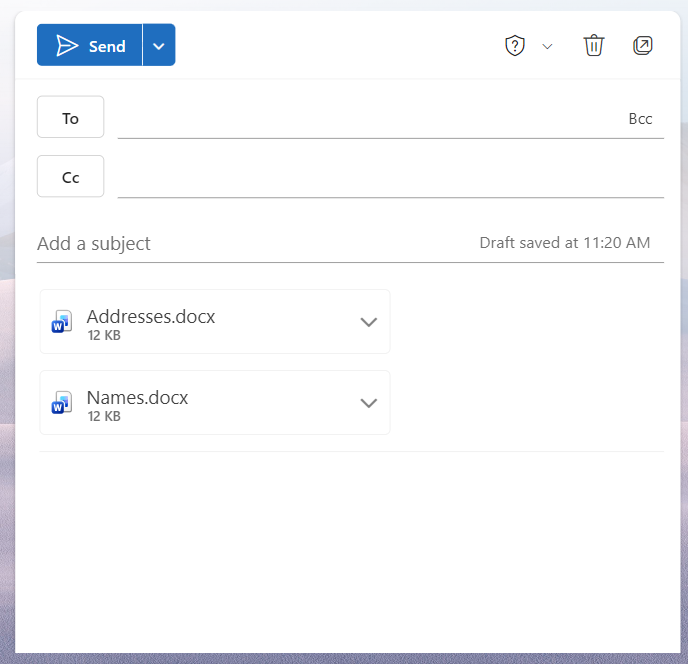
If you choose Attach as a Link, share links appear in the email. If the shares are private, recipients you add apply to both files.
The share link types are determined by your FileCloud system's default share setting. If the default share type is Public, you are not prompted to do anything else.
If the default share type in your system is private, Attachment Options open. The options enable you to add share recipients and modify share permissions and other share details.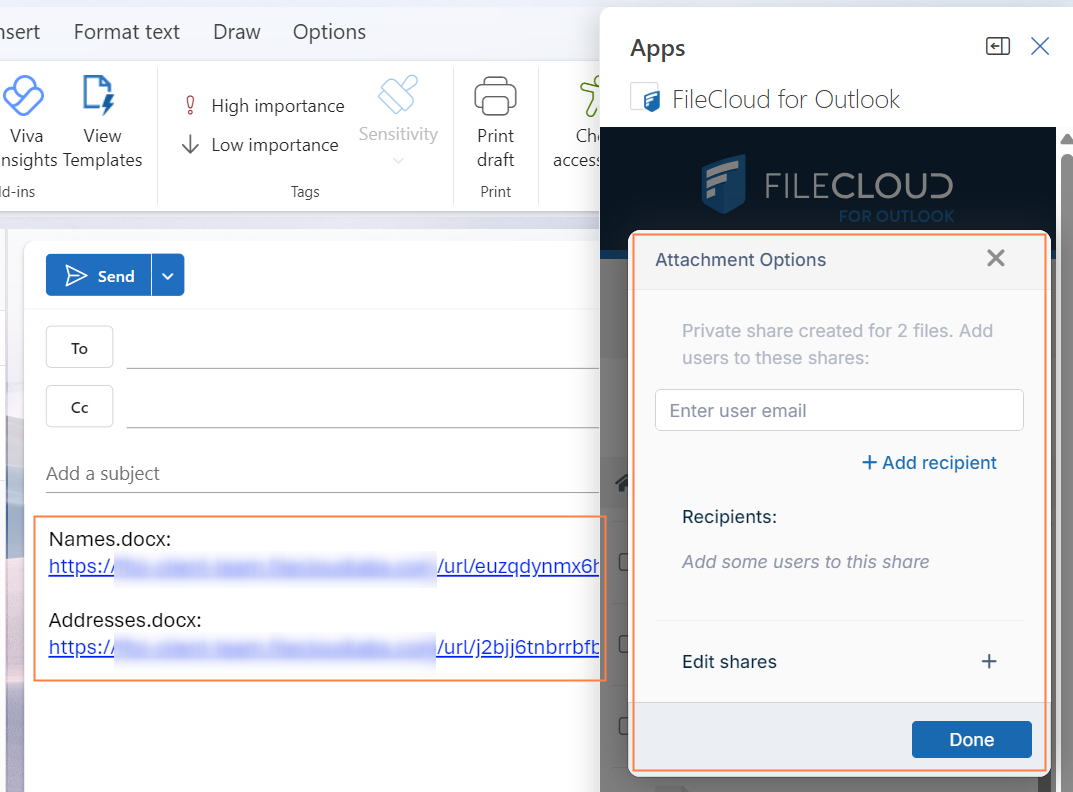
Note: Once you insert a share link, the share is created in FileCloud, even if you do not send the email or if you delete the link.
-
Continue with the next procedure, To add share recipients and modify permissions.
To add share recipients and modify permissions:
To use this feature, contact FileCloud Support to request a patch for FileCloud version 23.262.1. Alternatively, this functionality will be included in FileCloud version 23.263, expected to be released by the end of September 2026.
-
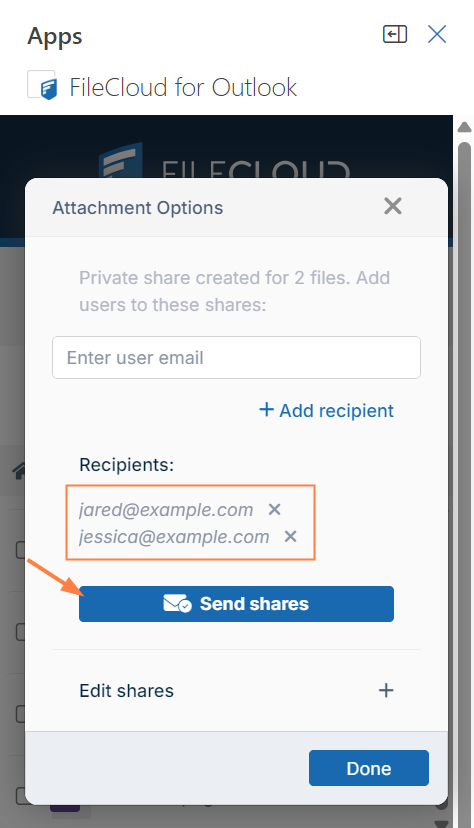
In Enter user email, add any number of emails.
Note: You must add the email recipient if you want them to be able to access the share. -
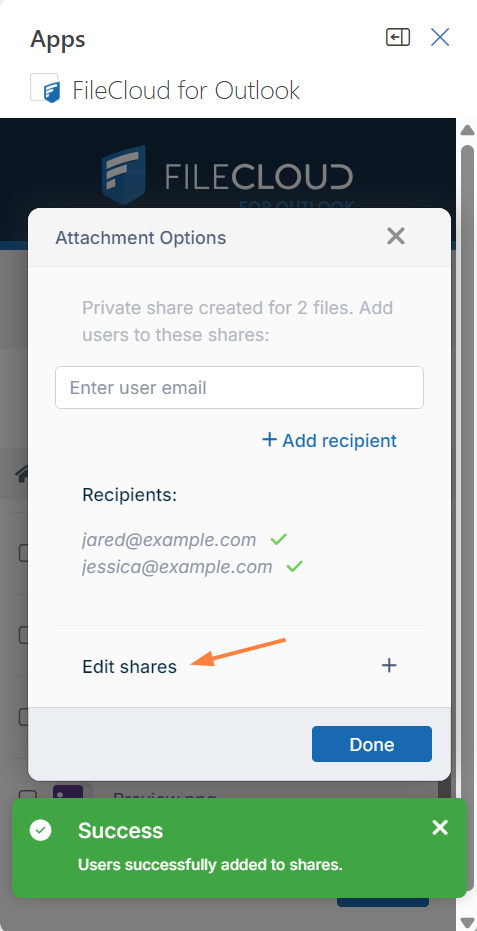
Click Send shares to add the users to the share.
-
To modify permissions or other share details, click Edit shares.
-
Under the file or folder name, click Edit permissions.
Each file is listed with an Edit permissions link, so you can assign each user different permissions to each share.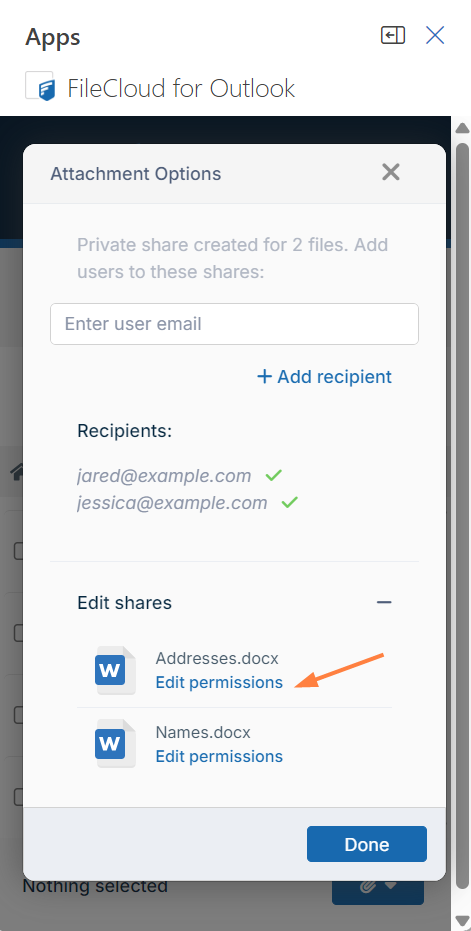
-
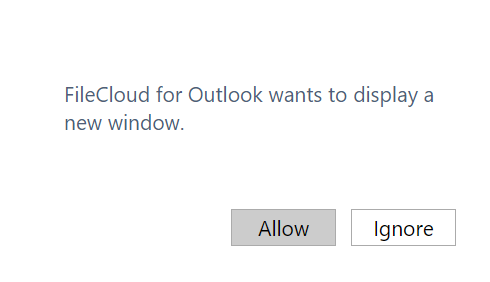
You are prompted to allow the system to display a new window:
-
Click Allow.
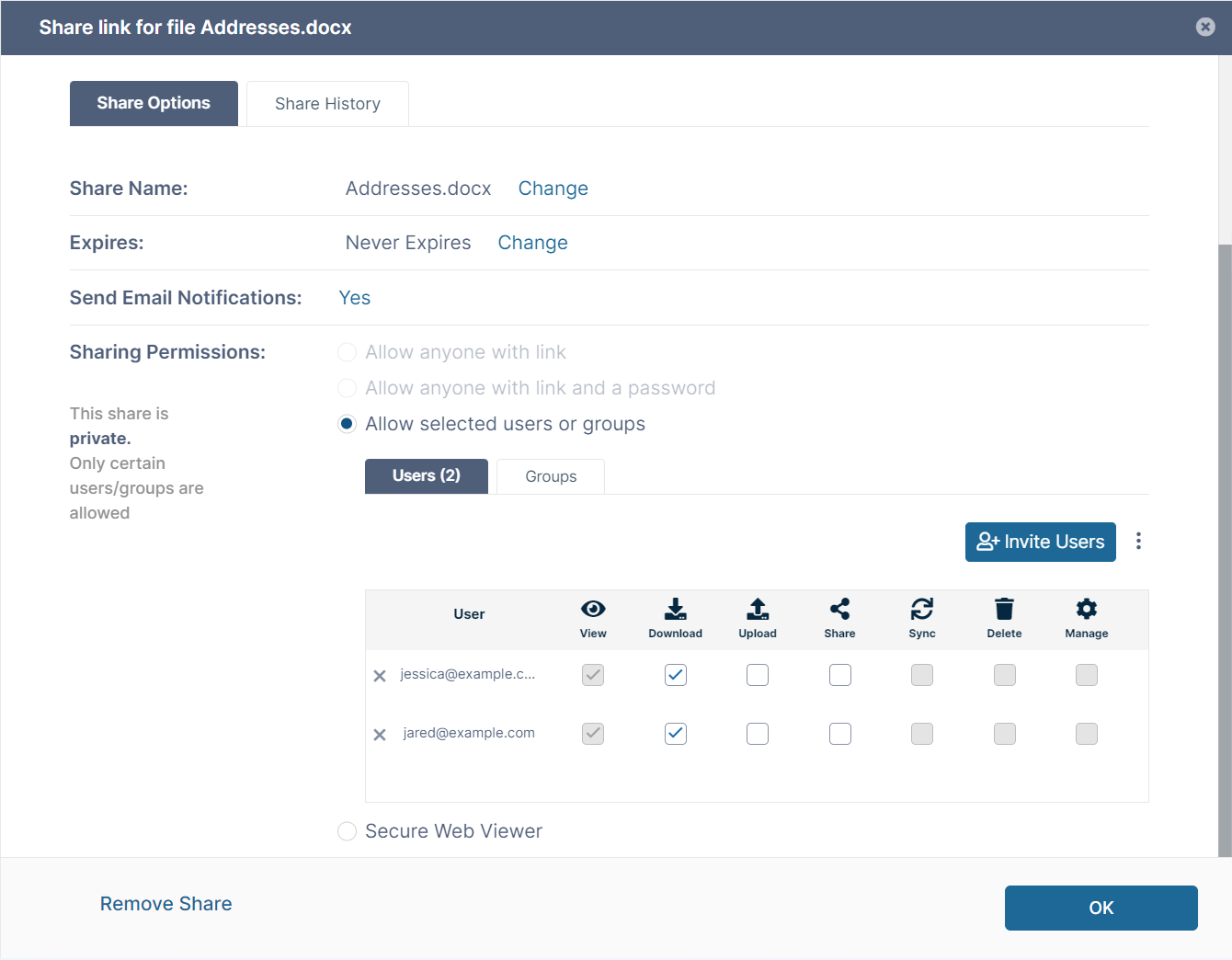
A Share link window opens. -
Modify users' share permissions or change any of the other share options that are available. See the help section Sharing Files and Folders for help configuring shares.
-
Click OK.
A notification informs you that your changed permissions were saved, and that you can close the Share link window to return to FileCloud for Outlook.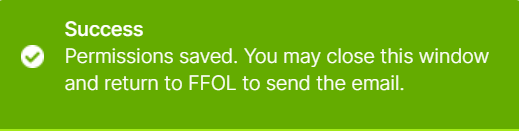
After you return to FileCloud for Outlook, you can edit permissions in any additional shares or send the email.
Upload a Local File to FileCloud and Share in an Email
When you are creating an email in FileCloud for Outlook, you can upload a local file to FileCloud, and once uploaded, it is automatically attached to the email as a share link.
-
Begin composing a new email.
-
Open and log in to FileCloud for Outlook.
-
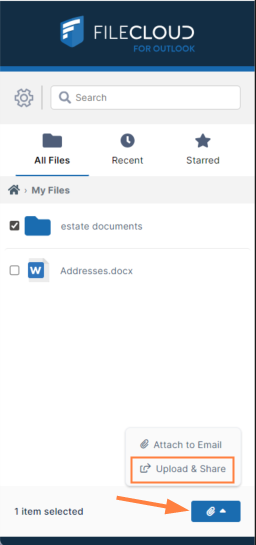
Click the attachment icon at the bottom of FileCloud for Outlook, and choose Upload and Share.
-
Select the local file that you want to upload and share.
-
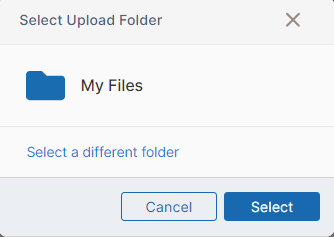
You are prompted to choose a FileCloud folder:
-
Navigate to your destination folder, check it, and click Select.
The file is added to the folder and added as a link to your email.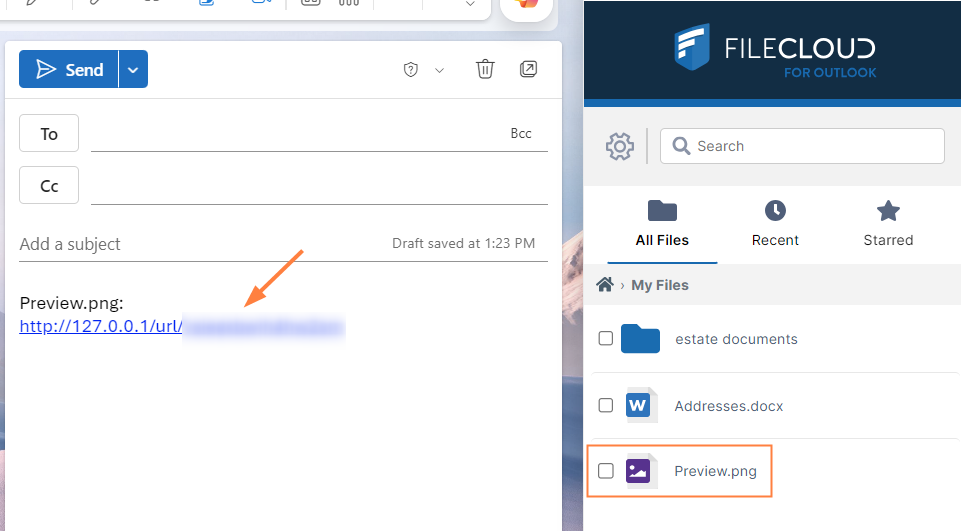
The type of share link created is the default share type in your FileCloud system. If the default share type in your system is Public, you are not prompted to do anything else. If the default share type in your system is Private, you are required to add share recipients, and you may change share permissions and other details.
Note: Once you insert the share link, the share is created in FileCloud, even if you do not send the email or if you delete the link. -
Now you can add share recipients and modify share permissions and other details using the procedure described above for Continue by following the procedure above under To add share recipients and modify permissions.
Attaching a large file or over 5 files to an email
The limit on the size of an email in Outlook is 20 MB. If including an attachment would cause the email to be greater than 20 MB, FileCloud for Outlook attaches it as a share link instead, and it is added as a share in FileCloud.
The same applies if you attempt to attach over 5 files to the same email; FileCloud for Outlook attaches the files as share links instead, and they are added as shares in FileCloud
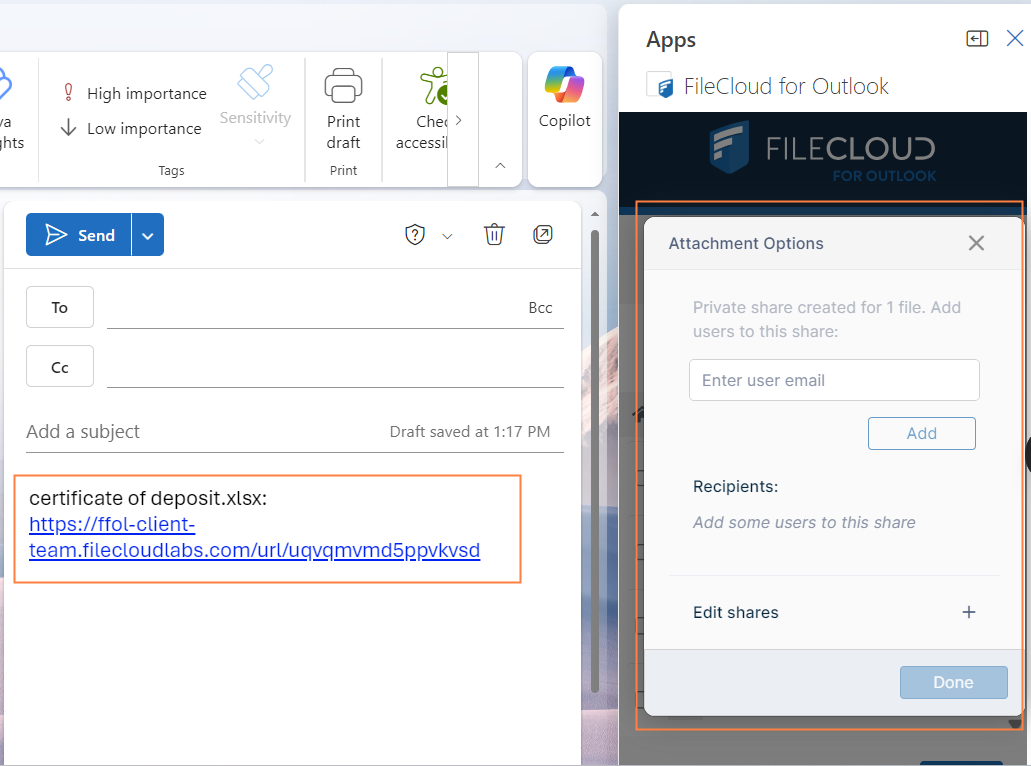
As with other shares added to emails, the share is the default type in your system. If the default share type is private, you are prompted to add recipients. See To add share recipients and modify permissions, above.
Uploading an Outlook attachment to FileCloud
-
-
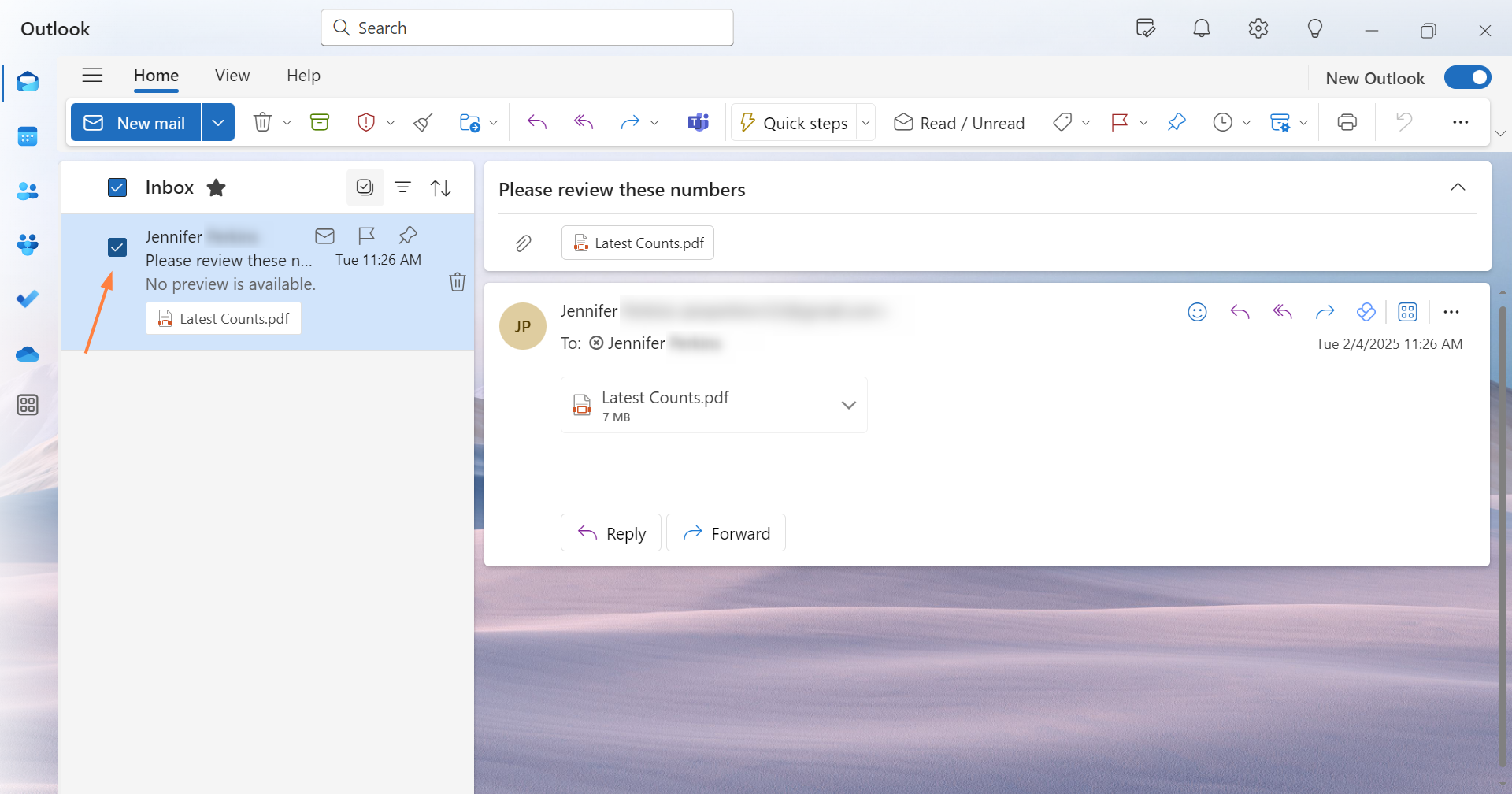
In the navigation panel click Inbox or Sent Items, and then open an email.
-
In the upper-right corner of the email, click the Apps icon, and choose FileCloud Outlook.
(Click More if the Apps icon is not listed).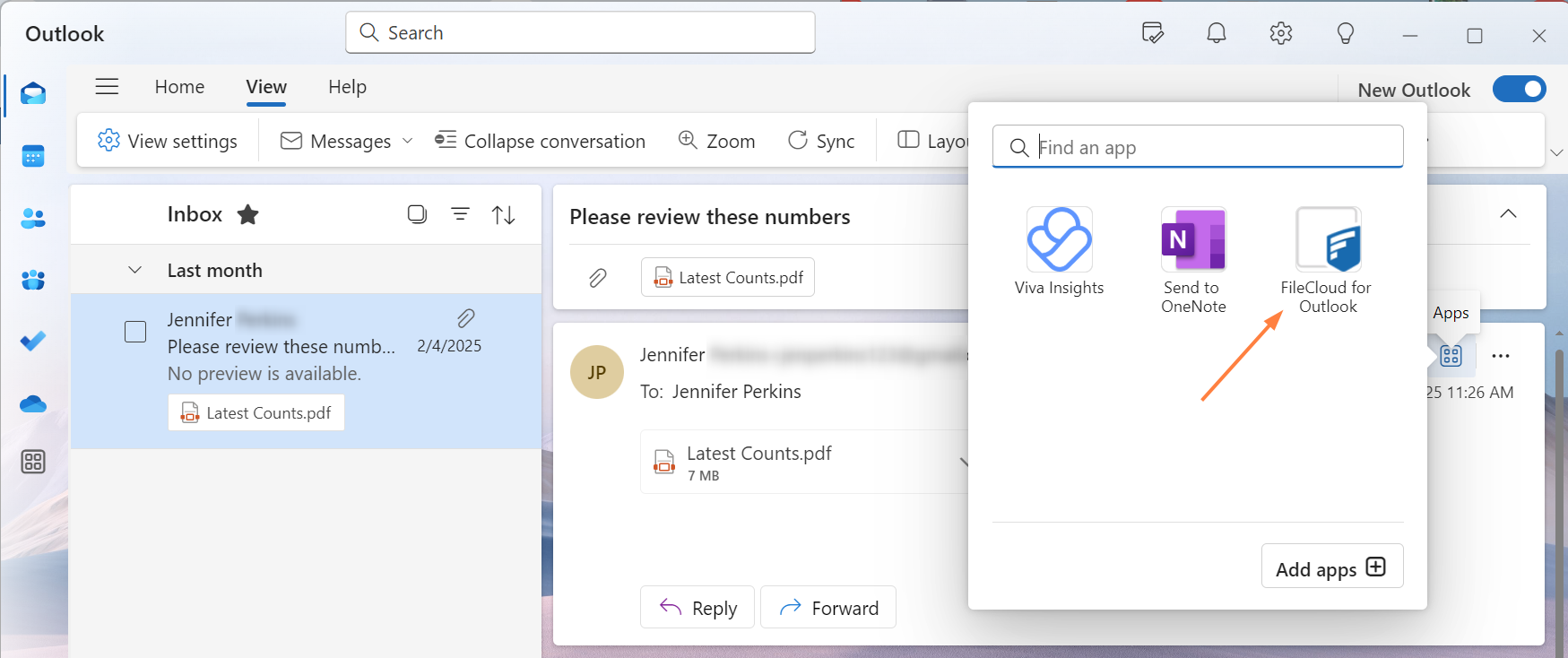
FileCloud for Outlook opens as a panel to the right of the email.
-
-
If you are not already logged in to FileCloud, log in.
By default, the email's attachments are listed at the bottom of the screen, and the Save button is not yet available.
(You can also configure custom upload settings. See Automatically uploading an email attachment to FileCloud, below.)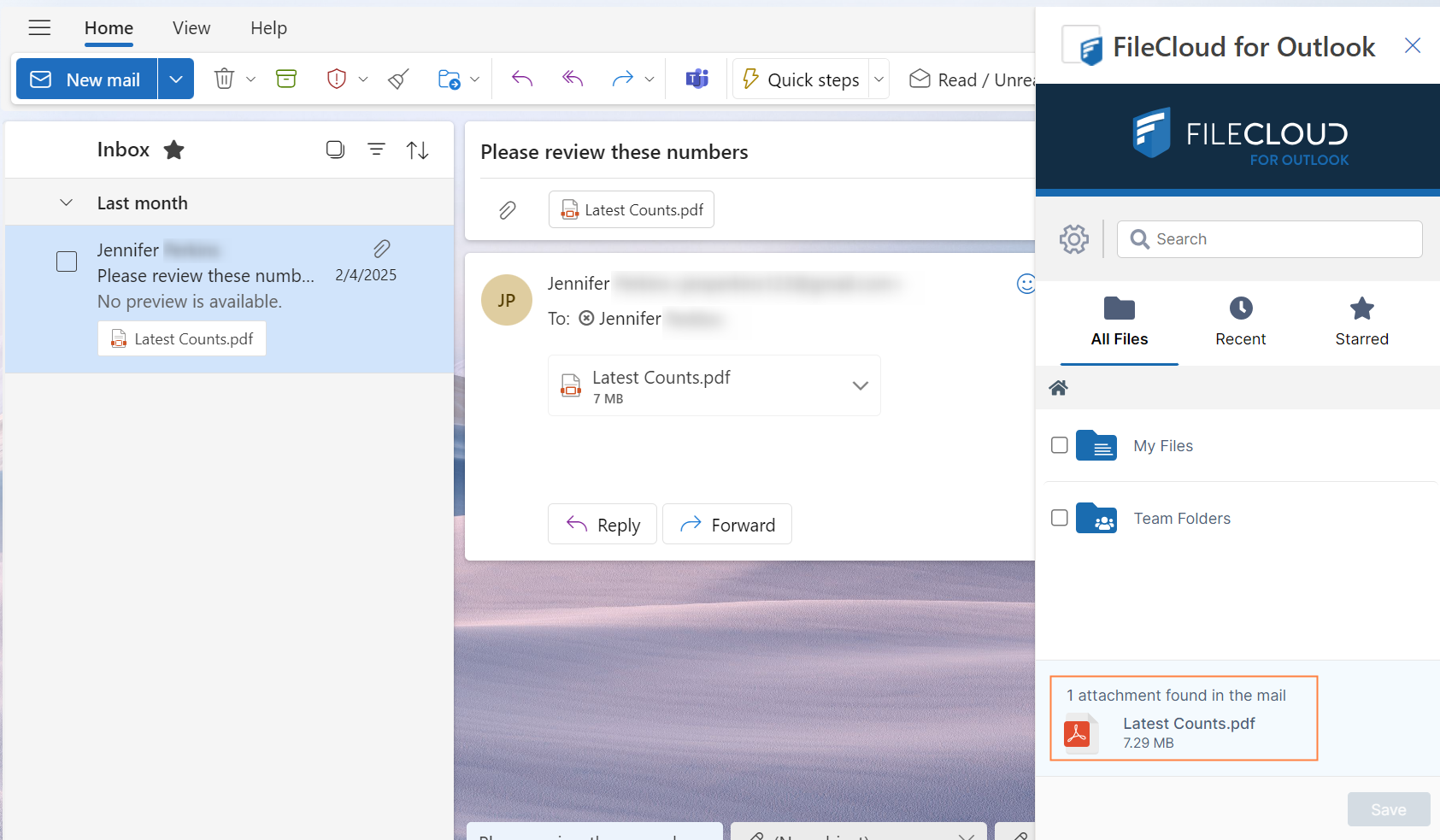
-
Navigate to and check the FileCloud folder you want to store the file in.
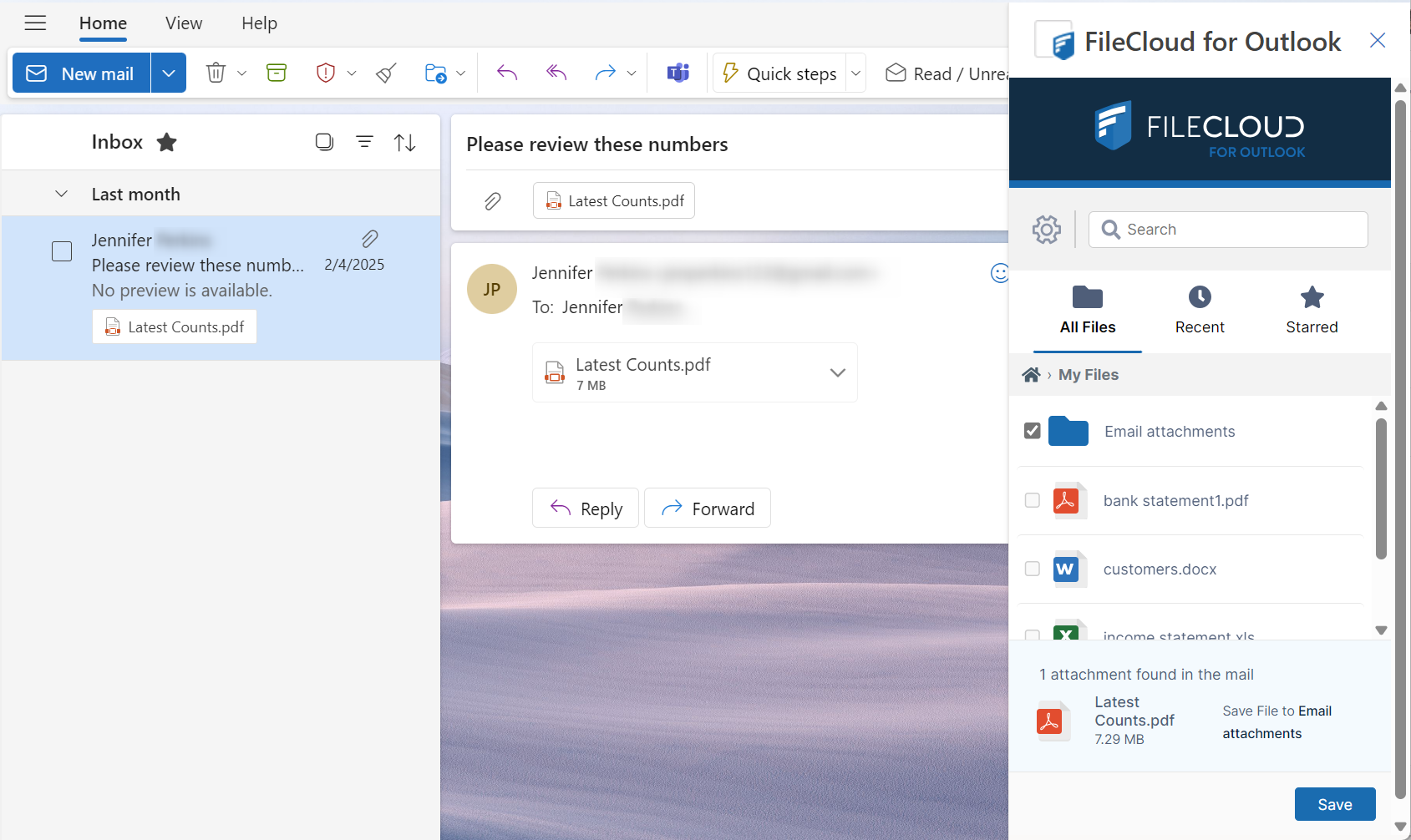
-
Click Save.
The file is now stored in FileCloud.
Automating attachment upload
You can specify a default FileCloud folder where Outlook attachments are saved.
You can also automatically save attachments to that folder.
To enter upload settings:
-
After you open FileCloud for Outlook in an email, click the cog icon next to the search bar.
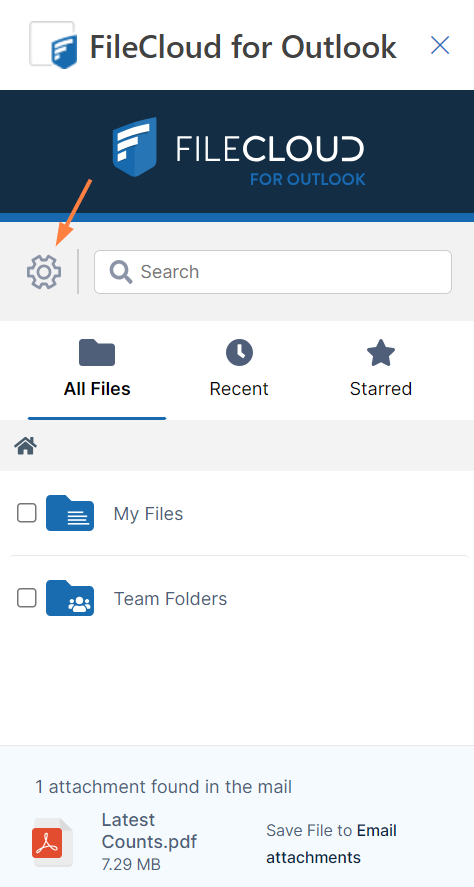
Upload settings appear.
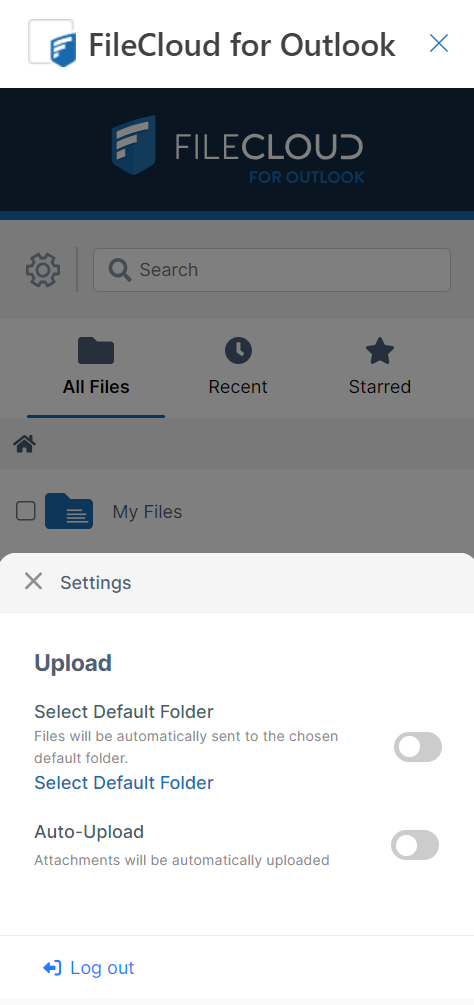
To set up a default upload folder:
-
Click Select Default Folder.
Your FileCloud folders appear. -
Navigate to a folder and select it.
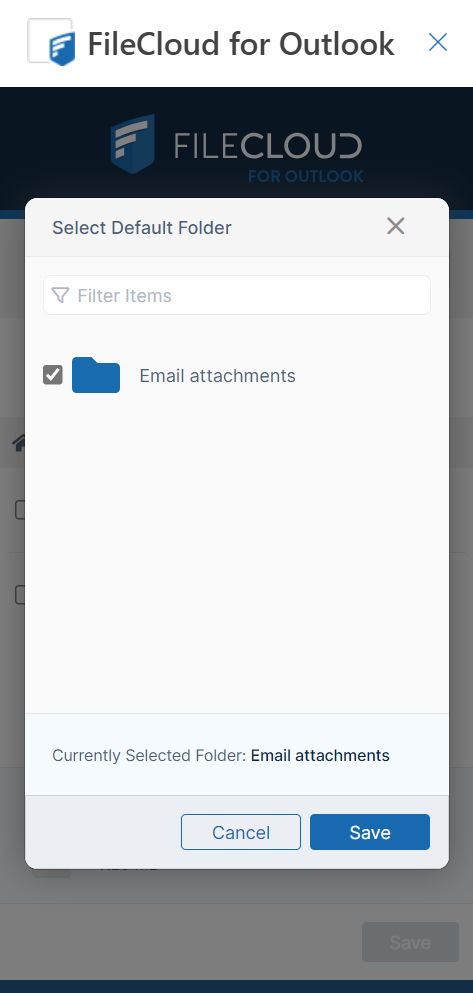
-
Click Save.
-
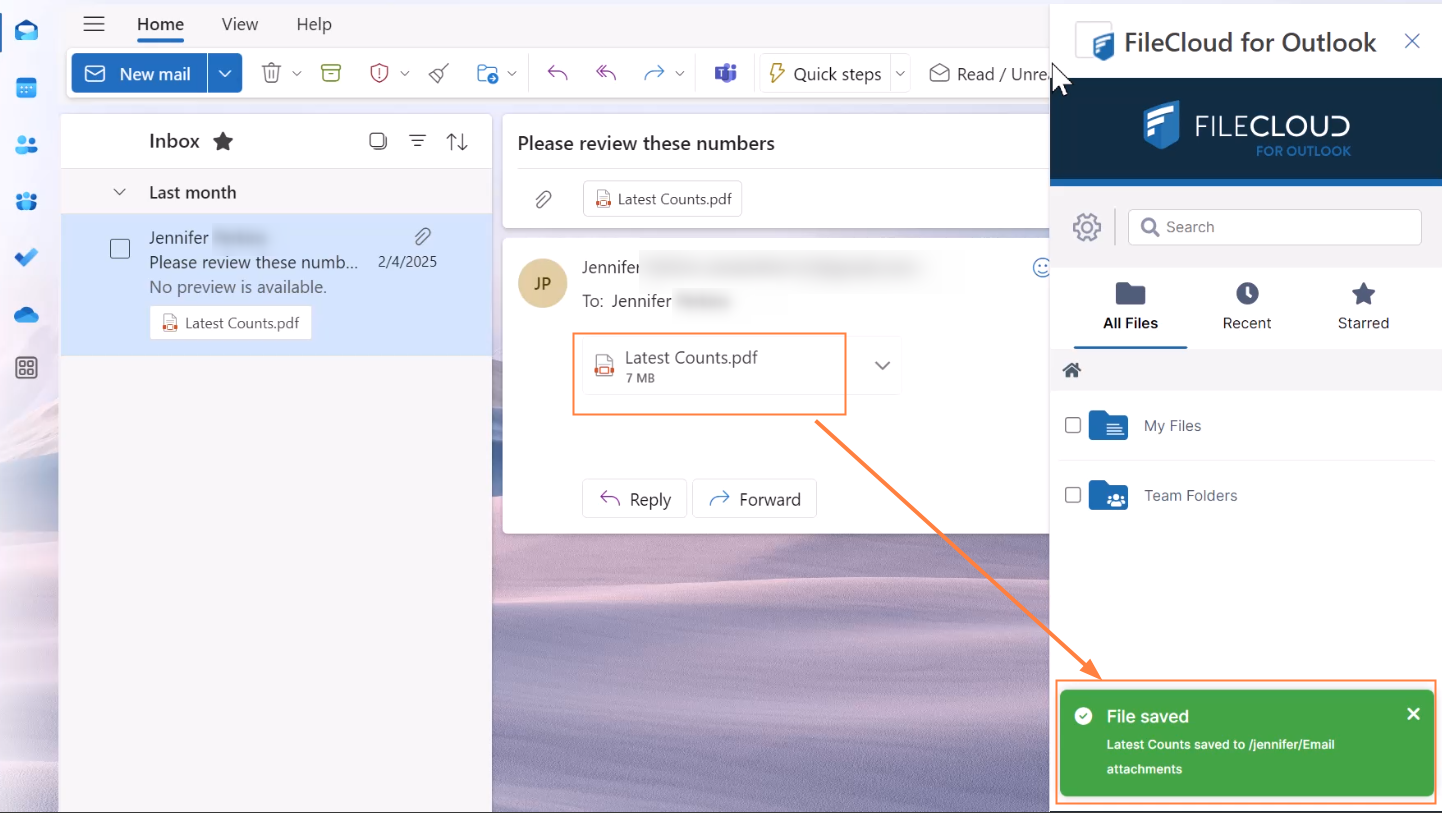
If you want email attachments to be automatically saved to your default folder when you open an email, enable Auto-Upload.
Note: The file is automatically saved only when the email is open and FileCloud for Outlook is opened beside it.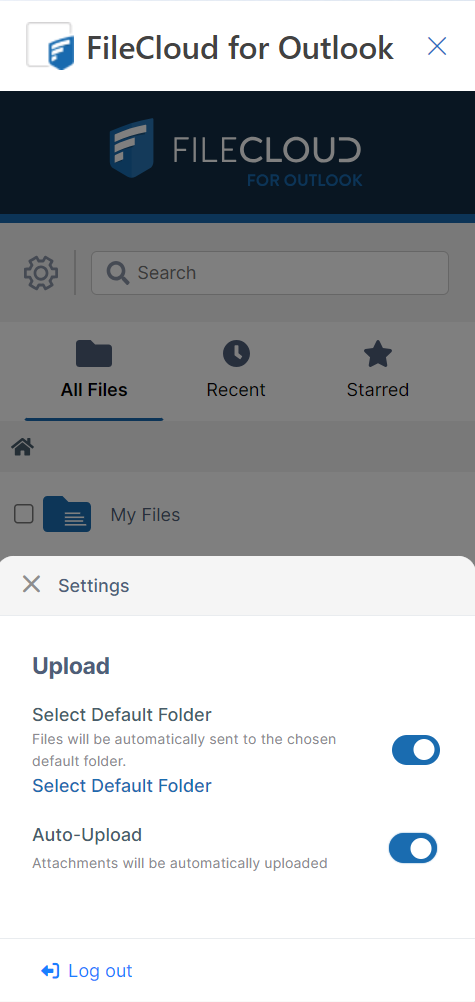
-
When FileCloud for Outlook is opened, if you have set up a default folder, but you have not set up auto-upload, the FileCloud dashboard gives you the option of saving to the default folder without requiring you to navigate to it:
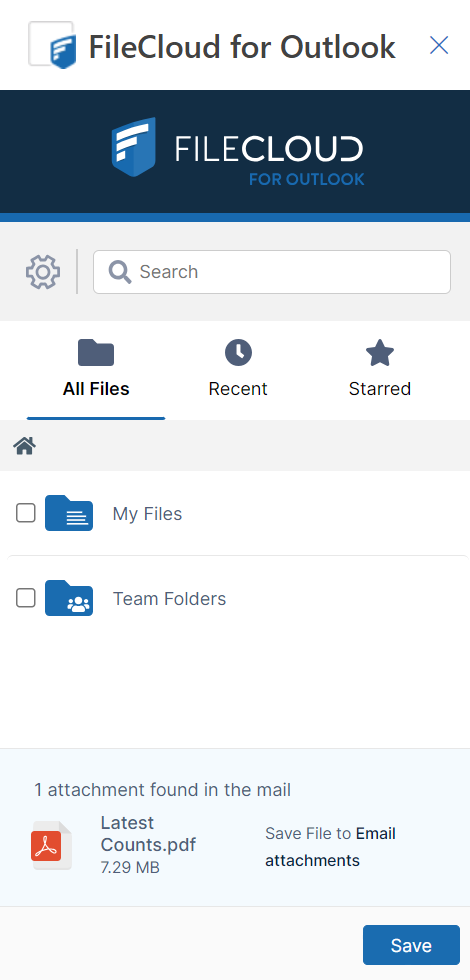
You can click Save to save to the default folder or navigate to another folder and select it, and then click Save.
When FileCloud for Outlook is opened, if you have set up auto-upload, the FileCloud dashboard uploads the email attachment to FileCloud when you open it.
Viewing the FileCloud for Outlook version and build
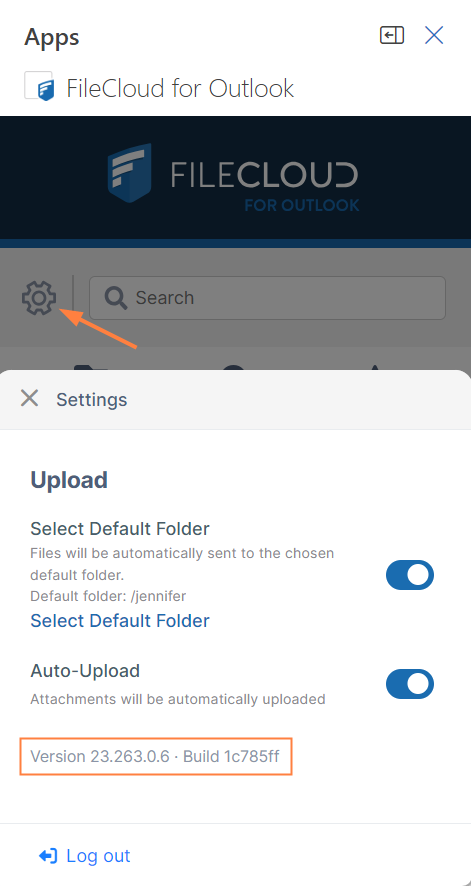
To view the FileCloud for Outlook version and build, click the cog icon to open the Settings window.
The Outlook version and build are listed below the other settings:
Troubleshooting
I am not able to see FileCloud for Outlook inside Outlook.
Outlook may disable an add-in if startup performance is affected. In Outlook, go to File > Options > Add-Ins. Find the FileCloud for Outlook add-in from the disabled add-ins list and enable the add-in. You can set Outlook to always enable FileCloud Outlook add-in so that it does not get disabled.