.svg)
Beginning in FileCloud Desktop for macOS 23.253.3, a lock icon appears beside locked files in the macOS Finder.
Beginning in FileCloud Desktop for macOS 23.253, the following features are available:
-
Viewing content of WebDRM files
-
Self-service user interface customization
FileCloud Desktop for macOS enables you to access your FileCloud files and folders in the Finder, where you can work with them online or make them available offline. Changes you make to offline files stored in FileCloud are immediately synced to the copies in FileCloud.
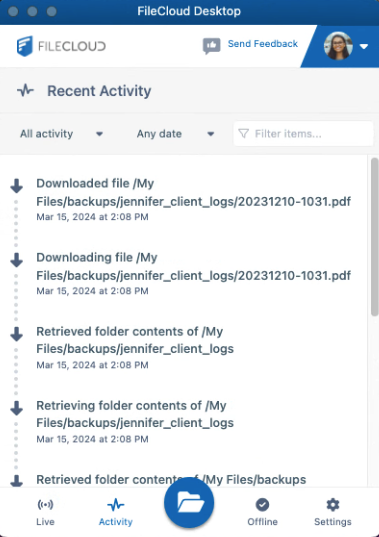
FileCloud Desktop for macOS opens as a dashboard that shows you live and recent actions and the folders you have downloaded offline, and also gives you access to user settings:
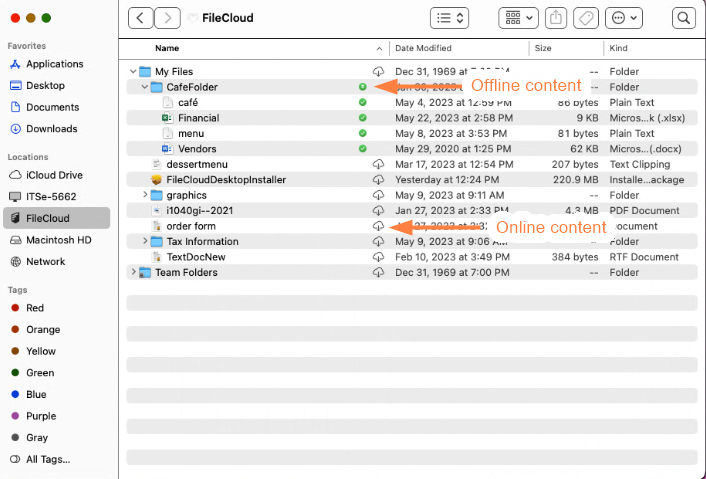
When you open FileCloud Desktop, its FileCloud folder becomes available in your Finder. From there, you can work with your files online, or download them and work with them offline. Your online files and folders appear with cloud icons beside them. When you work with them, you are working with the copies in FileCloud, and if you view your user portal, you can see the modifications there. Your downloaded folders and their files are marked with green icons with check marks. When you work with them, you are working with downloaded copies of the files, but your changes are immediately synchronized to FileCloud.
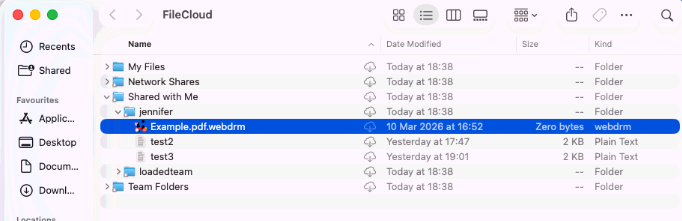
Files shared with the Secure Web Viewer requirement can be viewed through the Secure Web Viewer from FileCloud Desktop. The files appear in the FileCloud root under Shared with Me with a .webdrm extension as they would in the web browser. Click Open to view a .webdrm file through the Secure Web Viewer.
FileCloud Desktop automatically installs with FileCloud for Office (FFO), which enables you to automatically lock and unlock Office files and share them when you open them from the FileCloud Desktop directory.
Begin by installing FileCloud Desktop, and then try out its various functions.