.svg)
-
In FileCloud Desktop, when a file inside an Azure or S3 Network Folder is edited, FileCloud erroneously detects a conflict. Therefore, the local version of the file is renamed as a conflict file, and the server version is unchanged. To resolve this, confirm that this is not a legitimate conflict, and rename the local version back to its original name. This issue will be fixed in the future.
How to know there is a conflict
FileCloud Desktop indicates that there is a conflict in the following ways:
-
A popup appears on your screen and directs you to the Activity tab.
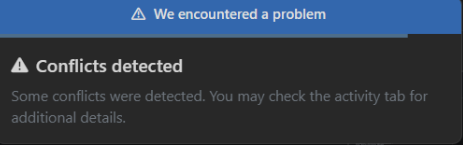
-
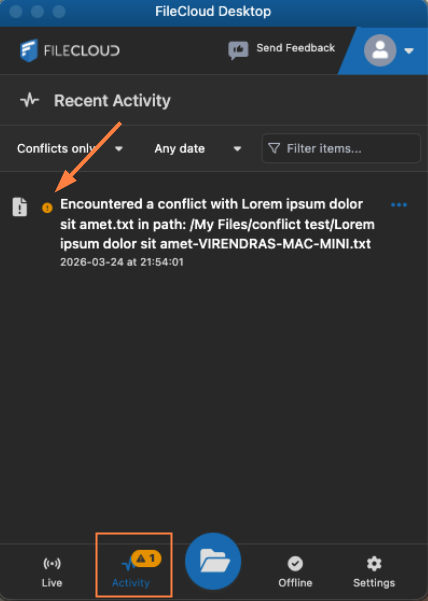
The Recent Activity dashboard screen shows a warning icon beside the action and indicates Modifying the file [filename] ended in a conflict. In addition, the Activity tab at the bottom of the dashboard is overlaid with a warning icon that indicates the number of conflicts:
If you click the more icon next to the conflict file it gives you the options:
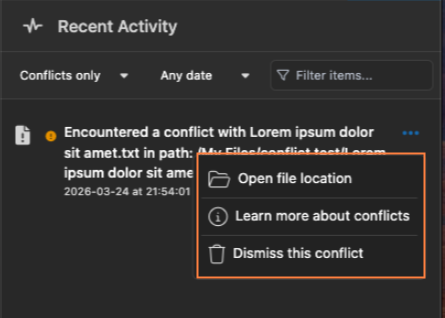
Open file location - Takes you to the folder storing the file in the FileCloud Desktop root in macOS Finder. The original file (not the conflict file) is highlighted.
Learn more about conflicts - Takes you to the current help page.
Dismiss this conflict - Removes the conflict from your Recent Activity screen, but maintains the conflict file so you may resolve the conflict later. -
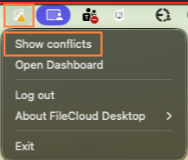
In the desktop tray, the FileCloud Desktop icon is overlaid with a warning icon. Clicking it shows the option Show conflicts. Clicking Show Conflicts takes you to the Recent Activity screen in the dashboard where the conflict is listed.
What causes a conflict
File conflict occurs when FileCloud Desktop for macOS cannot determine which copy of a file is the most recent. It can arise under the following conditions:
-
When two users save the same file at approximately the same time.
-
When one user is editing a file offline, and the file is modified by another user in FileCloud. When the person who was offline comes back online and FileCloud Desktop tries to upload the edited version to the server, it detects that there is a new version available.
FileCloud’s resolution: the conflict file
In these cases:
-
If the conflict files have been edited by two different users:
FileCloud Desktop for macOS automatically resolves the conflict by saving the copy of the file on the server with the original filename, and saving the local copy of the file with the name [filename]-[username].[ext]. Both files are saved locally in FileCloud. -
If the conflict files have been edited by the same user:
FileCloud Desktop for macOS automatically resolves the conflict by saving the copy of the file on the server with the original filename, and saving the local copy of the file with the name [filename]-[machine name].[ext]. Both files are saved locally in FileCloud.
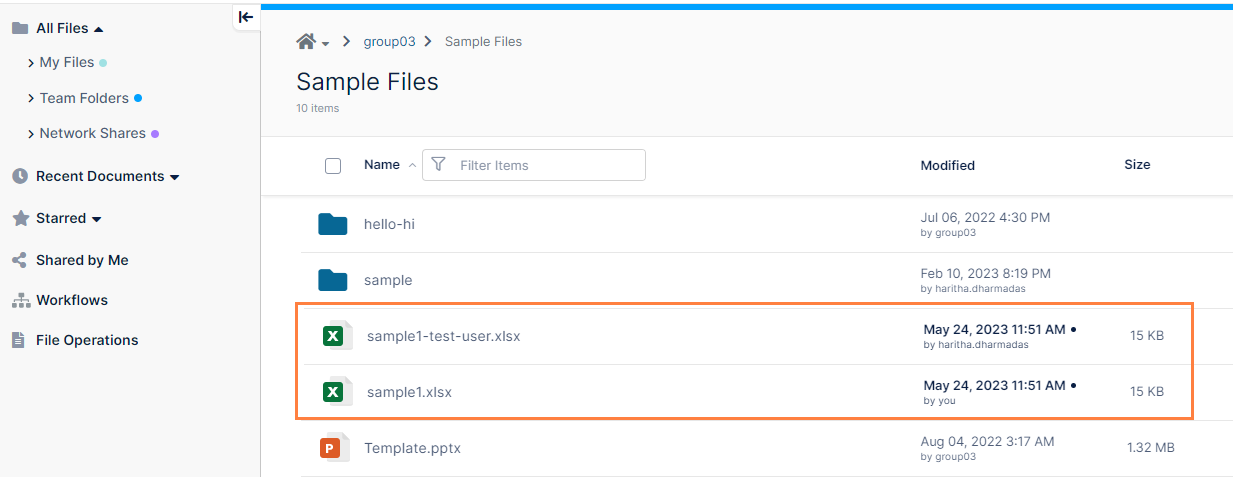
In the following example, the users Melanie and test-user edit the file sample1.xls at the same time. The following events occur:
-
Melanie edits sample1.xls on the FileCloud server. test-user edits sample1.xls in a local download from FileCloud Desktop for macOS.
-
They save the file at the same time.
-
Melanie's edits are saved in sample1.xls.
-
test-user's edits are saved in sample1-test-user.xls.
-
Both files appear on the server.
How to resolve a file conflict:
-
Review the conflicting versions by opening each version of the file and comparing their contents.
-
Decide which version to keep.
Either:
Keep the version with the most recent or correct changes;
Or:
Manually merge the changes from the multiple versions into a single file. -
Save the final version with the original file name once you’ve identified or merged the correct content.
-
Delete the remaining conflict files or move them to another folder for reference.
This helps prevent future confusion and ensures only one version continues to sync. -
Verify that now, the version you saved syncs successfully without generating warnings.
Conflict information continues to be shown each time the user launches the app until the user resolves or dismisses the conflict or logs out.