.svg)
You can schedule when ServerSync runs.
Why Would I Want to Set a Schedule?
-
If you are running the FileCloud Sync app on a busy network, you may want ServerSync to run at the least busiest times
-
If you just want to save your changes to the FileCloud Server at the end of each day
You can only set one time when ServerSync will run for every day you select. The default time is from 8:00:00 AM To 8:00:00 PM.
For example:
-
If you choose Sunday and Tuesday for days of the week
-
If you schedule the hours from 8:00:00 AM To 10:00:00 AM
-
Then ServerSync will be active only on Sundays and Tuesdays and only during the hours between 8 AM and 10 AM. It will remain disabled on other days and times.
The settings you use impact the Sync application in the following ways:
|
Setting |
Value |
Impact |
Notes |
|---|---|---|---|
|
Time Active Controls |
enabled |
ServerSync will be active ONLY during the schedule times
|
To use the Start or Pause buttons again:
|
|
Time Active Controls |
disabled |
ServerSync will always be active
|
If Time Active Controls are automatically disabled, you can enable them again by:
|
After you make these changes, you must restart ServerSync for the changes to take effect.
To set a schedule for ServerSync times:
-
In the System Tray, right-click on the ServerSync icon, and then select Settings.
-
On the Settings window, in the Other Settings section, click Edit.
-
Select the Advanced tab, in Other Settings, select the Enable Active Sync Hours checkbox, and then click Edit Settings.
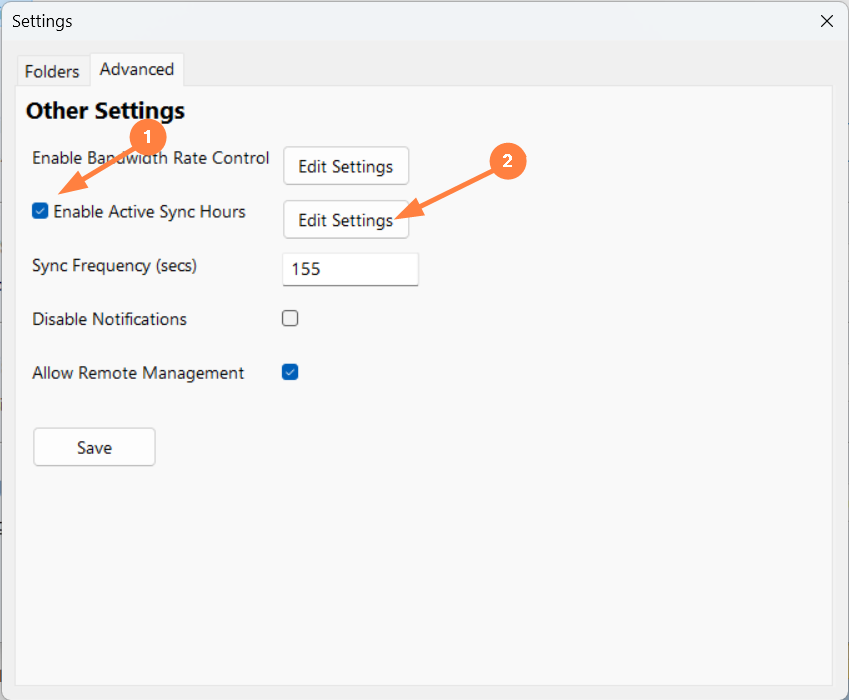
A dialog box for setting active sync hours opens. -
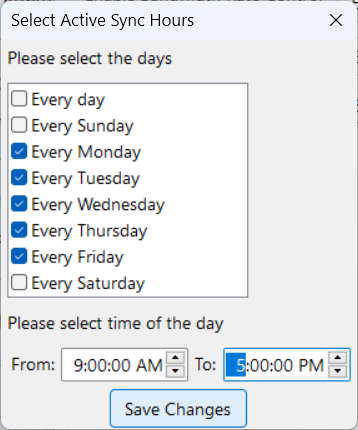
Check the boxes corresponding with days that you want to run ServerSync.
-
You can only set one time that ServerSync will run. It applies to all of the checked days. Use the From, and To fields to specify a time.
-
Click Save Changes.
-
On the Settings window, click Save.
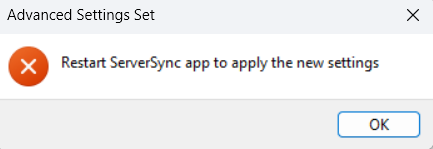
A notification prompts you to restart ServerSync:
-
Click OK, and restart ServerSync.