.svg)
There are two sync types:
|
Sync Type |
Description |
Overwriting Files |
|---|---|---|
|
Two-way sync |
Local changes are uploaded to the server Server changes are downloaded to the local folder |
|
|
One-way sync (Remote to Local) |
Only changes from the server are downloaded to the local folder |
|
Performance considerations:
-
You can add unlimited folders for synchronization.
-
Synchronization occurs sequentially, not in parallel.
-
Large numbers of folders may increase synchronization cycle time.
To select and manage sync folders:
-
From the system icon tray, right-click the ServerSync icon, and then select Settings.
-
On the Settings screen, in the Server Folders section, click Edit.
-
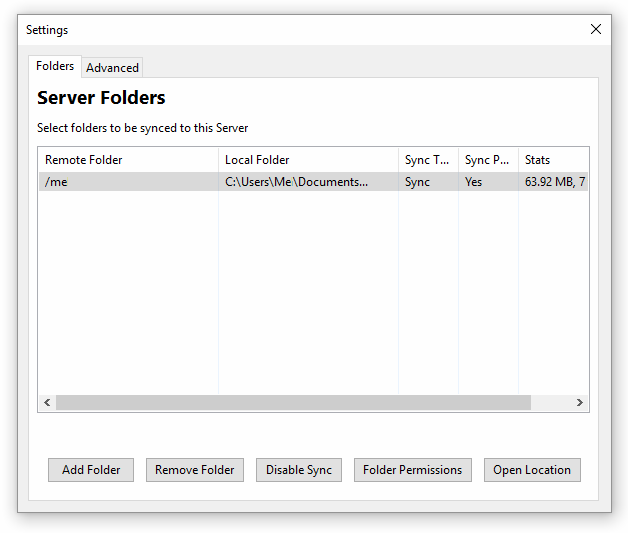
On the Settings screen, on the Folders tab, perform any of the following actions:
|
Option |
Description |
|---|---|
|
Add Folder 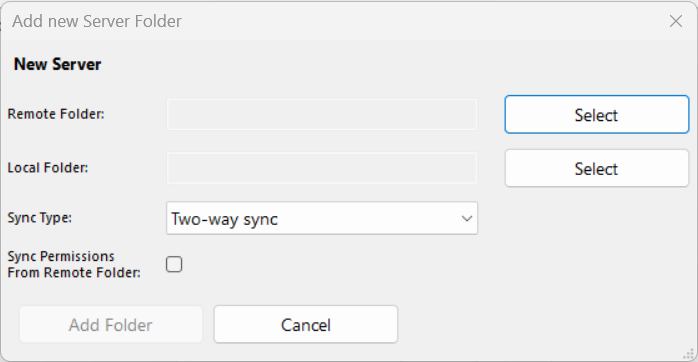
|
Opens the Add new Server Folder dialog box. To add a folder:
When server changes are downloaded to a local folder, the local folder modified date is changed to the current date, but the server folder keeps its original modified date. This is due to operating system constraints.
|
|
Remove Folder |
Allows you to permanently stop synchronizing a selected folder with FileCloud server. The folder and its contents are not removed from the local machine, in case you want to sync this folder again later. To stop syncing a folder:
To temporarily stop synchronizing a folder, use the Disable Sync option. |
|
Disable Sync |
Allows you to disable synchronization of folders temporarily.
To stop syncing a folder:
To start syncing the folder again:
|
|
Folder Permissions |
Allows you to view and manage permissions of a selected folder.
To open folder permissions:
|
|
Open Location |
Opens a Windows File Explorer window showing the location of the selected folder.
To open a server folder's corresponding local folder:
|