.svg)
ServerSync captures changes from a local Windows File Server and synchronizes them to a remote FileCloud Server or FileCloud Online site.
To complete seamless synchronization, ServerSync must be able to log in to a remote FileCloud site using the following credentials:
-
FileCloud site URL
-
FileCloud user account name that has access to the User Portal
-
Account password for the user account specified
-
(Optional) Device authentication code
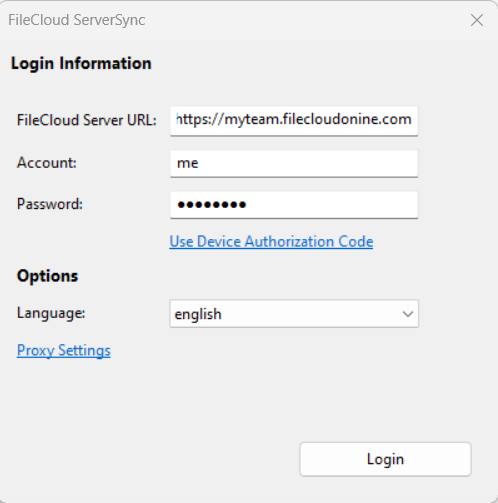
If you try to use the administrator account, the following error appears:
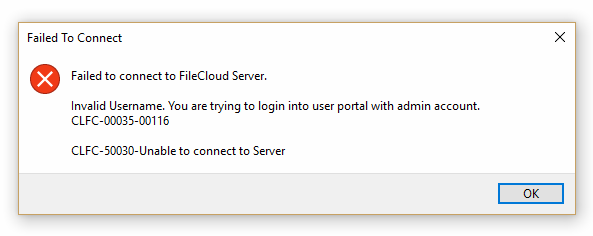
Admin accounts are not used for the following reasons:
-
Administrator accounts are used to install, configure and manage the system. They are not used as owners of files or folders that are shared.
-
The Admin account does not have access to the FileCloud User Portal, which is designed exclusively for the sharing of files, and not for configuring the FileCloud site.
You can also sync file permissions. For that, you must log in with the user account that is the original owner of the files. Otherwise, folder-level permission synchronization will not work.
These account settings can be accessed in the following ways:
-
The Home screen, in the Logged In As section by clicking Change.
-
The Settings screen, in the Account Settings section, by clicking Edit.
It does not matter which screen you use to access the settings. They both function in the same way.
To change your account settings:
-
From the system icon tray, right-click the ServerSync icon, and then select Settings.
-
On the Settings screen, in the Account Settings section, click Edit.
-
In FileCloud Server URL, type in the website address.
-
In Account, type in the username.
-
In Password, type in the password of the associated account.
-
Click Login.