.svg)
|
|
Option |
Notes |
|---|---|---|
|
1 |
Sync Status |
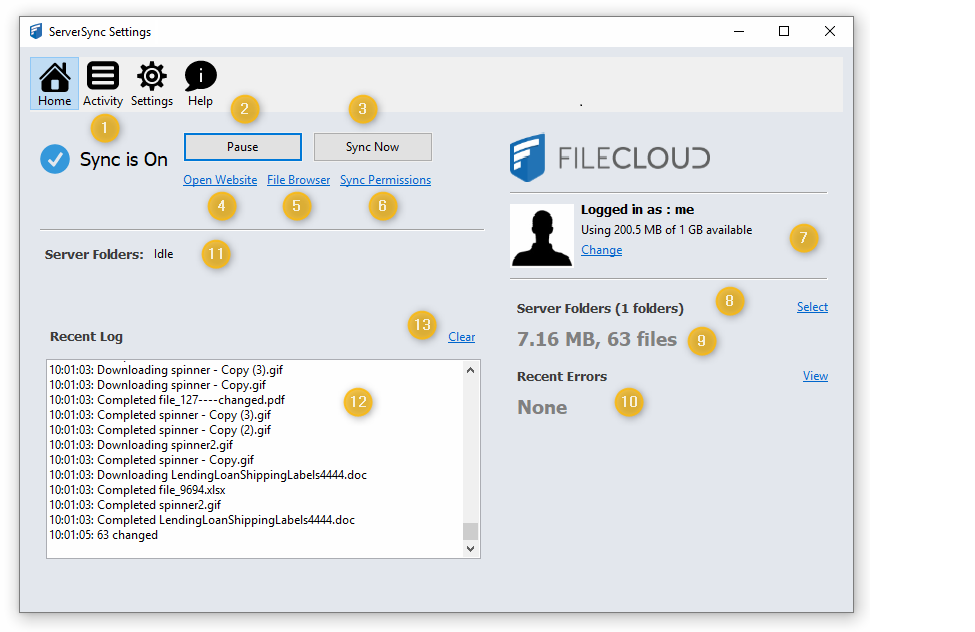
Indicates the current sync status as one of the following: ON - if syncing is enabled DISABLED - Syncing is paused or turned off |
|
2 |
Pause |
Allows you to completely disable synchronization temporarily.
|
|
3 |
Sync Now |
Allows you to manually start an immediate synchronization
|
|
4 |
Open Website |
Opens a web browser to the User Portal for the associated FileCloud Server Read more about Logging In to the User Portal |
|
5 |
File Browser |
Opens the File Browser application to view the files for the associated FileCloud Server Read more about Managing Files in the File Browser |
|
6 |
Sync Permissions |
Allows you to run a manual permission sync on the folders which have Permission sync enabled
Read more about Synchronizing Folders |
|
7 |
Logged in as Change |
Shows the user account that is currently logged in.
Clicking Change allows you to log in with a different account. |
|
8 |
Server Folders Select |
Displays the number of folders you have configured to sync Clicking Select allows you to specify which folders get synchronized locally |
|
9 |
MB, files |
Displays the storage space used to sync all specified files locally, followed by the number of files synchronized |
|
10 |
Recent Errors View |
Allows you to view and clear recent syncing errors. Useful for troubleshooting ServerSync problems. Changes the selected tab from the Home screen to the Activity screen.
|
|
11 |
Server Folders |
Shows Syncing status for all managed folders, including My Files / Team / Shared Folders |
|
12 |
Recent Log |
Shows recent sync logs |
|
13 |
Clear |
Removes all entries from the recent log display, the Activity log display, and the local log file |