Breadcrumbs

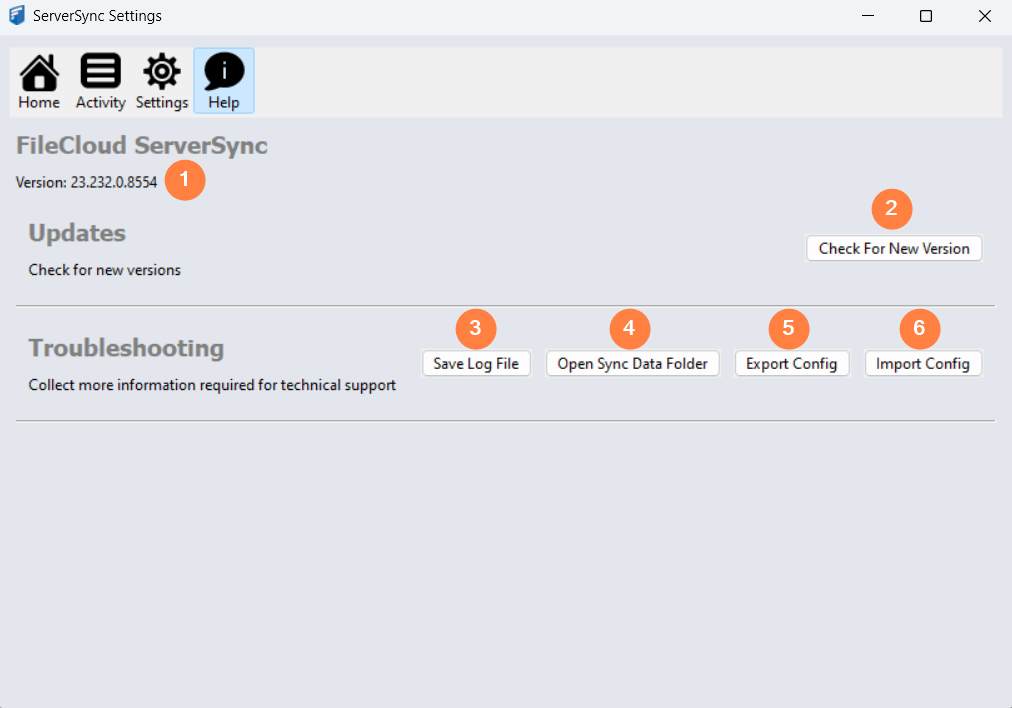
Help Screen Settings

HelpScreenSettings.png


Option

Notes

1

Version

Displays the version you are running to check for compatibility when troubleshooting.

2

Updates

Check For New Version

Displays tasks related to the version you are running and updates available.

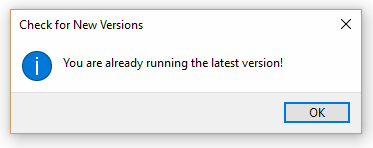
Runs a process to check your version against that latest available from CodeLathe.
ServerSync_checkUpdates.png

3

Save Log File

Opens a Windows dialog that allows you to choose the folder where you want to save the log file.

  • By default, log file names use the following format: Exported_synclient_2019-01-31-09-10-39

  • This file may be required by support service when troubleshooting issues

  • This is useful to do before clearing a display of log entries

4

Open Sync Data Folder

Opens a Windows dialog that allows you to browse and manage files that are being synced

5

Export Config

Opens a Windows dialog that allows you to choose the folder where you want to save the configuration file.

  • The configuration file contains the XML code with your current ServerSync settings

  • By default, the file is named using the following format: fssyncconfig.xml. You can change this name to wherever you want, but the extension must remain XML

  • By default, the file is saved to the local folder you use for synchronization. You can change this location to wherever you want.

  • Support Services may request that you export your configuration in order to help you troubleshoot issues

  • Client Device configuration settings can be configured remotely by administrators by specifying the configuration XML that is exported in this file

6

Import Config

Opens a Windows dialog that allows you to choose the new XML configuration file.

  • Support Services may request that you export your configuration in order to help you troubleshoot issues

  • Administrators can use one configuration settings file and copy it to many sync applications to create identical configurations across a deployment