.svg)
This workflow recipe disables a user when the user is no longer active and notifies the user through email once the account is deactivated.
-
The last login date of the user is used to know if the user is Active or Inactive.
-
You can avoid looking at users who have not begun using FileCloud.
-
You provide the email ID's to which a report of disabled users is sent.
To create a workflow that detects and disables inactive users:
-
Login to Admin Portal
-
Navigate to Workflow on the left navigation
-
Click the Add Workflow button
-
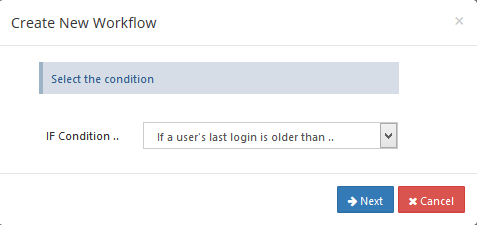
Set the If Condition " If a user's last login is older than.. "
-
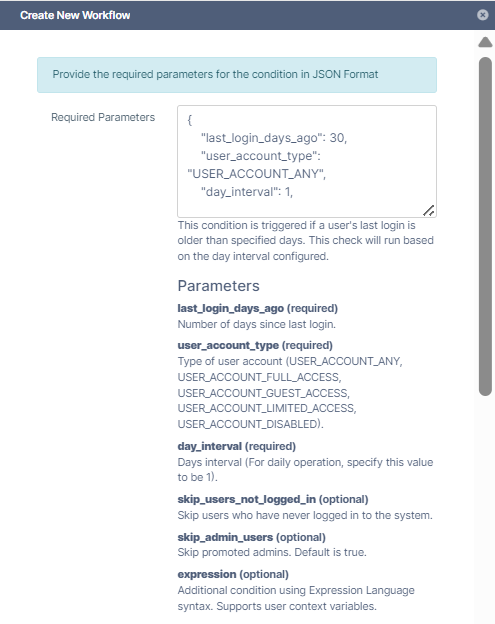
Enter the required parameters in the given format.
{ "last_login_days_ago":30, "user_account_type":"USER_ACCOUNT_ANY", "day_interval":1 } -
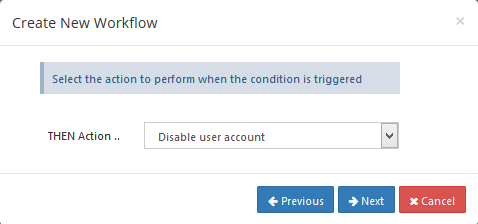
Click Next, and set the Then Action to " Disable user account ".
-
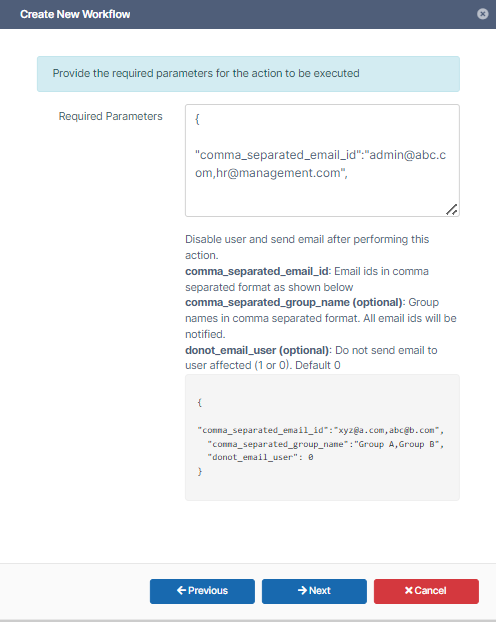
Enter the Required parameters in the given format.
{
"comma_separated_email_id":"admin@abccompany.com,hr@management.com"
  }
-
Click Next, give an appropriate workflow name and click Finish.
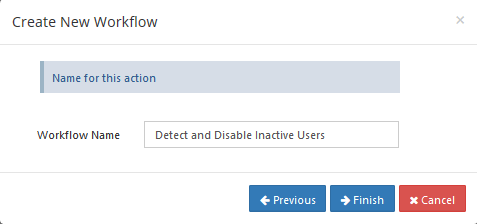
-
The user accounts are disabled and the notifications are sent once the workflow is executed.
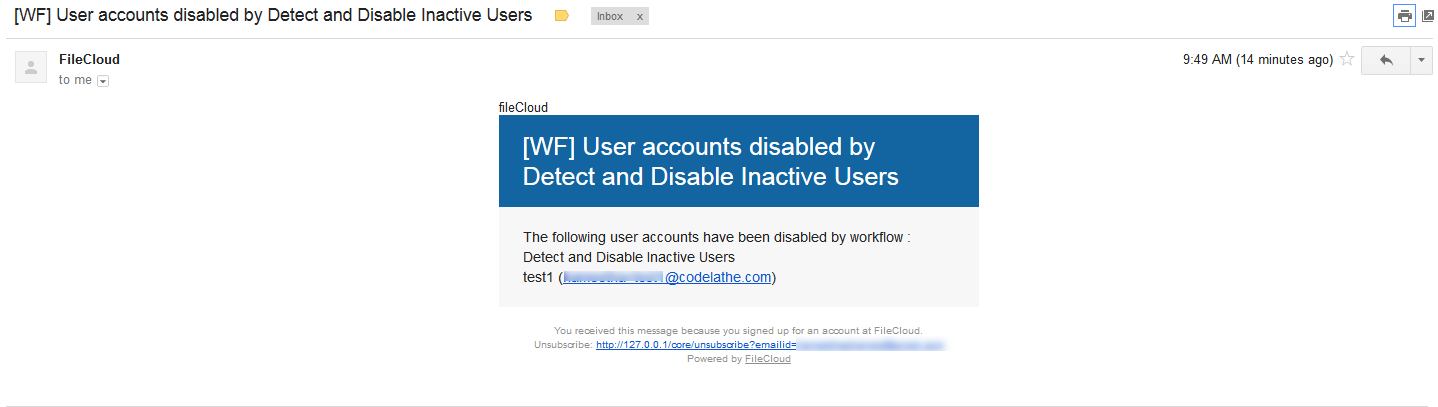
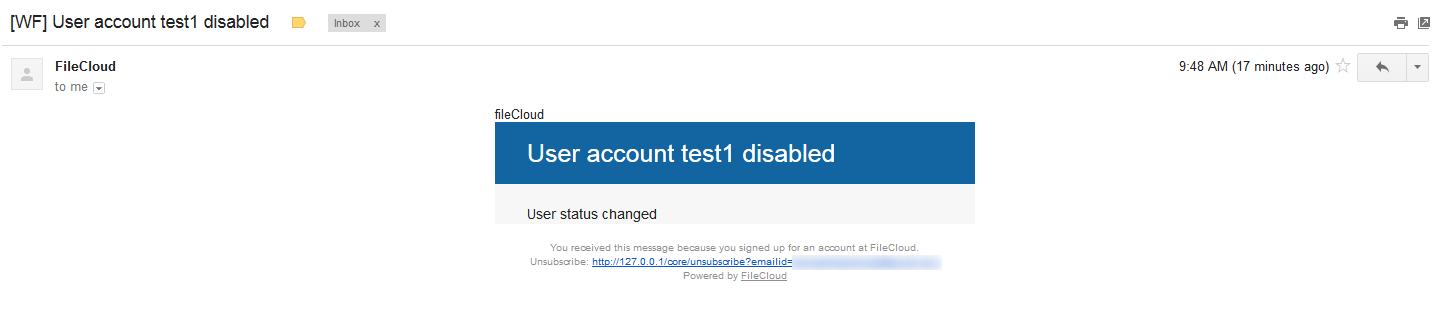
-
Go to the users list to confirm that the users are disabled.
