.svg)
Misc settings include many options for you to change default values.
To access the Misc settings:
-
In the FileCloud admin portal's left navigation bar, scroll down and click Settings. Then, on the Settings navigation page, click Misc

By default, General settings are opened. -
To access other pages of Misc settings, in the inner navigation bar on the left of the Settings page, expand the Misc menu, and click the name of the Misc settings category, as shown below.
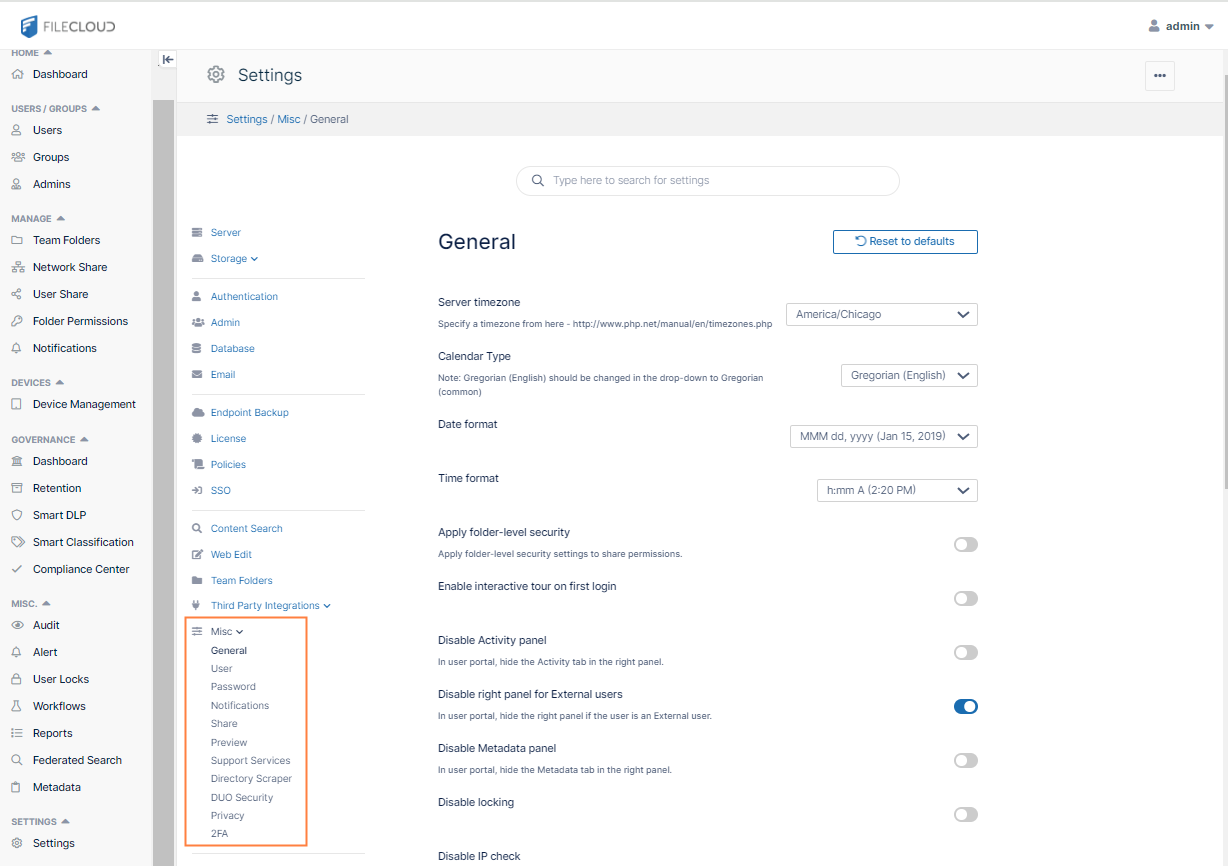
General settings
|
Setting |
Tab |
Description |
Version Added |
|---|---|---|---|
|
Server timezone |
General |
Sets the time zone for the server |
|
|
Calendar Type |
General |
Choose the format of the choices that appear in the following Date format and Time format drop-down lists. The Calendar Type chosen is used for dates in the user portal as well as the Drive client. It is not used in the admin portal.
|
FileCloud 22.1 |
|
Date format |
General |
Choose one of the options in the drop-down list. The options shown depend on whether Gregorian or Hijri is selected in the Calendar Type field.
|
|
|
Time format |
General |
Choose one of the options in the drop-down list. The options shown depend on whether Gregorian or Hijri is selected in the Calendar Type field.
|
|
|
Apply folder-level security |
General |
Allow folder level security permissions to share. |
|
|
Enable interactive tour on first login |
General |
Displays interactive tour to users the first time they log in to the FileCloud user portal. |
|
|
Disable Activity panel |
General |
This setting hides the right panel that displays activities, comments, permissions and other details in the user interface. Note that activity records are not generated when this is enabled.. |
|
|
Disable right panel for External users |
General |
Hides right panel if the user is a External user. Check by default. |
|
|
Disable Metadata panel |
General |
Hides metadata panel and disables metadata search option in user portal. |
|
|
Disable locking |
General |
Disables supports for file and folder locking. See File Locking for more information about locking files and folders. |
|
|
Disable IP check |
General |
Disables IP check on every request. Use if it is valid for IP addresses to change while users are using the system to avoid unwanted session termination. |
|
|
Email domain names to block |
General |
Enter the comma separated email domain names to block. |
|
|
Enable proxy settings |
General |
Enter the settings of a proxy network if needed. |
|
|
Scheduled tasks |
General |
Manually execute cron tasks. |
|
|
Import files |
General |
Import files to managed storage, |
|
|
Allowed file extensions |
General |
Specify file extensions that are allowed to be uploaded. Leave this empty to allow all file extensions except any specified in Disallowed file extensions. |
|
|
Disallowed file extensions |
General |
Specify file extensions that cannot be uploaded. |
|
|
Disallowed file names |
General |
Specify file names that cannot be uploaded. |
|
|
Check for double file extension |
General |
Include additional checks for double extensions to increase security. |
|
|
Forbidden Network Folder paths |
General |
Network Folder paths that are prohibited from being used |
|
|
Disable automatic database backup |
General |
Disables automatic database backup |
|
|
Database backup store path |
General |
Specify a writable path to store backed up database. |
|
|
Number of backups to store |
General |
Number of backups to maintain. |
|
|
Database backup Interval |
General |
Interval between backup process. 0 = daily backup. |
|
|
Disable content classification |
General |
Do not allow content classification. |
|
|
Enable WebSockets |
General |
Enable WebSocket in order to run the Push service or other client/server communications. |
FileCloud 23.232 |
|
Enable WebDRM |
General |
Enable use of the Secure Web Viewer option. |
|
User settings
|
Setting |
Tab |
Description |
|---|---|---|
|
Folder to import files from on user creation |
User |
See: Preload data for new accounts |
|
User account search mode |
User |
See: Securing Shares by Limiting User Account Searches |
|
User search account type |
User |
Restrict user searches so that your users can only search for users in certain account types. See User Search Account Type. |
|
Group visibility |
User |
Control what groups are listed to a user when a private share is created by that user.
|
|
Send email to user to approve device |
User |
Send email to users when a new device is ready for approval. |
|
Default view settings |
User |
Select how files appear to users by default. (See: Viewing Files by List or Grid). The options are:
|
|
Allow users to modify their phone numbers |
User |
Allow users to change their phone numbers in the user portal Settings screen. |
Notifications settings
|
Setting |
Tab |
Description |
|---|---|---|
|
Enable file change notifications |
Notifications |
When checked, enables recent activity notifications to appear on the user portal when files are created, updated, deleted and downloaded on a shared folder. Checked by default. |
|
Enable email file change notifications |
Notifications |
When checked, enables the system to send Email notifications when files are created, updated, deleted and downloaded on a shared folder. Enable File Change Notifications must be checked for this setting to be enabled. Checked by default. |
|
Disable notifications for External accounts |
Notifications |
When this option is enabled no share notifications will be sent to the external user. |
|
Enable share notification |
Notifications |
When this option is enabled share notifications will be set to NO by default. The "Email FileChange Notifications" will be set to NO in Manage Share → advanced options. |
|
Enable new version email notification |
Notifications |
When checked, emails about new versions of FileCloud are sent to the administrator once a week. |
|
Number of days to send notifications |
Notifications |
Send notifications for actions for the specified number of days |
|
File change email frequency |
Notifications |
How frequently, in minutes, email notifications are sent. Beginning in FileCloud 23.241, the default frequency is 720 minutes (12 hours). |
Other Misc. tab settings
For password settings, see Password Settings
For share settings, see Share Settings
For document preview settings, see Document Preview and Enabling Document Converter and Thumbs.
For support service settings, see Improve Helper Performance.
For directory scraper, see Enabling Directory Scraping.
For DUO security settings, see Multi-Factor Authentication.
For privacy settings, see Terms of Service and Anonymizing User Data,
For MFA settings, see Multi-Factor Authentication