.svg)
FileCloud automatically sends you an email notification when:
-
a file or folder is shared with you
-
one of the following actions is performed (by you or another user) on a file or folder you have access to:
-
a file or folder is uploaded
-
a file or folder is downloaded
-
a file or folder is shared
-
a file or folder is deleted
-
a file or folder is renamed
-
a file is updated
-
a file is previewed in the browser or one of the mobile apps
-
a file or folder is locked
-
Administrators can set notifications at the global level and users can override them at the user level.
FAQ's
Why is the user not getting a notification?
If you have enabled file and folder change notifications and a user is not receiving a notification, it may be because:
-
the file change was made directly on the LAN
-
that specific file change was blocked in the Admin user interface in Policy settings or in Notifications settings.
Where was the change made?
To receive a notification, actions must occur in one of the following places:
-
FileCloud Admin Portal
-
FileCloud User Portal
-
FileCloud Desktop for Windows
-
FileCloud Desktop for macOS
-
FileCloud Sync client
-
FileCloud Drive client
-
FileCloud Mobile apps
This applies to both My Files and Network Folders.
For network folders, when files are changed directly on the LAN, FileCloud does not have any knowledge of file changes and will not send a notification.
Is the Notification Blocked in Another Place?
File change notifications can be blocked for a specific action in any of the following places:
-
Global settings
-
Policy settings
-
Share settings
-
Network folder settings,
-
File or folder settings
-
NTFS Permissions
-
Account settings for external users
If a user is not receiving a notification, check to see if that file action is disabled at any level.
Are you using a trial account?
Trial accounts have notification limits. If you are using a trial account and have been able to send notifications previously, the notification limit may have been reached.
How to access notification settings in the admin portal
-
In the FileCloud admin portal's left navigation bar, scroll down and click Settings. Then, on the Settings navigation page, click Misc

-
In the inner navigation bar on the left of the Settings page, expand the Misc menu, and click Notifications, as shown below.
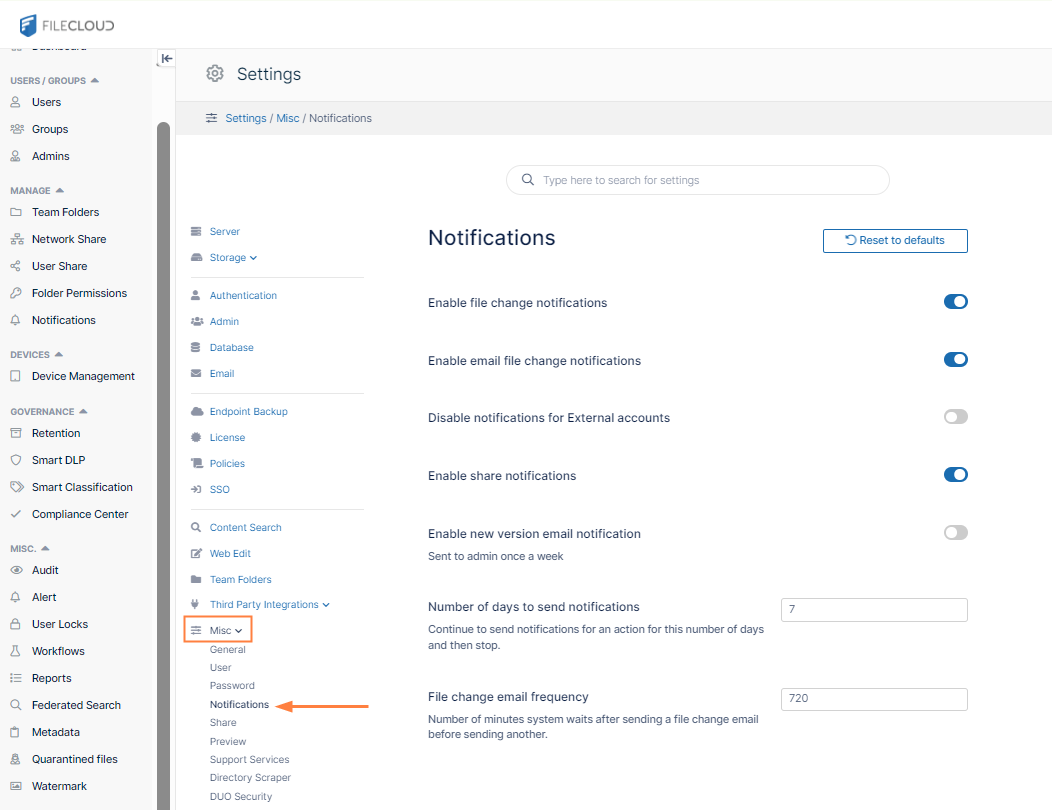
Changing notification settings
Global notification settings
Enable or Disable ALL Notifications
Prerequisites
Cron jobs must be set up. See Setting Up a Cron Job or Scheduled Task.
To enable file change notifications:
-
Access the Notifications settings page.
-
To display notifications of file changes on the user portal, check Enable file change notifications.
-
To send email notifications of file changes to users, also check Enable email file change notifications.
This setting is not enabled unless Enable file change notifications is checked.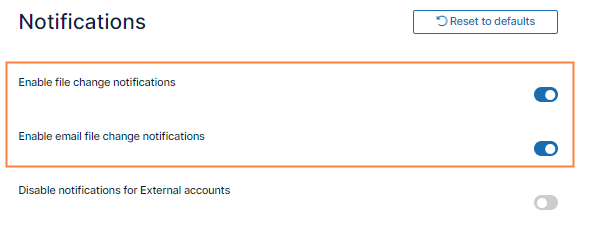
-
Click Save.
Beginning with FileCloud 20.1, if Enable file change notifications is unchecked, users cannot override the admin notification settings.
Set the Frequency for ALL Notifications
Increase the Frequency of Notifications
You can set the file change notification frequency level in the Admin portal, and users can override this and set their own frequency in the User portal.
To set file change notification frequency in the admin portal:
-
Access the Notifications settings page.
The default file change email frequency is 720 minutes (12 hours). -
Change the number of minutes in File change email frequency.
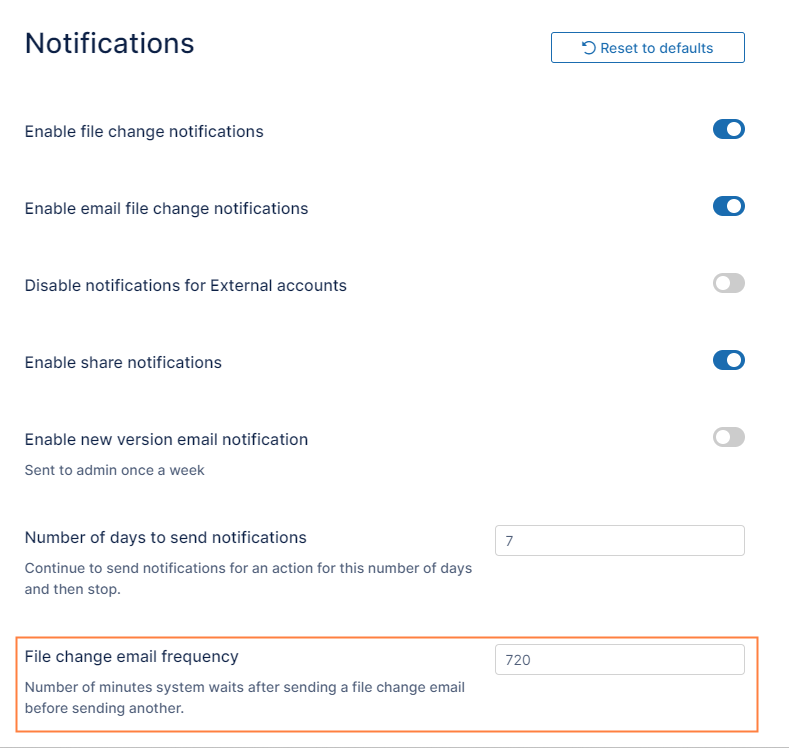
-
Change the value.
-
Save your changes.
To see how users can set their own notification frequency, see the help topic Notifications.
Do not send outdated email notifications
Do not send notifications that were created a number of days ago
You can configure FileCloud Server to stop sending email notifications for an action after a specified number of days (by default, 7 days). This prevents the system from sending notifications that are no longer relevant.
To prevent sending notifications after a specific number of days:
-
Access the Notifications settings page.
-
In Number of days to send notifications, type in a number.
Enter 0 to disable notifications.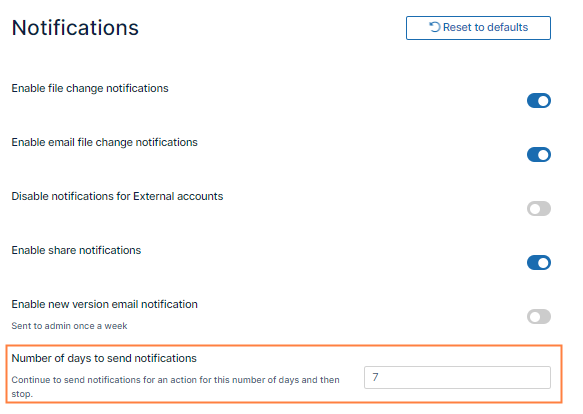
-
Save your changes.
External User Account Notifications
User accounts with external access can manage FileCloud content only through a Web browser.
These user accounts:
-
Can only view/upload/download to content shared with them
-
Do not count towards the user license limit
-
Cannot be authenticated via AD and can only be local user account
-
Linked email accounts cannot use the same domain specified in the FileCloud URL
-
Can't be added directly to network shares via the Admin Portal
-
Can access content from network folders if they are shared
If you have users with external access to content, you may want to avoid confusion that may occur when an email is sent about content that users with external accounts cannot access.
To set the file change notification frequency for external accounts:
-
Access the Notifications settings page.
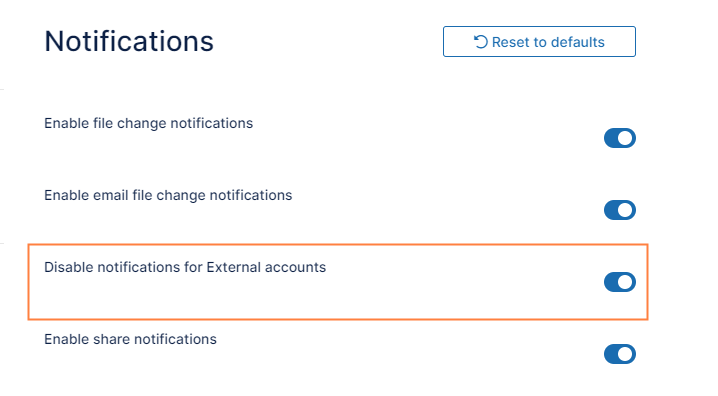
-
To stop sending notifications, locate the setting Disable notifications for External accounts and enable it.
-
Click Save.
Sharing Notifications
When a File or Folder is shared, the owner can allow or restrict sending file change notifications to all users that have access to that share.
-
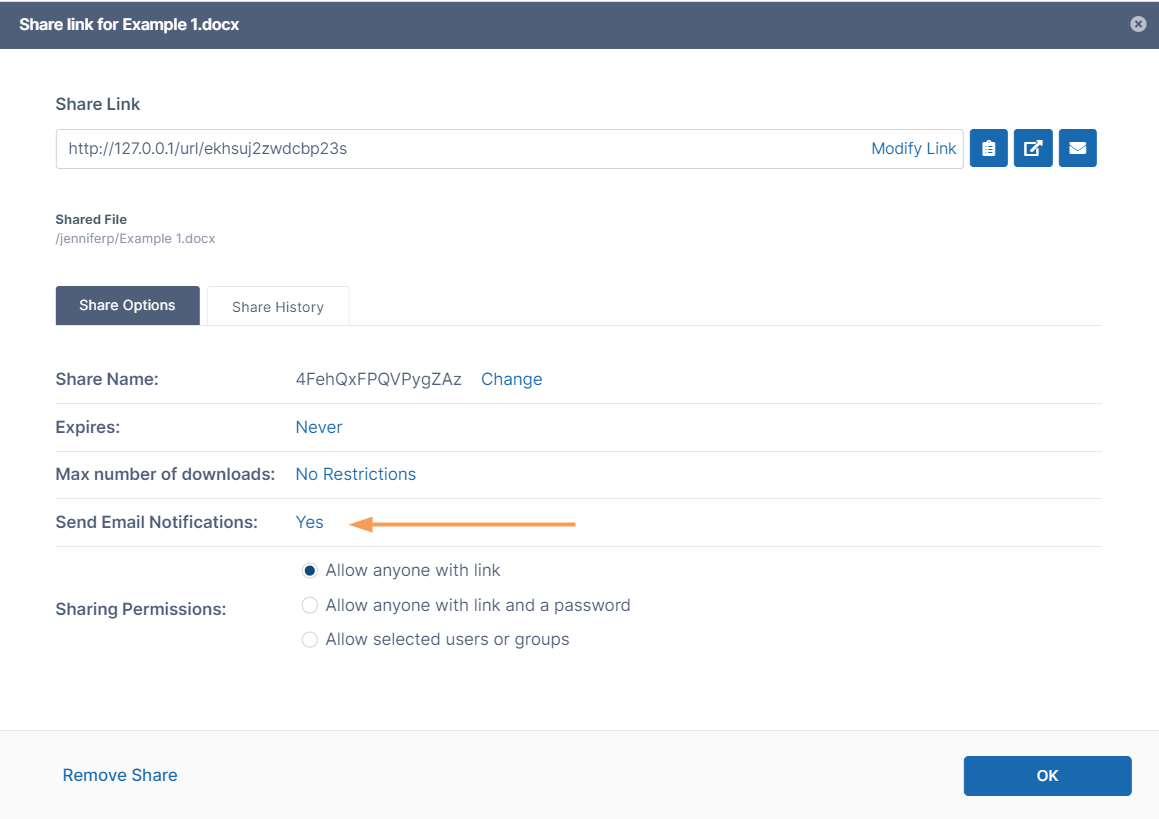
Enabling this setting sends an email notification when a publicly shared file is opened or downloaded.
-
Notifications can be enabled or disabled by the user in the User Portal
-
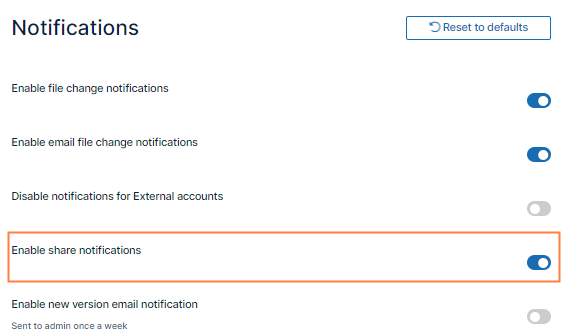
Notifications can also be enabled or disabled by the admin in the Admin Portal.
-
The user can override these settings by setting custom notifications for a file or folder path.
|
User Portal |
Admin Portal |
|---|---|
|
|
|
To share a file with everyone without restrictions:
|
To enable file change notifications for shares:
|
Customize notification settings for individual users and groups
User and Group Notifications
You can customize notifications for specific users or groups by customizing the notifications settings on their policies.
For example, notifications can be disabled for a specific user or group by disabling notifications in their policy.
Note that unless Disable User Override is checked, users can override all of these settings except for Disable Notifications.
To customize notifications through a policy:
-
In the FileCloud admin portal's left navigation bar, scroll down and click Settings. Then, on the Settings navigation page, click Policies

The Policies settings page opens.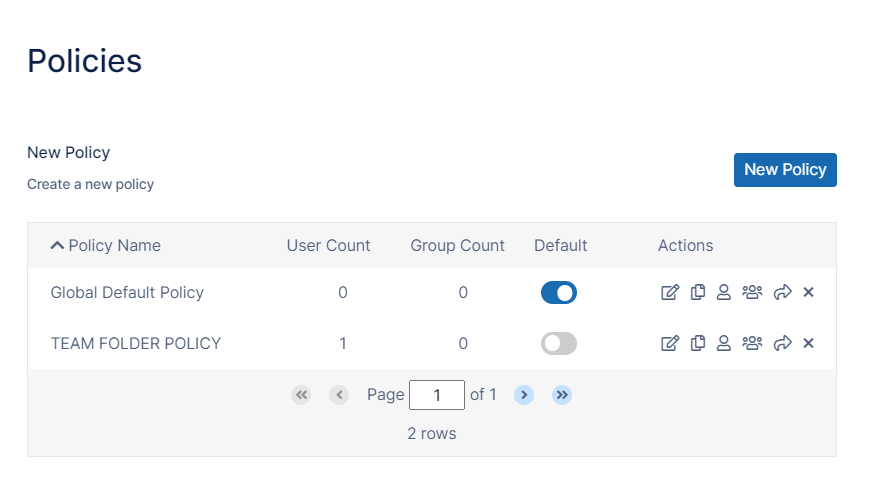
-
Edit the policy assigned to the user or group.
-
Click the Notifications tab.
-
Turn on disable options that you want to apply to the user or group.
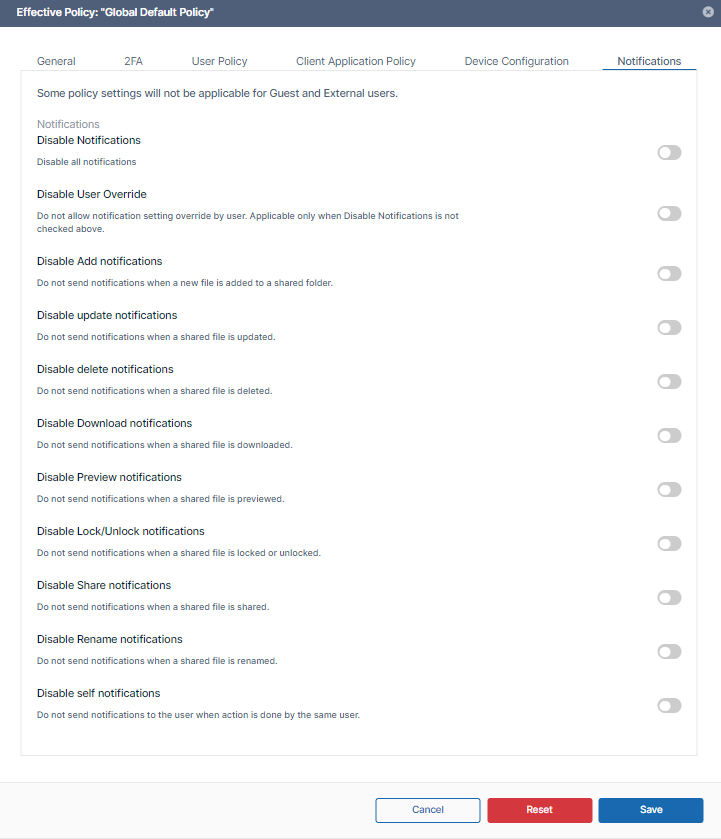
Disable Notifications - When checked, disable all notifications. This setting cannot be overridden.
Disable User Override - When checked, disable user override of these settings. Applicable only when the above setting, Disable Notifications, is not checked.
Disable Add notifications - Do not send notifications when a new file is added to a shared folder.
Disable update notifications - When YES, do not send notifications when a shared file is updated.
Disable delete notifications - When YES, do not send notifications when a shared file is deleted.
Disable Download notifications - When YES, do not send notifications when a shared file is downloaded.
Disable Preview notifications - When YES, do not send notifications when a shared file is previewed.
Disable Lock/Unlock notifications - When YES, do not send notifications when a shared file is locked or unlocked.
Disable Share notifications - When YES, do not send notifications when a shared file is shared.
Disable Rename notifications - When YES, do not send notifications when a shared file is renamed.
Disable self notifications - When YES, do not send notifications to a user when any of these actions are done to a file or folder (shared or not shared) owned by the user.
-
Click Save.
Network Folder Notifications
Network Folder Notifications
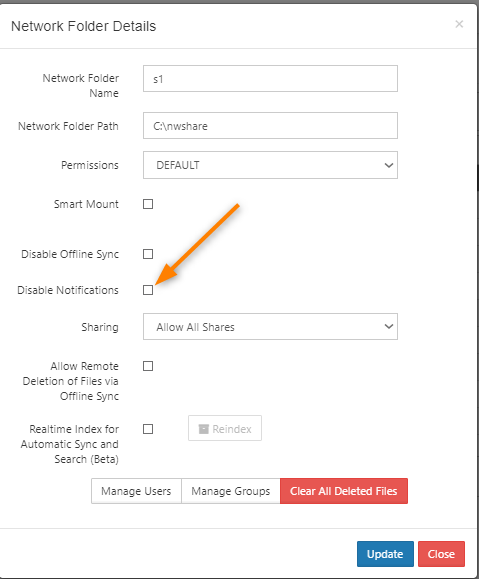
Administrators can disable notifications for specific network folders.
Users can override these settings by setting custom notifications for a file or folder paths.
|
To enable File Change Notifications for Network Folders:
|
NTFS Folders
Many organizations have Windows-based Network Folders that are shared with employees.
-
The permissions on these Network Folders are managed using NTFS rights setup for various users and groups (usually from Active Directory).
-
FileCloud can use the same NTFS permissions on the Network Folders for user authorization and access to these resources.
For more information, read about Network Folders with NTFS Permissions
By default, file change notifications are disabled for Network folders with NTFS Permissions.
-
To enable notifications, you will need to edit a configuration file
-
By default, configuration files for FileCloud installation will be under WEBROOT/config
|
Setting |
Option |
Description |
|---|---|---|
|
TONIDOCLOUD_NOTIFICATION_ENABLE_NTFS |
0 |
Disable notifications for NTFS folders |
|
TONIDOCLOUD_NOTIFICATION_ENABLE_NTFS |
1 |
Allow notifications for NTFS folders |
To configure file change notifications for Network folders with NTFS Permissions:
-
Navigate to the following directory:
WEBROOT/config -
Open the following file for editing:
cloudconfig.php -
Add the following line, using 1 to allow notifications and 0 to disable notifications for NTFS Folders.
define("TONIDOCLOUD_NOTIFICATION_ENABLE_NTFS", "1");
Also see:
Customize notifications in user settings