.svg)
This page is intended for FileCloud admins only, and addresses management of FileCloud client apps with MDM software. Individual MDM software applications may be configurable with certain operating systems only, and therefore may be effective with specific FileCloud client apps only.
At the current time, Miradore MDM has been tested with FileCloud Desktop for macOS and FileCloud Desktop for Windows. The examples given below use Miradore MDM configured for FileCloud Desktop for Windows. However, other MDM software that supports Windows and macOS may be used with FileCloud Desktop and other FileCloud clients..
See Using MDM Software with FileCloud Mobile Apps for information about using MDM software with FileCloud's mobile apps.
Mobile device management (MDM) software enables you to manage all of your users' devices and apply security to them. You can use MDM software with FileCloud's client apps installed on laptop, desktop, and tablet computers.
To add a FileCloud client to MDM software:
1. Enroll Your Device
Since there are many MDM providers and ways to enroll, please check your MDM documentation for instructions on how to enroll your users' devices.
As an example, to enroll your users' Windows devices in Miradore MDM:
-
Log in to Miradore MDM.
-
Add or import the device user(s) to Miradore MDM.
-
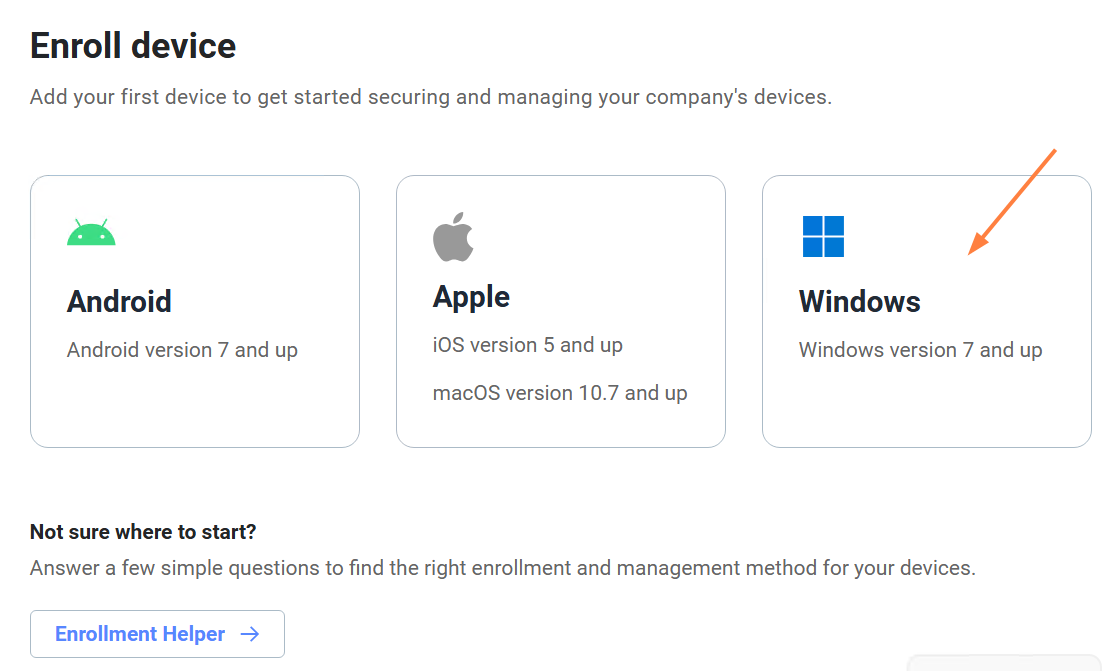
In the navigation panel, go to Enrollment > Enroll Device.
-
Click the Windows icon.
-
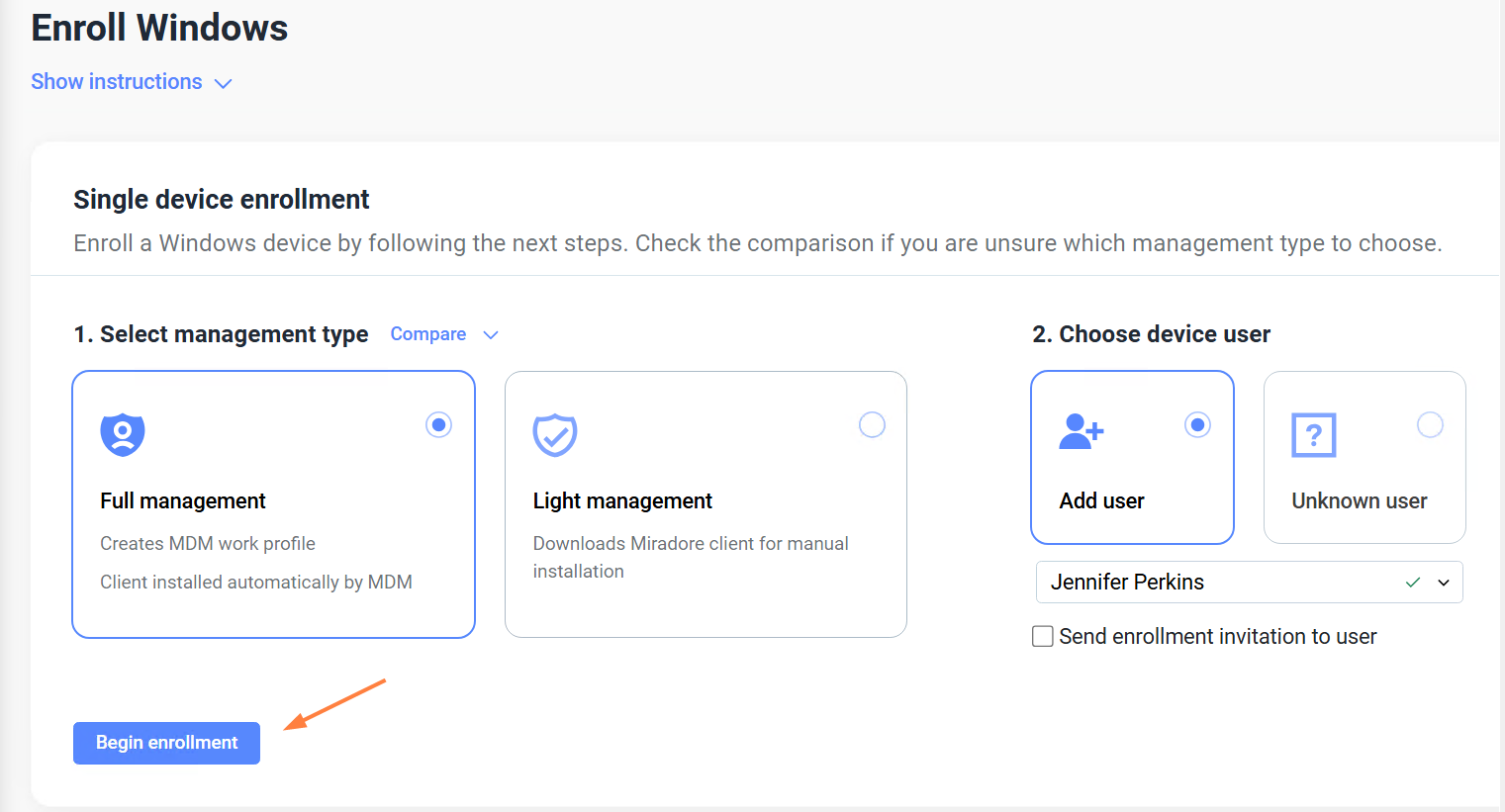
Under Single device enrollment, leave Full management and Add user selected. Then choose a user and click Begin enrollment.
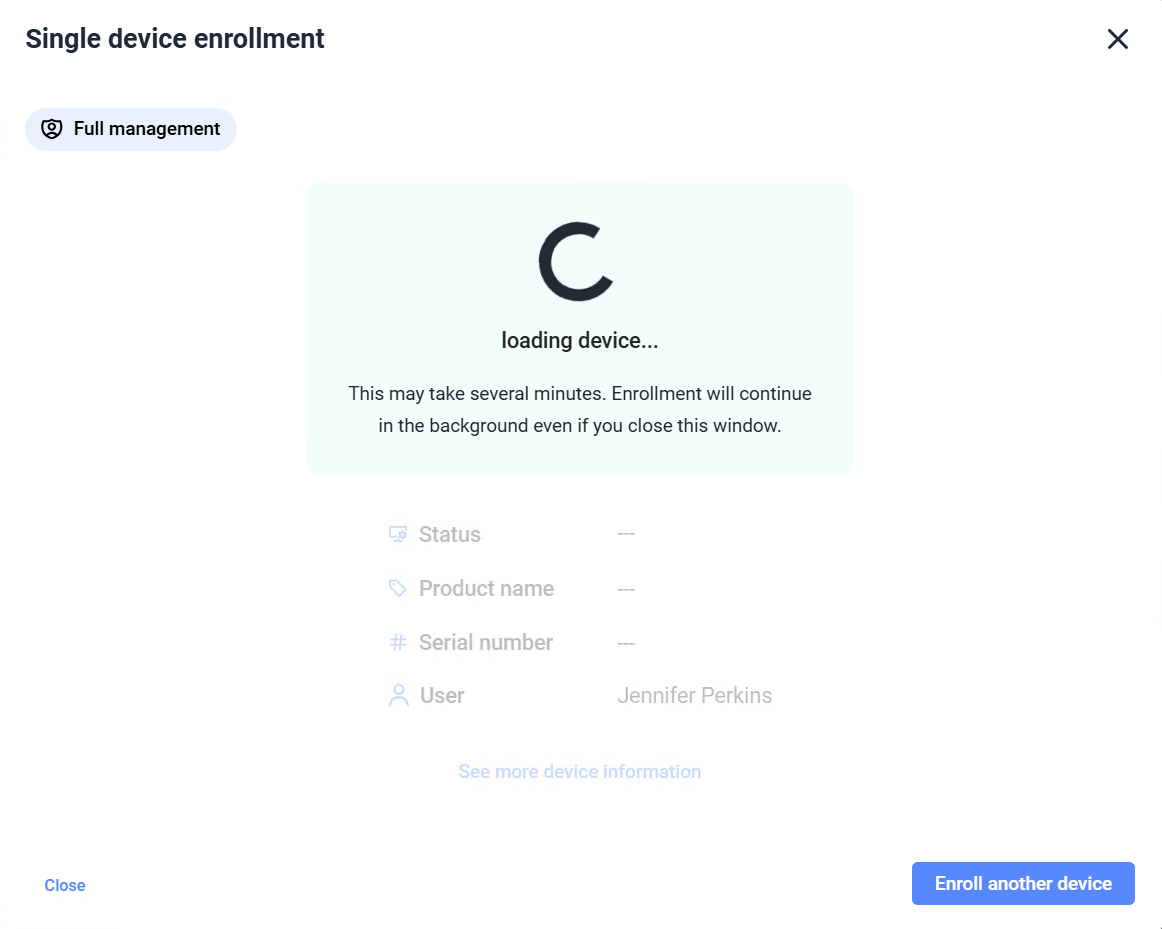
The screen indicates that the user's device is being enrolled.
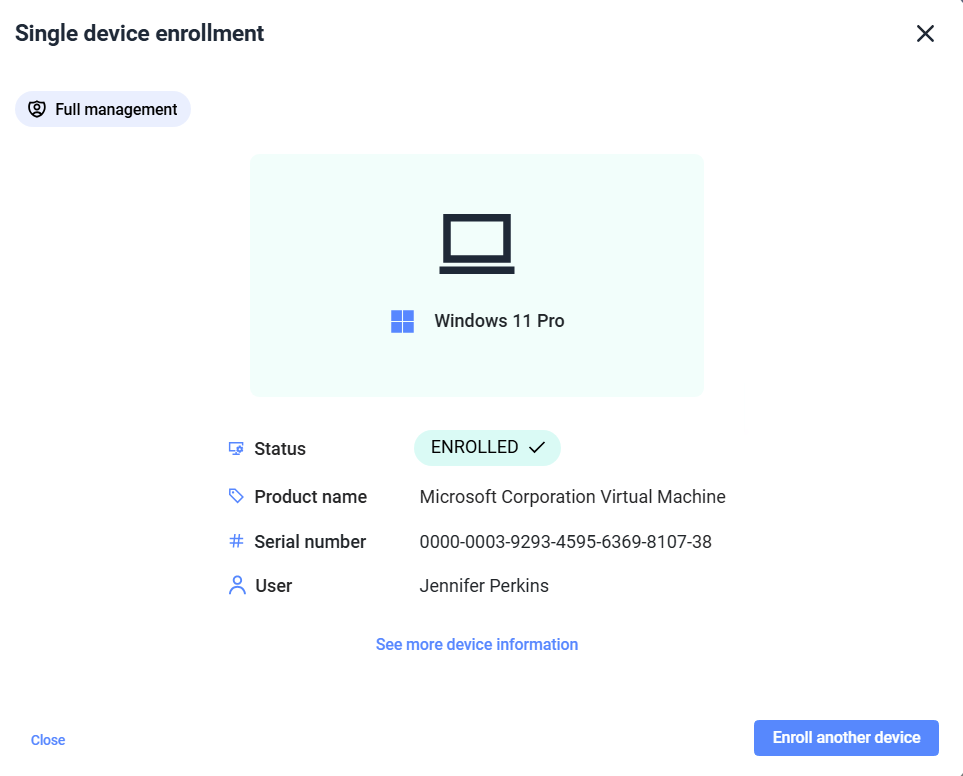
It notifies you when enrollment is complete.
-
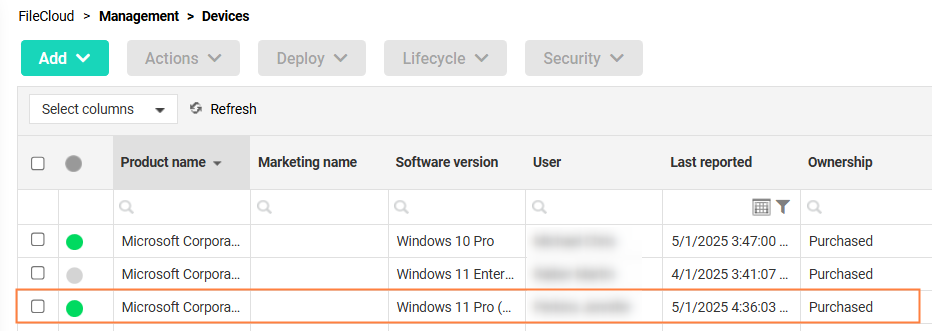
To confirm that the device is actively enrolled, in the navigation panel, go to Management > Devices and check that the device is listed with a green icon.
2. Add the FileCloud client app to your MDM
Please check your specific MDM's documentation for instructions on how to add an app to your MDM software.
In general, the steps for adding a FileCloud client app to your MDM are:
-
Download the application package of the FileCloud client.
-
Open your MDM software.
-
Add the FileCloud client app.
-
Assign or deploy the FileCloud client app to the devices enrolled with the MDM.
For example, to add FileCloud Desktop for Windows to Miradore MDM:
-
Download FileCloud Desktop for Windows at https://www.filecloud.com/additional-downloads/.
-
Log in to Miradore MDM.
-
Add FileCloud Desktop for Windows to Miradore MDM.
-
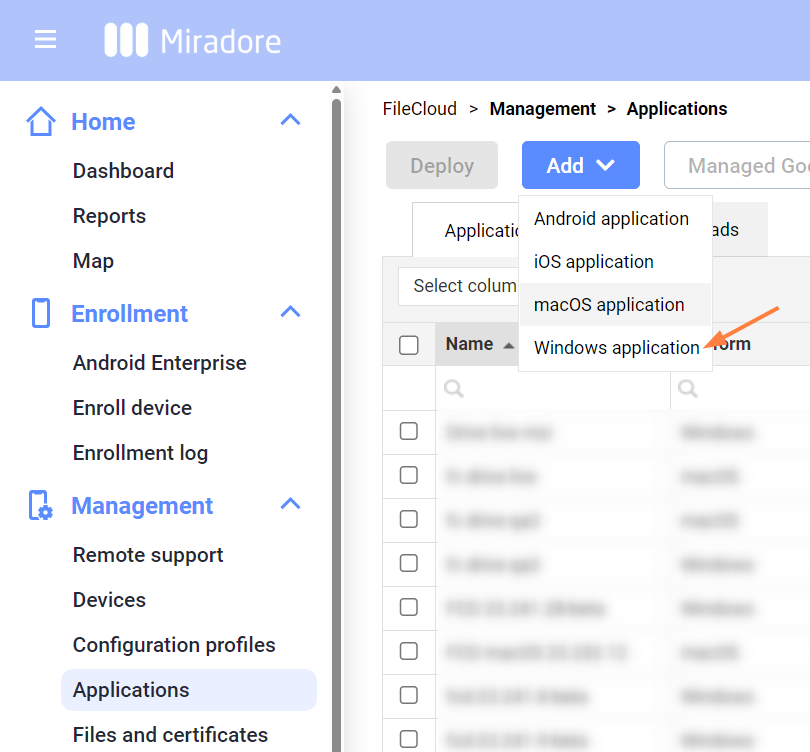
In the navigation panel, go to Management > Applications.
-
On the Applications page, click Add > Windows application.
-
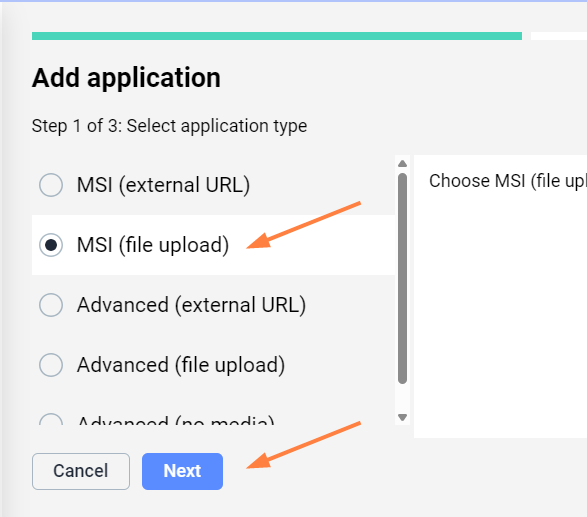
In Step 1, select MSI (file upload), and click Next.
-
In Step 2, select the FileCloudDesktopInstaller.msi file, and fill in any the other fields. Leave Deployment context set to Device. Then click Create.
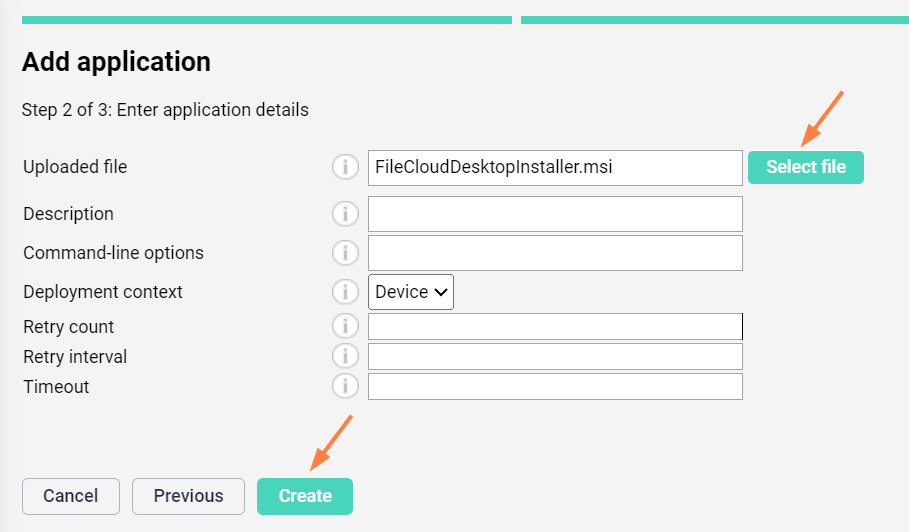
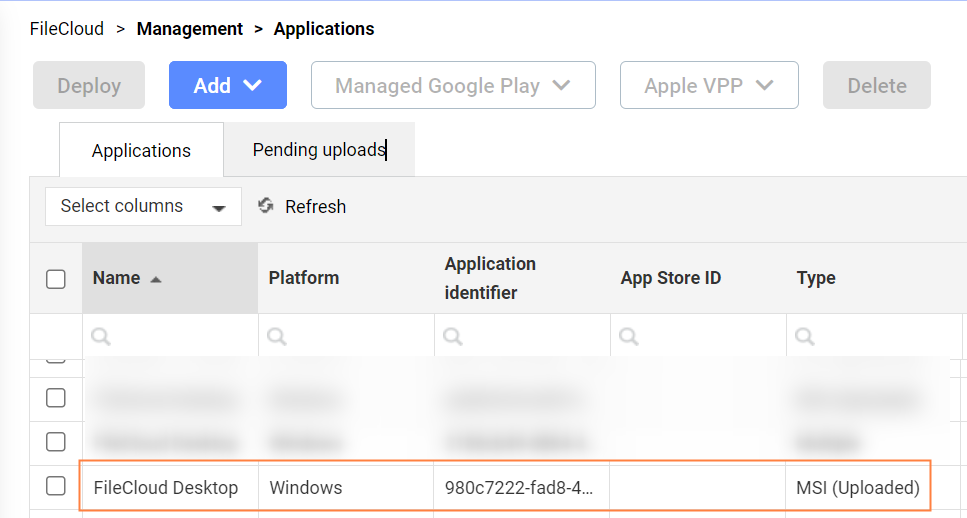
The application is uploaded and appears in your list of applications. Note that it may appear in Pending Uploads until it is uploaded.
-
3. Deploy the FileCloud App to the devices
Deploying the FileCloud client to the devices enables you to manage them with the MDM.
To deploy the FileCloud client to an enrolled device in our Miradore MDM example:
-
Navigate to the Management > Applications page if you are not already there.
-
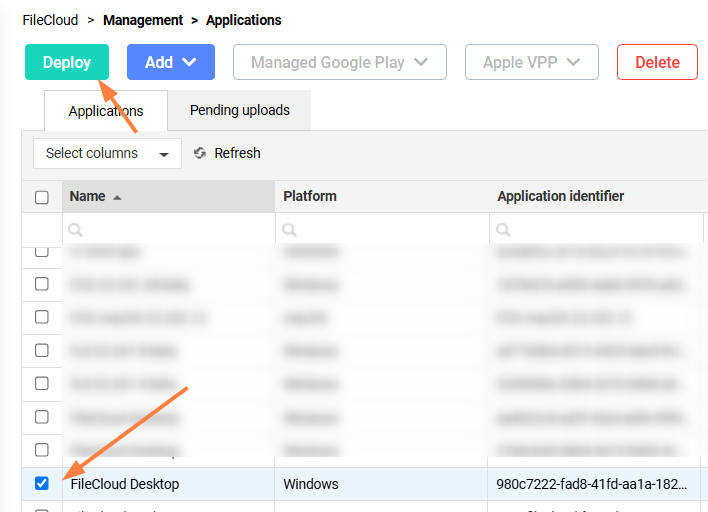
Check the FileCloud client that you want to deploy to the device or devices you enrolled, and click Deploy.
-
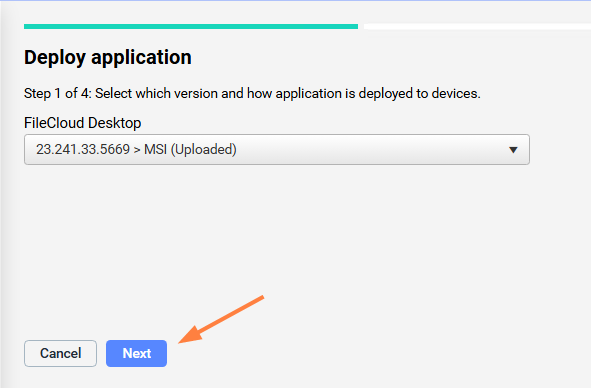
Click Next.
-
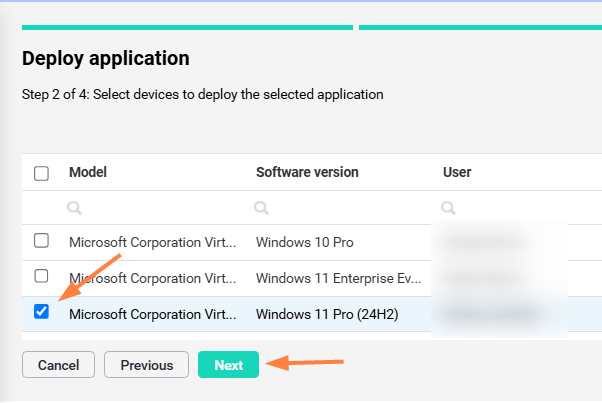
Check the device or devices to deploy the application to, and click Next.
-
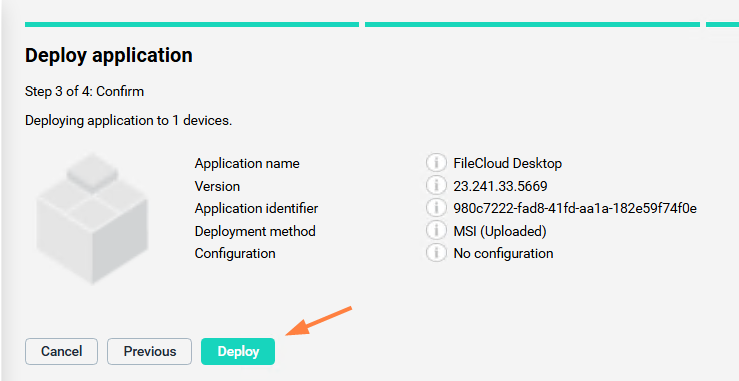
Review the deployment information, and click Deploy.
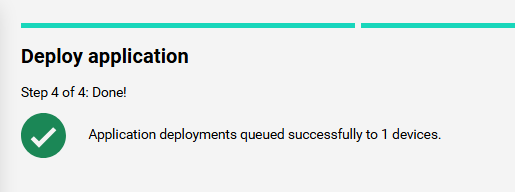
You receive confirmation that the application is deployed.
Now you can manage use of FileCloud Desktop for Windows on the devices it has been deployed to.
To update a FileCloud client app in MDM software:
-
Follow the process described in Step 2, above, for adding the FileCloud client app but upload the new version of the file.
It is listed under Applications like the original file. -
Follow the process described in Step 3, above, for deploying the updated application to the devices you previously deployed it to.