.svg)
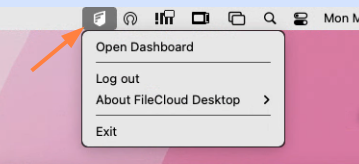
After you login in to FileCloud Desktop for macOS, a FileCloud icon appears in the taskbar. Click the icon to perform FileCloud Desktop tasks.
-
Open Dashboard - Opens the FileCloud Desktop for macOS dashboard.
-
Log out - Logs the currently logged in user out of FileCloud Desktop for macOS without shutting down the application.
-
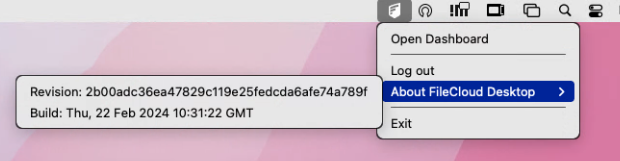
About FileCloud Desktop - Shows details about the FileCloud Desktop build:
-
Exit - Closes the FileCloud Desktop for macOS application.
Sync indicator
To indicate that FileCloud Desktop is currently syncing, the FileCloud icon displays rotating arrows:

On file conflict
If there is an existing file conflict, an additional task is listed:
-
Show Conflicts
Clicking on it takes you to the Recent Activity tab in the dashboard where the conflict is listed. See How FileCloud Desktop for macOS handles change conflicts for more information about file conflicts.