.svg)
Self service white labelling for FileCloud Desktop for macOS is available in version 23.261.0 and later.
There are two different options for white labeling your FileCloud Desktop for macOS user interface:
-
Complete white labeling - Customers with Enterprise Advanced licenses can use this option, which enables branding with custom logos and names for system components. Complete white labeling is optimal for OEM's and service providers. If you are interested, please Contact FileCloud Support to confirm that you meet minimum eligibility requirements.
-
Self service white labeling - All customers can take advantage of this feature, which enables customization of the product name and support docs url through a simple JSON file, as shown in the instructions below. MDM installation is also required.
Customization of product documentation is not supported; however, upon request, product documentation can be provided to you in Word format for your own customization.
Complete white labeling
Once you have confirmed your eligibility for white labeling and purchased it through FileCloud Sales, you will be asked to set up an update server for the white labeled system and to provide FileCloud Support with icons, strings, and other resources necessary for the customization. FileCloud Support will provide you with a custom installer for FileCloud and custom FileCloud upgrades.
Self service white labeling
To complete self service white labeling, create your JSON file in the format shown below and install it on your user's FileCloud Desktop for Windows clients using mass deployment.
To initially create the JSON file:
-
In a text editor such as Notepad, create a file with the following contents, but enter your own values for the keys.
Exclude any of the properties you do not want to customize.{ "product_name": "ExampleCloud App", "short_company_name": "MyCompany" "upgrade_url": "https://www.example.com/download/", "support_docs_url": "https://www.example.com/doc/", "display_name_shell": "ExampleCloud" }The fields appear in the following locations in FileCloud:
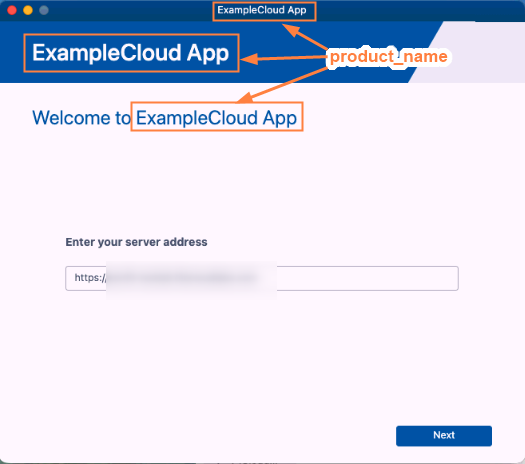
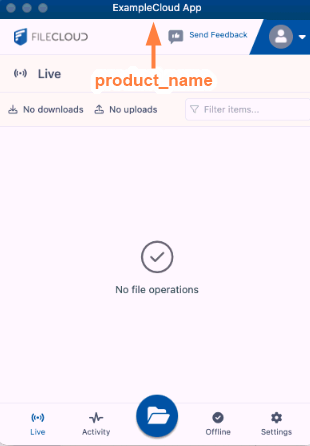
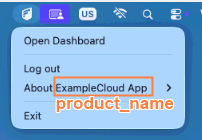
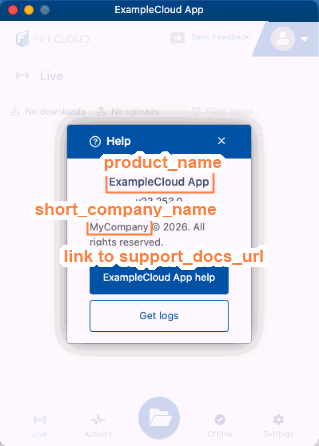
product_name - Log-in wizard, dashboard, Help pop-up
short_company_name - Help pop-up
upgrade_url - Not used in user interface
support_docs_url - Log-in wizard and Help pop-up
display_name_shell - Not used in user interface -
In the macOS finder, go to /Users/<username>/Library/Application Support.
-
Create the folder Cloud Branding if it doesn't exist already.
-
Save your json file in the Cloud Branding folder as cloud_storage_branding.json.
-
When users open or restart FileCloud Desktop, they will see your customizations in the following locations:
-
Login Wizard
-
Title bar in dashboard
-
Menu for icon in toolbar
-
Help popup
-
-