.svg)
TOTP authentication for the admin portal is available beginning in FileCloud 23.242. TOTP authentication should work correctly with any authenticator app; however, the following apps have been tested and performed successfully: Google Authenticator, TOTP Authenticator, Duo Mobile, Microsoft Authenticator, Authy, Okta Verify, 2FA Authenticator (2FAS)
Support for two-factor authentication is available for admin portal login. Both the primary FileCloud admin and the superadmin (for multitenancy) can be set to require the additional code in order to access the admin portal.
Two-factor authentication for the admin portal supports authentication by email, SMS, and TOTP.
Enable two-factor authentication for admins
To enable 2FA for the first time an admin logs into the admin portal:
-
In the FileCloud admin portal's left navigation bar, scroll down and click Settings. Then, on the Settings navigation page, click Admin

The Admin settings page opens. -
Enable Enable two-factor authentication for admin logins.
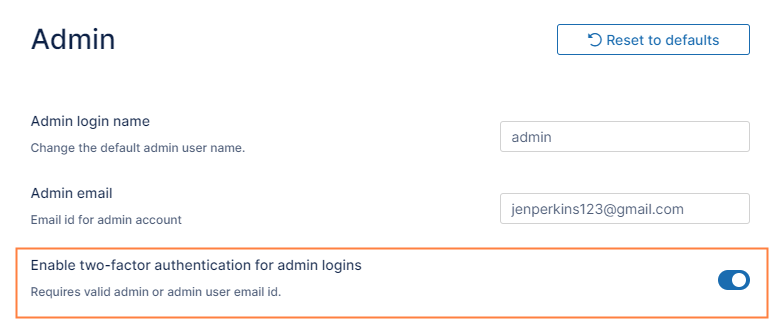
2FA fields appear.
Setting 2FA delivery method to SMS
Note: Currently SMS authentication is effective for the primary admin, but not for promoted admins.
-
To use SMS authentication, In Select 2FA Delivery Method for Admin, choose SMS Authentication.
Additional fields appear.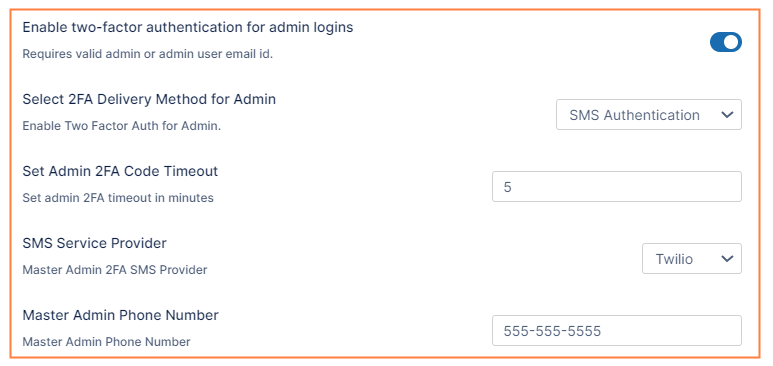
-
In Set Admin 2FA Code Timeout, set the time in minutes that you want the temporary log-in code to remain valid.
-
In SMS Service Provider, choose Twilio or Custom.
-
In Master Admin Phone Number, enter the admin's SMS phone number.
An invalid main admin phone number will cause lockout - the portal will not be accessible when SMS Authentication is chosen.
Setting 2FA delivery method to email:
-
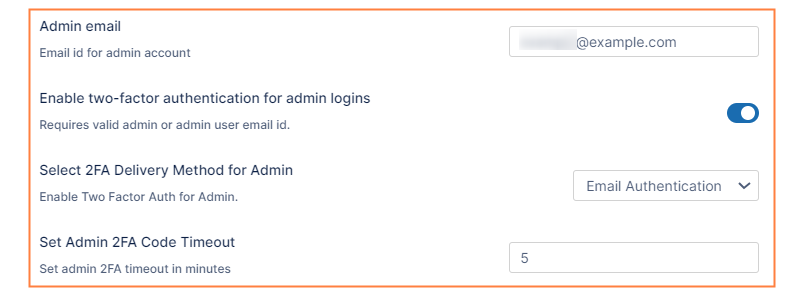
To use email authentication, in Select 2FA Delivery Method for Admin, choose Email Authentication.
-
Enter a valid email in the Admin email field above the Enable Two Factor Authentication for Admin Logins field.
-
In Set Admin 2FA Code Timeout, set the time in minutes that you want the temporary log-in code to remain valid.
Setting 2FA delivery method to TOTP
-
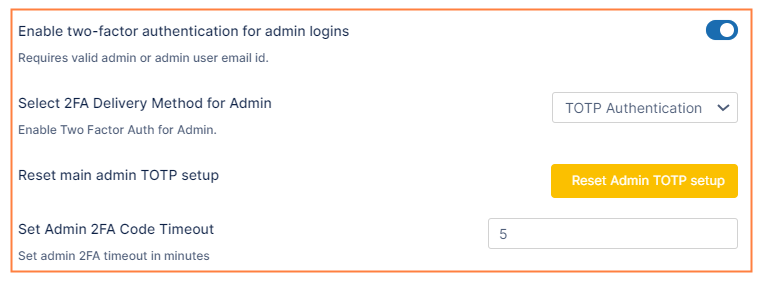
To use TOTP authentication, in Select 2FA Delivery Method for Admin, choose TOTP Authentication.
-
In Set Admin 2FA Code Timeout, set the time in minutes that you want the temporary log-in code to remain valid.
-
See Log in Using Two-Factor Authentication to set up Google Authenticator (or a similar authenticator app) to use for TOTP Authentication.
Promoted admins, by default, use the method to log in to the admin portal that they use to log in to the user portal. However, if a 2FA method is set for the admin portal, you may override this. See Require promoted admins to use admin portal 2FA method, below, for instructions.
Reset TOTP settings for the primary admin
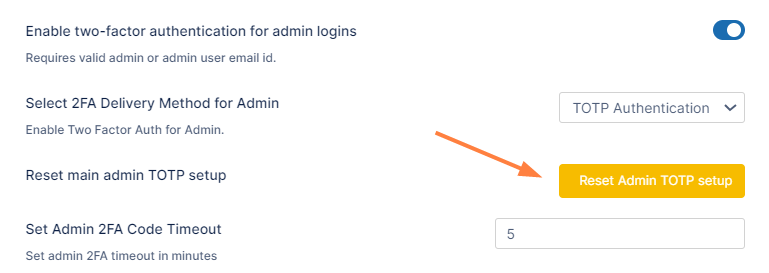
When you select TOTP Authentication for the 2FA delivery method, the setting Reset Admin TOTP setup appears below it. If the primary admin loses their TOTP-enabled device or needs to reset the TOTP authenticator code for another reason, a promoted admin with Settings read and update role privileges can click Reset Admin TOTP setup to enable the admin to reset their authenticator code.
Reset TOTP settings for promoted admins
Since promoted admins use their user login method rather than their admin login method to log into the admin portal, a promoted admin will log in to the admin portal with TOTP if that is the method set for their user account, and therefore, to reset a promoted admin's TOTP authorization, use the method explained in Two-Factor Authentication for User Portal.
However, if you require promoted admins to use the admin portal TOTP method to log in to the admin portal, the reset method is different, as explained below under Reset TOTP settings for promoted admins when TONIDOCLOUD_2FA_ADMIN_FLOW_FOR_PROMOTED_ADMINS is set to 1.
Require promoted admins to use admin portal 2FA method
You may require promoted admins to use the 2FA configuration set up for admins when logging in to the admin portal, regardless of whether their user login is set 2FA.
-
Open cloudconfig.php:
Windows Location: XAMPP DIRECTORY/htdocs/config/cloudconfig.php
Linux Location: /var/www/config/cloudconfig.php -
Add the following:
define('TONIDOCLOUD_2FA_ADMIN_FLOW_FOR_PROMOTED_ADMINS', 1)
Reset TOTP settings for promoted admins when TONIDOCLOUD_2FA_ADMIN_FLOW_FOR_PROMOTED_ADMINS is set to 1:
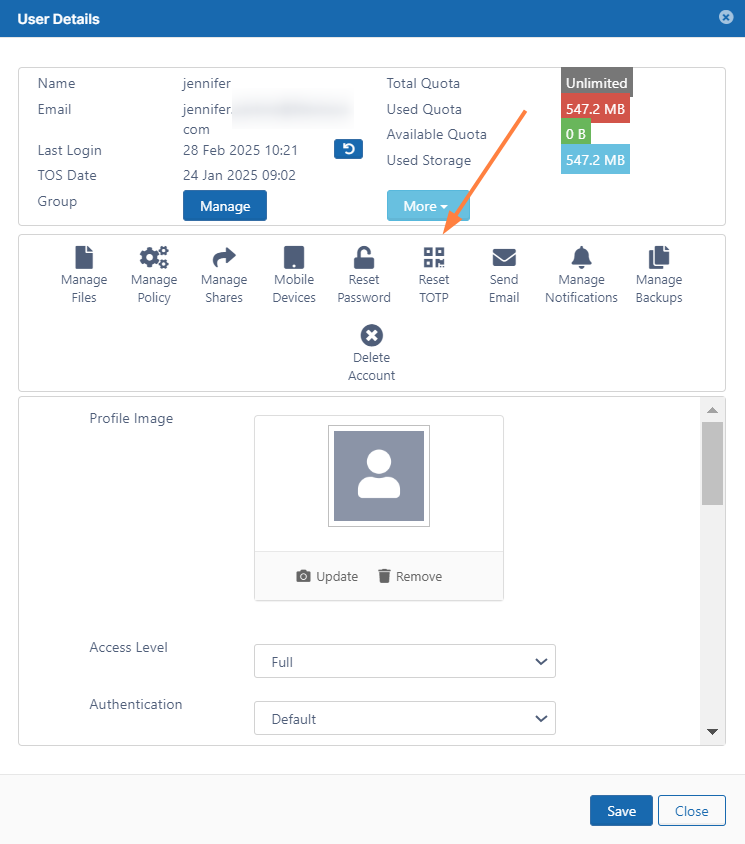
When TONIDOCLOUD_2FA_ADMIN_FLOW_FOR_PROMOTED_ADMINS is set to 1, a promoted admin's TOTP settings cannot be reset through their user account or through the Reset Admin TOTP setup button discussed above. Instead, a new button appears on the User Details window accessed from the admin portal's Manage Users page.
-
In the admin portal, click Users in the navigation pane.
The Manage Users page opens. -
Click the edit icon in the row for the promoted admin.
The User Details window opens. A Reset TOTP icon appears in the user properties. -
Click Reset TOTP.
A confirmation box opens. -
Click OK.
On successful reset, the following message appears: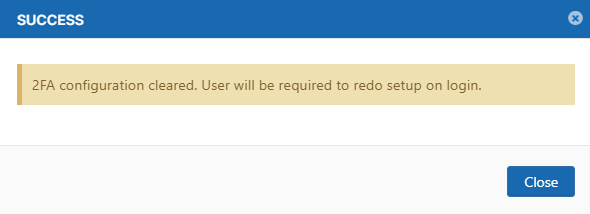
Enable two-factor authentication for SuperAdmin for multitenancy control panel access
Superadmin logins can be required to use 2FA to access the multitenancy control panel.
Open "multi.php" (In Linux it is at /var/www/config/ and in Windows it is typically at c:\xampp\htdocs\config)
Add the lines:
  define ("TONIDOCLOUD_SUPER_ADMIN_EMAIL_ID", "email@company.com");
  define ("TONIDOCLOUD_ENABLE_SUPER_ADMIN_2FA","1");
In case the lines are commented "//", please remove the double slash symbol at the beginning of the line and save the changes.
Note that you need to provide valid email . If the email is invalid, then the Multi-tenancy control panel cannot be accessed.