.svg)
Major Release
FileCloud server version 23.253.0.31723
GA release date: Monday, December 15, 2025
Installation and upgrade information
Installing FileCloud Server Upgrade Notes
SHA256 release checksums
-
filecloudupdate.zip 4fe52f3f6792d54ac9eafec9b2096a2ba099828220c60b2a69cd7700b5f92389
-
FileCloudSetup.exe db4207ce76b42a27f805bf04a4a7753c39879ae81ba8e48e1ddd0e6200cab628
Minor/Patch Releases
Major new features
Single sign-on support for external users
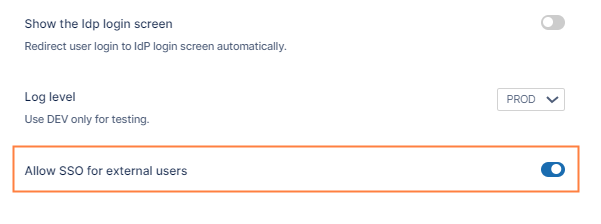
A new Allow SSO for External Users setting is available under Admin Portal > SSO Settings, allowing administrators to enable or disable SSO authentication for external accounts. This option is only visible in systems with a license that includes the SSO external users component. The feature is disabled by default.
For more information, see SAML Single Sign-On Support | FileCloud Help.
Enhancements to admin workflows
FileCloud’s Admin Workflows have the following new features:
-
Conditions based on user properties
Many admin workflows now allow you to set up additional conditions in workflows based on user, path owner, and share properties. These conditions, which are referred to as expressions in FileCloud, greatly expand your ability to customize workflows.
For example, to be more specific about the users performing the trigger action in the workflow:
IF a new file is updated or created in the path teamfolder/estate documents, THEN notify manager@mycompany.com
you could specify the group and policy of the user who adds the file to the folder:
IF a new file is updated or created in the path teamfolder/estate documents, and (user is in the group TeamMember and user has the policy Staff), THEN notify manager@mycompany.com.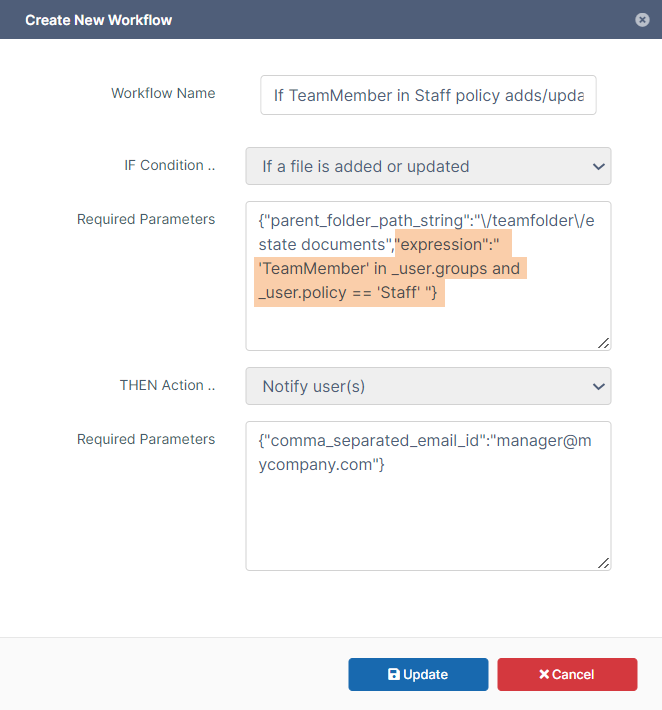
Expression added to IF condition
The additional conditions you include must be written in regular expression format and can be based on:-
the user’s or the path owner’s group, policy, email (or domain), or name
-
the share owner’s group, policy, email (or domain), or name, whether the share is public or private, or if a folder is being shared.
The wizards for setting up workflows that support expressions show the new parameter expression. The wizards list the variables you can use with expressions in the particular workflow as well as additional information to help you write expressions: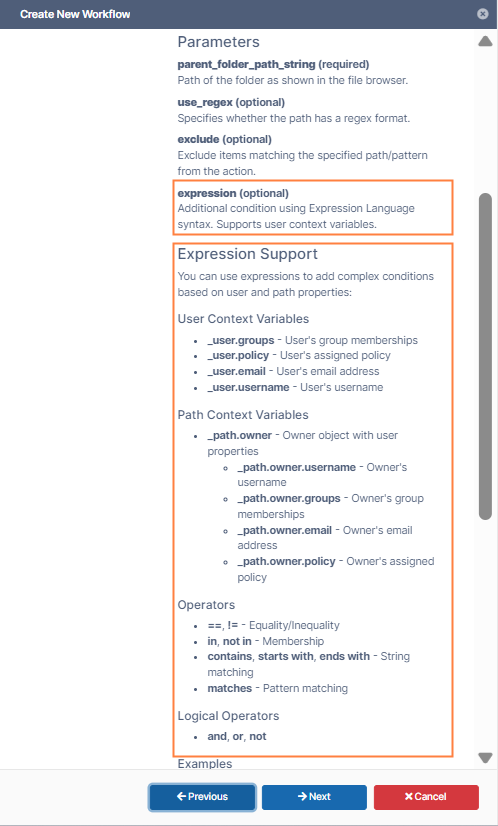
Workflow wizard screen for adding IF statement
Although all existing workflows are backwards compatible, several have been modified due to the addition of expressions and groups. See the section Information for Admins below for a full list of changes.
For more information, see the page Using Expressions in IF Conditions.
-
-
Group actions
Workflows that previously allowed you to perform THEN actions on users now also allow you to perform them on groups, eliminating the need to list each member in a group in the THEN statement: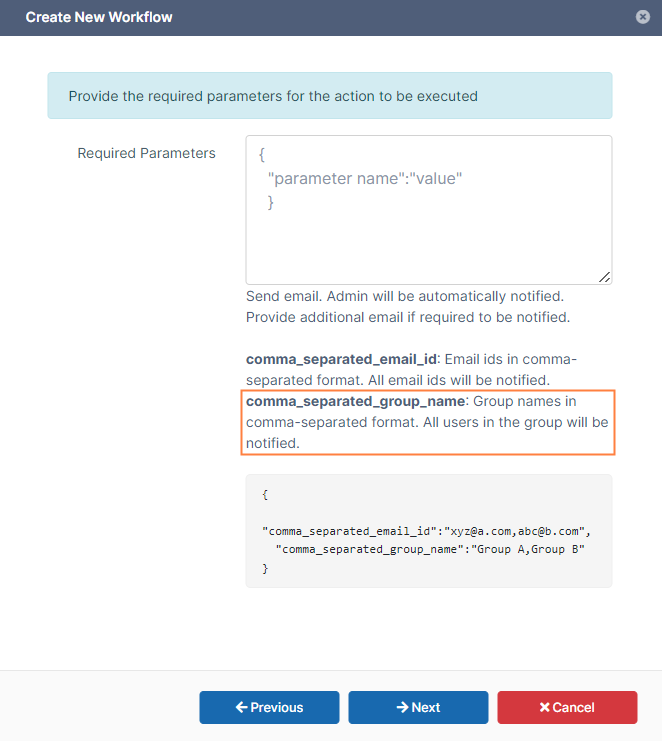
Parameter for listing a group as the recipient of a THEN action.
-
Option to use create date in “If a file was not modified/created in specified days” workflow.
The If a file was not modified for specified days workflow has a new trigger_date parameter that enables you to specify if the date used is MODIFIED_DATE, CREATED_DATE, or BOTH (default).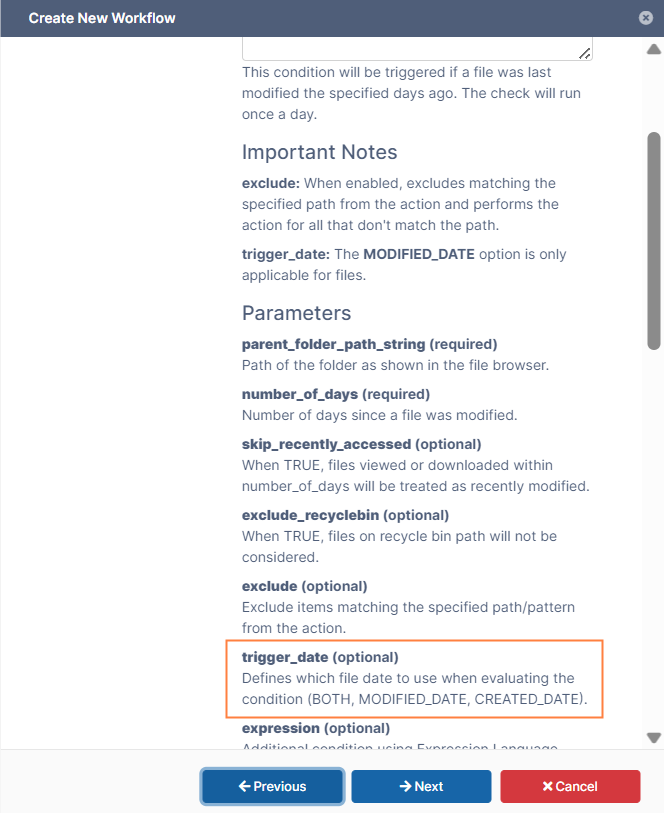
trigger-date parameter
Prior to this version, the date used was always the date the file was added to FileCloud through a create or update, or any date after that that it was updated.
The inclusion of the new dates allows you to consider whether the actual last modified date occurred before an existing file was uploaded to FileCloud.
If MODIFIED_DATE is specified, the condition checks the last date the file was modified before or after it existed in FileCloud. If there is no modified date, the date the file was included in FileCloud is checked.
If CREATED_DATE is specified, the condition checks the date the file was included in FileCloud, either through an update or an add action.
If BOTH is used, the condition checks both of the above, and uses the latest date it finds as the last modified/created date.
For more information, see page Define an IF Condition. -
Automatically add empty {} placeholders when a workflow's IF or THEN parameters are all optional and left blank. This is done to prevent potential errors. If one or more parameters are required, the empty {} is not added. The {} placeholders appear when you edit the workflow.
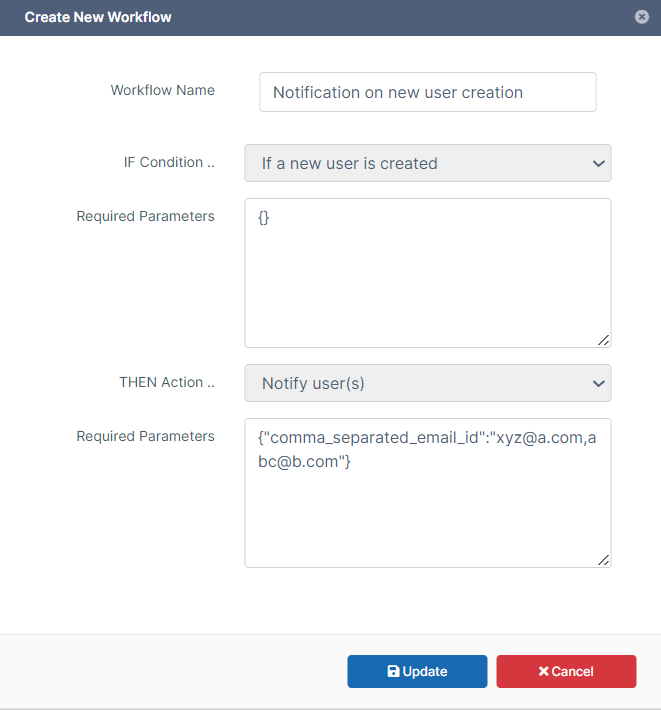
An IF Condition that has no parameters included
Option to display Created Date in user portal
Users are now able to display the Created date as well as the Modified date in the My Files, Team Folders, and Shared with Me screens in the user portal.
With the new option to use Created date, Modified date, or both to check for the date a file was last acted on, users may find it useful to display the date or dates being checked. (See Option to use create date in “If a file was not modified/created in specified days workflow, above). This would enable them to know if a file was, for example, approaching a date when it would be deleted.
The Created date is the date the file was uploaded to FileCloud or created in FileCloud; the Modified date is the date it was last modified, either outside of FileCloud or in FileCloud. If the file was never modified, Modified date shows the date it was uploaded or added to FileCloud.
To display the Created date, users click the cog icon to the right of the column headers and check Created. The user can also choose to hide the Modified date and Size by unchecking those fields.
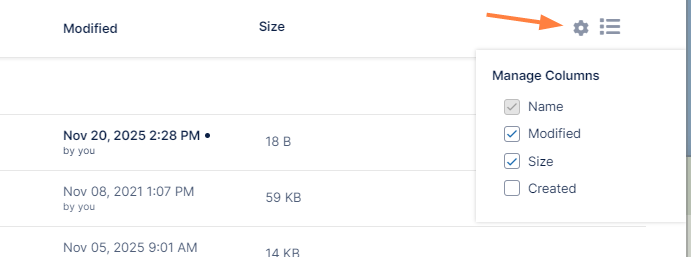
For help using this feature, see Viewing Date Created Column.
QR code for accessing share can now be included in email sent to share recipient
Admins now have the option of customizing share emails to include the QR code for accessing the share. Prior to this, users were required to download the QR code and share it separately from the share email.
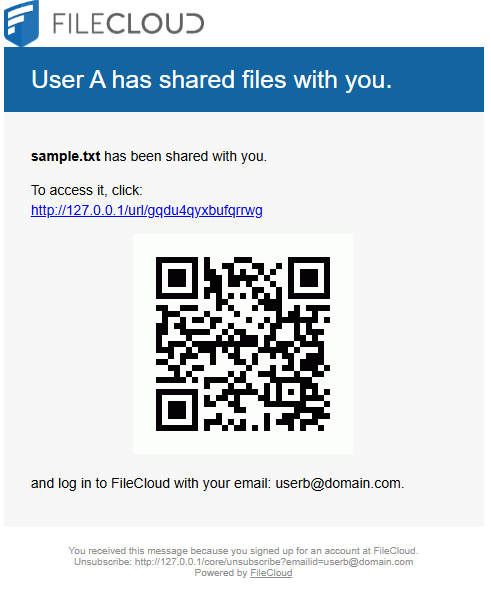
By default, the QR code is not included in the share email. To include it, admins must add the QRCODESHARE placeholder to the appropriate email template. Email templates are accessed from Customization > Email Templates screen in the admin portal.
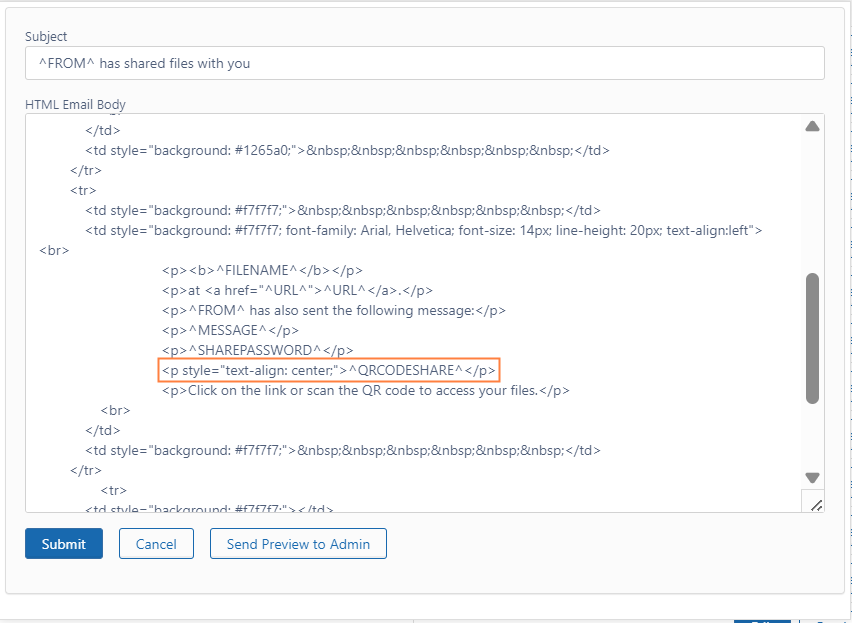
See Email Templates.
Dynamic CSP
In the past, FileCloud has used a content security policy (CSP) that was defined in the .htaccess file. This applied the same security policy to all customers, regardless of which features they were using, unless they customized it manually.
Beginning with this release, by default, FileCloud deploys with a dynamic CSP. The dynamic CSP applies a granular level of security that depends on the features your system is using. This method of security allows potentially harmful resources to be blocked when not essential, but permitted when necessary and trusted. For example, in FileCloud, certain resources could be permitted if your system were integrating with Google Apps, but blocked if Google Apps resources were not required.
Admins still have the option of using a custom CSP by disabling the dynamic CSP and manually customizing the CSP in the .htaccess file.
For more information, see Dynamic CSP in FileCloud .
If you are updating FileCloud, follow the instructions in Information for Admins, below, to ensure that your FileCloud system now defaults to dynamic CSP.
UI Changes in FileCloud 23.253
Admin Portal
-
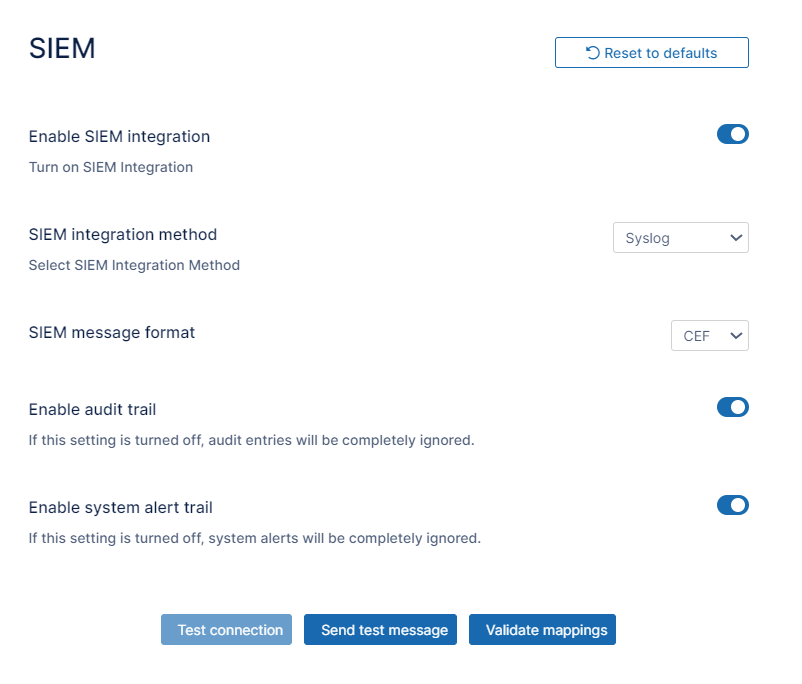
When Syslog is chosen as the SIEM integration method, the SIEM server host and SIEM server port fields are no longer shown, and the Test connection button is disabled.
Information for Admins
-
If you are upgrading to version 23.253, to enable dynamic CSP by default, open the file C:\xampp\htdocs\.htaccess (in Windows) or /var/www/html/.htaccess (in Linux) and change the line Header set Content-Security-Policy: to Header setifempty Content-Security-Policy:
-
By default, we now include the following headers in httpd.conf:
Cross-Origin-Embedder-Policy: unsafe-none
Cross-Origin-Resource-Policy: cross-origin
Cross-Origin-Opener-Policy: unsafe-none
We have deliberately used the default, non-restrictive values because applying stricter settings would not ensure compatibility with certain FileCloud features, functionalities, or integrations (such as Salesforce and FileCloud for Outlook integration).
While we recommend using the default settings for guaranteed functionality, if you have specific security requirements, you may choose to configure stricter values if you have verified through testing that these changes do not impact your specific use case.
To override the settings, add the following code to the .htaccess file, substituting the values with your preferred Headers:
<IfModule mod_headers.c>
Header always set Cross-Origin-Embedder-Policy "require-corp"
Header always set Cross-Origin-Resource-Policy "same-origin"
Header always set Cross-Origin-Opener-Policy "same-origin"
</IfModule> -
Due to the enhancements in workflows introduced with version 23.253, the following workflow options have been removed:
-
The THEN option Notify the file actions to user(s) has been merged with Notify user(s). Although previously created workflows will continue to support the option, moving ahead, please only use the Notify user(s) option.
-
The excluded_users parameter from the THEN option Delete the file(s) has been removed. Instead, please use expressions to include user groups. Previously created workflows will continue to support the option.
-
The IF option If a share has not been accessed for specified days no longer includes the share_permission parameter, which was used to specify if a share was public or private. Instead, please use the _share.public or _share.private variable in an expression. Previously created workflows will continue to support the parameter.
-
The IF option If a new user is created no longer includes the included_email_domains and excluded_email_domains parameters. Instead, please use the _user.email variable in an expression. Previously created workflows will continue to support the parameters.
-
Enhancements
|
Reference Number |
Area |
Feature |
|
Server |
|
|
|
FCL-2991 |
User interface |
The Alerts screen in the admin portal has a new, updated design. |
Security Fixes
|
Reference Number |
Description |
|---|---|
|
FCL-3618 |
A number of vulnerabilities flagged by AWS Inspector in FCDocConverter were fixed. |
|
FCL-5505 |
CSRF validation to /api/v1 endpoints that are triggered from the admin portal has been fixed. |
|
FCL-1344 |
The deprecated X-XSS-Protection header has been removed from the .htaccess file to prevent security weaknesses. |
|
FCL-4443 |
The deprecated X-XSRF-Token has been removed, and the CSRF token is now mandatory in every browser request, with the HTTPOnly cookie setting turned off. This aligns with current security best practices. |
|
FCL-4146 |
A security issue with the getaccessdetailsforpath endpoint has been fixed. |
Bug Fixes
|
Reference Number |
Area |
Description |
|
Server |
|
|
|
FCL-4025 |
Audit |
Archived audit logs included new line characters, which caused parsing issues when they were written to .csv files. This has been fixed. |
|
FCL-5036 |
Audit |
The audit export file was not filtered on the search term if it was entered. This has been fixed. |
|
FCL-5067 |
Content Classification |
Content Classification Rules did not immediately classify files upon upload. This has been fixed.
|
|
FCL-2884 |
Copy |
When a file was copied from one network folder to another, the metadata was not copied. This has been fixed. |
|
FCL-3729 |
File/Folder listing |
In Team Folders and Network Shares, if the number of items allowed for each page was exceeded, users could only access the first page. This has been fixed. |
|
FCL-264 |
Folder |
Users could not view the contents of subfolders with # in their name. This has been fixed. |
|
FCL-5223 |
License |
If a FileCloud license had a restricted domain list, FileCloud components listed on the license were disabled for background activities like Message Queue and Cron. This has been fixed. |
|
FCL-3213 |
Permissions |
The file permissions assigned to some shares were not correctly assigned to the share recipients. This has been fixed. |
|
FCL-4995 |
Preview |
Password-protected PDF’s with view + download permission were unable to be opened in Quick JS preview. This has been fixed. |
|
FCL-5156 |
Recycle bin |
An issue enabling end users to delete data from the recycle bin when Enable Recycle Bin Clearing was disabled has been fixed. |
|
FCL-3269 |
Resizing window |
In some browsers, when the user portal window was resized, the navigation pane became too small or other UI issues occurred. These have been fixed. |
|
FCL-3877 |
Restore |
An issue causing the Restore button for files deleted from Team Folders to fail to work has been fixed. |
|
FCL-5722 |
ServerSync |
An issue causing ServerSync login to fail when reCAPTCHA was enabled has been fixed. |
|
FCL-5139 |
Shares |
Links to public password-protected shares required users to log in using SSO. This has been fixed. |
|
FCL-1066 |
User Interface |
The description in Managed Storage settings for Number of old versions to keep for each file incorrectly said Set to -1 to turn off versioning and instead create a new copy on each upload. It now correctly reads Set to -1 to turn off versioning. Attempts to upload versions of files will fail. |
|
FCL-3763 |
Versions |
In the admin portal, the Download All Versions option for a file in a Team Folder created an unusable zip file. This has been fixed. |
Client Bug Fixes
|
Reference Number |
Area |
Description |
|
FileCloud for Outlook |
|
|
|
FCL-2722 |
Login |
An issue causing logging in with email to fail when it is enforced has been fixed. |
Server-only Bug Fixes
|
Reference Number |
Area |
Description |
|---|---|---|
|
Server |
|
|
|
FCL-5073 |
Access |
An issue that caused tenants to be inaccessible has been fixed. |
|
FCL-4492 |
AD |
Multiple AD authentication did not work for a server that used an encrypted AD password. This has been fixed. |
|
FCL-5533 |
Azure Network Folders |
Azure Network Folders did not load initially in the user portal. This has been fixed. |
|
FCL-2071 |
Authentication |
The option to enable basic authentication through a user policy did not appear after configuration was added. This has been fixed. |
|
FCL-4674 |
Encryption |
Multiple encryption or decryption operations in multinode environments caused data loss. This has been fixed. |
|
FCL-4258 |
Network Folders, ABE |
When ABE settings were enabled, if users did not have access to some files on a page, they could not view the listing of Network Folders. This has been fixed. |
|
FCL-5907 |
OpenJDK |
On fresh Windows installs of FileCloud, a notification warned users that they needed to install OpenJDK 11 instead of OpenJDK 17. This has been fixed. |
|
FCL-2429 |
Preview, Network Shares |
Preview of PDFs shared on Azure Network Folders was not working. This has been fixed. |
|
FCL-2282 |
ServerLink |
An issue that caused ServerLink to fail when large files were uploaded has been fixed. |
|
FCL-3242 |
ServerLink |
In the primary node, the recycle bin allowed folders to have the same name but different cases; however, when the folders were synced to other nodes, the recycle bins returned an error. This has been fixed so that primary nodes and other nodes allow folders in the recycle bin with the same name and different cases. |
|
FCL-4048 |
ServerLink |
ServerLink synchronization was failing due to invalid control characters in file names. This has been fixed. |
|
FCL-1092 |
Upgrade |
An issue causing a fatal runtime error message to appear on upgrade has been fixed. |
|
FCL-2257 |
Version Cleanup Tool |
The Version Cleanup tool resulted in errors when run for large amounts of data. This has been fixed. |