.svg)
|
The installation process on Windows includes the following steps:
|
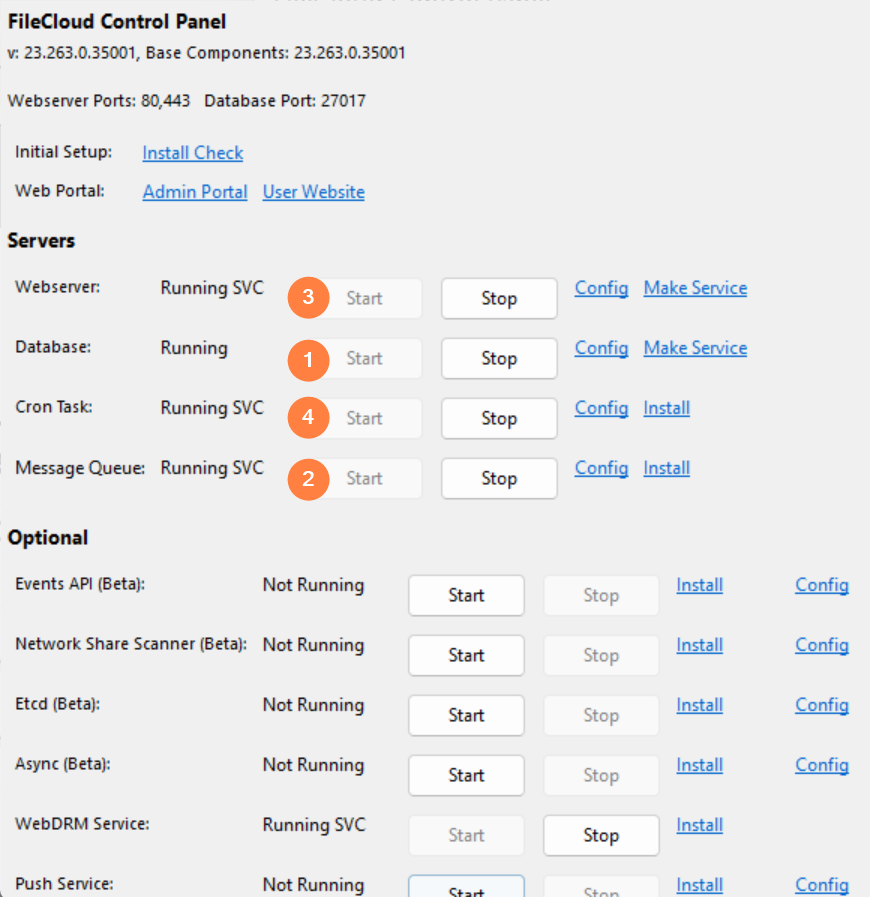
When the Setup Wizard finishes successfully, the FileCloud Control Panel opens so that you can configure the servers that FileCloud requires to function.
|
By default the database and Web Server run as processes, and when the user running the application logs out, the process exits. To prevent this, run these servers as services. The order you should start and configure these resources is:
|
Start the Database Server
FileCloud Server uses MongoDB as the database server.
MongoDB is a cross-platform document-oriented database program.
-
Classified as a NoSQL database program because instead of storing information in tables, as with traditional relational databases, MongoDB stores structured information in JSON format with dynamic schemas
-
This makes integrating information in applications much easier and faster
-
For more details, visit the MongoDB website
This software is installed by the FileCloud installation wizard, you only need to configure it and start it.
-
A PHP-MongoDB driver is also installed with FileCloud Server to provide a minimal API for core driver functionality
-
By default MongoDB in Windows runs as a process
-
It is recommended that you run MongoDB as a service instead of a process
-
If the user running the application logs out, the database process will exit. To prevent this, you should run the MongoDB database as a service.
FileCloud requires MongoDB. You must make this as a Windows service and start it running before moving on to the next step.
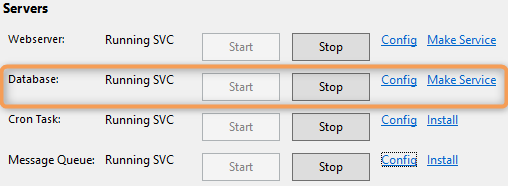
To start the Database service:
-
In the FileCloud Control Panel, in the Servers section, for Database, click the Make Service link.
-
On the Service Installed OK window, click OK.
-
In the FileCloud Control Panel, in the Servers section, for Database, click the Start button.
-
In the FileCloud Control Panel, in the Servers section, confirm that Running SVC appears next to Database.
Start the Message Queue
A message queue is a form of service-to-service communication that is not concurrent.
-
Message queues are used in serverless and microservices architectures.
-
Messages are stored in the queue until they are processed and deleted.
-
Each message is processed only once.
-
Message queues can be used to separate heavyweight processing workloads
-
Message queues can buffer work or process work in batches
-
Message queues can smooth spiky workloads
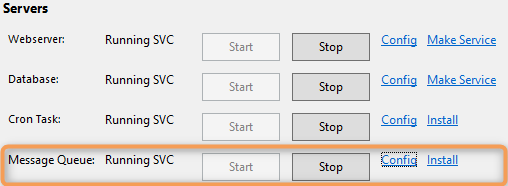
To configure and start the Message Queue service:
-
In the FileCloud Control Panel, in the Servers section, for Message Queue, click Install.
-
In the FileCloud Control Panel, in the Servers section, for Message Queue, click Start.
-
On the Service Started OK window, click OK.
-
In the FileCloud Control Panel, in the Servers section, confirm Running SVC appears next to Message Queue.
When you make a change to the configuration file
Each time you make a change to the FileCloud configuration file (cloudconfig.php) you must restart the message queue (click Stop, and once the service stops, click Start).
Indicators that the message queue is not running or clearing
If the message queue is not running or clearing, when you log in to FileCloud or refresh it, you may see a message that there are a large number of items in the message queue or that the message queue has entries older than 7 days (or a custom number of days).
The Serial Queue Count alert appears when there are more than 10,000 items in the serial queue; the Parallel Queue Count alert appears when there are more than 100,000 items in the parallel queue.
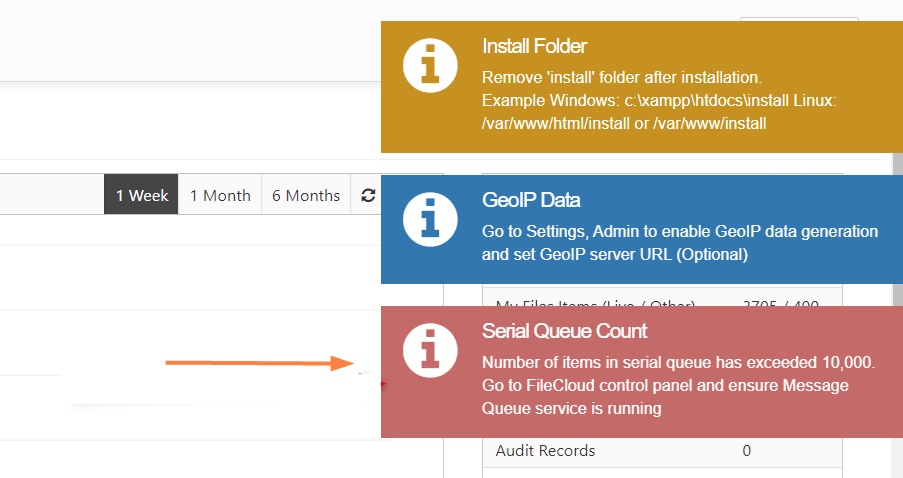
The Old Entries messages appear when one of the queues has message that are older than 7 days. To change the number of days triggering the message, please Contact FileCloud Support.
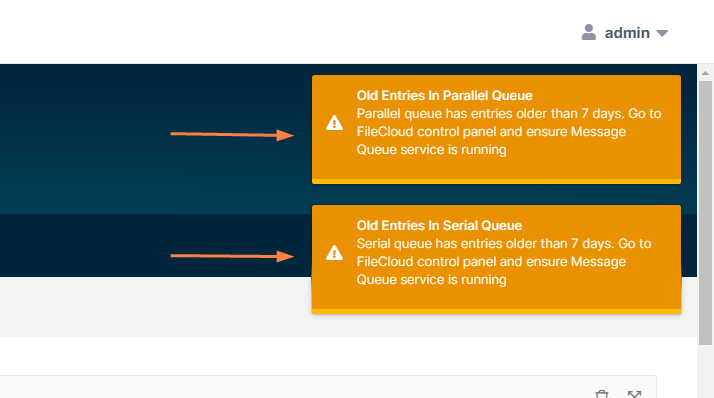
In either case, begin troubleshooting by confirming that the FileCloud control panel indicates that the Message Queue service has been started. If it has not been started, click Start (see the above image). It may take some time for the alert to disappear since the message queue must delete all previously processed messages before starting again.
Start the web server
FileCloud requires Apache web server. You must make this a service and start it running before moving on to the next step.
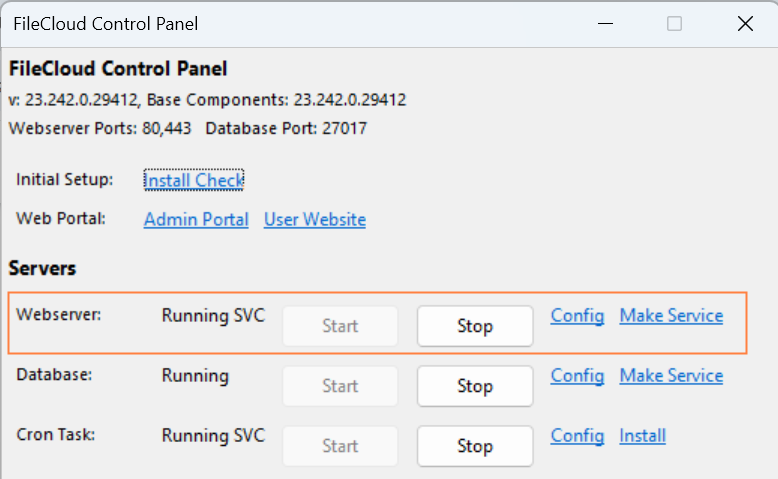
To make and start the web server service:
-
In the FileCloud Control Panel, for Webserver, click the Make Service link.
-
On the Service Installed OK window, click OK.
-
In the FileCloud Control Panel, for Webserver, click the Start button.
-
In the control panel, confirm Running SVC appears next to Webserver.
If the web server service doesn't start, then another process could be using that port.
To check which program is using that port, see FileCloud not starting on Windows.
Install and Start the Cron Task
During installation, you are warned that the Cron Task is only needed if a FileCloud Scheduled Task is not already configured. However, the Cron Task is required. If you try to run the Installation Check or log into the admin portal without installing Cron task and try to enable Team Folders, for example, the process will fail. Other components on the FileCloud server rely on the Cron Task as well, so this must be installed and started.
FileCloud requires the Cron Task. Install and start this service before moving on to the next step.
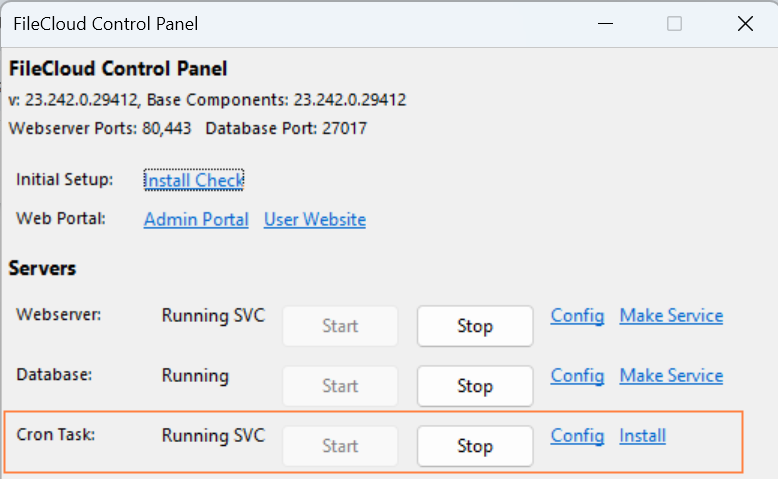
To install and start the Cron Task service:
-
In the FileCloud Control Panel, for Cron Task, click the Install link.
-
On the Confirmation Installation window, click Yes.
-
On the Service Installed OK window, click OK.
-
In the FileCloud Control Panel, for Cron Task, click the Start button.
-
In the control panel, confirm that Running SVC appears next to Cron Task.