.svg)
Unexpected issues can occur while installing or configuring FileCloud.
The reasons vary, depending on your computer, your operating system, network speed, license, and other factors.
The following list describes some common installation issues and their resolutions.
Webserver or Database Does Not Start
FileCloud Server not starting on Windows
If the FileCloud Webserver or Database does not start, it is most likely that another process is using the ports used by the Webserver and the Database. By default, FileCloud uses these 3 ports (80, 443, 27017), so if other programs are using these ports, the servers will not start up properly.
The most common applications that use these ports are Microsoft IIS and TeamViewer.
To determine which application is using the port, open a command prompt and type the following command.
netstat -ano | find "LIST"
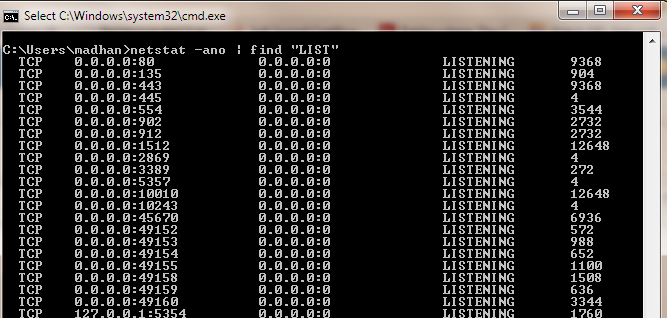
You can identify the process using ports 80, 443 or 27017. (for example 0.0.0:80).
The rightmost column shows the process ID of the process using that port.
You can obtain the process name by running:
tasklist /svc /PI "PID eq 988"
GUI Option
An alternative way to view processes using ports 80, 443, or 27017 is through the user interface. Go to Start>>All Programs>>Accessories>>System Tools>>Resource Monitor (or Run resmon.exe)
If PID 4 (System) is using port 80, IIS may be running. Stop the IIS and try to restart Apache.
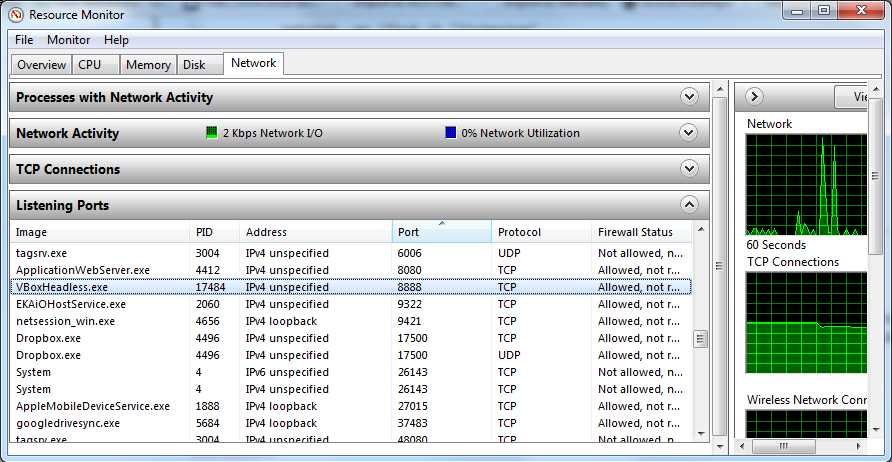
Common services interfering with ports used by FileCloud:
|
Other Apps Using same Network Services |
|---|
|
WWW Publishing Service |
|
Microsoft IIS |
|
HTTPD.sys |
If you still have questions, please Contact FileCloud Support.