.svg)
Because Async is in Beta, we strongly suggest testing it in a non-production environment first. You can return to the Message Queue service at any time (see Disabling Async, below).
To view known issues with Async, please see Known issues with Async (Beta) on page Known Issues.
The FileCloud Async orchestrator is available as a Beta feature starting in FileCloud 23.263.0. It changes how FileCloud delivers background tasks, such as metadata updates and indexing. Tasks are processed the same way as before, but they no longer pass through the FileCloud database (MongoDB). This lowers database load and lets the server handle more tasks at once.
Async adds two components to your FileCloud server:
-
RabbitMQ: holds background tasks in a queue until they are processed.
-
Async Orchestrator: runs the workers that process those tasks. It is intended to replace the Message Queue service.
Before you begin
Async is disabled by default and stays inactive until you enable the setting USE_MESSAGING_SYSTEM.
USE_MESSAGING_SYSTEM is in the queue.php configuration file, located at C:\xampp\htdocs\config\queue.php on Windows and /var/www/html/config/queue.php on Linux. When it is set to true, FileCloud sends background tasks through Async instead of the Message Queue service.
Installing Async on Windows
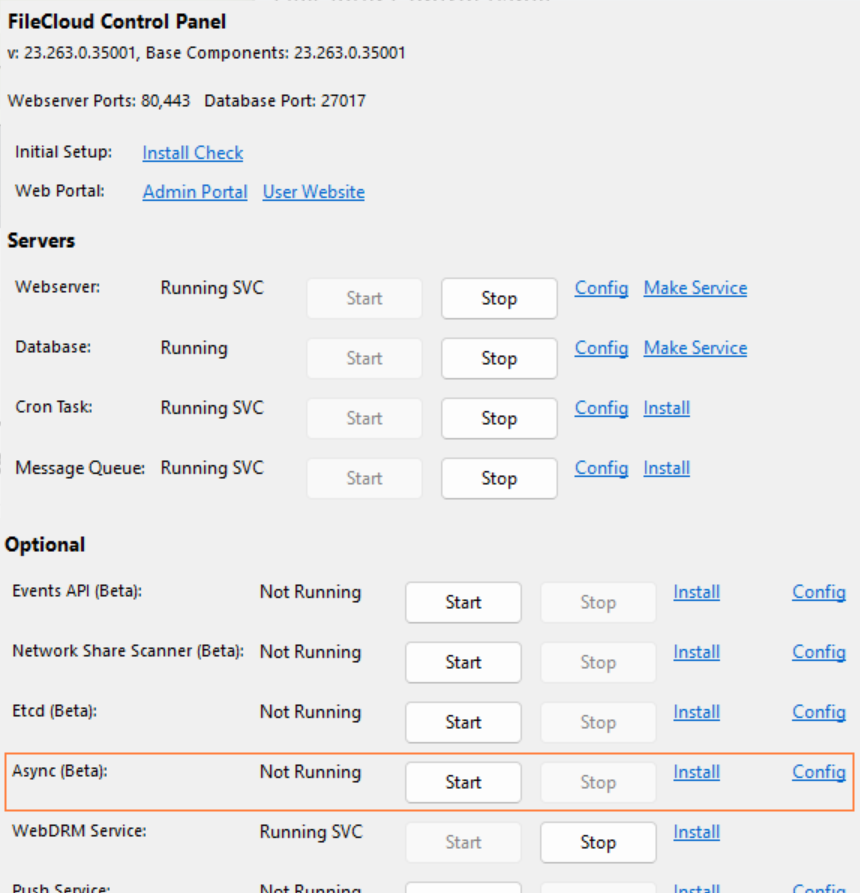
On Windows, install Async from the FileCloud Control Panel.
Install Async
-
Open the FileCloud Control Panel.
-
Start the database.
-
In the Async (Beta) row, click Install, and wait for the installation to finish.
Enable USE_MESSAGING_SYSTEM
-
Open xampp\htdocs\config\queue.php in a text editor.
-
Set USE_MESSAGING_SYSTEM to true, and save the file.
-
In the FileCloud Control Panel, start or restart Async.
Troubleshooting
If Async does not start or does not process tasks, check that the paths in these configuration files are correct for your installation:
-
xampp\tools\setup-config.yaml
-
xampp\async\config.yaml
Useful paths on Windows
|
Path |
Contents |
|
\xampp\async |
Async Orchestrator service binary, configuration files, logs, and service output |
|
\xampp\tools |
Helper tool the FileCloud Control Panel uses during installation |
|
\xampp\htdocs\config\queue.php |
FileCloud Server settings for Async, including USE_MESSAGING_SYSTEM |
|
\xampp\erlang |
Erlang installation (required by RabbitMQ) |
|
\xampp\rabbitmq |
RabbitMQ server installation |
|
\xampp\rabbitmq\sbin |
Scripts for managing the RabbitMQ server |
Installing Async on Linux
On Linux, install Async with the filecloudcp command, then complete a few manual configuration steps before you enable USE_MESSAGING_SYSTEM.
Install and configure Async
-
Install the Async Orchestrator:
filecloudcp -fco
-
Rename the sample queue configuration file from /var/www/html/config/queue-sample.php to /var/www/html/config/queue.php:
mv /var/www/html/config/queue-sample.php /var/www/html/config/queue.php -
Make sure the rabbitmq-server service and MongoDB are running.
-
Go to the FileCloud Async tools folder:
cd /var/www/html/resources/tools/async -
Run the environment setup tool:
php environment.php setup -t "*
Enable USE_MESSAGING_SYSTEM
-
Open /var/www/html/config/queue.php in a text editor.
-
Set USE_MESSAGING_SYSTEM to true, and save the file.
-
Restart the fc-async-orchestrator service:
systemctl restart fc-async-orchestrator
Useful paths on Linux
|
Path |
Contents |
|
/var/www/html/config/queue.php |
FileCloud Server settings for Async, including USE_MESSAGING_SYSTEM |
|
/opt/fcorchestrator |
Async orchestrator service binary, configuration files, logs, and service output |
|
/var/www/html/resources/tools/async |
Tool for setting up the FileCloud environment for Async |
Changing the default RabbitMQ credentials
Important: After you install Async, change the RabbitMQ username and password. RabbitMQ is installed with the default username guest and password guest, which are publicly known.
Change them in:
-
The Async Orchestrator config.yaml file (\xampp\async\config.yaml on Windows, in /opt/fcorchestrator on Linux):
-
rabbitmq.amqp.addr: replace guest:guest in the address with the new user name and password,
for example amqp://<user>:<password>@localhost:5672/. -
rabbitmq.api.auth.user and rabbitmq.api.auth.password: enter the new user name and password. This user needs permission to list RabbitMQ virtual hosts.
-
-
The queue.php file (\xampp\htdocs\config\queue.php on Windows, in /var/www/html/config/queue.php on Linux).
Then restart Async in the FileCloud Control Panel on Windows, or with systemctl restart fc-async-orchestrator on Linux.
Validating the installation
After you enable USE_MESSAGING_SYSTEM and start the Async services, confirm that Async is running by opening these pages in a browser on the FileCloud server:
|
Page |
URL |
What it shows |
|
Async dashboard |
Running workers and message-processing metrics |
|
|
Async metrics |
Prometheus-style metrics for monitoring tools |
|
|
RabbitMQ management |
RabbitMQ server status and queues |
.png?cb=5e1efb02de56ca569c5dac26dc734727)
If the dashboard shows no workers, wait a minute or two. On first load, Async can take some time to detect your tenant configuration.
To see tasks arriving and being processed, use FileCloud as usual. Activity such as uploading files generates background tasks that appear on the dashboard.
Async settings
Async Orchestrator settings are stored in config.yaml: \xampp\async\config.yaml on Windows, and in /opt/fcorchestrator on Linux.
Worker groups
The default config.yaml file defines three worker groups, each reading from its own queue.
When a task in the parallel or event API group exceeds its time limit, it moves to that group's dead letter queue (dlq_exchange) so it can be reviewed and reprocessed later.
|
Worker group |
Queue |
Workers |
Time limit per task |
Stops idle workers after |
|
gd-serial-group |
fc-serial-queue |
1 (default) |
1 hour (default) |
Disabled (default) |
|
gd-parallel-group |
fc-parallel-queue |
10 |
600 seconds |
5 minutes |
|
gd-event-api-group |
fc-event-api-queue |
2 |
120 seconds (Windows), 600 seconds (Linux) |
2 minutes |
The following tables list the default value of each setting and describe changes you may make to them.
Logging
|
Setting |
Default |
Allowed values |
Description |
|
log.level |
info |
debug, info, warn, error |
Amount of detail written to the log. Any other value is treated as info. |
|
log.stdout |
false |
true, false |
When true, logs are also written to standard output. |
|
log.path |
logs |
A folder path |
Folder for the log file. |
|
log.filename |
log.json |
A file name |
Name of the log file. The file is plain text and rotates at 64 MB. |
Management server
The management server hosts the Async dashboard, the metrics endpoint, and an API for resizing worker groups while Async is running.
The shipped configuration listens on all network interfaces (:15025) with no authentication. Anyone who can reach port 15025 can view the dashboard and resize or restart worker groups. Set management.auth.basic.user and management.auth.basic.password, or change management.host to 127.0.0.1:15025 if you only access the dashboard from the server itself.
|
Setting |
Default |
Allowed values |
Description |
|
management.enabled |
false (shipped config: true) |
true, false |
Enables the dashboard, metrics, and management API. Keep it enabled. |
|
management.host |
127.0.0.1:15025 (shipped config: :15025) |
An address and port |
Where the management server listens. 127.0.0.1:15025 allows access only from the FileCloud server; :15025 allows access from other machines. |
|
management.auth.basic.user |
None |
A user name |
User name for basic authentication. Authentication applies only when this is set. |
|
management.auth.basic.password |
None |
A password |
Password for basic authentication. |
|
management.https.enabled |
false |
true, false |
When true, the server uses HTTPS instead of HTTP. |
|
management.https.cert_file |
None (required when HTTPS is enabled) |
A file path |
PEM certificate file. |
|
management.https.key_file |
None (required when HTTPS is enabled) |
A file path |
PEM private key file. |
|
management.telemetry.enabled |
true |
true, false |
Enables the /metrics endpoint for Prometheus. |
|
management.window.size |
30m |
A duration, such as 1h |
Time span used to calculate dashboard throughput. |
|
management.window.refresh_interval |
30s |
A duration, such as 1m |
How often dashboard throughput is recalculated. |
To see the following information, go to the URL listed:
-
Health check that confirms the service is running: http://localhost:15025/dashboard/check/ping
-
Friendly dashboard: http://localhost:15025/dashboard/
-
Dashboard metrics in JSON format: http://localhost:15025/dashboard/api/v1/metrics
-
Plain text metrics (available only when telemetry is enabled): http://localhost:15025/metrics
Worker group settings
Each entry under workers defines one worker group. The group name is free-form and appears in logs, on the dashboard, and in the management API.
|
Setting |
Default |
Allowed values |
Description |
|
type |
Required |
dedicated, global-shared, global-dedicated |
How the group receives work. A dedicated group serves one tenant, set with tenant. The global-* types serve all tenants. |
|
amount |
1 |
1 to 64 |
Number of tasks the group processes at the same time. For global-* groups, the number applies to each tenant. You can also change it while Async is running through the management API. |
|
idle_shutdown_after |
Disabled |
A duration, such as 5m (not negative) |
How long a worker can be idle before its PHP process stops. The worker restarts on the next task. |
|
memory_limit |
512mb |
A number with mb or gb, such as 1gb |
Memory limit for each PHP worker. |
|
messages_before_restart |
1000 |
A whole number |
Number of tasks a worker handles before it restarts, which prevents memory buildup. |
|
restart.delay |
5s |
A duration, such as 10s |
How long Async waits before replacing a worker that crashed. |
|
worker_breath_time |
1 |
A whole number from 0 to 30 (no unit) |
Seconds a worker pauses after every worker_breath_after task, to ease load on the database and file system. 0 turns off the pause. |
|
worker_breath_after |
200 |
A whole number, 0 or higher |
Number of tasks a worker handles between pauses. |
You can also set amount, message.prefetch, worker_breath_time, and worker_breath_after at the top level of config.yaml as defaults for all groups. A value set on a group overrides the top-level value.
Other settings
|
Setting |
Default |
Allowed values |
Description |
|
base_src_path |
None (shipped config: C:\xampp\htdocs on Windows, /var/www/html on Linux) |
A folder path |
FileCloud web root. |
|
workers.<group>.message.timeout |
1h |
A duration, such as 600s |
Maximum time to process one task before it moves to the dead letter queue. |
|
workers.<group>.message.prefetch |
50 |
1 to 1000 |
Number of tasks RabbitMQ can send ahead to the group. Set it to at least the group's amount. |
|
php.bin |
Required (shipped config: C:\xampp\php\php.exe on Windows, php on Linux) |
A file path, or php if PHP is on the system path |
PHP executable. |
|
rabbitmq.amqp.addr |
Required |
An AMQP address with no virtual host path, such as amqp://<user>:<password>@localhost:5672/ |
Address Async uses to connect to RabbitMQ. |
|
rabbitmq.api.addr |
Required |
A URL, such as http://localhost:15672 |
Address of the RabbitMQ management API. |
|
rabbitmq.api.auth.user |
Required |
A RabbitMQ user name |
User for the RabbitMQ management API. The user needs permission to list virtual hosts. |
|
rabbitmq.api.auth.password |
Required |
A password |
Password for the RabbitMQ management API user. |
Default config.yaml for Windows
identifier: fc-async-orchestrator
log:
  level: info

management:
  enabled: true

  host: :15025

base_src_path: C:\xampp\htdocs

workers:
  gd-serial-group:
    type: global-dedicated

    message:
      queue: fc-serial-queue
      prefetch: 5

  gd-parallel-group:
    type: global-dedicated

    amount: 10
    idle_shutdown_after: 5m

    message:
      queue: fc-parallel-queue
      dlq_exchange: fc-parallel-dlq-exchange
      timeout: 600s

  gd-event-api-group:
    type: global-dedicated

    amount: 2
    idle_shutdown_after: 2m

    message:
      queue: fc-event-api-queue
      dlq_exchange: fc-event-api-dlq-exchange
      timeout: 120s

php:
  bin: C:\xampp\php\php.exe

rabbitmq:
  amqp:
    addr: "amqp://guest:guest@localhost:5672/"
  api:
    addr: "http://localhost:15672"
    auth:
      user: "guest"
      password: "guest"
Default config.yaml for Linux
identifier: fc-async-orchestrator

log:
  level: info

management:
  enabled: true

  host: :15025

base_src_path: /var/www/html

workers:
  gd-serial-group:
    type: global-dedicated

    message:
      queue: fc-serial-queue
      prefetch: 5

  gd-parallel-group:
    type: global-dedicated

    amount: 10
    idle_shutdown_after: 5m

    message:
      queue: fc-parallel-queue
      dlq_exchange: fc-parallel-dlq-exchange
      timeout: 600s

  gd-event-api-group:
    type: global-dedicated

    amount: 2
    idle_shutdown_after: 2m

    message:
      queue: fc-event-api-queue
      dlq_exchange: fc-event-api-dlq-exchange
      timeout: 600s

php:
  bin: "php"

rabbitmq:
  amqp:
    addr: "amqp://guest:guest@localhost:5672/"
  api:
    addr: "http://localhost:15672"
    auth:
      user: "guest"
      password: "guest"
Disabling Async
To stop using Async and return to the Message Queue service:
-
Open queue.php (xampp\htdocs\config\queue.php on Windows, /var/www/html/config/queue.php on Linux).
-
Set USE_MESSAGING_SYSTEM to false, and save the file.
-
Stop and disable the Async services:
-
On Windows, stop Async in the FileCloud Control Panel.
-
On Linux, run:
systemctl stop fc-async-orchestrator rabbitmq-server
systemctl disable fc-async-orchestrator rabbitmq-server
-
-
Make sure the Message Queue service (FC Orchestrator) is running.