.svg)
If you are updating from a version earlier than 23.242 to FileCloud 23.242 or later
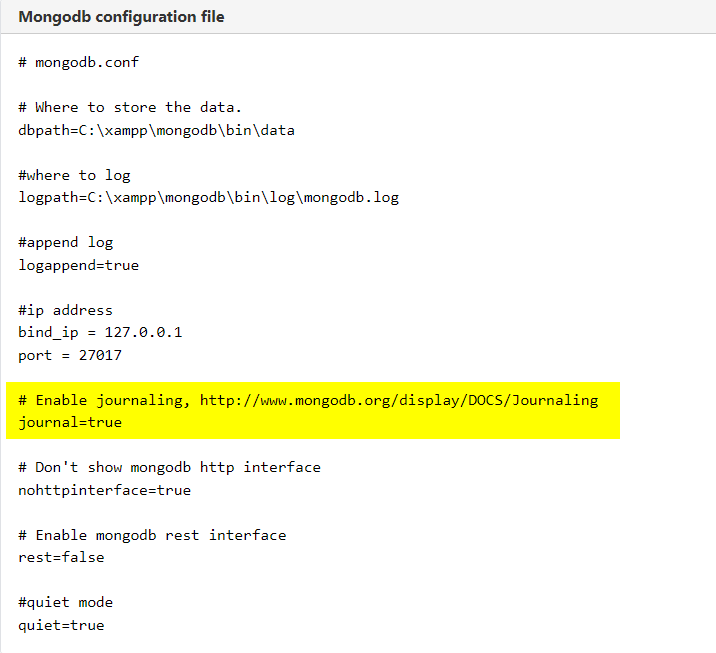
If you are replacing the supplied mongodb.conf with a custom one, it is important that you remove the journal=true setting which is no longer supported.
To delete the journal=true setting
-
Open C:\xampp/mongodb/mongodb.conf.
-
Delete the lines that are highlighted in the image below and save the file.
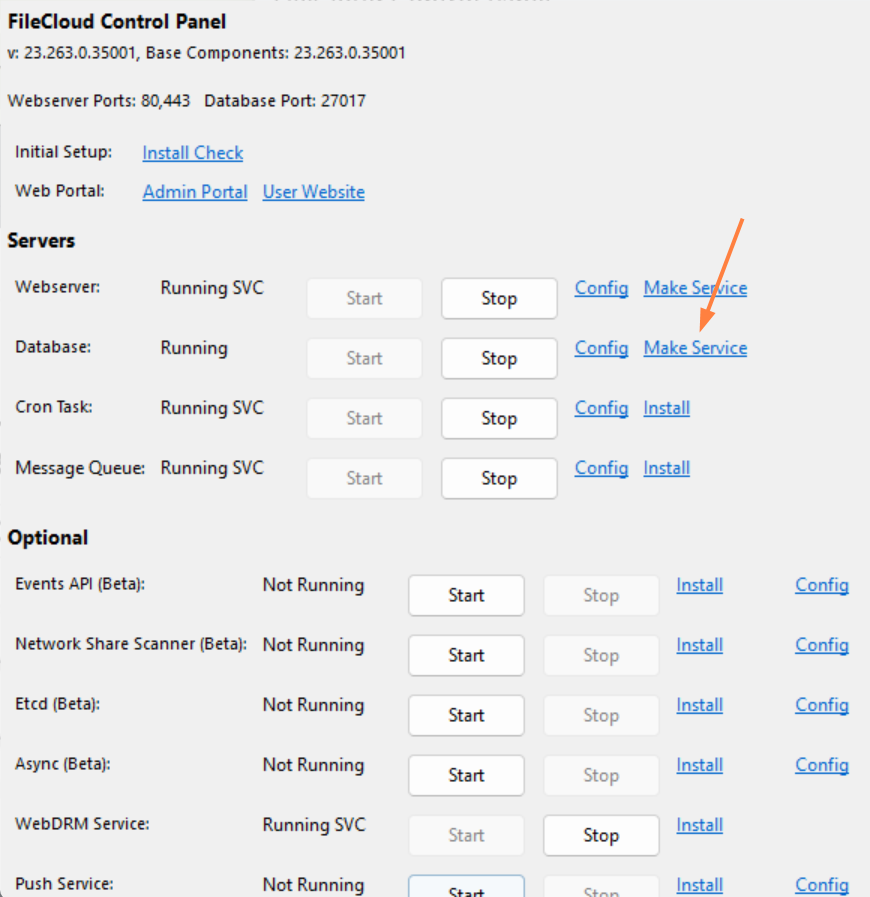
By default MongoDB in Windows runs as a process. If the user running the application logs out, the database process will exit. To prevent this, you can run the MongoDB database as a service.
To run MongoDB as a service in FileCloud
1. Install FileCloud
Before making MongoDB a service, install FileCloud using the Windows installer. By default FileCloud is installed under C:\xampp. If you have manually installed FileCloud or installed FileCloud on a different path, update the paths accordingly in the next steps.
2. Set MongoDB to run as a Windows Service
Alternate Method
1. Create the MongoDB config File
Under C:\xampp\mongodb\bin, update mongodb.conf, and use absolute paths for the locations of logpath and dbpath.
It is important when running mongodb as a service that dbpath and logpath are provided as full paths instead of relative paths. That is, include the root c:\xampp\mongodb\bin\data
Mongodb configuration file
# mongodb.conf

# Where to store the data.
dbpath=C:\xampp\mongodb\bin\data

#where to log
logpath=C:\xampp\mongodb\bin\log\mongodb.log

#append log
logappend=true

#ip address
bind_ip = 127.0.0.1
port = 27017

# Don't show mongodb http interface
nohttpinterface=true

# Enable mongodb rest interface
rest=false

#quiet mode
quiet=true
Here update values of logpath and dbpath if necessary.
2. Create the MongoDB service
To install MongoDB as a service, open a command prompt with administrator access (this is important), and run the following command.
Creating MongoDB Service
C:\> cd C:\xampp\mongodb\bin
C:\xampp\mongodb\bin> mongod.exe --config C:\xampp\mongodb\bin\mongodb.conf --install
You can start the MongoDB service using the FileCloud Control Panel.
Now the service will start automatically on machine reboots.
To remove the MongoDB service
Removing MongoDB Service
C:\xampp\mongodb\bin>mongod.exe --remove