.svg)
Administrators can configure FileCloud to deal with specific users' and groups' recycle bins through policies.
Why?
-
Files deleted by users are moved to recycle bin (if enabled).
-
The files in recycle bin will take up space over time.
To manage the recycle bin, you can decide what to do with files in the following cases: 
Do you want to store deleted files for recovery purposes?
If you enable this setting, whenever a user deletes a file, it will automatically be placed in the Recycle Bin.
This allows the user to recover an old file if it is deleted by accident.
If this option is not enabled, then when a user deletes a file it is removed from FileCloud permanently.
Do you want to empty the recycle bin after a specific number of days?
You can automatically clear the files deleted by users and partial uploads.
This is configured by the setting called:
-
Automatically delete File from the recycle bin After Set Number of Days
You set this to the number of days you want a deleted file to be kept before being permanently removed.
-
For example, if the value is set to 7, then files older than 7 days will be deleted automatically.
If you do not want FileCloud to automatically empty the recycle bin at any time, use a value of 0.
Do you want to set a size limit for the deleted files that are stored?
If you do not want deleted files to take up too much space, you can decide to only store deleted files of a certain size.
This is configured in the following setting:
-
Do Not Store Deleted Files Greater Than
Files less than this size are stored
Files greater than this size are permanently deleted
You can specify the file size in the following ways:
-
GB
-
MB
-
KB
-
B
You can also restrict users' ability to empty their own recycle bins.
Administrators configure options related to Recycle Bin behavior for a user or group in policies.
-
This allows administrators to use different settings for different users and groups.
-
The recycle bin configuration settings for Network folders are global and managed in the Admin Portal under the MANAGE section by selecting Network Folders.
For example: In the Cherry Road Real Estate company, every user working in the Accounting office must retain their recycled items for 60 days, but everyone else can have their bins cleared in 30 days.
The following three Recycle Bin settings exist in Policies:
|
Setting |
Option |
Description |
|---|---|---|
|
Store deleted files in the recycle bin |
yes or no |
Move the file from it's location in My Files to the recycle bin when the user deletes it |
|
Automatically delete files from recycle bin after set number of days |
Whole number |
Number of days after a file was deleted that it will be automatically cleared from the recycle bin (and therefore, no longer be present in FileCloud). A value of 0 indicates that deleted files will not be cleared automatically. If they are not manually cleared from the recycle bin, they will remain available to be restored in FileCloud but will also use up available storage. |
|
Do not store deleted files greater than |
Any positive number of Units:
|
Files greater than the specified size are permanently deleted. The number can contain decimals. For example:
|
You must ensure that the Cron service is running. This is a prerequisite for any automatic functionality in FileCloud Server.
To configure a recycle bin policy for users or groups:
-
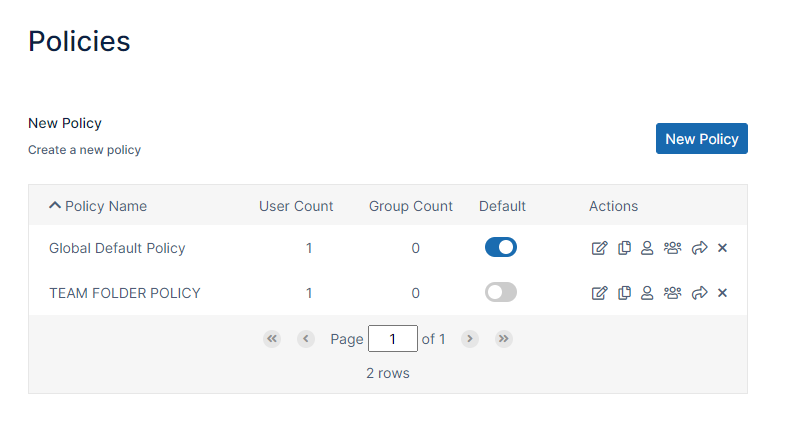
In the FileCloud admin portal's left navigation bar, scroll down and click Settings. Then, on the Settings navigation page, click Policies

The Policies page opens.
-
Edit the policy of the users or groups.
-
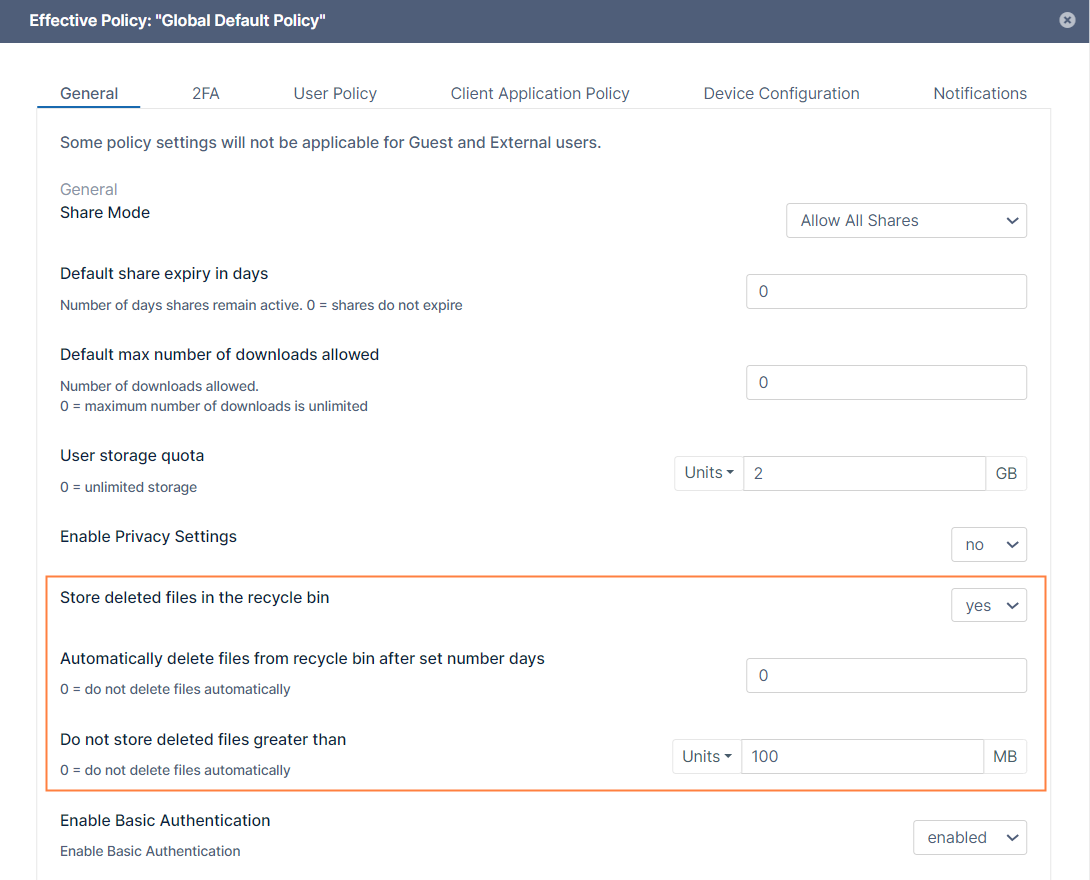
In the General tab, scroll down and set Store deleted files in the recycle bin to yes or no.
-
If you selected no, to save your changes, click Save.
-
If you selected yes:
-
In Automatically delete File from the recycle bin after set number of days, enter a number, or set to 0 to disable automatic deletion by number of days.
-
In Do not store deleted files greater than, select the type of unit in Units, and then type in a number, or set to to 0 to disable automatic deletion by file size.
-
-
To save your changes, click Save.