.svg)
Beginning in FileCloud 23.253, you are able to view the Created column and hide other columns in the My Files, Team Folders, and Shared with Me folders.
By default, the My Files, Team Folders, and Shared with Me screens in the user portal display the Name, Modified, and Size columns:
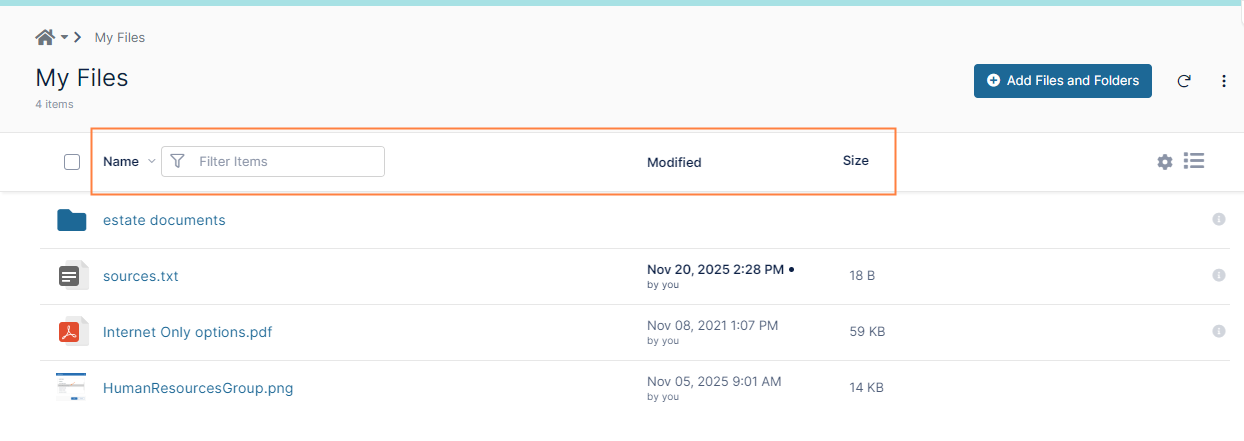
The Modified column displays the date the file was last modified. It is possible to also view a Created column that shows the date the file was uploaded to or created in FileCloud, and to hide the Modified or Size columns.
Why show or hide the Modified and Created date columns?
If a file you are storing has not been viewed or edited for a certain number of days, your system may consider it unused, and may delete it or notify you or your admin that it is about to be deleted.
Your admin may choose to use the modified date or the created date or both of these dates as the last date the file was viewed or edited. You can find out from your admin which date(s) your system uses, and you may choose to view one or both dates as a way of keeping track or confirming which files have been viewed or edited within the specified number of days.
Note the following:
-
If the file was created outside of FileCloud and the last modified date occurred before the file was uploaded to FileCloud, the Modified column shows the date it was modified before being uploaded to FileCloud.
-
If the file was created in FileCloud, and the file has not yet been modified, the Modified column shows the date the file was created in FileCloud.
-
Regardless of whether a file was created outside of FileCloud or in FileCloud, the Created column shows the date the file first appeared in FileCloud, either through an upload or a create action.
-
Folders only have Created dates. For folders the Created date is the date the folder was created, either external to or inside of FileCloud.
-
To enable you to see files that have been worked on recently, files with a timestamp within the last 24 hours appear bold with a dot next to them.
To display a column that shows create date for files:
-
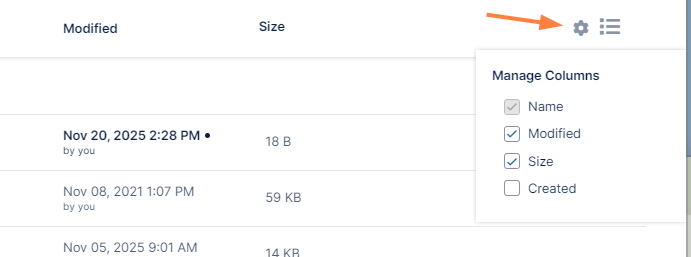
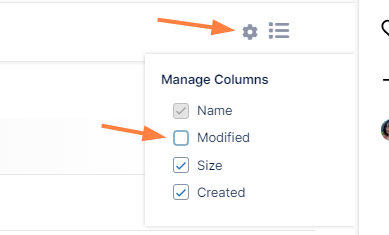
Click the cog icon to the right of the column headers:
-
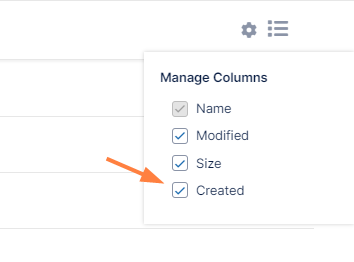
Under Manage Columns, check Created.
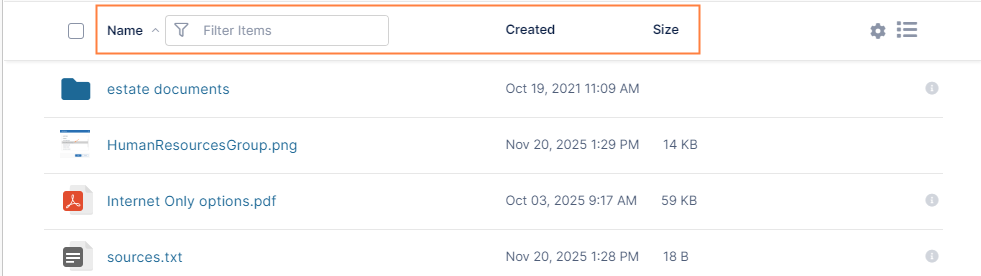
The Created column appears:
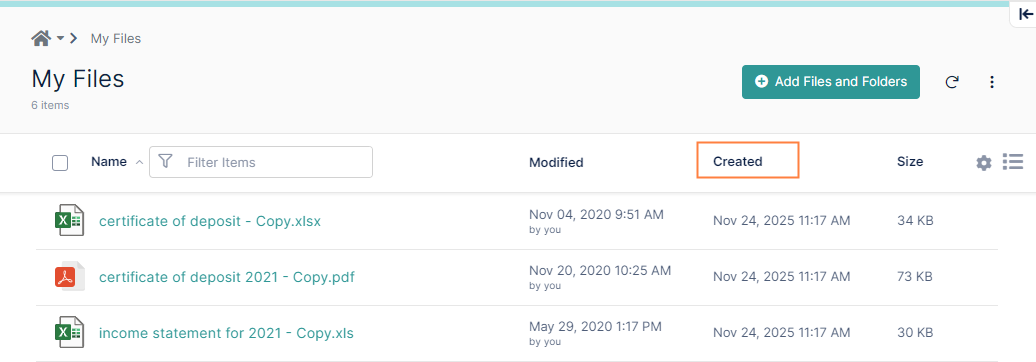
Note that it is possible for a file’s Modified date to precede its Created date. That occurs if it was last modified before it was uploaded to FileCloud, because the Created date always shows the date it appeared in FileCloud, not the date it was created outside of FileCloud.
This feature also enables you to hide the any of the columns except the Name column, which is always visible.
To hide columns:
-
Click the cog icon to the right of the column headers.
-
Under Manage Columns, uncheck the columns that you want to hide:
The column or columns no longer appear: