.svg)
You can add notes about a file or folder in the Comments tab of the right panel. You can also read comments that other users have added to a share.
To add a comment:
-
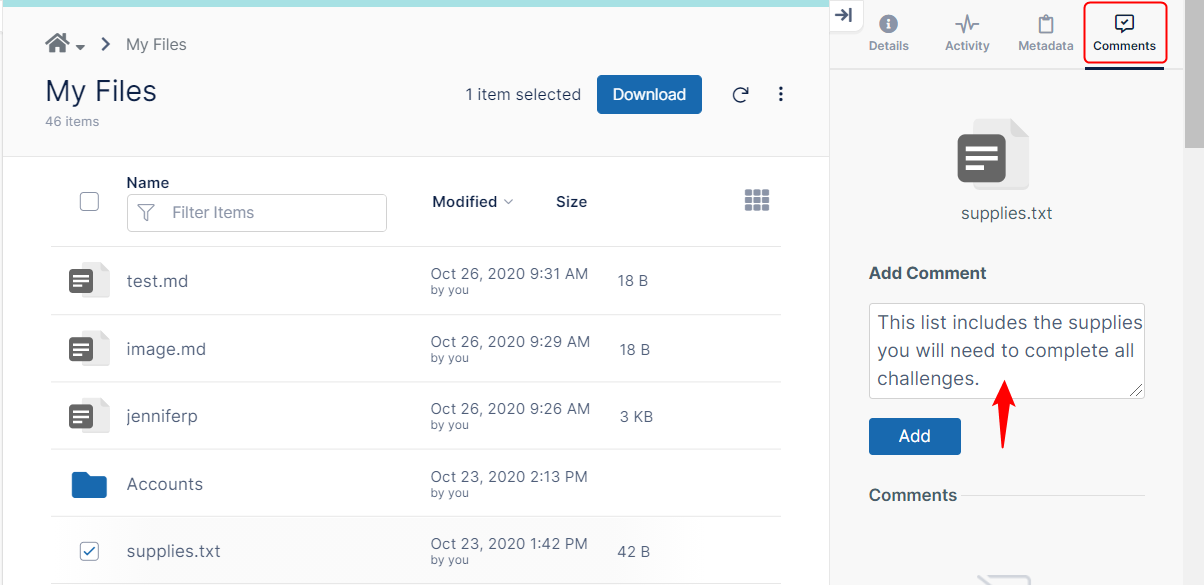
In the User Portal, check the box next to to the file or folder.
-
In the right panel, select the Comments tab.
-
Enter your comment under Add Comment.
-
Click Add.
Your comment is saved and displayed under Comments.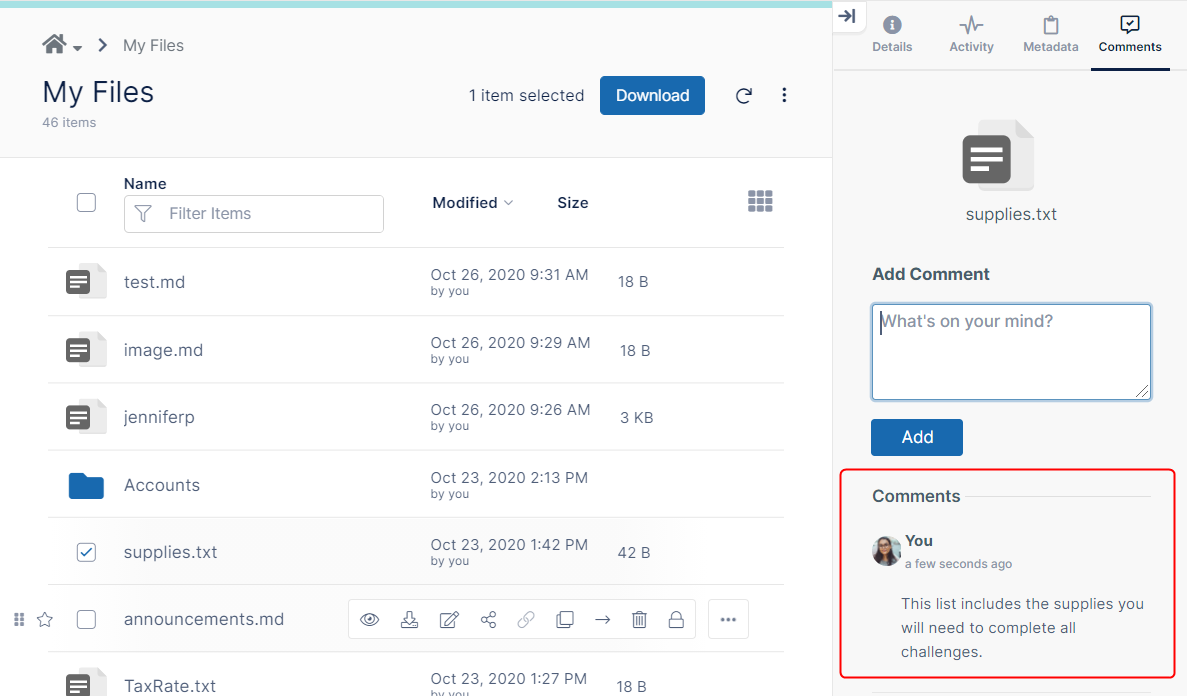
You can mention other FileCloud users or FileCloud groups in your comments by typing the @ symbol and then the name of the user or group. When a user or a group a user belongs to is tagged, the user receives an email as well as a notification on their dashboard in the User Portal telling them that they have been mentioned in a comment.
To tag a user or group in a comment:
-
Access the Comment tab for the file or folder using the procedure above, and type @ into the Comment box.
-
Begin to type the user or group name directly after @.
A box displaying matching user emails and group names appears above the Comment box.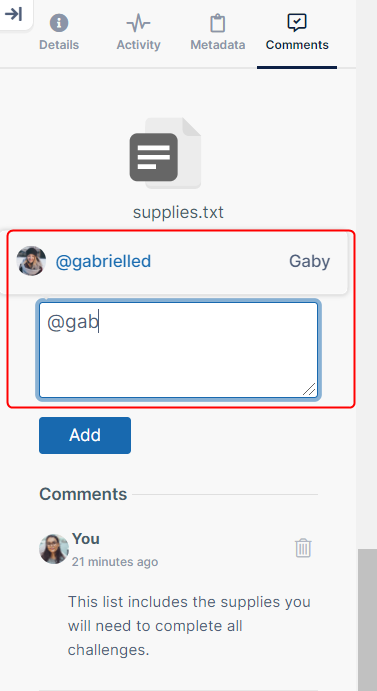
-
Click the email of the user or group that you want to tag to insert their name into the comment.
-
Type the comment.
-
Click Add.
The user tagged or the users in the group tagged receive emails and notifications in FileCloud informing them about the comment.