.svg)
Configuration of OAuth credentials that give external applications access to FileCloud resources is available beginning in FileCloud 23.252. SCIM is currently the only application that can gain access through this OAuth configuration, but in the future, additional applications may be added.
FileCloud supports SCIM integration with Azure, Okta, and OneLogin, but most other SCIM IdPs should be able to connect to FileCloud using OAuth. Please contact your authentication service for support in configuring its integration with FileCloud.
OAuth 2.0 authorization enables an application to securely access FileCloud resources without requiring a manual action or scheduled command to trigger the access request. OAuth 2.0 provides secure access by specifying scopes (permitted actions) associated with the access, and by creating unique tokens for accessing FileCloud. A token remains valid for an interval set in the configuration that may range from 1 hour to 5 years.
Currently, SCIM (System for Cross-domain Identity Management) is the only application that uses this OAuth configuration in FileCloud. SCIM is a protocol that enables you to update FileCloud user and group information by syncing it with changes made to user and group information in other applications. When SCIM detects a change in one of the apps, it uses OAuth 2.0 to gain access to FileCloud and update its user/group data.
To configure SCIM for integration with FileCloud:
Note for Azure users: You do not have to change anything in your existing SSO SAML application configuration. This configuration is separate from your SCIM configuration.
-
Create the SCIM application in your currently supported IdP. Follow the instructions provided in the IdP’s documentation.
-
The FileCloud SCIM endpoint in the application must be set to:
https://<your-filecloud-domain>/api/v1/scim
-
To configure OAuth application credentials for SCIM in FileCloud:
-
In the FileCloud admin portal, open the Application Credentials page.
To go to the Application Credentials page:
-
In the FileCloud admin portal's left navigation bar, scroll down and click Settings. Then, on the Settings navigation page, click Misc

-
In the inner navigation bar on the left of the Settings page, expand the Misc menu, and click Application Credential, as shown below.
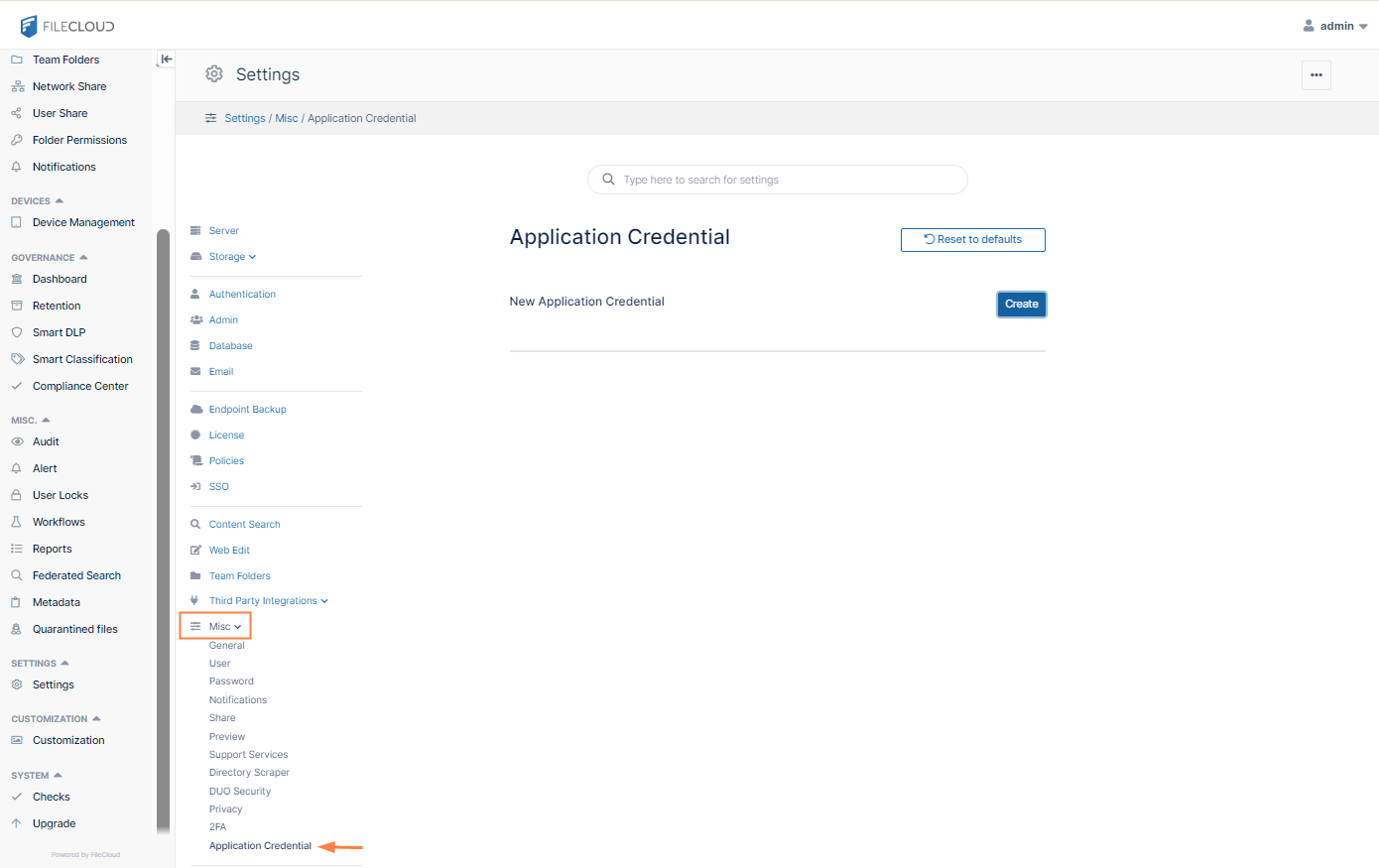
The Application Credentials page opens.
-
-
Click Create.
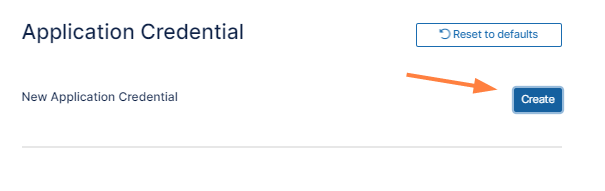
The Create New Application Credential dialog box opens. -
Enter the Application Name and an Application Description.
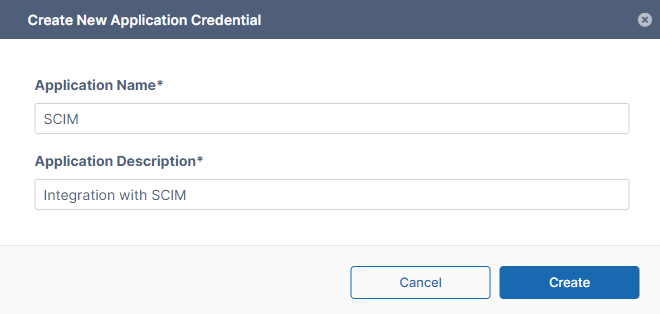
-
Click Create.
Integration id and Integration Secret credentials are listed on the dialog box.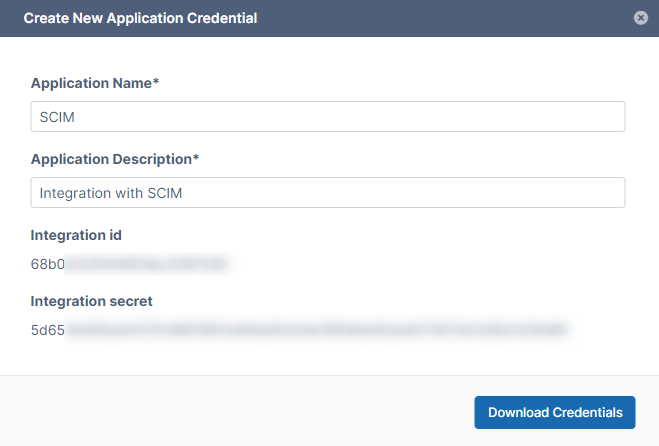
The credentials will not be shown to you again, but you will be required to enter the Integration secret to create the token. -
Click Download Credentials to save them in a file named file credentials for [Application Name].txt
The dialog box closes and the credential is now listed.
Click the key icon.
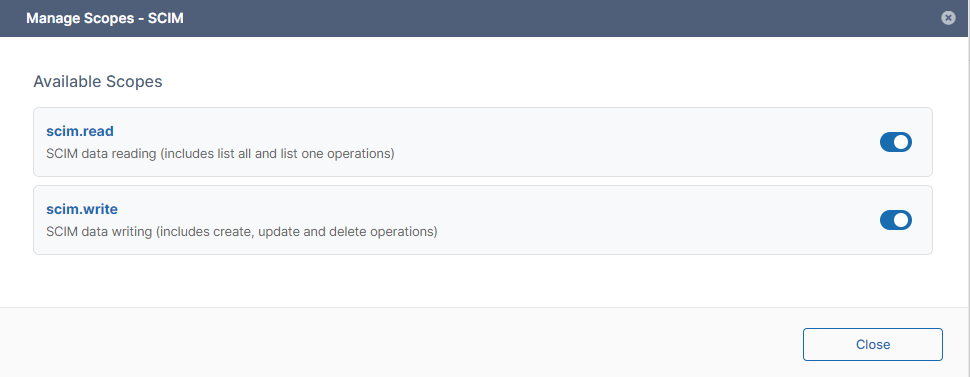
The Manage Scopes dialog box opens. -
Enable scim.read to grant SCIM read permission to FileCloud's identity data, enable scim.write to grant SCIM create, update, and delete permissions to FileCloud's identity data, or enable both.
-
Click Close.
-
Click the ticket icon.

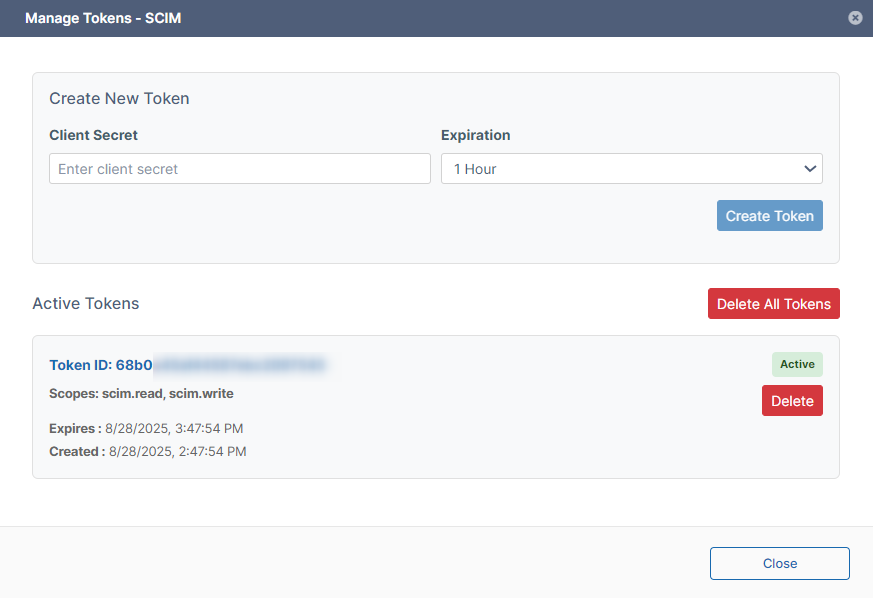
The Manage Tokens dialog box opens. -
In Client Secret enter the Integration secret you saved above.
-
In Expiration, choose the interval that the token will remain usable. By default the interval is 1 hour.
-
Click Create Token.
You are prompted to save the token. -
Click Download Token.
It is saved to the file credentials for [application name].text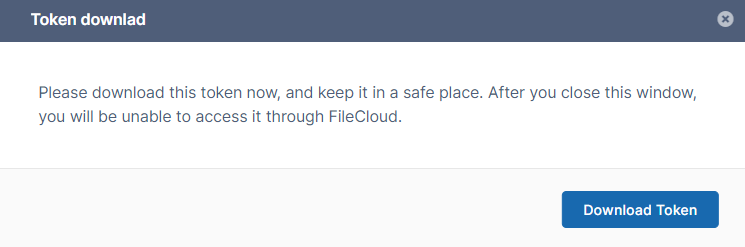
The Token ID and its create and expire dates and times are shown. It is automatically made active.
-
Click Close.
SCIM will now automatically update FileCloud with the connected apps' identity information.