.svg)
You can share a file or folder in FileCloud from the FileCloud Desktop for Windows folder in File Explorer.
To share a file or folder:
-
In the FileCloud Desktop dashboard, click the folder icon.
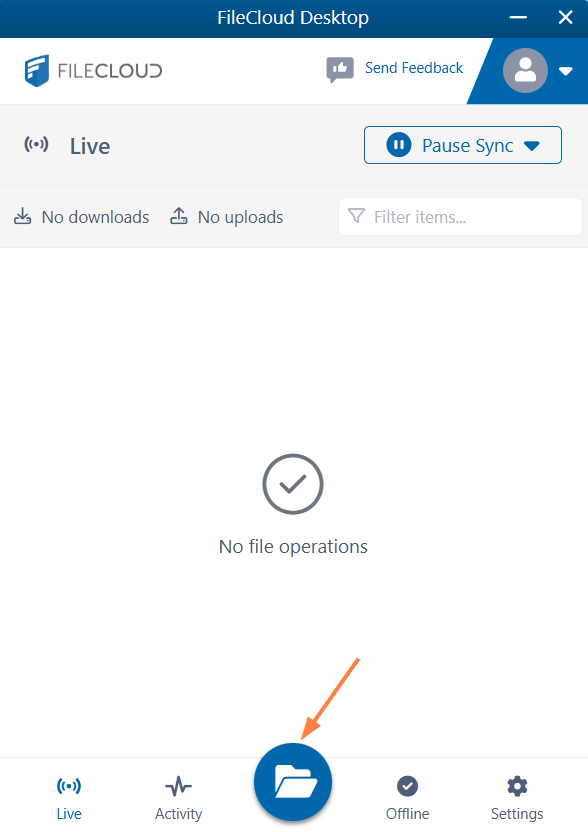
File Explorer opens to the FileCloud folder that you are logged in to in FileCloud Desktop. -
Navigate to the file or folder that you want to share and right-click it.
-
In the menu, choose FileCloud Desktop > Share.
Note: On Windows Server 2019 this option is not supported.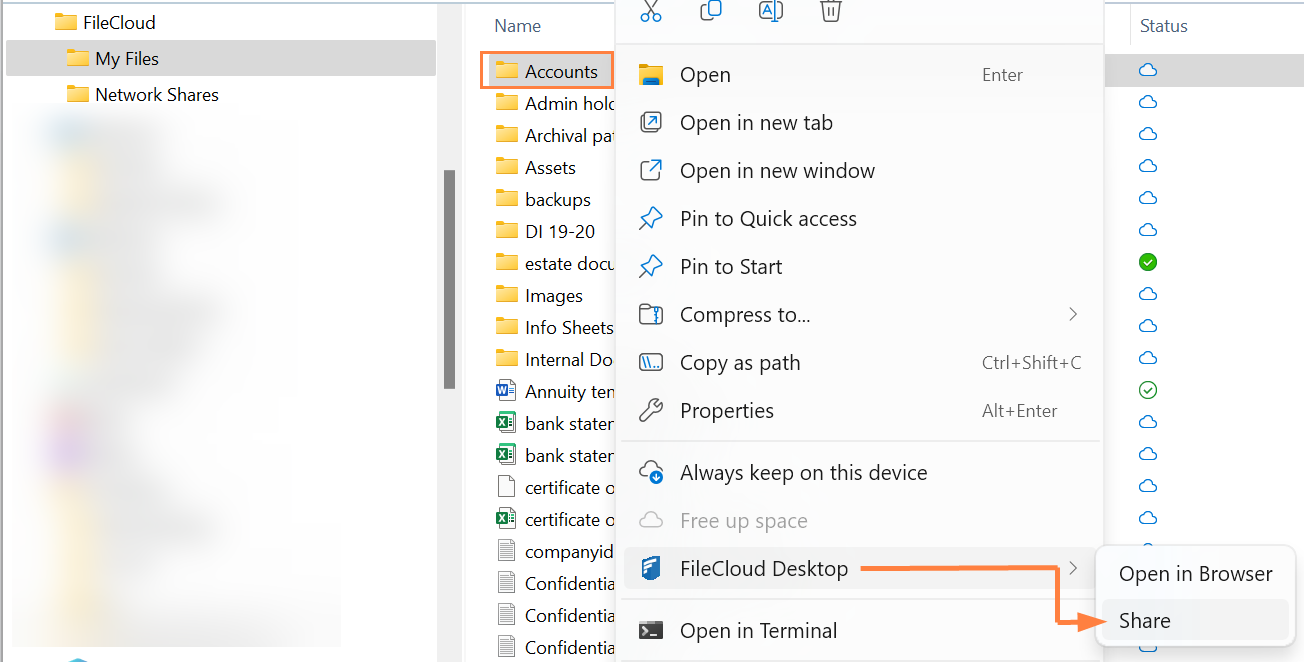
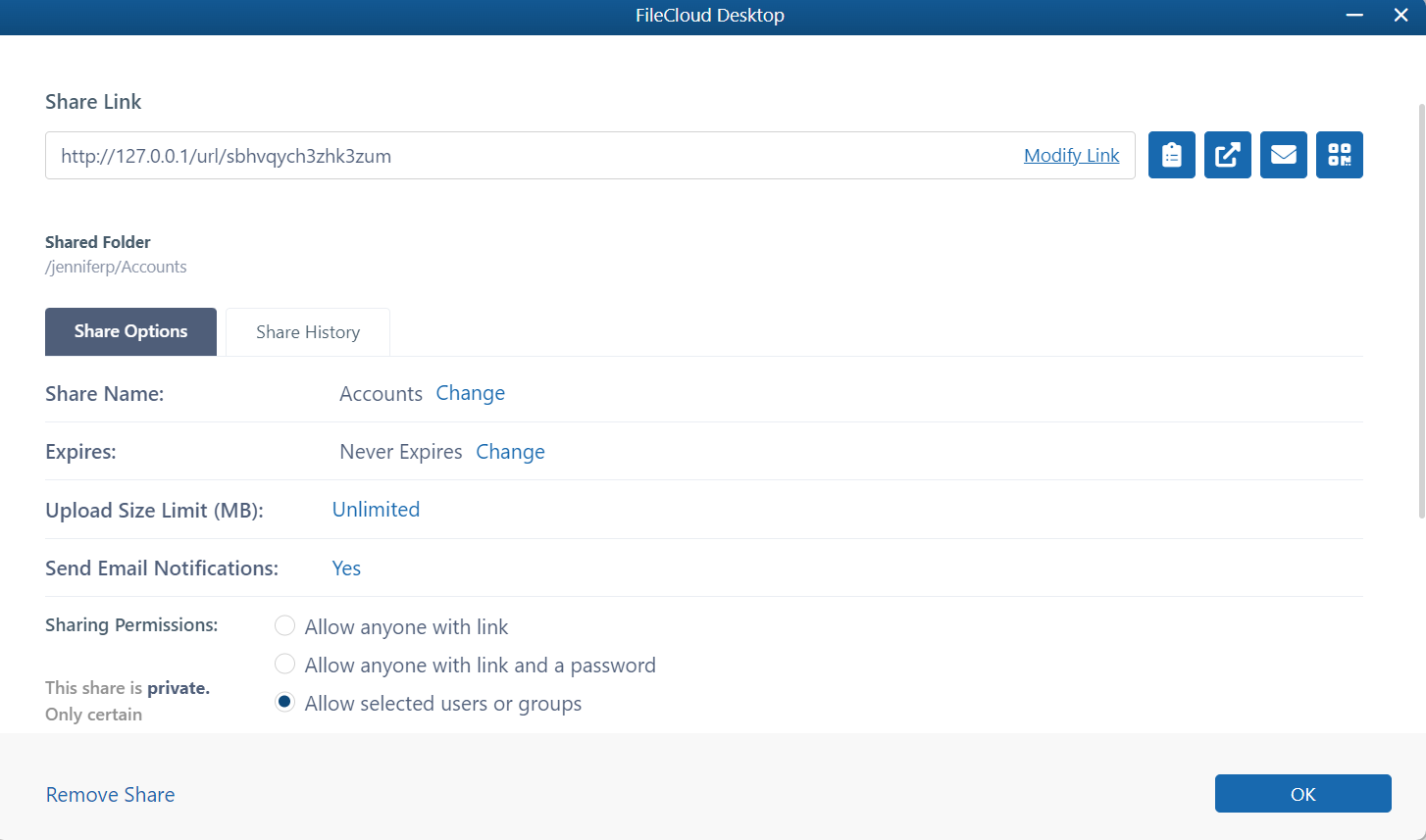
A FileCloud Share Link dialog box opens.
For help creating the share, see Sharing Files and Folders.