.svg)
This workflow recipe creates a specific report and sends the result to specified emails once a day.
-
The email can be configured to be sent at a specific time in the day, and the day interval can be set to daily.
To create a workflow that generates a specific report and sends the result to specified emails:
-
Log in to the admin portal
-
In the navigation panel, click Reports.
-
Click Add Report.
-
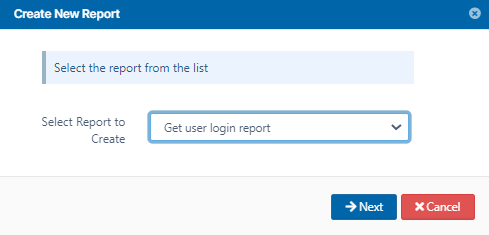
In Select Report to Create, choose Get user login report.
-
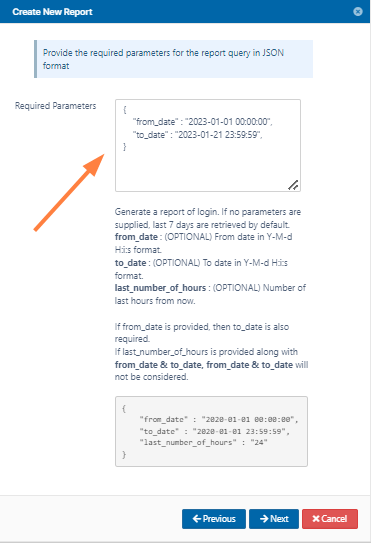
Enter the required time parameters to create the report.
-
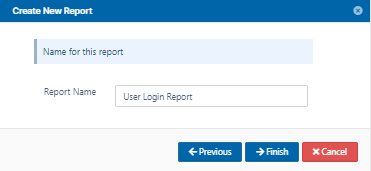
Save the report with an appropriate name, and click Finish.
-
Click Workflows in the navigation panel.
-
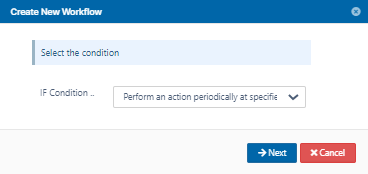
Click Add Workflow and set the If condition as Perform an action periodically at specified time and interval.
-
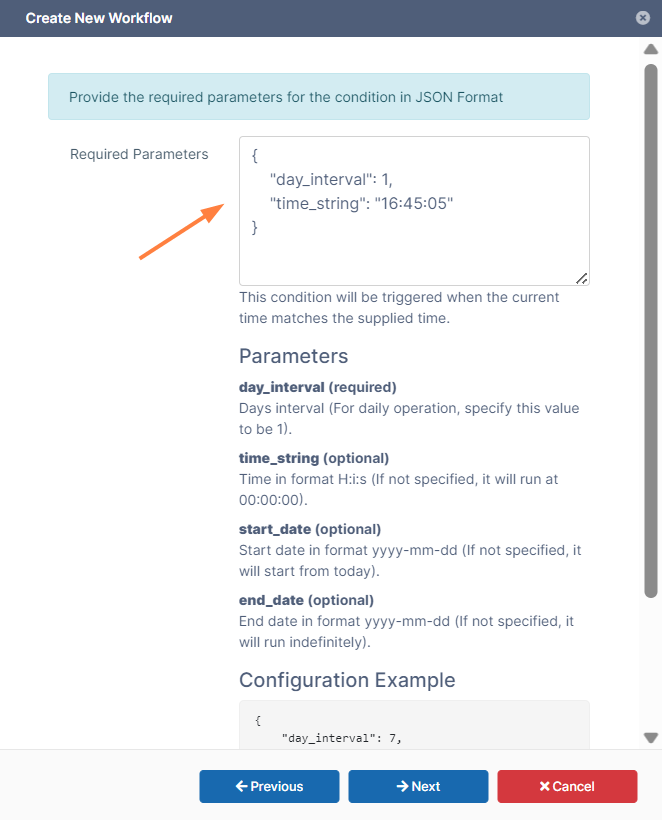
Specify the time in the format given in the template. Specify the day interval as 1 to indicate that the workflow should be triggered daily.
-
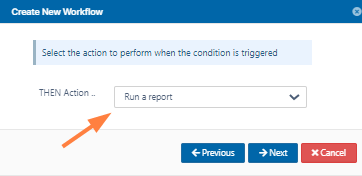
Set the THEN Action as Run a report.
-
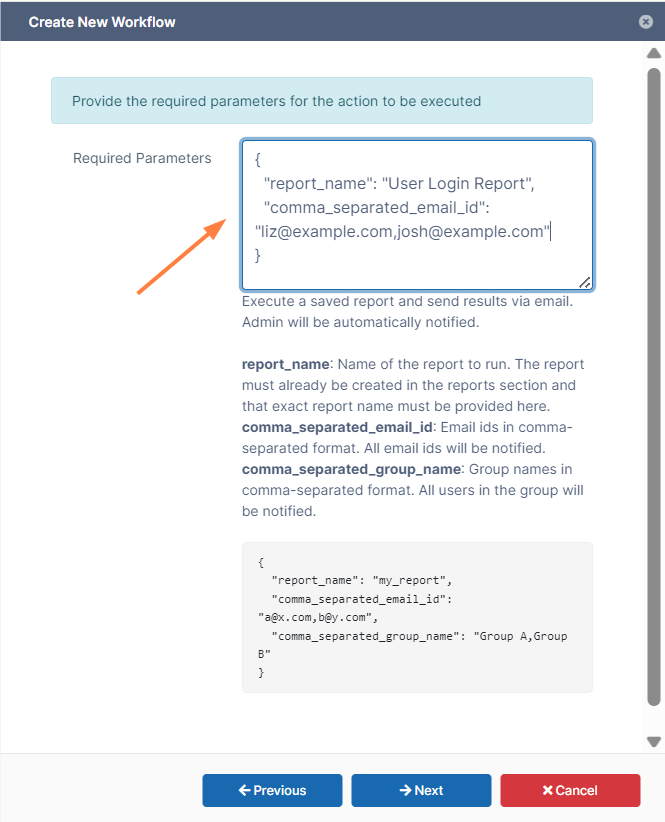
Specify the report name created previously and the emails or group of the users who will receive the report in the format given in the template.
-
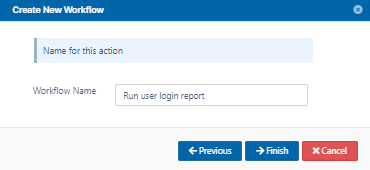
Save the workflow with an appropriate name.
-
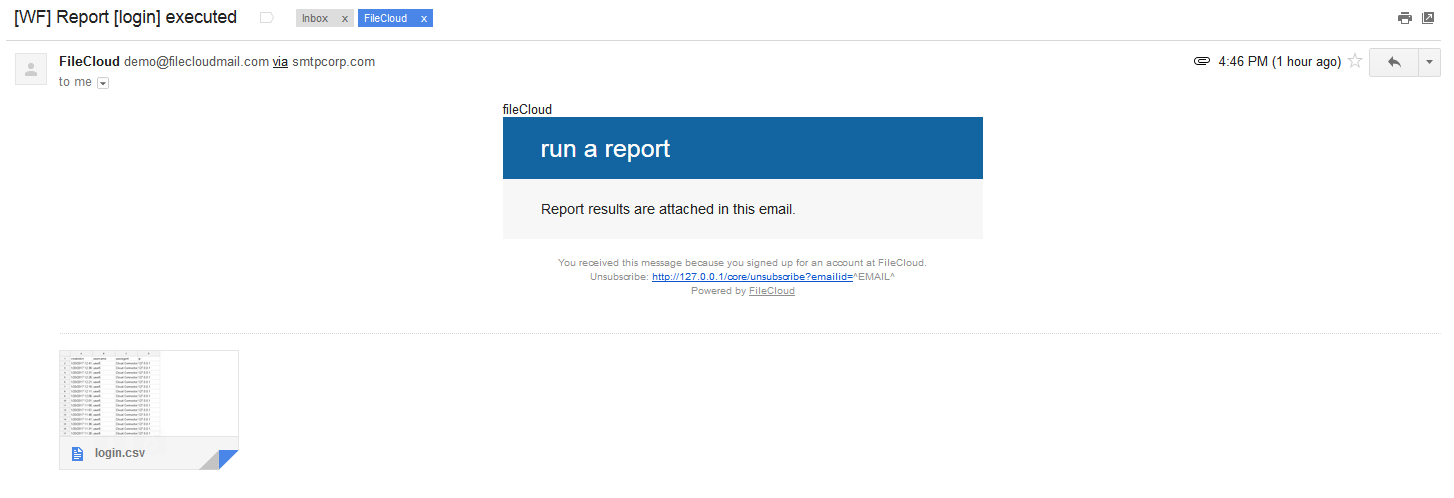
Once the workflow is run the report results are sent to the email ids specified.
Similar workflows can be created to run reports with THEN conditions like:
- Perform an action on the specified date
- Perform an action periodically